
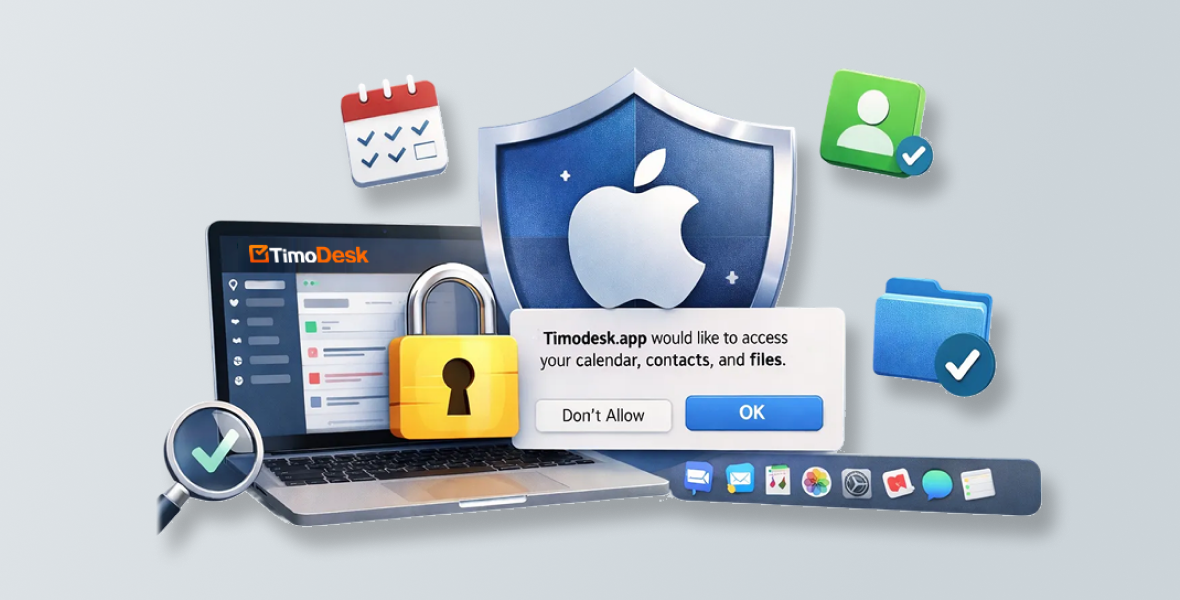
To use TimoDesk on macOS, you need to turn on three permissions in Privacy & Security: Accessibility, Screen & System Audio Recording, and Input Monitoring. Then quit TimoDesk and open it again. The whole setup takes about 2 minutes.
Why does TimoDesk need macOS permissions?
macOS protects your privacy. It blocks apps from some system features until you allow them. The TimoDesk desktop app needs these permissions:
- Accessibility: to record which apps and websites you use.
- Screen & System Audio Recording: to take screenshots.
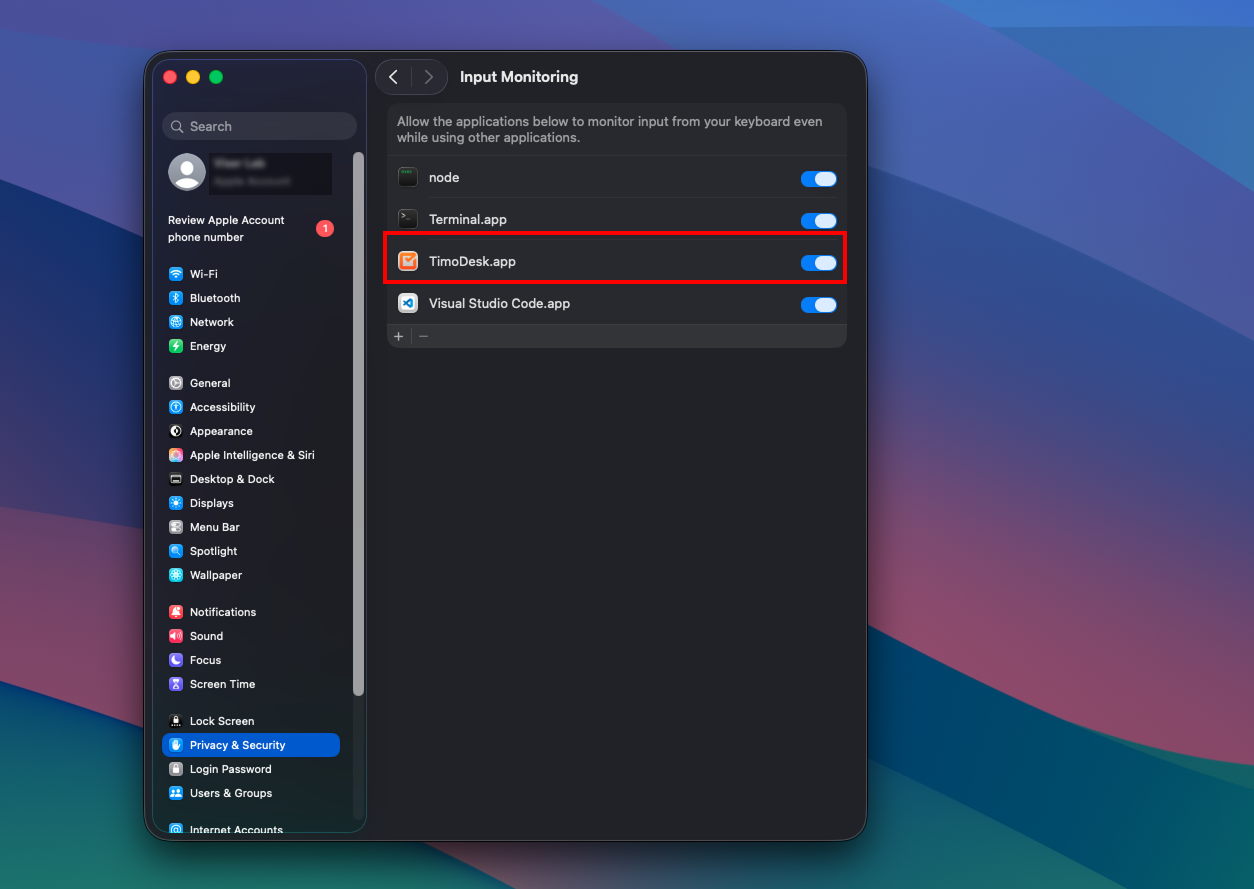
- Input Monitoring: to measure activity levels from keyboard and mouse input. What you type is never recorded.
Without these permissions, app tracking, activity levels and screenshots may not work. You can also allow Notifications. TimoDesk uses them to show idle and screenshot alerts.
Step 1: Open Privacy & Security settings
- Open Settings
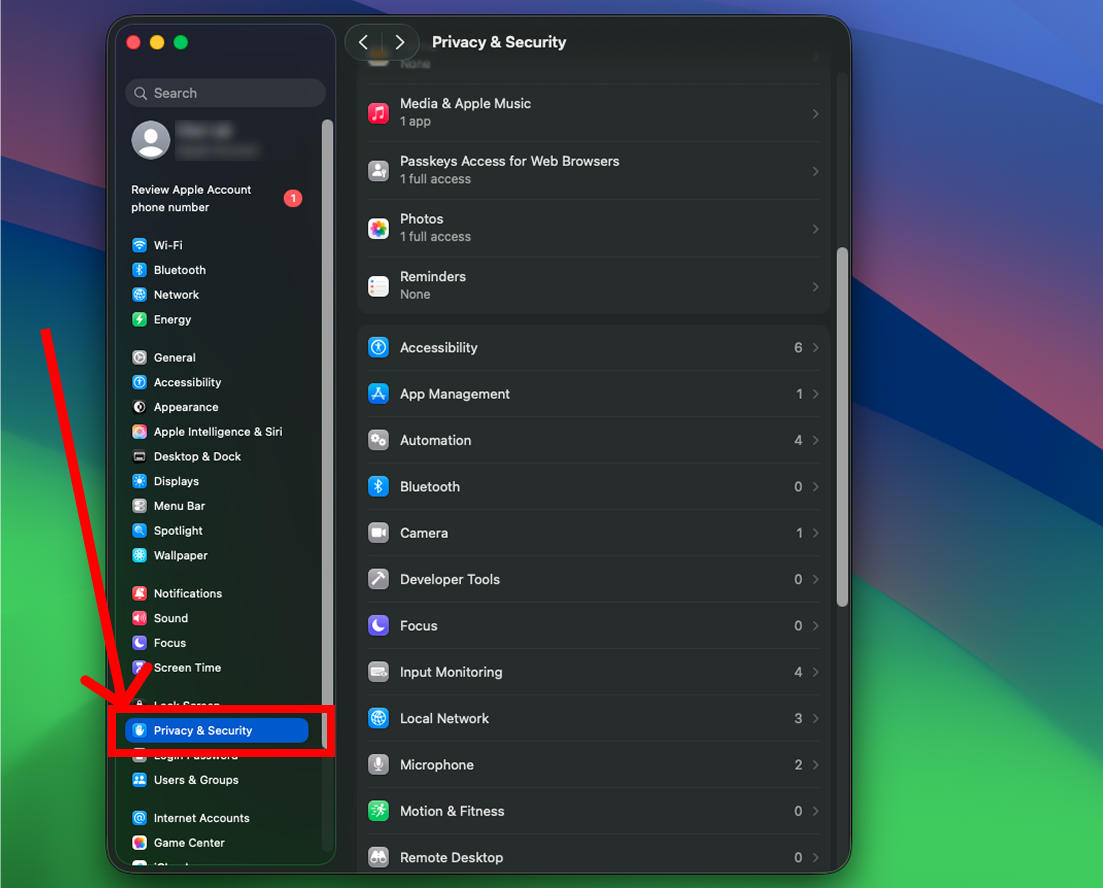
- Go to Privacy & Security.
Step 2: Turn on the Accessibility permission
In Privacy & Security, select Accessibility.
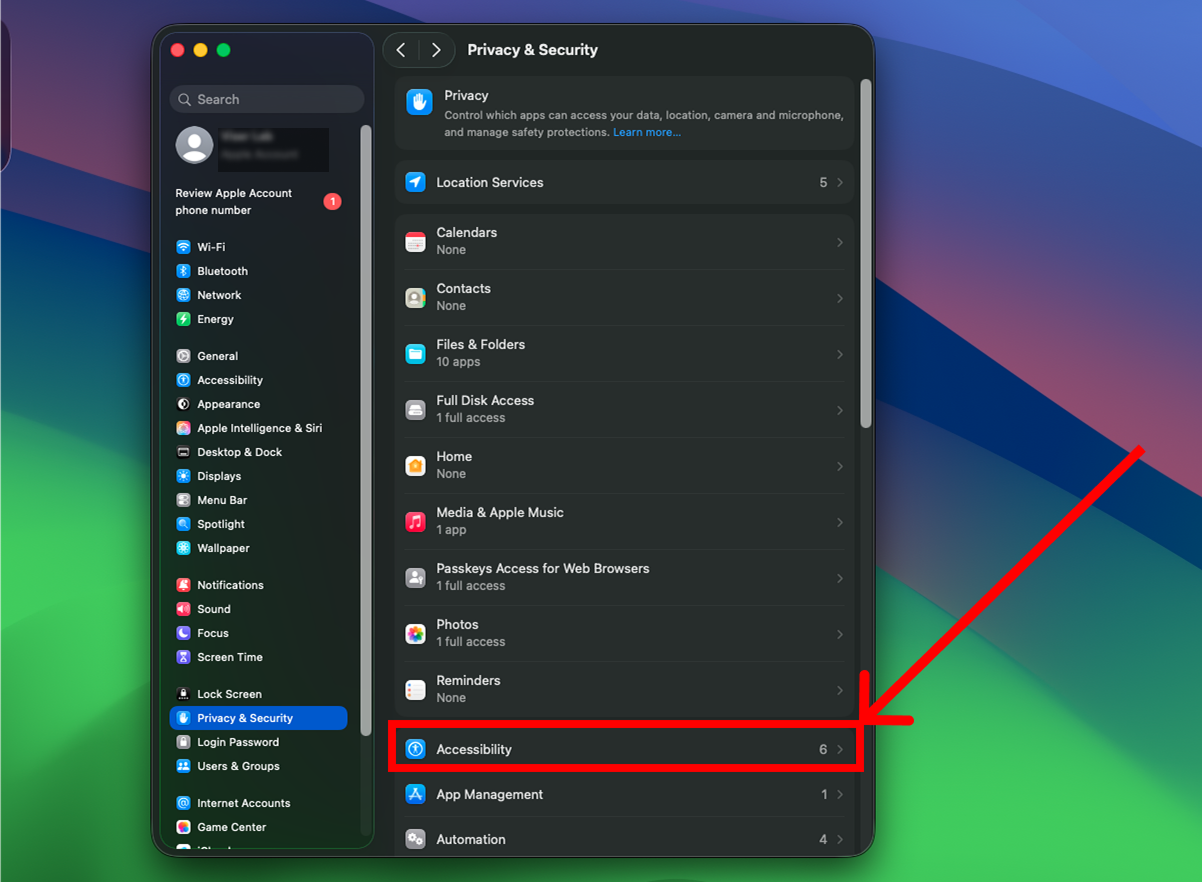
Find TimoDesk in the list.
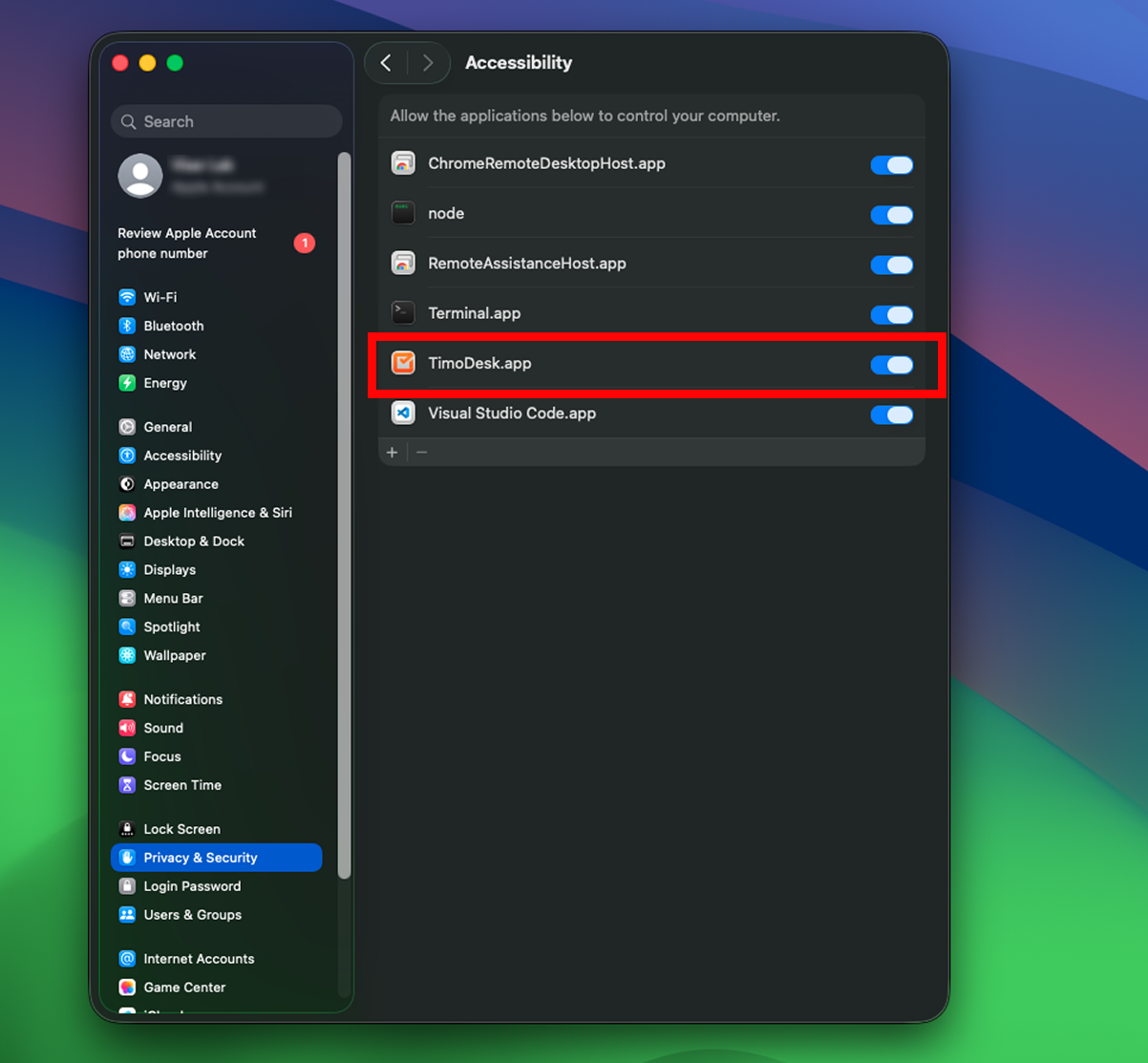
Turn the toggle ON. Enter your Mac password if asked.
Step 3: Turn on Screen & System Audio Recording
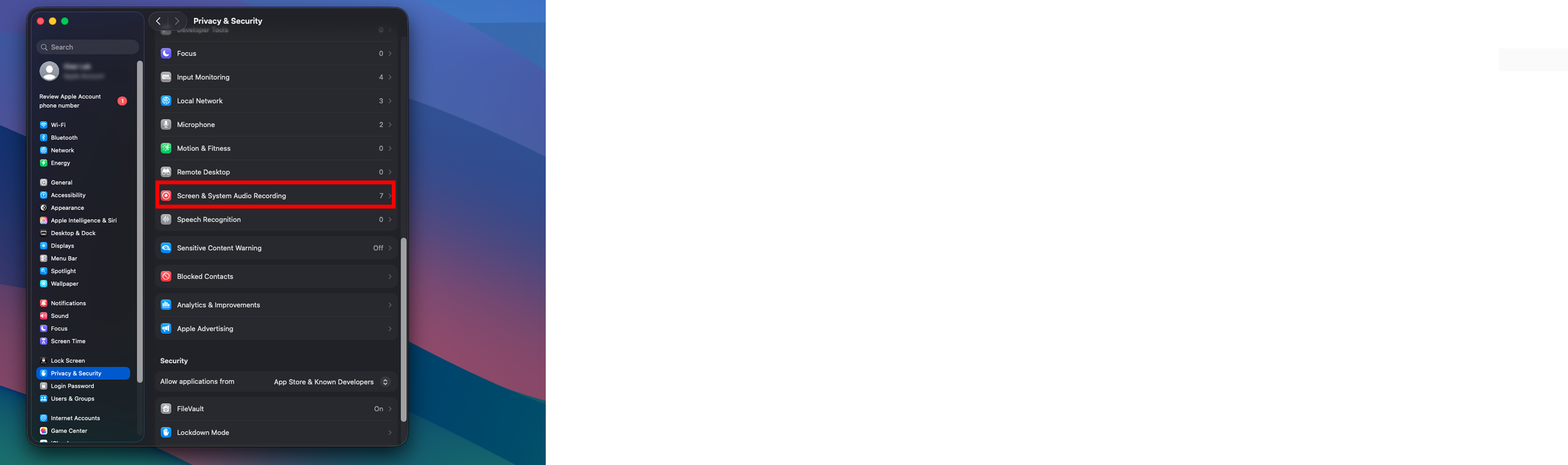
Go back to Privacy & Security.
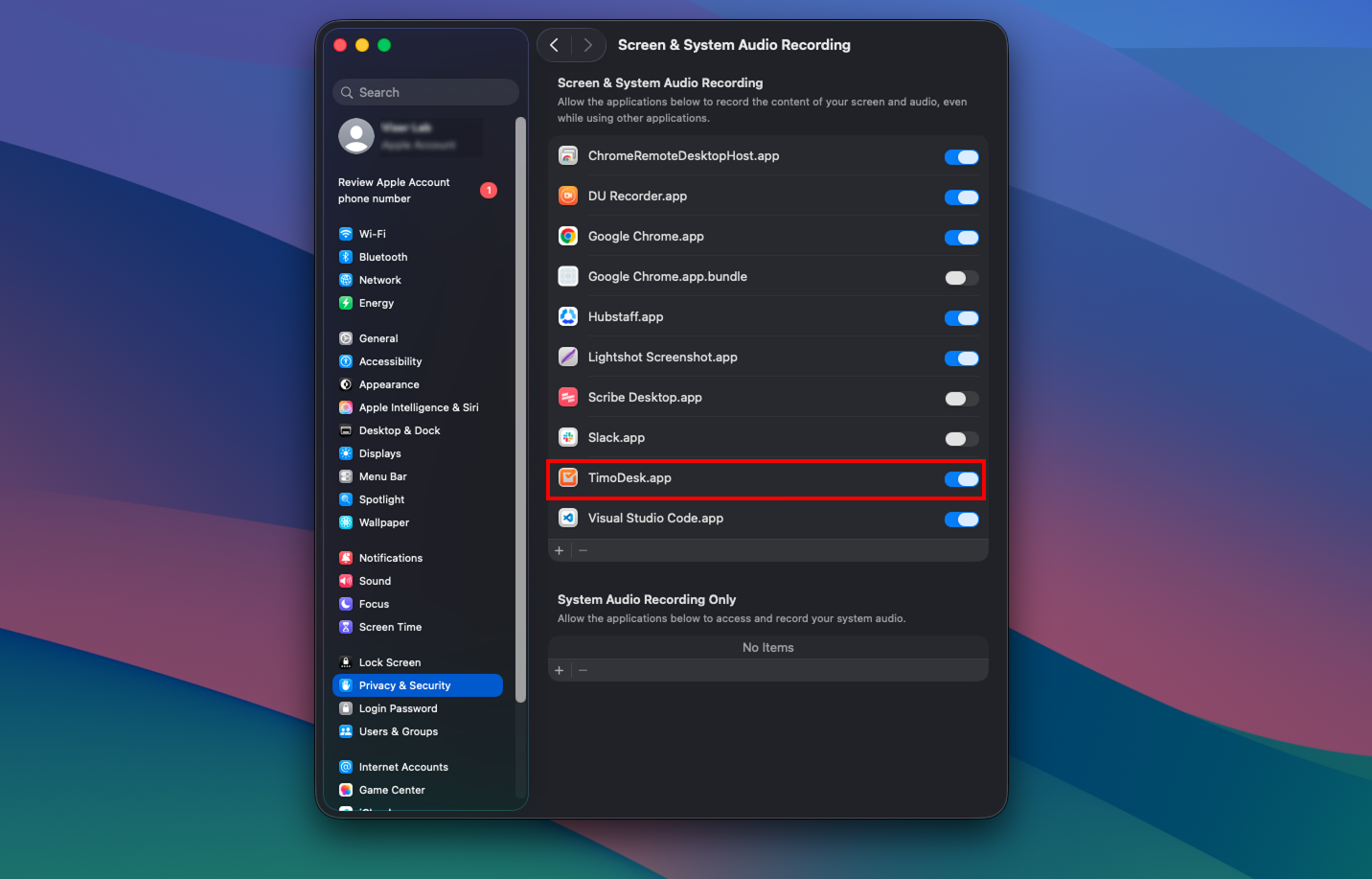
Select Screen & System Audio Recording.
Turn on TimoDesk.
Step 4: Turn on Input Monitoring
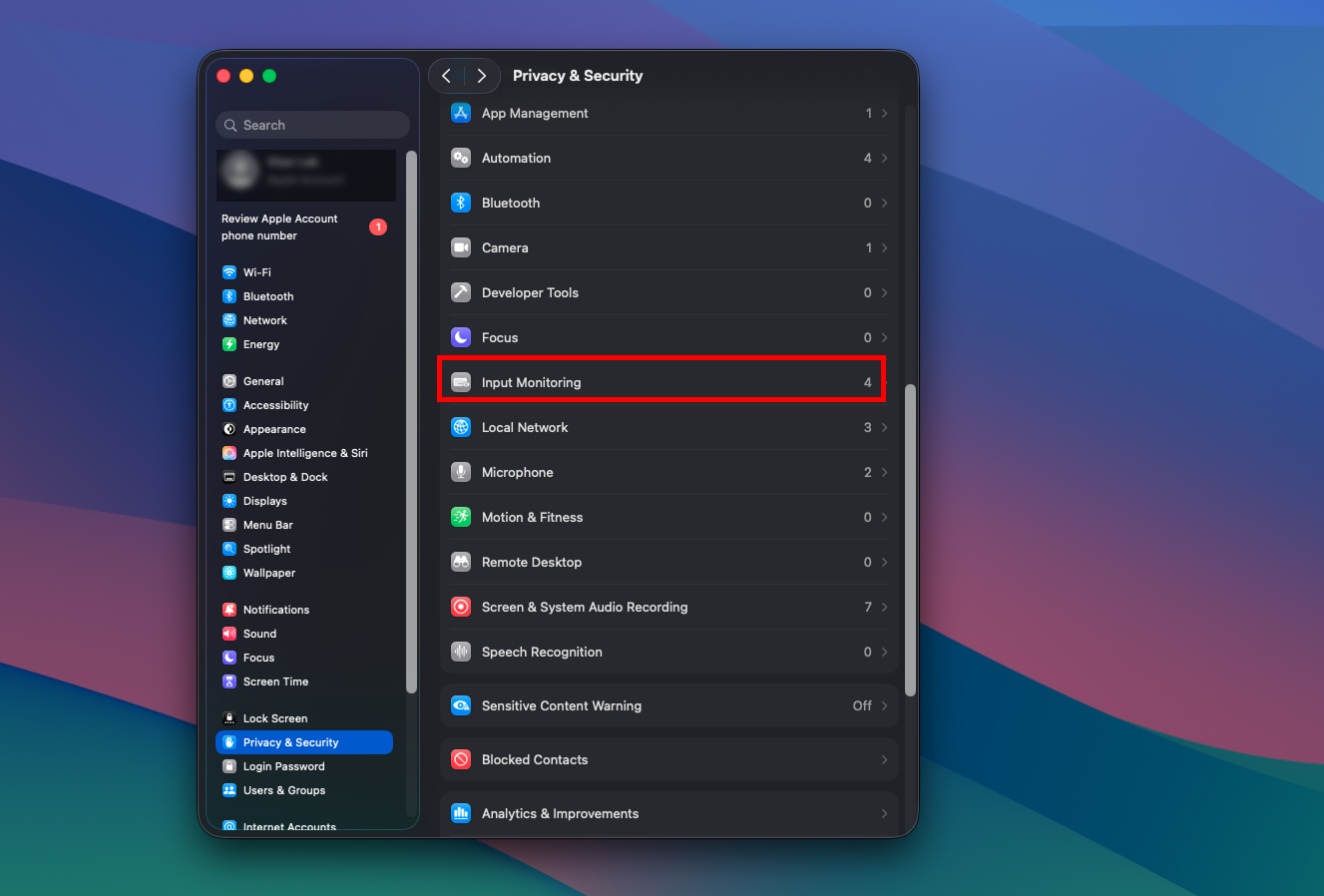
Go back to Privacy & Security.
Select Input Monitoring.
Turn on TimoDesk.
Final step: Restart TimoDesk
After you turn on all three permissions, quit TimoDesk completely. Then open it again. This makes sure macOS applies the new permissions.
Frequently asked questions
What happens if I turn off a TimoDesk permission later?
The feature that depends on it stops working. For example, screenshots stop without Screen Recording. Your organizers and managers also get a notification that says what stopped working.
Does Input Monitoring let TimoDesk see what I type?
No. TimoDesk only checks whether there was keyboard or mouse input during tracked time. What you type is never recorded.
Why does TimoDesk need Accessibility on a Mac?
Accessibility lets TimoDesk see which app and website you are using. That is how app and website usage shows up in your reports.
Does TimoDesk work on both Apple silicon and Intel Macs?
Yes. The desktop app runs on macOS with Apple silicon and Intel. It also runs on Windows and Linux. For Linux, see the Linux installation guide.
Was this helpful?
Share it with someone who still adds up hours by hand.