
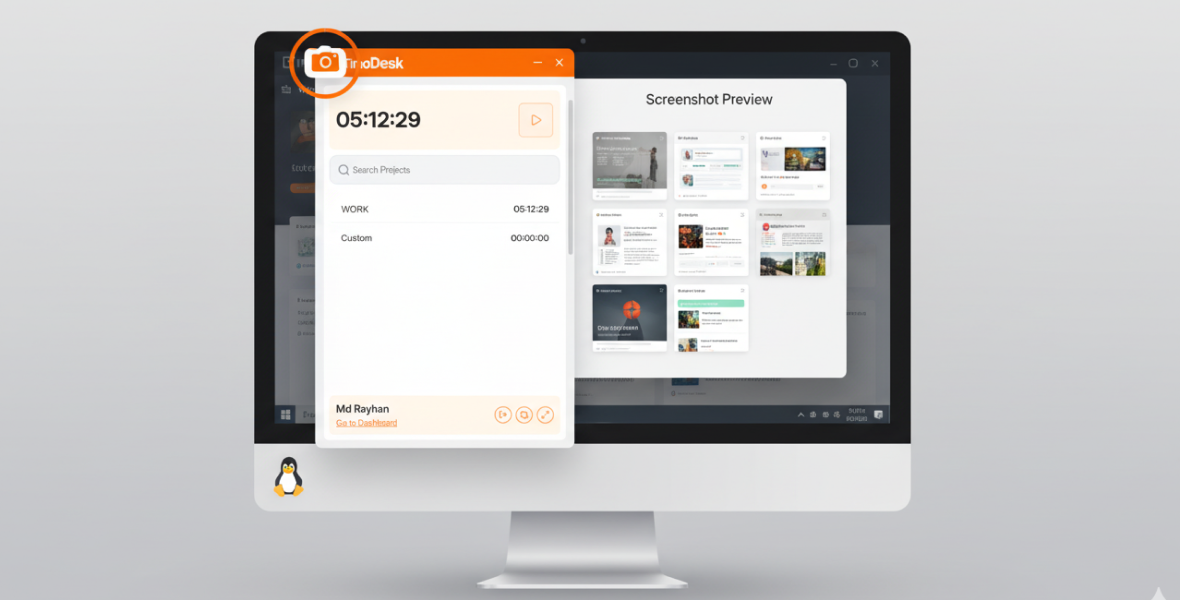
TimoDesk screenshot capture on Linux needs an X11 session. It does not work on Wayland. On Ubuntu below 25.10, switch to "Ubuntu on Xorg" at the login screen. On Ubuntu 25.10 and later, install the Plasma X11 session and log in to it.
Which display server you use decides whether screenshots work. The steps below show how to check yours and switch on Ubuntu.
How do you fix screenshots on Ubuntu < 25.10?
Ubuntu versions below 25.10 support both X11 and Wayland. TimoDesk needs X11 to capture screenshots.
Step 1: Check your current display server
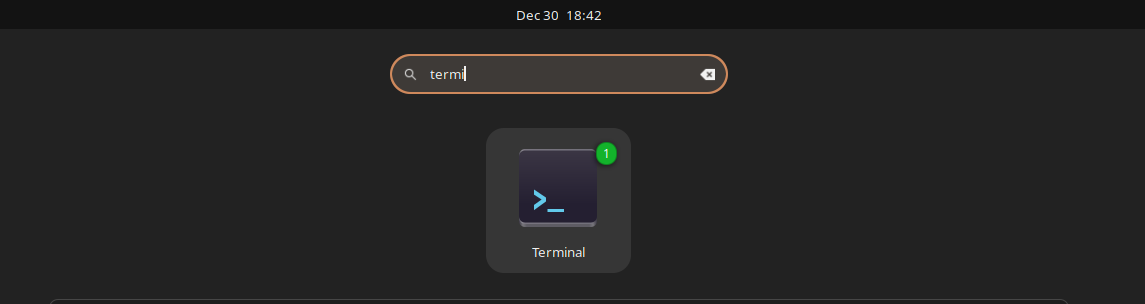
Open a terminal and run:
echo $XDG_SESSION_TYPE
You will see one of these:
x11� (you are all set)wayland❌ (you need to switch)
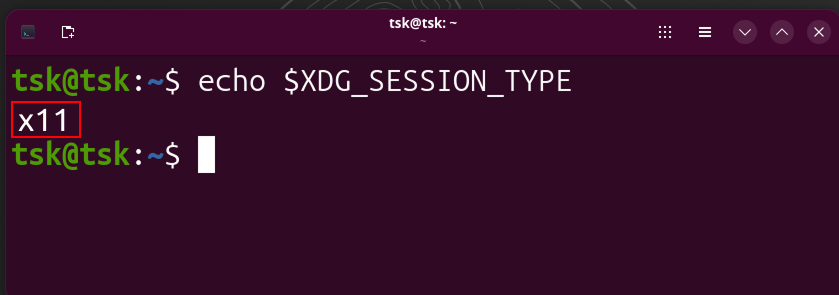
⚠️ If you see wayland, follow the next step.
Step 2: Switch from Wayland to X11
- Log out of your Ubuntu session
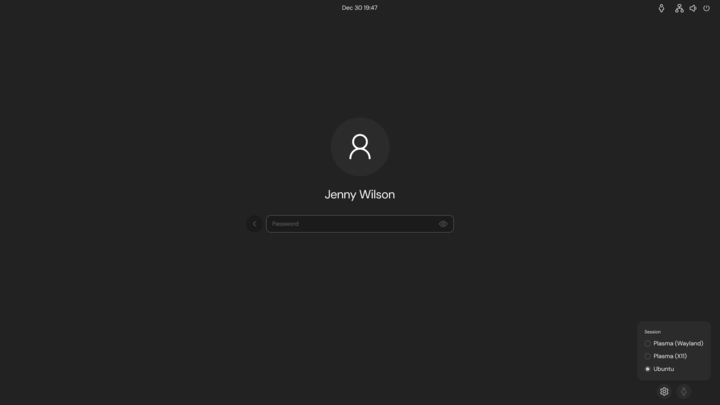
- On the login screen, click the ⚙️ gear icon
- Choose "Ubuntu on Xorg"
- Log back in
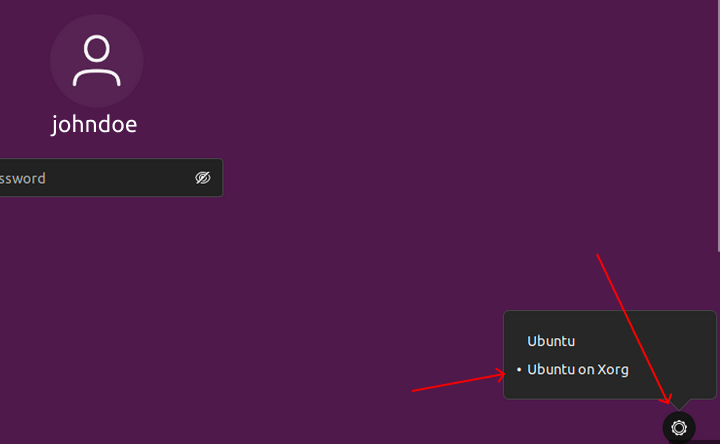
That is it. TimoDesk screenshot capture should now work.
How do you fix screenshots on Ubuntu 25.10 or later?
From Ubuntu 25.10, the X11 session is gone and Wayland is the only display server in the default desktop.
To use TimoDesk screenshot capture, install an X11 session yourself.
Step 1: Install the Plasma X11 session
Open a terminal and run:
sudo apt install plasma-session-x11
When the install finishes:
- Log out of your current session
- On the login screen, click the ⚙️ gear icon
- Choose the Plasma (X11) session
- Log back in
Final notes
- TimoDesk screenshot capture does not work on Wayland
- Make sure you are logged in to an X11 session
- Ubuntu below 25.10: switch to Ubuntu on Xorg
- Ubuntu 25.10 or later: use Plasma X11
Still stuck? Contact the TimoDesk team and we will help. New to Linux? See how to download TimoDesk first.
Frequently asked questions
Why does TimoDesk not take screenshots on Ubuntu?
Your session is probably running on Wayland. TimoDesk needs an X11 session to capture screenshots, so switch to X11 and log back in.
How do I know if I am using X11 or Wayland?
Run echo $XDG_SESSION_TYPE in a terminal. It prints x11 or wayland.
Can I switch back to Wayland later?
Yes. Pick the Wayland session again at the login screen. Keep in mind that TimoDesk cannot capture screenshots while you are on Wayland.
Was this helpful?
Share it with someone who still adds up hours by hand.