
Complete your account setup
The account setup checklist is a short list of steps that gets your TimoDesk workspace ready for time tracking. Until you finish it, the dashboard shows "Let’s set up your workspace" in place of the dashboard cards. This guide covers each step, when TimoDesk checks it off, and what Skip does.
Who can use it: Organizers and Business Managers get the 5-step checklist below. Staff and Team Managers get a shorter, 3-step version.
How the setup checklist works
The checklist shows one row per setup step and checks each row off when the work is done. It greets you by name and shows how many Steps left you have. Each open step has a button that takes you to the right page. Finished steps get a check mark and move to the top of the list.
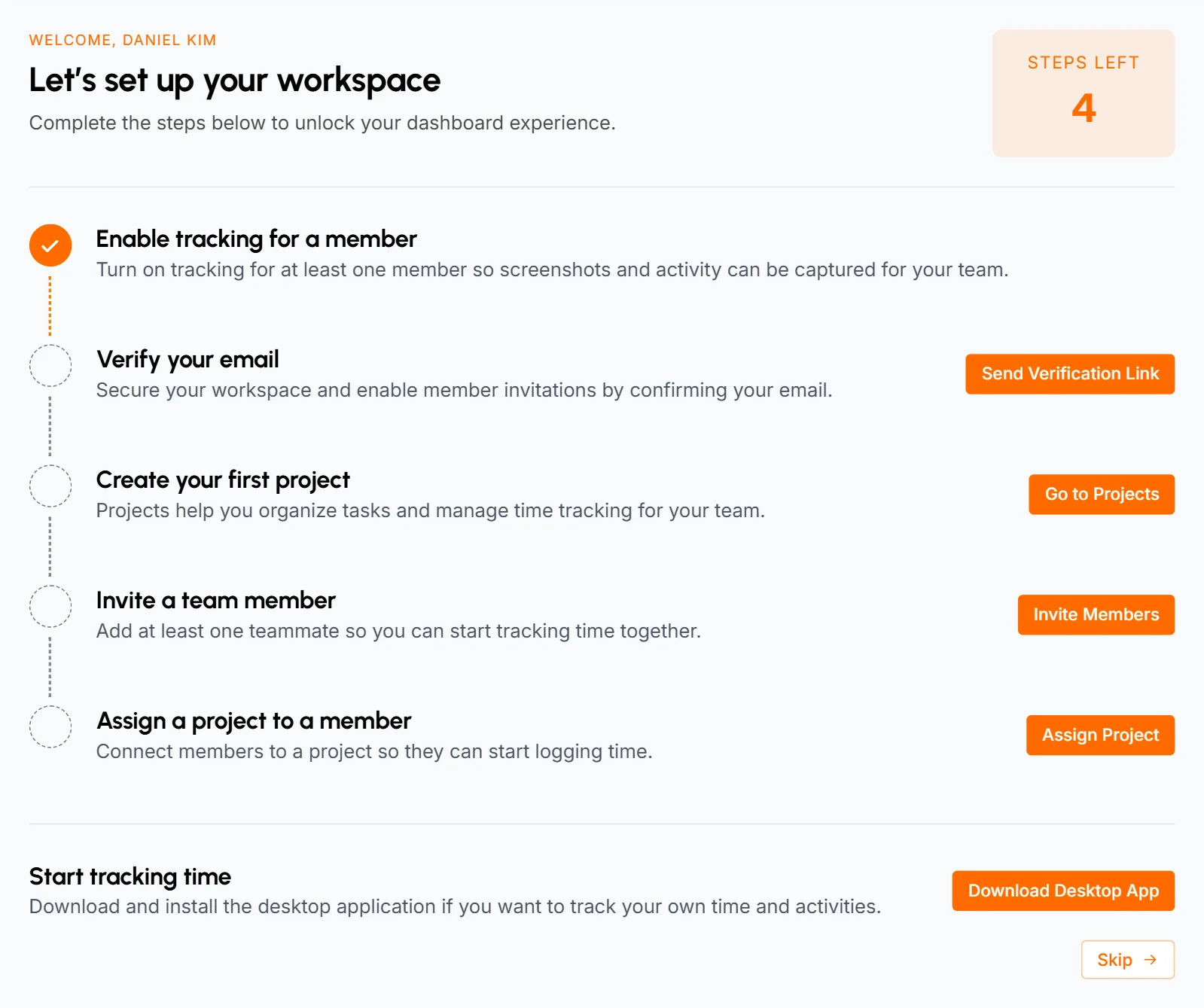
TimoDesk checks your organization each time you open the dashboard. A step is checked off as soon as the work is done, no matter where you did it. When all steps are done, the checklist goes away and the dashboard cards take its place. The first time you see the cards, a short dashboard tour starts.
| Step | Button | Checked off when |
|---|---|---|
| Verify your email | Send Verification Link | You click the link in the verification email. |
| Create your first project | Go to Projects | Your organization has at least 1 project. |
| Invite a team member | Invite Members | At least 1 other person has an account in your organization. |
| Enable tracking for a member | Manage Members | Tracking is on for at least 1 person in your organization. |
| Assign a project to a member | Assign Project | At least 1 project has at least 1 member assigned. |
The checklist follows the organization's setup. The one exception is the email step, which is about your own address. If a Business Manager joins an organization that's already set up, they only see the checklist while their own email isn't verified.
How to skip the checklist
Click Skip at the bottom of the checklist to see the dashboard cards right away. Skip only lasts for your current session. The next time you sign in, the checklist is back until all steps are done. Skipping doesn't mark any step as done.
How to verify your email
Click the link in the verification email that TimoDesk sends you. A verified email keeps your account secure, and you need one before you can invite or add members. TimoDesk sends the first email as soon as you sign up. If you can't find it, request a new one from the checklist.
-
On the checklist, click Send Verification Link. TimoDesk shows "Verification link sent to your email".
-
Open the email from TimoDesk with the subject "Please confirm your email address".
-
Click the button in the email. The Email verified page opens. Click Go to dashboard, and the step is checked off. If the link opens in a browser where you aren't signed in, click Sign in instead.
Each link works for 30 minutes, and only the newest link works. When you request a new link, the links in older emails stop working. You can request a new link every 2 minutes. Until then, the button is disabled and shows "Retry after" with a countdown. If you can't find the email, check your spam or junk folder first.
How to create your first project
You need at least 1 project before anyone can track time. People track time on a project and on one of its tasks.
-
Click Go to Projects. The Projects page opens and says "You have no project yet".
-
Click Create your first project. The Add a project popup opens.
-
Fill in the project details:
- Title
- Required. No other project in your organization can have the same title.
- Icon
- Optional. A JPG or PNG image. TimoDesk resizes it to 128x128 px.
- Description
- Optional, up to 255 characters. A counter shows how many characters you have left.
- Project leaders
- Optional. Staff members who help run this project. Only Staff can be project leaders. See Project leaders.
- Assign members
- Optional. The people who will track time on the project. Click Add All to pick everyone, or Clear All to start over. The list shows only active members with a verified email, and that includes you.
- Background color and text color
- Optional. The colors of the project's label. If you don't pick any, TimoDesk uses a preset pair.
-
Click Create Project. The project gets a task board with default sections, ready for tasks.
To learn what else you can do with projects and tasks, see Projects and tasks.
How to invite a team member
This step is checked off when at least 1 other person has an account in your organization. An email invitation doesn't count until the person accepts it. Someone who joined with your invite link does count, even while they wait for approval.
-
Click Invite Members. The Members page opens, and your own account is already in the list.
-
Click Add Member. The Add a member popup opens. If your email isn't verified yet, the popup asks you to verify it first (see Verify your email).
-
Pick how to add people:
- Invite by email
- Enter 1 or more email addresses, pick a role for each (Staff by default) and click Send invite. Each person joins with that role when they accept. See Invite by email.
- Share a link
- Create an invite link that anyone can use. People who join this way get the Staff role and wait for your approval. See Share an invite link.
- Create account
- Set the person's name, email, role and password yourself. TimoDesk emails them their email, password and a sign-in link. See Create an account.
Not sure which role to give someone? See Roles and permissions.
How to turn on tracking for a member
Time tracking is on for your own account from the start, so this step is usually checked off already. If it isn't, click Manage Members to open the Members page. Then click Off in a member's Tracking column to turn it on. You can also turn it on with the Tracking switch on the Team tracking policy page, which you open from the Members page.
You can only turn on tracking for active members with a verified email. When you turn off tracking for someone, their screenshots turn off too, and their desktop app gets the change right away.
How to assign a project to a member
This step is checked off when any project has at least 1 member. Assigning yourself counts. Members can only track time on projects they're assigned to.
-
Click Assign Project. The Projects page opens.
-
In the project's Members column, click the member photos. If nobody is on the project yet, click Assign members. The Project Members popup opens.
-
Click Assign Members. Search for people and select them, or click Add All.
-
Click Assign.
You can also open the project and use Edit Project. The project then appears in the desktop app of each assigned member. There, they can pick a task and start the timer. For other ways to assign people, see Assign and unassign members.
How to track your own time
Install the desktop app and start a timer, the same as your team. If you're an Organizer or Business Manager and haven't tracked any time yet, you'll also see a Start tracking time panel under the checklist. It isn't a step. To track your own work, click Download Desktop App, then follow the Desktop app guide.
What the Staff checklist includes
Staff and Team Managers see a shorter checklist on their own dashboard:
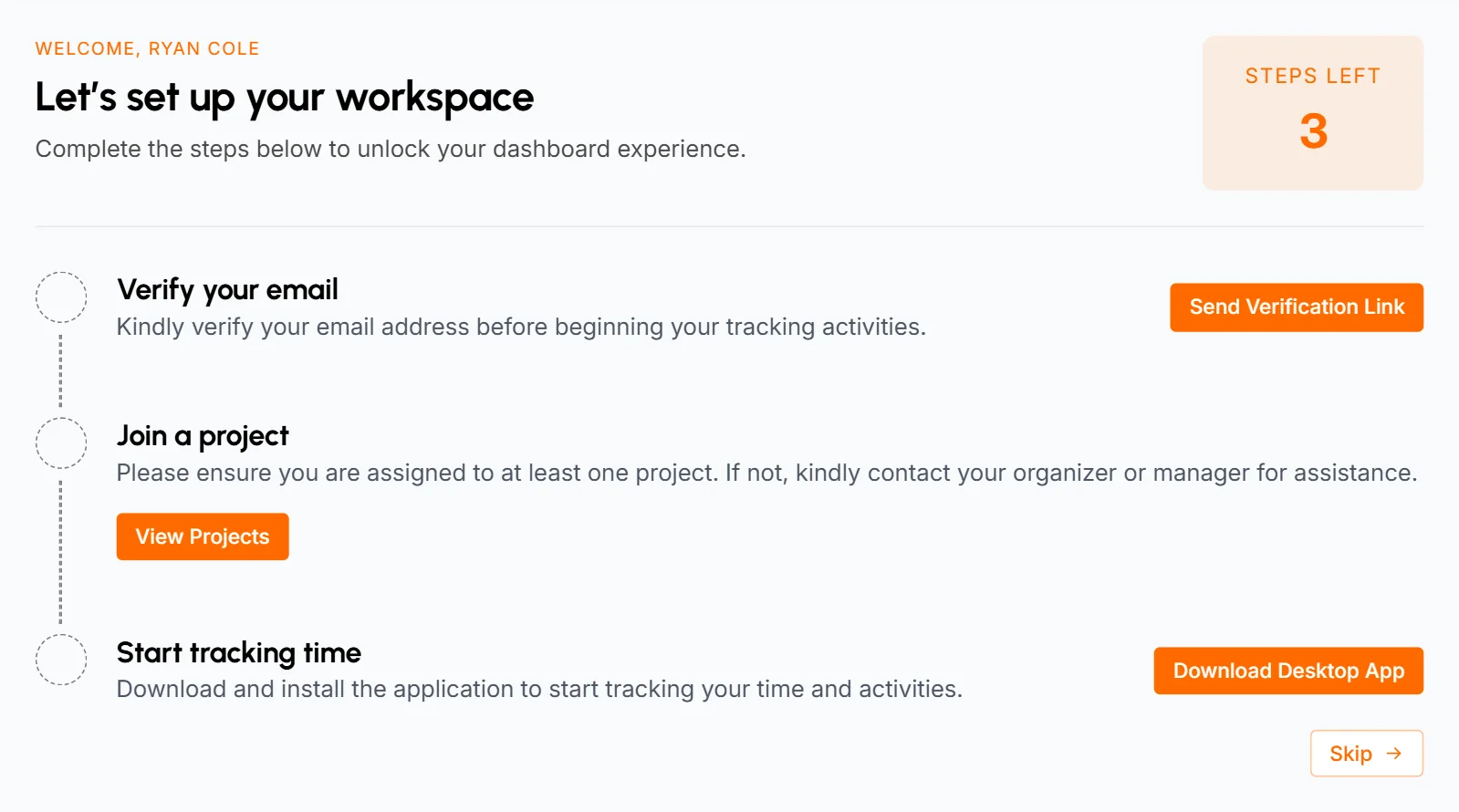
| Step | Button | Checked off when |
|---|---|---|
| Verify your email | Send Verification Link | You verify your email. If you accepted an email invitation, your email is already verified. |
| Join a project | View Projects | You're assigned to a project or lead one. If you aren't, ask your Organizer or a manager to add you. |
| Start tracking time | Download Desktop App | You track time with the desktop app for the first time. |
Skip works the same way as it does for Organizers. The checklist comes back at your next sign-in until all steps are done.
Common questions
Why did the checklist come back after I skipped it?
Skip only hides the checklist until you sign out. It comes back at each sign-in until all steps are done. To remove it for good, finish the remaining steps.
I sent invitations. Why isn't "Invite a team member" checked off?
The step counts people who have an account in your organization. It's checked off when someone accepts an invitation, joins with your invite link or gets an account you create for them.
Why can't I add members yet?
You need a verified email before you can invite or add members. Click Send Verification Link on the checklist, then open the link in the email within 30 minutes.
Do I have to install the desktop app myself?
Only if you want to track your own time. The people who track time install it on their computers, and you can manage everything else from the web dashboard.