
Monthly timesheet
The Monthly Timesheet is a grid of each member's tracked time for every day of a month. It shows clock in and clock out times, totals, averages and days worked. You can download it as a PDF for payroll, attendance or your records.
Who can use it: Organizers, Business Managers and Team Managers. Team Managers see themselves and the members of the teams they manage. Staff don't have this page, but they can download their own monthly timesheet from the Time Calendar.
How to pick a month and read the summary cards
Open Monthly Timesheet under Analytics in the sidebar. It opens on the current month. To see another month, pick it from the dropdown. The list starts with the current month and goes back to the first month with tracked time. The arrows move 1 month back or forward and stop at each end of that list.
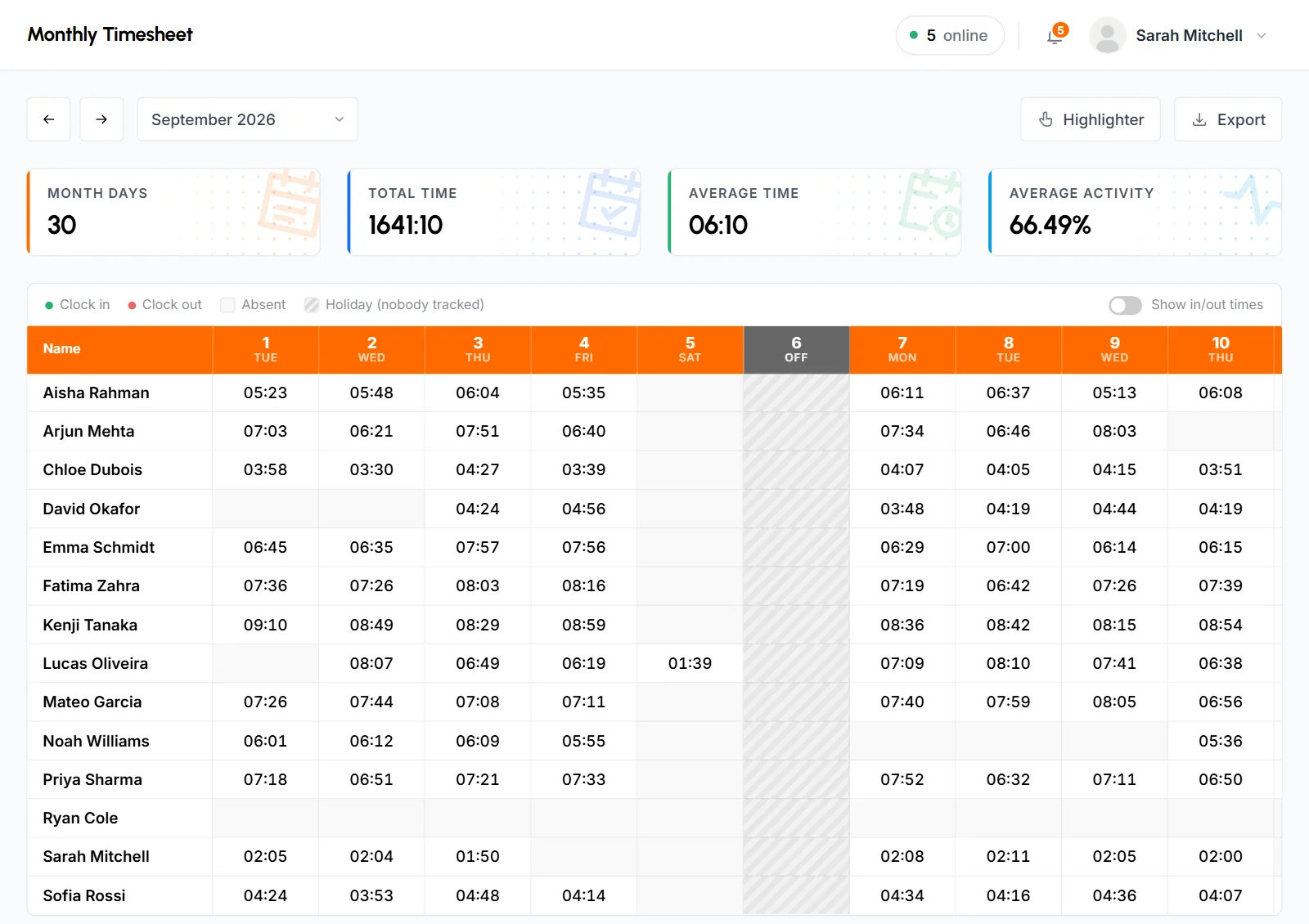
The 4 cards sum up the month for the members in the grid:
- Month Days
- The number of days in the month.
- Total Time
- All time tracked that month, in hours and minutes.
- Average Time
- The average length of a worked day. It's Total Time divided by the number of member-days with tracked time. That's everyone's Worked Day added together. For example, if 3 members worked 20, 18 and 22 days, Total Time is divided by 60.
- Average Activity
- The month's average activity, weighted by time, to 2 decimals.
All time figures on the page include approved manual time. Average Activity leaves manual time out, because it has no keyboard or mouse input to measure. Each day runs from midnight to midnight in your organization's time zone. See how time and activity are calculated.
How to read the timesheet grid
The grid has 1 row per member, sorted by name. It lists every active member you can see, even those who tracked nothing that month. It also lists anyone who tracked time that month and was disabled later.
- Name
- The member. This column stays in place while you scroll through the days. To move through the month, drag the grid or use the scrollbar.
- Day columns
- 1 column per day, with the date and weekday at the top. Today's column is highlighted, and a holiday shows "Off" in place of the weekday. Each cell shows the time the member tracked that day, with their clock in and clock out times below it.
- Avg
- The member's Total divided by their Worked Day, rounded down to the minute. It shows a dash if they tracked nothing.
- Total
- All the time the member tracked that month.
- Worked Day
- The number of days in the month on which the member tracked any time, even a few minutes.
If no one is in scope for the month, the grid shows "No members to show for this month".
What clock in and clock out times mean
- Clock in
- The start of the member's first tracked time that day.
- Clock out
- The end of their last tracked time that day. If it ran past midnight, clock out shows as 11:59 PM.
Both times use a 12-hour clock in your organization's time zone. They mark the start and end of the day only. TimoDesk doesn't subtract breaks from them. The time in the cell is the time the member actually tracked. Approved manual time counts too, so a manual entry can set a day's clock in or clock out.
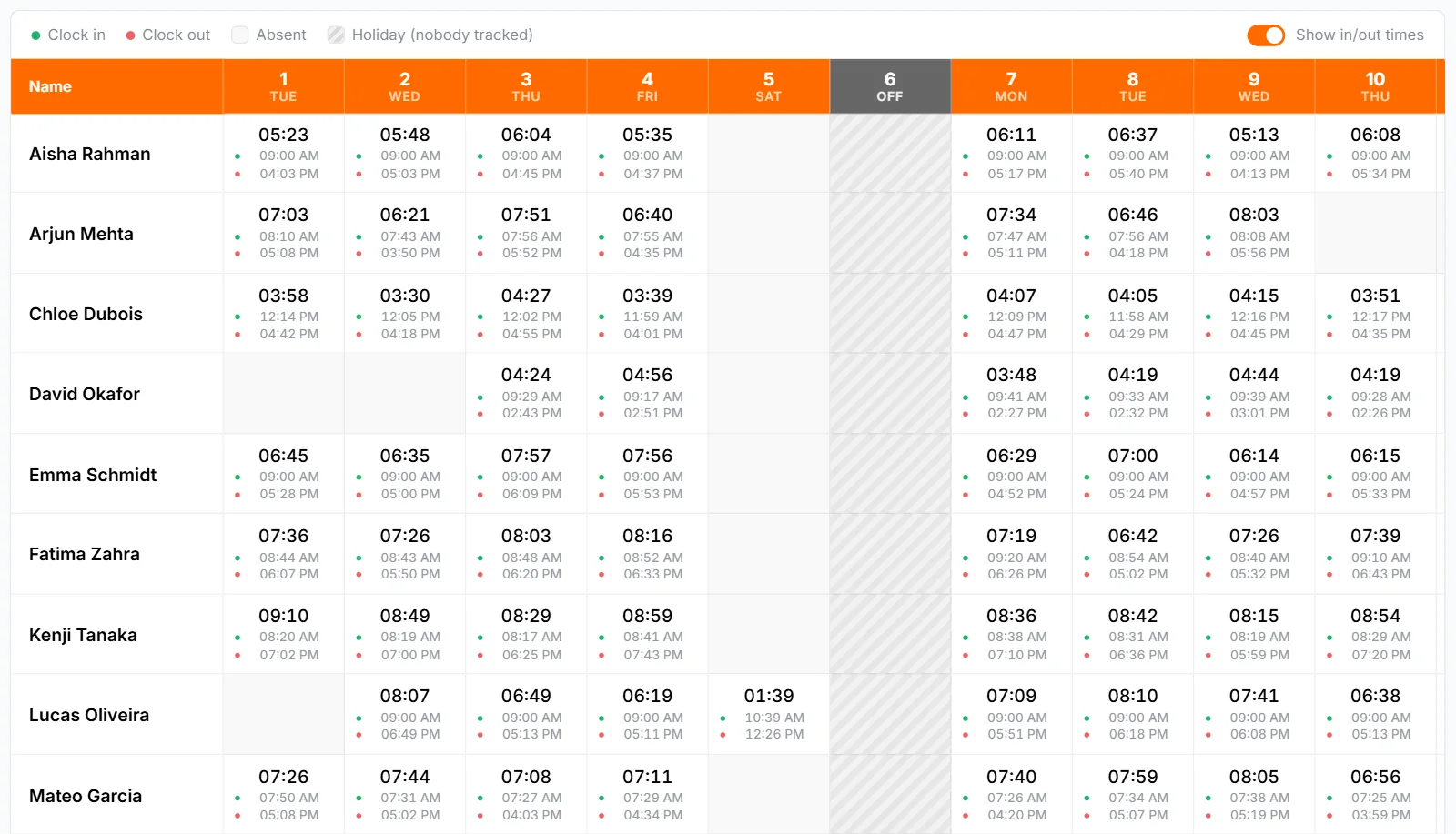
To see durations only, turn off Show in/out times above the grid. You can still hover over a cell, or tap it on a touch screen, to see a card with the member's In, Out and Worked times for that day. Your browser remembers this choice.
How absent days and holidays show
The legend above the grid explains the shading:
- Absent
- A shaded cell. The member tracked no time that day.
- Holiday (nobody tracked)
- A whole shaded column. Nobody in the grid tracked time that day, and the column header shows "Off".
Days after today are not absent days or holidays. TimoDesk finds holidays from tracked time alone, so you don't need to set up a holiday list. For a Team Manager, a holiday means nobody in their teams tracked time that day.
How to highlight long and short days
Use the Highlighter to color days by how much time was tracked, so unusual days are easy to find.
- Click Highlighter at the top right.
- Set Above and Below in hours and minutes. To use only one of them, leave the other empty.
- Click Check Time.
- Days with more time than Above turn green.
- Days with less time than Below turn red.
- Days in between, and days with no time, don't change.
- The Avg column uses the same colors and rules.
For example, with Above at 8 hours and Below at 6 hours, a 9:15 day turns green, a 5:40 day turns red, and a 7:00 day stays plain.
If you set both, Below can't be more than Above. Otherwise, you'll see "Above time must be greater than below time". The colors stay when you change months, and they also appear in the PDF download. To clear them, empty both fields and click Check Time again, or reload the page. The Highlighter never changes your data.
How to download the timesheet as a PDF
- Pick the month. If you want colors in the file, set the Highlighter first.
- Click Export at the top right to open Export Options.
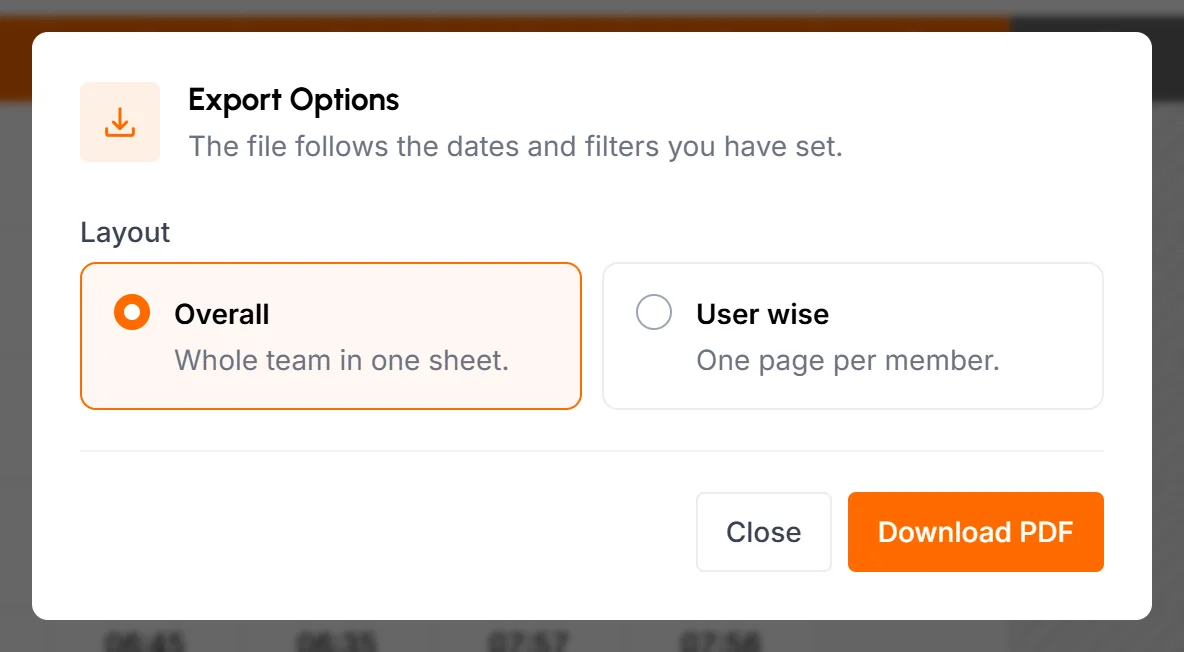
- Under Layout, choose Overall or User wise.
- Click Download PDF.
| Layout | What you get |
|---|---|
| Overall | The whole team on 1 landscape sheet, titled "Timesheet" with the month. The top shows your organization's name, the number of members and the same 4 figures as the summary cards: Month Days, Total Time, Average Time and Average Activity. The columns are Name, each day of the month, Avg, Total and Days (the Worked Day count). Days without time are blank, and holiday columns are striped. |
| User wise | 1 portrait page per member, titled "Timesheet" with the month. Each page has the member's photo and name, your organization's name, Present Days, Absent Days, Avg / Day and Total Time. It also has a Work Calendar grid with the time for each day. |
Both files show the date and time they were made. In the User wise layout:
- Present Days is the Worked Day count, and Avg / Day is the member's Avg.
- Absent Days counts past days on which the member tracked no time. Holidays and days that haven't happened yet don't count.
- The Work Calendar starts on your organization's first day of the week. Each day shows its time, "Off" for a holiday or "Absent". Days that haven't happened yet are blank.
- Every member in the grid gets a page, even those with no time that month.
Neither PDF includes clock in and clock out times. The files have names like monthly-timesheet-2026-09-overall.pdf and monthly-timesheet-2026-09-user-wise.pdf.
Common questions
What counts as a worked day?
Any day on which the member tracked some time, even a few minutes, including approved manual time. A day with no tracked time counts as absent.
Why is the Average Time card different from a member's Avg?
A member's Avg covers only their own worked days. The Average Time card averages across the worked days of every member in the grid.
Can Staff see the Monthly Timesheet?
No. Staff can download their own month as a PDF from the Time Calendar, and that PDF uses the User wise layout.
Can I mark public holidays or days off?
No. A day shows as a holiday only when nobody in the grid tracked time on it.