
Screenshots
The Screenshots page shows the screenshots TimoDesk took for one member on one day, in 10-minute blocks with their tracked time, activity, top apps and top websites. Managers use it to review a member's workday, and staff use it to check their own.
Who can use it: Everyone. Organizers and Business Managers can review any active member. Team Managers can review themselves and the members of the teams they manage. Staff see only their own screenshots.
What's on the Screenshots page
The page has a filter bar, 3 summary cards and a list of time blocks. To open it, go to Activity in the sidebar and click Screenshots. It opens on today in By Interval mode. If you manage people, the first member in alphabetical order is selected. Pick someone else from the member dropdown.
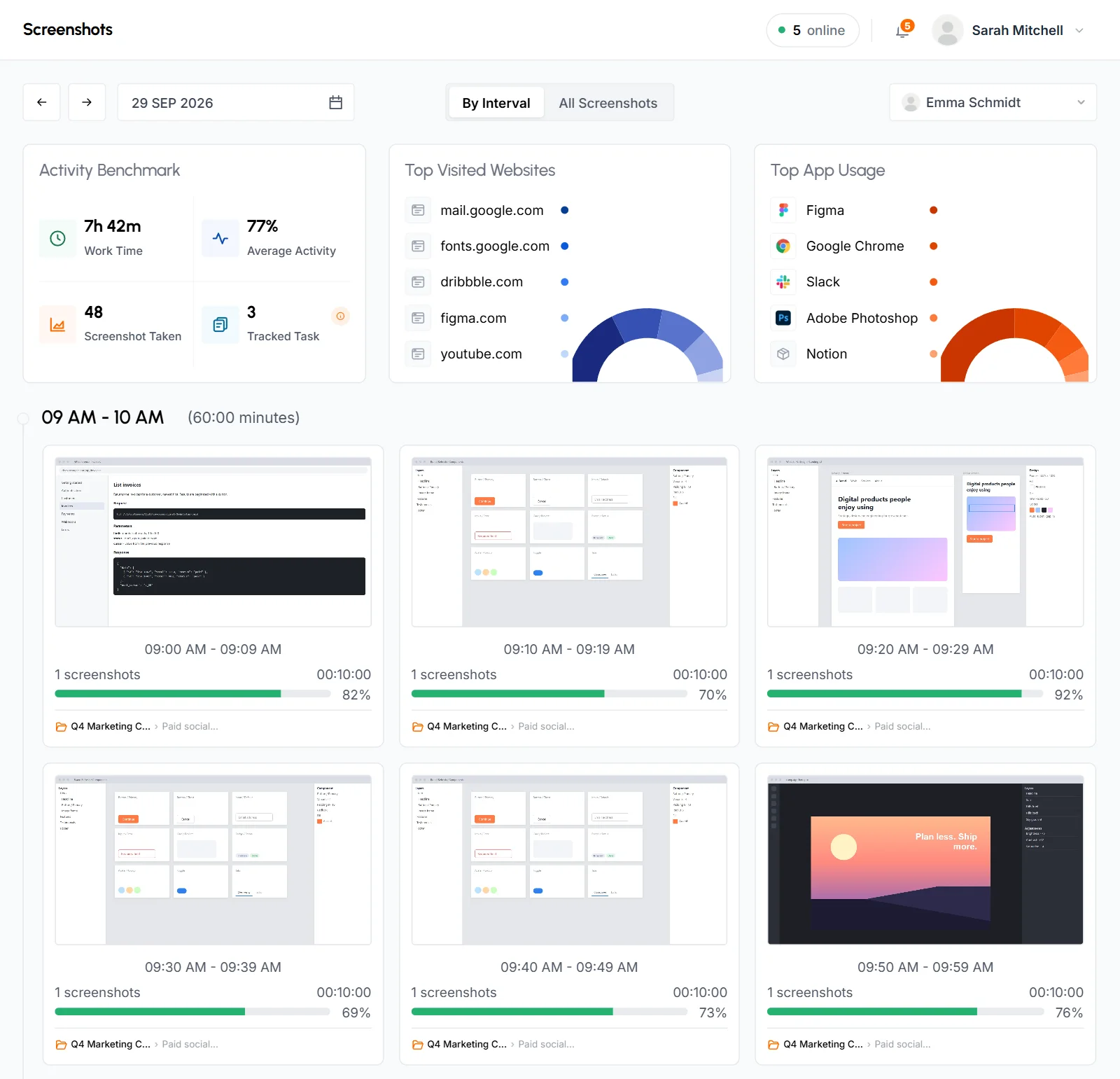
- Filter bar
- Arrows for the previous and next day, the date field, the By Interval and All Screenshots switch, and the member dropdown on the right.
- Day summary
- Three cards: Activity Benchmark, Top Visited Websites and Top App Usage. See day summary cards.
- Time blocks
- One row for each hour the member tracked time. Depending on the mode, the row is split into 10-minute blocks or shows every screenshot.
Times on this page use your organization's time zone, not the time zone of the member's computer. The page address keeps the member, date and mode. A bookmark or a copied link opens the same view for anyone in your organization who can see that member. Anyone else gets an error page instead.
How to choose a member
Click the member dropdown at the top right and pick a name, or start typing to search. The page shows one member at a time and reloads when you choose.
- Organizers and Business Managers see every active member of the organization, including themselves.
- Team Managers see themselves and the members of the teams they manage.
- Staff don't get a dropdown. The page always shows their own screenshots.
The list has active members only. Disabled members and people still waiting for approval don't appear in it. To review a disabled member's screenshots, open the page from their link, for example from the Members list. Their name then shows in the dropdown with the reason their account is inactive in parentheses. You can also get here from other pages. On the Members list, open a member's action menu and choose Screenshots. On the Screenshots tab of a member's or a team's page, each day card opens that member and day here.
How to view screenshots from another date
Move one day at a time
Use the previous and next arrows to go one day back or forward. The next arrow is disabled while you're on today, because there's nothing to show in the future.
Pick a date from the calendar
Click the date field and choose any day up to today. To go further back, click the month or the year at the top of the calendar and pick another one. The page reloads when you pick a date.
The summary cards and time blocks all change with the date. If the member has nothing on that day, the cards are hidden. The page says No Screenshots of followed by the member's name, with Previous Day and Next Day buttons to keep looking.
Day summary cards
The cards above the screenshots show totals for the whole day, so you can see how it went before you open any image.
Activity benchmark
- Work time
- Total time tracked that day, for example
6h 45m. It includes approved manual time. When some of the day was added by hand, a note such asincl. 1h 00m manualappears next to the label. - Average activity
- The activity percentage across the day's tracked time. Manual time isn't included, because there's no keyboard or mouse activity to measure.
- Screenshot taken
- How many screenshots the app took that day.
- Tracked task
- How many different tasks the member tracked time on. Click the info button next to the number to see the list (see task details).
Top visited websites
The Top Visited Websites card shows the 5 websites where the member spent the most tracked time that day. It's a half-donut chart with a legend. Hover over a segment to see the time, or click a website name to open the site in a new tab. To see every website over a longer period, use Websites & URLs.
Top app usage
The Top App Usage card works the same way. It shows the 5 apps the member used most during tracked time that day. For the full breakdown, see App Usage.
How to see which tasks were tracked
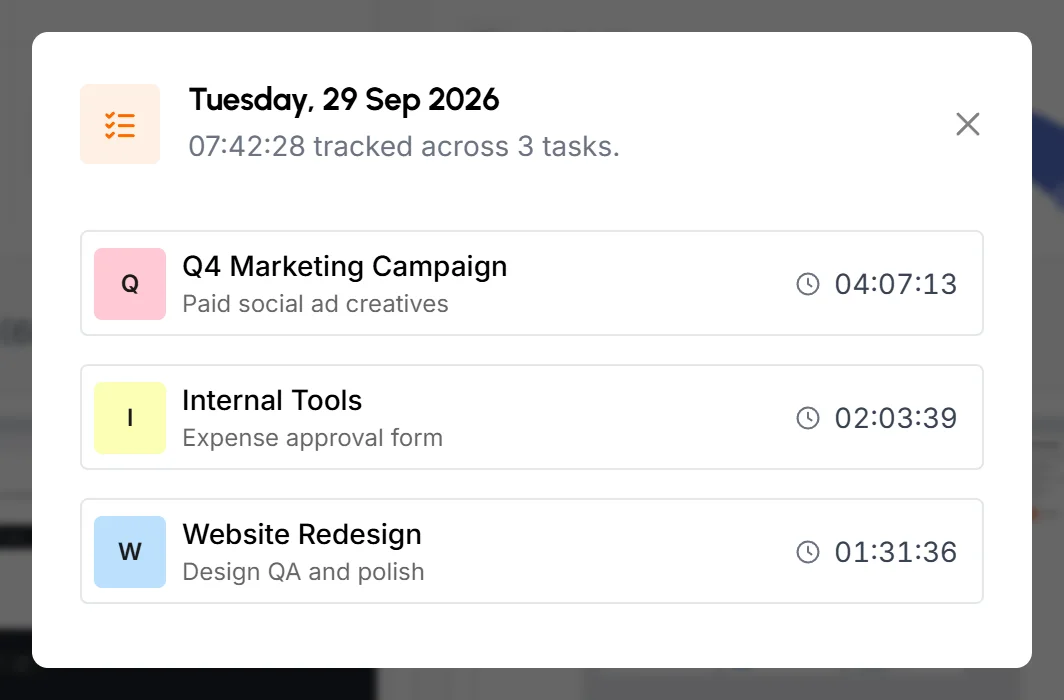
Click the info button on the Tracked Task card. A popup opens with the date as its title and a summary line such as 06:45:00 tracked across 4 tasks.
Each row shows the project, the task and the time tracked on it that day, with the most time first. Time tracked without a task shows as No Task, with one row for each project. Click a project name to open the project. When the list has more than 6 tasks, a Find a task search box appears at the top.
How to read the time blocks
In By Interval mode, each hour in which the member tracked time gets its own row. The row heading shows the hour and how many minutes were tracked in it. Hours with no tracked time don't appear. Each row splits the hour into 6 blocks of 10 minutes. Each block shows:
- A thumbnail of the first screenshot in the block
- The block's time range, for example 10:00 AM to 10:09 AM
- How many screenshots the app took, and the time tracked in the block
- An activity bar and percentage: red below 30%, amber from 30% to 59%, and green from 60%
- The project and tasks the time was tracked on. Hover over the line to see full names, or click the project to open it.
A block looks different depending on what happened in those 10 minutes:
| What the block shows | What it means |
|---|---|
| A screenshot thumbnail | The member tracked time and the app took at least 1 screenshot. Click it to open the screenshots full size. |
| No Screenshot, "Tracked, nothing captured" | The member tracked time, but there's no screenshot from these 10 minutes. See what controls what gets captured. |
| Manual time, "Added by hand, not tracked" | All the time in the block is approved manual time. The footer says Manual entry and Activity not tracked in place of an activity bar. |
| A Manual badge with a duration, such as "Manual 15m" | Part of the block's time was added by hand. The activity percentage covers only the tracked part. |
| No Activity, "Nothing tracked" | Nothing was tracked in these 10 minutes. For example, this happens at the start of an hour, before the member began working. |
Manual time shows on this page only after it's approved. Pending and rejected requests don't appear here. If someone later removes an approved entry, its blocks disappear too.
Display modes: By Interval and All Screenshots
The switch in the middle of the filter bar changes how the page lays out the day's screenshots. It changes the view only. It doesn't change how often the app takes screenshots.
- By interval (default)
- By Interval splits each hour into 10-minute blocks with tracked time, a screenshot count and activity, as described in how to read the time blocks. Use it to judge how steady the work was across the day.
- All screenshots
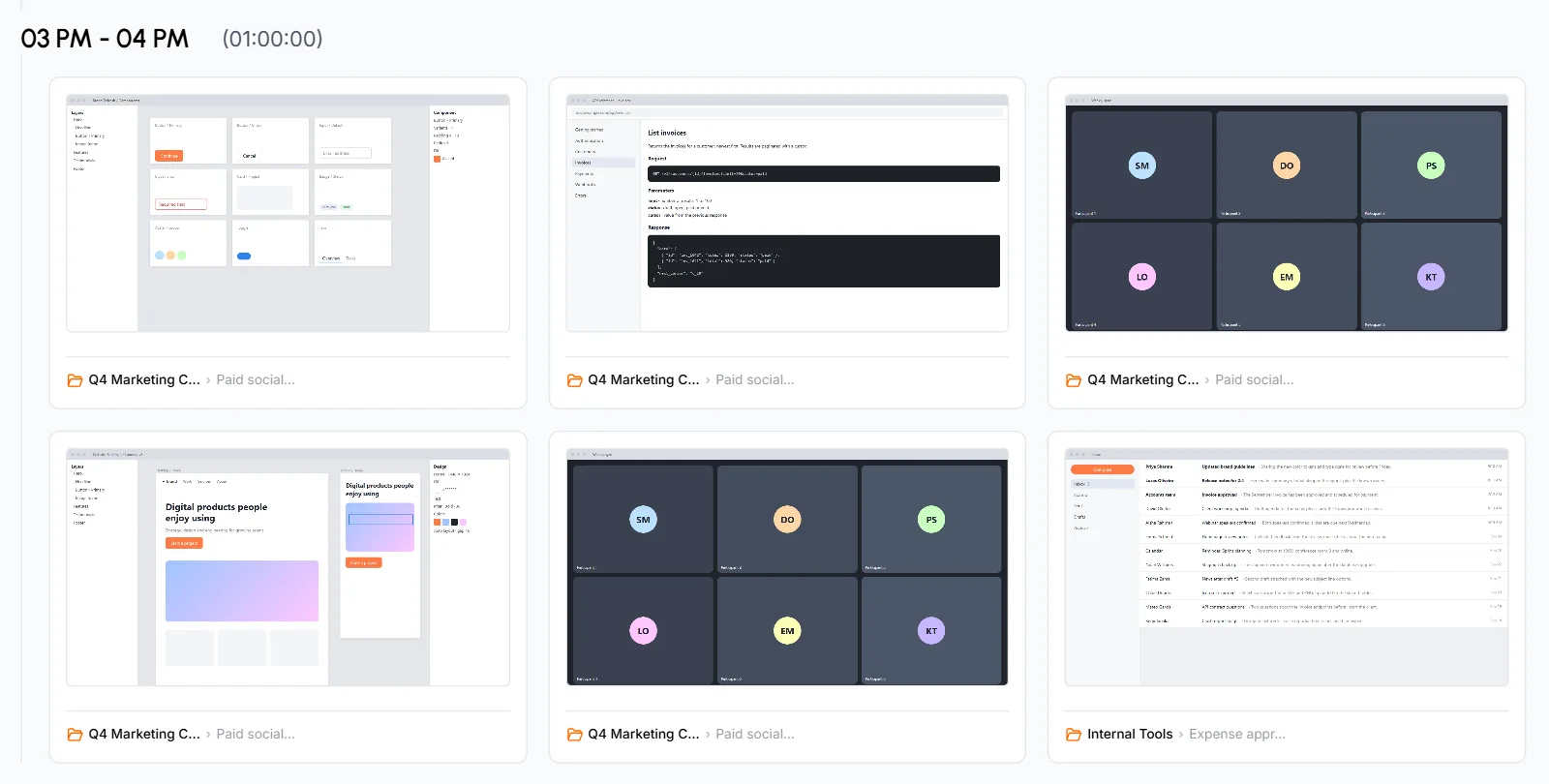
- In All Screenshots, every screenshot in each hour is its own card, labeled with its project and task. There are no 10-minute groups and no activity bars. The hour heading shows the time tracked in that hour, and a Manual badge if some of it was added by hand. An hour with tracked time but no screenshots shows a single No Screenshots card with the time tracked. An hour of only manual time shows Manual time. Use it to look through every screenshot quickly.
How to view screenshots full size
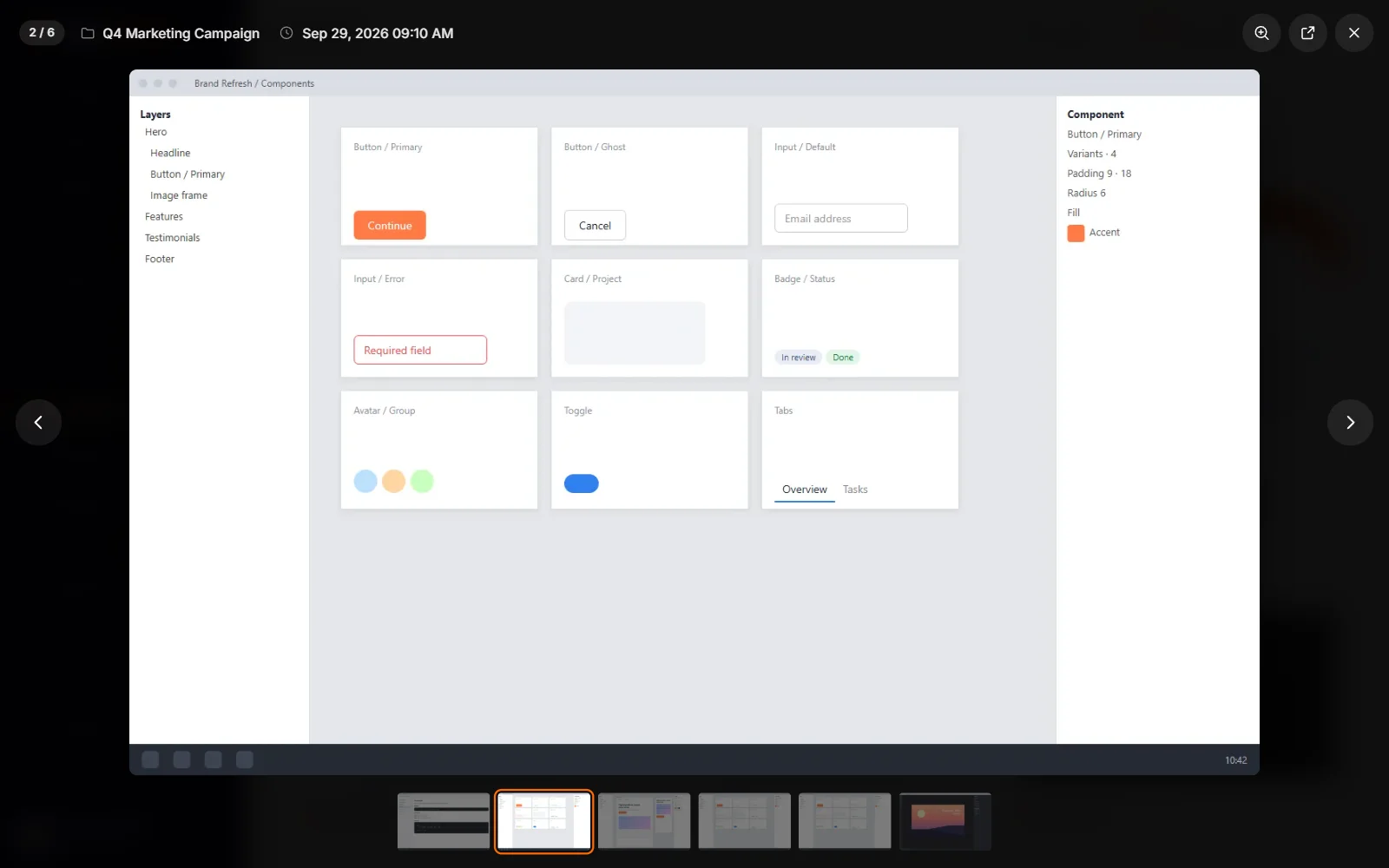
In By Interval mode, click a block that has screenshots. The viewer opens on the first screenshot of that block, and you can move through the rest of the block. In All Screenshots mode, click any screenshot. The viewer then holds every screenshot from that hour.
The bar at the top shows the position (for example 2 / 3), the project and the time of the screenshot. In By Interval mode it also shows the member's name.
| To do this | Do this |
|---|---|
| Go to the next or previous screenshot | Click the arrows at the sides, press the Left arrow or Right arrow key, click a thumbnail in the strip at the bottom, or swipe on a touch screen |
| Zoom in on a detail | Click the picture or press Z, then move the mouse to look around. Click or press Z again to zoom out. |
| See the original file | Click Open original to open the image in a new browser tab |
| Close the viewer | Click the close button, press Esc, or click the dark area around the picture |
If the viewer can't load an image from storage, it shows This screenshot could not be loaded in its place.
What staff see
Staff open the same page from Activity > Screenshots and see their own day. They get the same summary cards, both display modes, task details and the full-size viewer. They don't get a member dropdown, and task names in the project line are plain text, not links.
Staff can't see anyone else's screenshots on this page. A staff member who leads a project can review that project's screenshots on the project's Screenshots tab (see Projects and tasks).
What controls what gets captured
The TimoDesk desktop app takes screenshots only while the member is tracking time. What you see on this page depends on these settings:
- Screenshots on or off for the member
- This is the Able to capture screenshots switch in a member's Edit Member popup, and the Screenshots switch on the Team tracking policy tab of the Members page. You can turn it on only while tracking is on for the member. When it's off, the member's tracked time still shows here, but as No Screenshot blocks. Organizers and Business Managers can change it. See Tracking policy.
- Screenshot interval
- How often the app takes a screenshot while tracking: 3, 5, 10, 15, 20, 30 or 60 minutes. You set it on the Team tracking policy tab of the Members page. The Organization default row sets it for everyone, and starts as System (3 min). Each member's row can follow the default or have its own interval. You can also set one member's interval from the Tracking Policy popup on their page. Account > Organization Setting has an Open tracking policy button that leads to the same tab. Changes save when you pick them. Organizers and Business Managers can change it.
- Screenshot alert
- Tells the member right after the app takes each screenshot. It doesn't change what the app captures. Set it in the Screenshot alert column of the same tab, for everyone or for each member.
The interval is the reason for most empty blocks. At 10 minutes or less, a block with tracked time normally has at least 1 screenshot. At 3 minutes, it usually has about 3. With a longer interval, such as 30 minutes, most blocks show No Screenshot even though the member worked the whole time.
On macOS, the desktop app needs the Screen Recording permission to take screenshots. Without it, tracked time still arrives but screenshots don't. The app then shows a banner that links to the right System Settings pane.
Where screenshots are stored
TimoDesk saves screenshots to your organization's storage. That's TimoDesk storage by default, or your own Amazon S3 bucket or FTP server if an Organizer set one up under Settings > Storage. See Screenshot storage.
This page loads every thumbnail and full-size image directly from that storage. If someone removed a file from your own bucket or server, or the page can't reach the server, the thumbnail stays empty and the viewer shows This screenshot could not be loaded.
Common questions
Why does a block say No Screenshot when the member was working?
The member tracked time in those 10 minutes, but the app didn't take a screenshot. The usual reasons are a screenshot interval longer than 10 minutes, screenshots turned off for the member, or a Mac without the Screen Recording permission.
Can I delete a screenshot?
No. The dashboard has no option to delete screenshots, for any role.
Why isn't a member in the dropdown?
The list shows only active members. Disabled members and people waiting for approval don't appear, and Team Managers see only the members of the teams they manage. You can still open a disabled member's screenshots from their link on the Members list.
Does manual time have screenshots?
No. Approved manual time shows as Manual time blocks with no screenshots and no activity, because the app recorded nothing during that time.