
Projects
A project in TimoDesk holds your team's tasks and decides where tracked time goes. On the Projects page you can create a project, pick its leaders and members, and open its details to see tasks, time tracking, app usage and screenshots. You can also let clients follow a project in the client portal.
Who can use it: Everyone sees the projects they work on. Organizers, Business Managers and Team Managers create and edit projects. Project leaders run the work inside the projects they lead. Only Organizers and Business Managers choose which clients can see a project.
How to read the Projects page
The Projects page lists the projects you can see, with their members, tasks and time. Click Projects in the sidebar to open it. Organizers and Business Managers see every project in the organization. Team Managers see the projects their teams touch: any project where one of their team members is assigned, leads, has a task or has tracked time. Staff see their projects as cards, as described in what staff see.
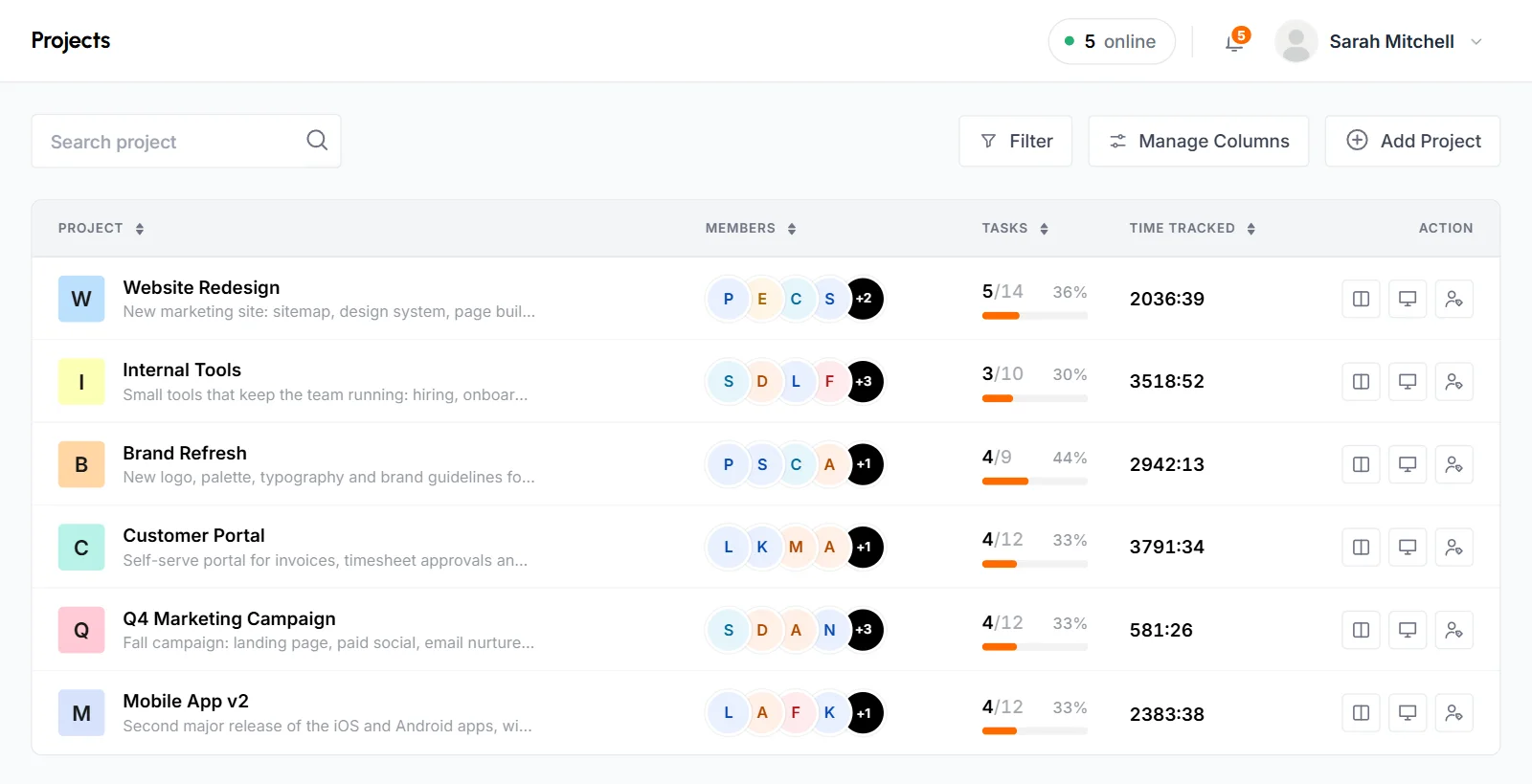
Each row shows:
- Project
- The project's icon (or its first letter in the project's colors), its title and its description. A project with no description shows up to 2 of its clients there instead: the client's company, or their name if no company is set. Click the title to open the project details page.
- Members
- Avatars of the active members assigned to the project. Click them to see the full list and to assign or remove members. If nobody is on the project, you see No members and an Assign members link.
- Project leader
- The project's leaders, or No leader with an Assign leaders link.
- Tasks
- Completed tasks out of the total, for example 12/30, with a percentage and a progress bar. Archived tasks and subtasks aren't counted. A project with no tasks shows No tasks yet. People who manage its tasks also get an Add a task link.
- Time tracked
- All the time tracked on the project since it was created.
- Last activity
- How long ago someone last tracked time on the project, or No activity. Hover over it to see the exact date and time.
- Action
- A Board button that opens the project's task board, and a Details button that opens its details page.
Click a column heading to sort by it. Click it again to reverse the order. By default, the most recently active projects come first. Projects with no activity always go to the bottom. When you sort by leader, projects with no leader go to the bottom too.
To find a project, type its title or a member's name in Search project.
Team Managers see numbers for their own teams only. The Tasks column counts the tasks their team members created, are assigned to or tracked time on. Time Tracked adds up only their team's time.
How to show or hide columns
Click Manage Columns and turn columns on or off. Project Leader and Last Activity stay hidden until you turn them on. The Project column can't be hidden. TimoDesk saves your choice to your account, so you get the same columns in any browser. To go back to the standard columns, click Reset to default.
How to filter the project list
-
Open the filter panel
On the Projects page, click Filter.
-
Pick your filters
- Team
- Projects that members of the team are assigned to. You only see this filter when there are teams you can see.
- Member
- Projects where the member is assigned, has created a task or has tracked time.
- Project leader
- Projects the person leads.
- Tasks
- No tasks yet, Pending (none of its tasks are completed), In progress (some tasks are completed and some aren't) or All tasks completed.
- Last activity
- Tracked in the last 7 days, Tracked in the last 30 days, Idle for 30+ days (time was tracked before, but not in the last 30 days) or Never tracked.
-
Click Show results
The list updates. The Filter button shows how many filters are on.
Each active filter also appears as a chip under the toolbar. Click the x on a chip to remove that filter, or click Clear all in the panel to remove all of them. Your search and sort order stay the same when you filter.
How to create a project
Organizers, Business Managers and Team Managers can create projects.
-
Open the Add a project form
On the Projects page, click Add Project. If your organization has no projects yet, click Create your first project.
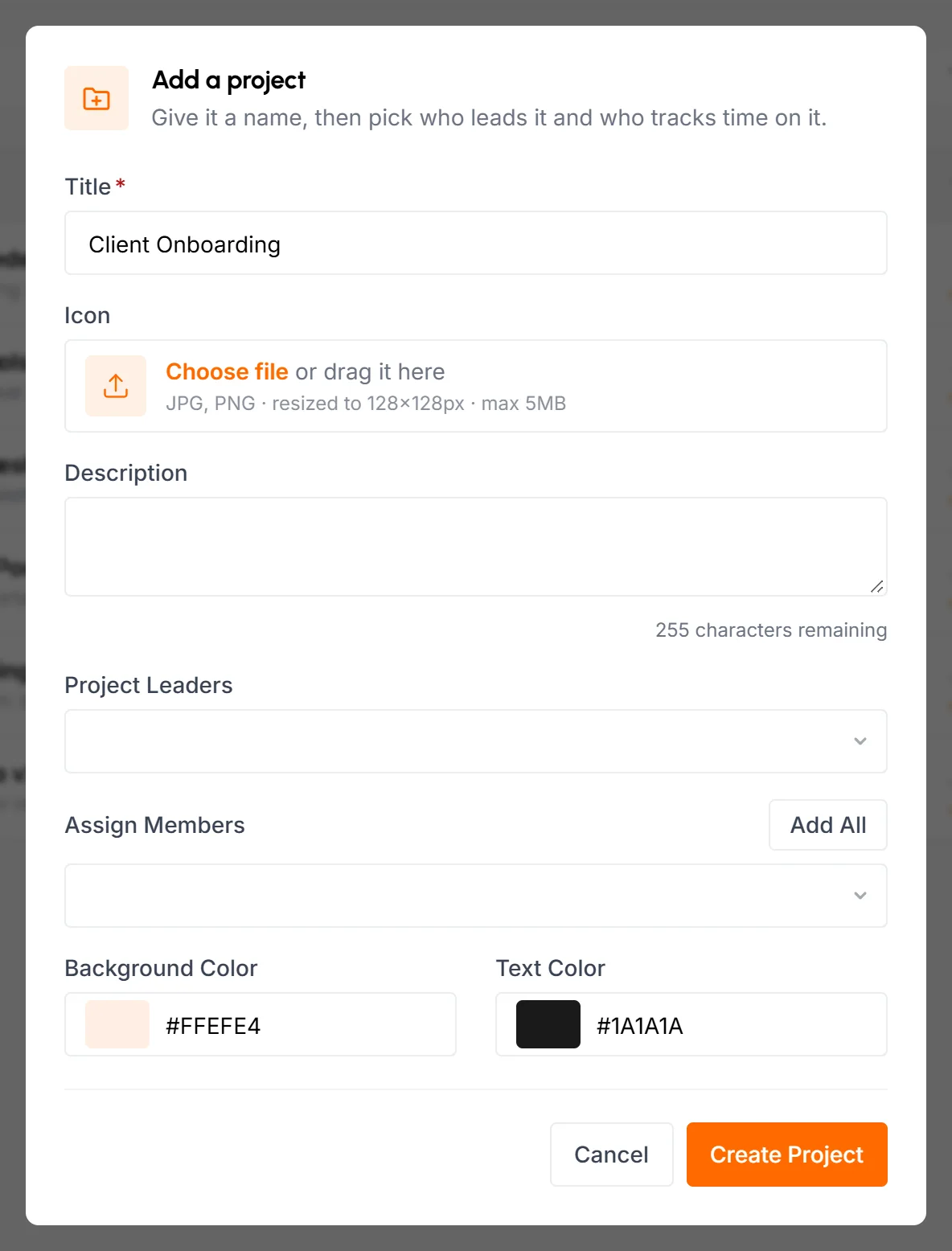
-
Fill in the details
- Title
- Required. Each project in your organization needs its own title, so two projects can't share one.
- Icon
- Optional. A JPG or PNG image. TimoDesk resizes it to 128x128 px. Without an icon, the project shows its first letter in the colors you pick below.
- Description
- Optional, up to 255 characters. A counter shows how many characters you have left. The description appears under the title on the Projects page.
- Project leaders
- Optional. Only members with the Staff role can lead a project. See project leaders.
- Assign members
- Optional. The people who'll track time on the project. Add All selects everyone in the list, and Clear All empties it. The list shows active members only.
- Background color and text color
- The colors of the project's letter badge. Pick a preset, type a hex code such as #FFEFE4, or click Generate color to choose your own. A new project starts with a random pastel pair.
-
Click Create Project
The project appears in your list with one board section, To Do. The members you assigned see the project in the TimoDesk desktop app. They can track time there on the tasks assigned to them.
Team Managers can only pick themselves and members of their own teams. As project leaders, they can only pick Staff members from their own teams. If a Team Manager leaves Assign Members empty, TimoDesk assigns the project to them so it stays in their list.
How to edit a project
-
Open the project
On the Projects page, click the project's title to open its details page.
-
Click Edit Project
Click the pencil button next to Open Board. The Edit Project form has the same fields as the Add a project form, filled in with the project's current values.
-
Save your changes
Change what you need and click Save Changes. If you upload a new icon, it replaces the old one.
Organizers and Business Managers can edit any project. Team Managers can edit the projects their teams touch. In the form, they only see and change members and leaders from their own teams, and everyone else stays on the project. Project leaders can't edit the project itself.
What a project leader can do
A project leader is a Staff member who runs a project day to day. On the projects they lead, a leader can:
- See everyone's time, activity, app usage, websites and screenshots, not only their own.
- Create, edit and assign any task, manage the board's sections and create labels. Only Organizers and Business Managers can edit or delete labels.
- Assign members to the project and remove them.
Leaders can't change the project's title, icon, description or colors. They also can't add or remove leaders. On their Projects page, each project they lead has a Leader badge.
Leading a project doesn't make someone a member of it. If a leader also tracks time on the project, add them to its members too.
Assign or remove leaders
- In the Add a project or Edit Project form, pick people in Project Leaders.
- On the Projects page, click the avatars in the Project Leader column (or Assign leaders). Then click Assign Leaders, pick people and click Assign.
- On the project details page, click the avatars next to Leaders (or the + button when there are none).
To remove a leader, open the same Project Leaders list and click the remove button next to their name. Then confirm with Remove Leader. People get a dashboard notification when they become a leader and when they're removed as one.
Organizers and Business Managers can pick any active Staff member. Team Managers can pick Staff members from their own teams.
How to assign or remove project members
Project members are the people who track time on a project. You can only assign active members. Organizers and Business Managers can assign anyone. Team Managers can assign people from their own teams. Project leaders can assign anyone to the projects they lead.
Assign members
-
On the Projects page, click the avatars in the project's Members column, or Assign members if it has none. On the project details page, click the avatars next to Members in the header, or the + button.
-
The Project Members list opens. Click Assign Members.
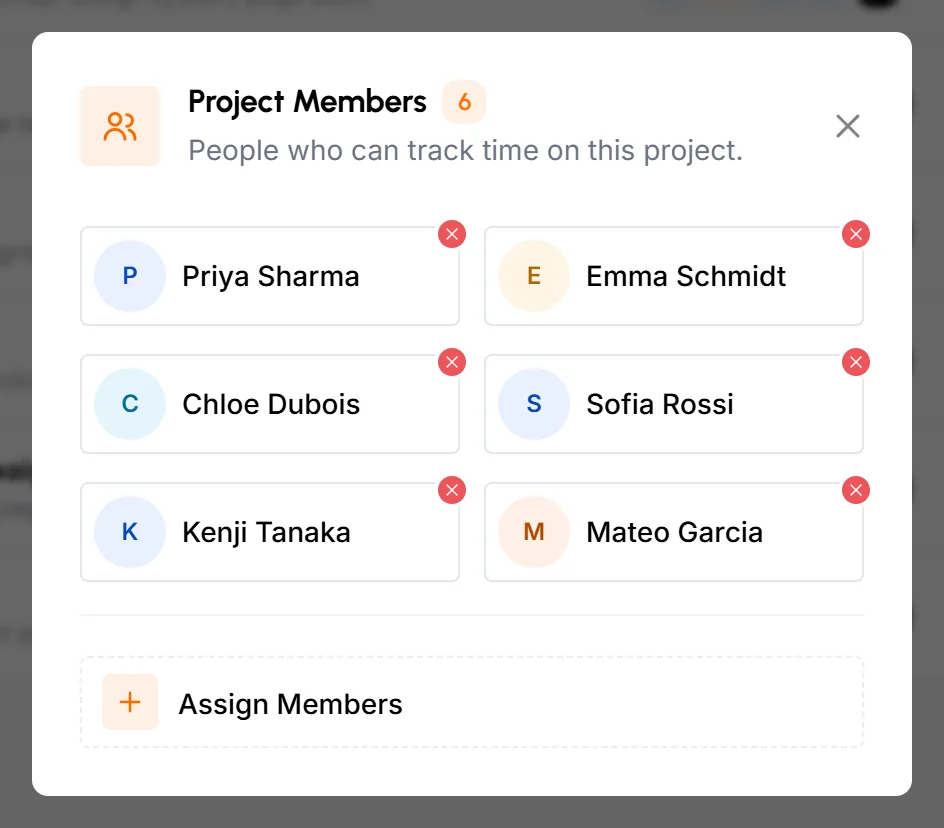
-
Pick one or more people. Add All selects everyone who isn't on the project yet, and Clear All empties your selection.
-
Click Assign. Each new member gets a dashboard notification, and the project appears in their desktop app.
You can also add or remove members in the Assign Members field of the Edit Project form.
Remove a member
-
Open the Project Members list the same way.
-
Click the remove button next to the person.
-
Confirm with Remove Member.
When you remove someone, here or in the Edit Project form:
- TimoDesk takes them off the project and off every task in it.
- The project leaves their desktop app, and they can't track time on it anymore.
- The time, screenshots and app usage they already tracked stay. This data still counts in the project's totals and reports. They appear on the Members tab with a Not assigned badge.
What's on the project details page
The project details page shows one project's leaders, members, tasks, time and screenshots. To open it, click a project's title on the Projects page, or its Details button. The header shows the project's icon and title, its leaders and its members, and these buttons:
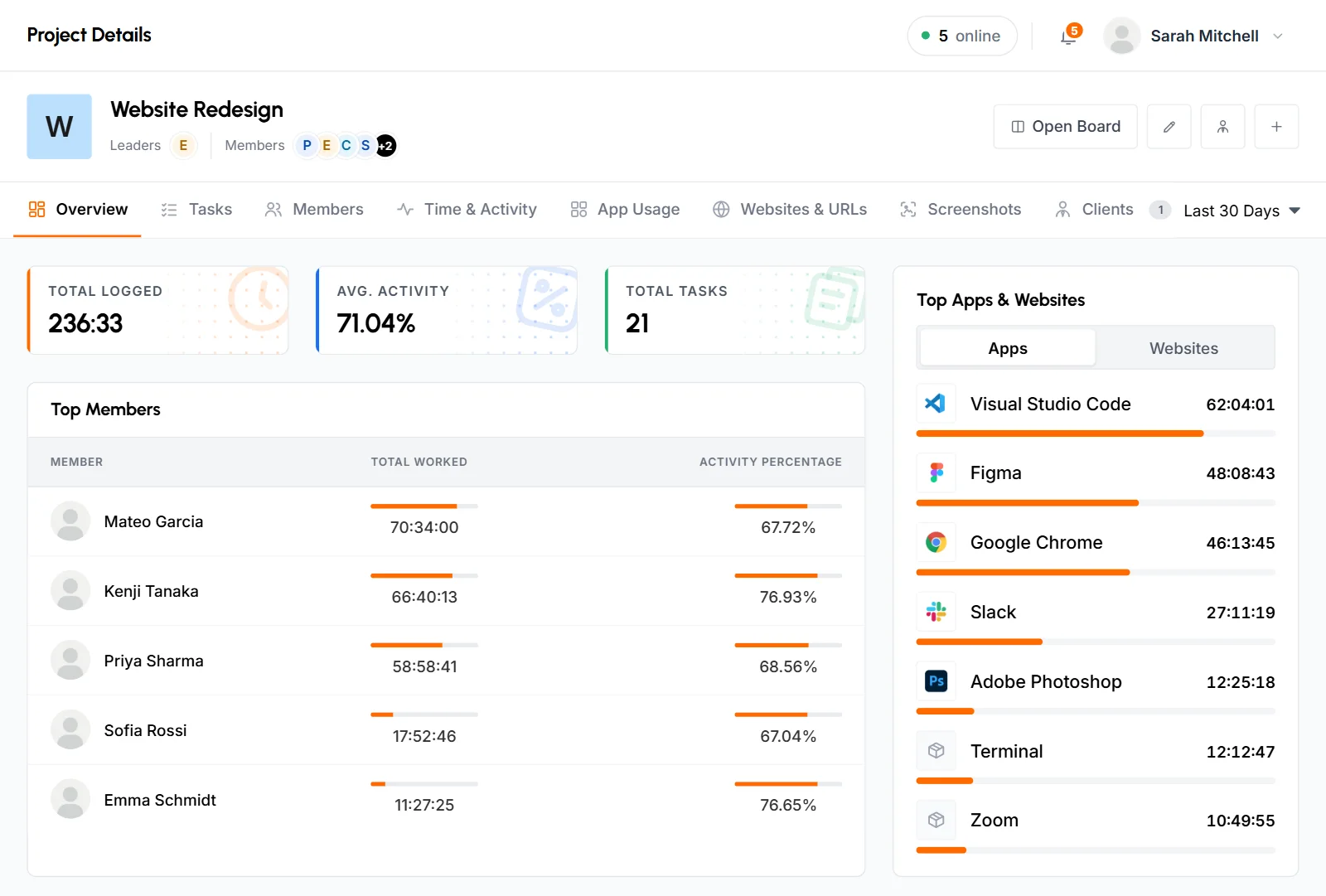
- Open Board
- Opens the project's task board.
- Edit Project
- The pencil button. Opens the Edit Project form. Only Organizers, Business Managers and Team Managers see it.
- Manage Clients
- The button with a person in a tie. Opens the list of clients who can see the project. See let a client see a project. Only Organizers and Business Managers see it.
- Add Task
- The + button. Opens the Add New Task form.
Below the header are the tabs Overview, Tasks, Members, Time & Activity, App Usage, Websites & URLs and Screenshots. Organizers and Business Managers also get a Clients tab. The page address changes with the tab, so a bookmark or a shared link opens the same tab. Staff don't see the Members tab.
What the Overview tab shows
The Overview tab sums up the project's time, activity and tasks for the date range to the right of the tabs. It opens on Last 30 Days. You can pick another range, such as Today, This Month or Last Month, or choose your own dates.
- Total logged
- The time tracked on the project in the range.
- Avg. activity
- The average activity percentage of that time. Manual time counts in Total logged but not in the activity average, because it has no activity to measure.
- Total tasks
- The number of tasks in the project right now. It doesn't change with the date range.
- Top members
- Up to 5 members who tracked the most time in the range, with their time and activity percentage.
- Top apps and websites
- The 7 apps used most while tracking on the project. Switch to Websites for the top websites.
- Timing chart
- Time tracked on each day of the range.
- Top tasks
- Up to 5 tasks with the most time in the range. The dot before each title shows its status: Completed, Ongoing (someone has tracked time on it) or Pending (no time yet). Click a title to open its task analytics. People who manage the project's tasks also see a Members column. There they can assign or remove task members.
- Average activity
- The activity percentage on each day of the range.
- Task overview
- Where the project's tasks stand today, no matter the date range. It shows the Completion rate, the number of tasks Completed, In Progress, Due in 7 Days and Overdue, and Open Tasks by Priority.
What the Tasks tab shows
The Tasks tab lists every task in the project that you can see, 20 at a time. Click Show more at the bottom for the next 20.
- Show All, Open, Overdue or Completed tasks, or Unassigned tasks with nobody on them. The Unassigned count appears next to its name. Staff don't see the Unassigned option.
- Sort by Most time tracked or by Due soonest. Due soonest puts open tasks with a due date first, earliest date first, so overdue tasks come to the top. Open tasks without a due date come next, then completed tasks.
Each row shows the task, its total time, its due date (in red when it's overdue) and its status (Completed, Ongoing or Pending). It also has two buttons: Edit Task and Task Analytics. If you can't edit the task, Edit Task is grayed out. Hover over it to see who can. Click a row to see who tracked time on the task. Then click a person to see the days they worked on it. People who tracked time on a task without being assigned to it have a Not assigned badge.
Staff see only their own time, so clicking a row opens the days they worked on the task. A task they tracked time on without being assigned to it has a Not assigned badge.
What the Members tab shows
The Members tab lists everyone connected to the project. That means its assigned members, including those with no time yet, and anyone else who has tracked time on it. People who tracked time but aren't assigned have a Not assigned badge. Each row shows the member's total time on the project and their activity. Click a member to see the days they worked, then click a day to see the tasks they worked on.
Organizers, Business Managers, Team Managers and project leaders see this tab. Team Managers see only their own team members.
Time, app usage and website reports for a project
These tabs show the same reports as the sidebar, limited to this project. Each one opens on the last 30 days. You can pick another date range at the top left.
- Time & Activity
- Time and activity grouped by date or by member, with an Export button. See Time and activity.
- App Usage
- Apps used while tracking, grouped by date, by app or by member, with an Export button. See App usage.
- Websites & URLs
- Websites visited while tracking, grouped by date, by website or by member, with an Export button. See Websites and URLs.
Staff see only their own data here, so they don't get the member grouping.
Project screenshots
The Screenshots tab shows the screenshots taken while members tracked time on the project. Each card is one member's day and shows how many screenshots it holds. Pick a date range, a member (All Members by default) and a grouping. Group by Date, the default, shows a heading for each day with that day's member cards under it. Group by Member shows a heading for each member with their day cards under it. More cards load as you scroll. Click a card to open that member's screenshots for the day. The Screenshots guide explains that page.
Staff see only their own screenshots, as day cards with no member filter or grouping.
How to let a client see a project
Assign a client to the project, and they can follow it in the client portal. Clients are people outside your organization, such as the customer the work is for. Invite them first on the Clients page. Only Organizers and Business Managers can assign clients.
-
On the project details page, click Manage Clients in the header. The Project Clients list opens.
-
Click Assign Clients and pick one or more clients. A client who hasn't accepted their invitation yet can be picked too.
-
Click Assign.
Each new client gets a notification in their portal. If they've accepted their invitation and their access is on, TimoDesk also emails them a link to the project. In the portal, they see the project's tracked time, tasks, screenshots and app usage, as far as their own permissions on the Clients page allow.
The Clients tab
The Clients tab lists the clients who can see the project. The tab shows how many there are. Each row shows:
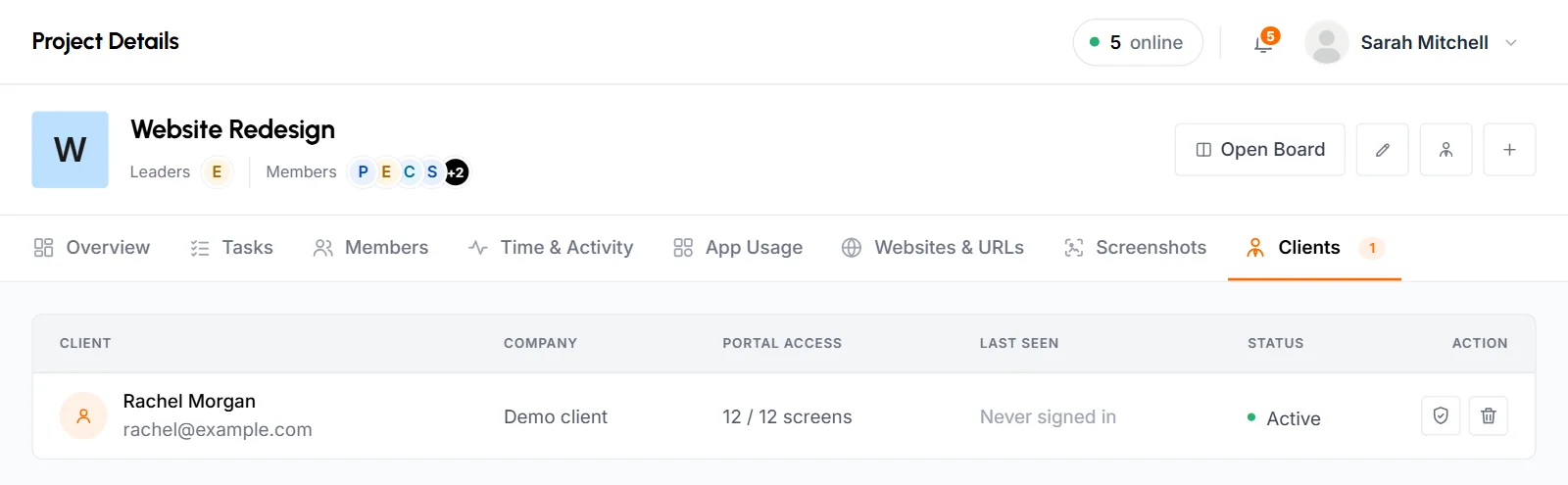
- Client
- Name and email. Click the name to open the client's page.
- Company
- The client's company, or Not set.
- Portal Access
- How many portal screens the client can open, for example 9 / 12 screens.
- Last Seen
- When the client last signed in to the portal, or Never signed in.
- Status
- Invited, Invite expired, Active or Disabled.
Click the shield button to open the client's page, where you change what they can see. To take a client off the project, click the trash button and confirm with Remove Access. You can also remove them from the Project Clients list. The client stops seeing the project in their portal right away and gets a notification in the portal.
A client adds to your bill for each billing cycle in which someone tracked time with the desktop app on a project the client can see. Turning off the client's portal access doesn't stop this, so remove them from the project if they no longer need it. See Billing.
How to add a task to a project
You can add a task in 3 places: the + Add Task button on the project details page, the Add a task link on the Projects page when a project has no tasks, or the task board. The Tasks guide explains every field.
Organizers, Business Managers, Team Managers and project leaders fill in every field and assign the task to project members. Staff can add a task to any project they can open. They fill in the title, description, section and labels, and TimoDesk assigns the task to them. They can't set the priority, dates or estimate.
How to assign or remove task members
You can only put project members on a project's tasks, so add people to the project first. You can change who's on a task in 3 places:
- The Top Tasks card on the Overview tab: click the avatars in the Members column, or the people icon when nobody is assigned. Click Assign Members to add people. To take someone off, click the remove button next to their name and then Remove Member.
- The Edit Task form: click Edit Task on the Tasks tab and change the Assign Members field. Add All picks every project member, and Clear removes everyone.
- The task's details on the board: change the Assignees field.
Staff can't change who's on a task. See Assign people to a task for what assigning changes.
What staff see
- The Projects page shows their projects as cards with Tasks and Time Tracked. A project appears when they're assigned to it, have a task in it, have tracked time on it or lead it. If they aren't on any project yet, the page says No projects yet and asks them to contact their organizer or manager.
- On a project's details page, they see only their own time, tasks, screenshots and app usage. There's no Members tab, Top Members card or Top Apps and Websites card.
- They can add tasks, which TimoDesk assigns to them, and edit the tasks they created or are assigned to. They can't change a task's assignees, priority, dates or estimate.
- On the projects they lead, they get the full view described in project leaders.
Common questions
Can I delete or archive a project?
No. The dashboard has no option to delete or archive a project, but you can archive single tasks on the task board.
Why can't I make someone a project leader?
Only active members with the Staff role can lead a project, and Team Managers can only pick Staff members from their own teams.
Can a client change anything in a project?
No. The client portal is read-only. Clients can look at the projects assigned to them, but they can't change tasks, comment or track time.
Does removing a member delete their tracked time?
No. Their time, screenshots and app usage stay in the project's reports, but they can't track new time on the project.
Why doesn't a project show up in my list?
Team Managers only see projects their teams touch, and staff only see projects they're assigned to, have a task in, have tracked time on or lead. Ask an Organizer or Business Manager to add you to the project.