
Screenshot storage settings
The Storage page sets where TimoDesk saves your organization's screenshots: on TimoDesk storage (the default), or on your own S3-compatible bucket or FTP server. It also shows how much space your screenshots use.
Who can use it: Organizers only.
You don't need to set anything up to start time tracking. Connect your own storage only if you need screenshots on your own servers and you know how to set up S3 or FTP. Only screenshots go to your storage. Organization logos, profile photos and support request attachments always stay on TimoDesk storage.
To open the page, go to Settings > Storage in the sidebar. The page title reads Storage Setting.
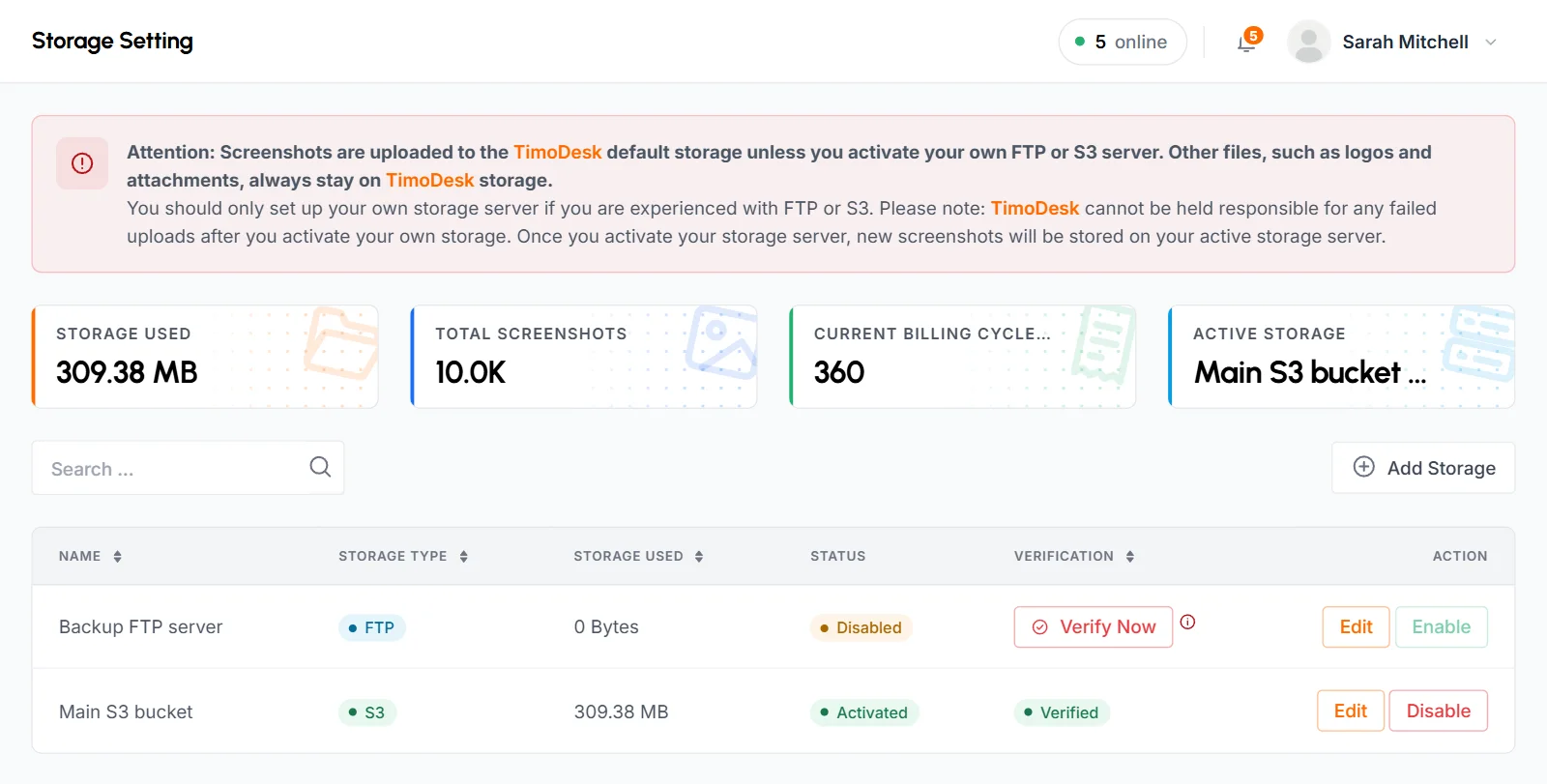
What the storage usage widgets show
The 4 widgets at the top of the page show a summary of your screenshot storage.
- Storage Used
- The space used by all of your organization's screenshots, on every storage, including TimoDesk's.
- Total Screenshots
- How many screenshots your organization has captured, all time.
- Current Billing Cycle Screenshots
- How many screenshots your organization has captured since the current billing cycle started. During the free trial, it counts from the day you created your organization. See how billing works.
- Active Storage
- Where new screenshots go now: TimoDesk with a Default badge, or the name of your own storage with an Own server badge.
What the storage list shows
Under the widgets, the list shows every storage you've added, with the columns below. You can search by name and sort by name, type, space used or verification.
- Name
- The name you gave the storage.
- Storage Type
- S3 or FTP.
- Storage Used
- The space used by the screenshots saved on this storage.
- Status
- Activated for the storage in use, Disabled for the others.
- Verification
- Verified, or a Verify Now button if the storage hasn't passed its connection test yet. Hover over the info icon next to it to see the last verification error.
- Action
- Edit, plus Enable or Disable. You can't click Enable until the storage is verified.
If you haven't added any storage yet, the list shows No Storage Found.
How to add S3 storage
You can use Amazon S3 or another S3-compatible service. The bucket must already exist, and it must allow public reads. TimoDesk uploads each screenshot as a public file, and your team views it through your public URL.
-
Open the storage form
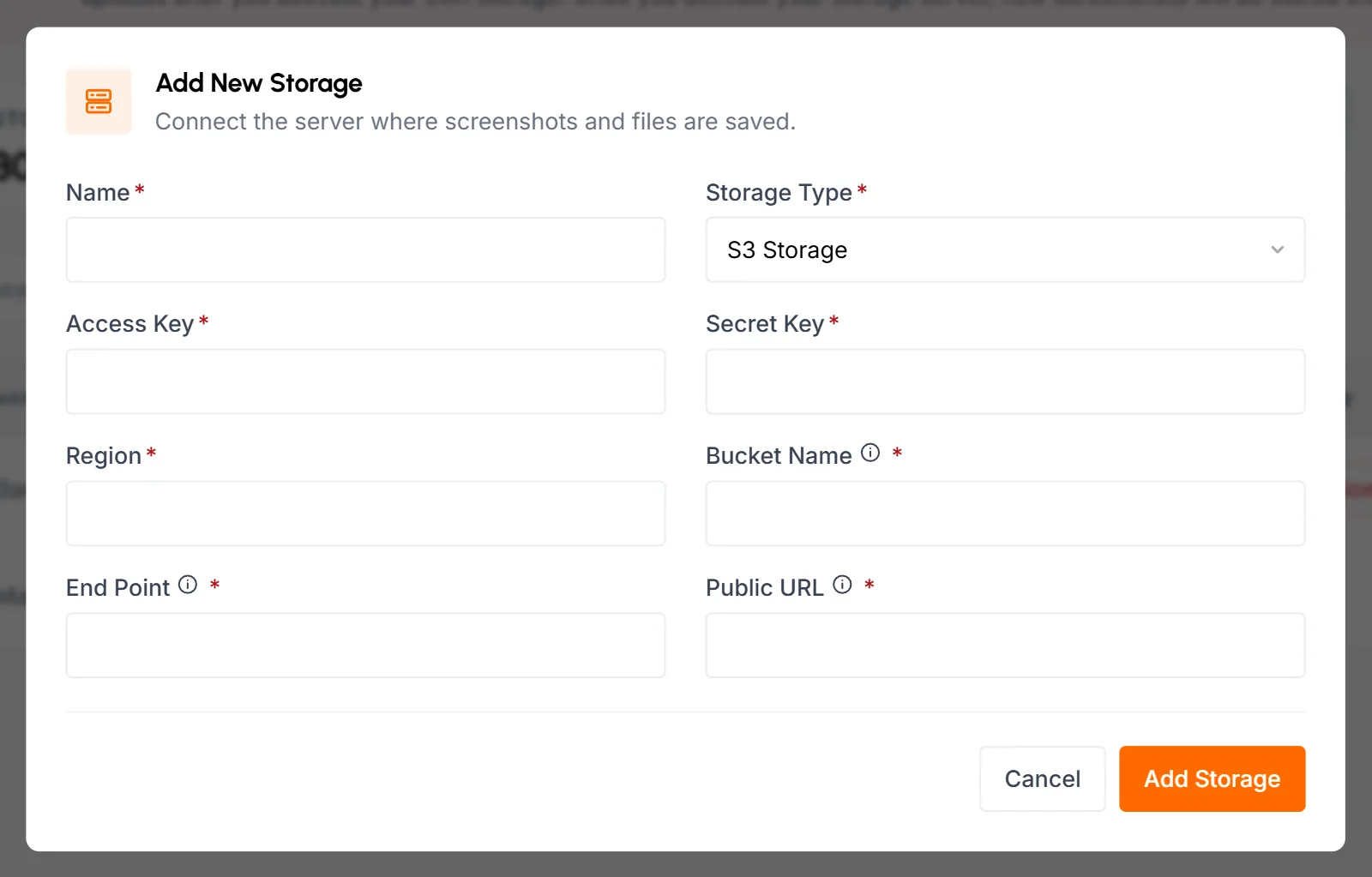
Click Add Storage. The Add New Storage popup opens with S3 Storage already selected.
-
Fill in the S3 details
Every field is required.
- Name
- A name for this storage, up to 255 characters, such as Main S3 bucket. Each storage in your organization needs its own name.
- Storage Type
- S3 Storage.
- Access Key
- The access key TimoDesk uses to sign its upload requests.
- Secret Key
- The secret key that goes with the access key.
- Region
- The region of the bucket, for example us-east-1.
- Bucket Name
- The exact name of the bucket for the screenshots.
- End Point
- The full URL of your S3 service, including https://, for example https://s3.example.com. TimoDesk uploads each file to
End Point/Bucket Name/file path, so the service must accept path-style requests. - Public URL
- The full URL where people can open the bucket's files, for example https://cdn.example.com. It must point at the root of the bucket. A file saved at
verify/test.txthas to open atPublic URL/verify/test.txt.
-
Add the storage
Click Add Storage. The storage shows in the list as unverified and disabled.
The End Point and Public URL must be reachable on the public internet. If one points at a private network address, you'll see "This address must be reachable on the public internet." and the storage isn't saved.
-
Verify the connection
Click Verify Now. TimoDesk uploads a small test file to a
verifyfolder in your bucket, reads it back through your Public URL, and then deletes it. If that works, the storage is marked Verified. If the upload works but TimoDesk can't read the file, you'll see "File uploaded successfully, but verification failed because public access to this bucket is not enabled." -
Enable the storage
Click Enable, then Enable Storage to confirm. New screenshots now go to your bucket.
Your keys show in plain text when you edit the storage. Give organizer access only to people you trust with them.
How to add FTP storage
You add an FTP server the same way as S3 storage. Only the connection details are different. TimoDesk connects over plain FTP, not SFTP or FTPS, and tries passive mode first.
-
Open the storage form
Click Add Storage, then set Storage Type to FTP Storage. The form changes to the FTP fields.
-
Fill in the FTP details
Every field is required.
- Name
- A name for this storage, up to 255 characters. Each storage in your organization needs its own name.
- Host
- The server address, for example ftp.example.com or an IP address.
- Port
- The port the FTP server uses, usually 21. It must be a whole number.
- Username
- The FTP account TimoDesk signs in with. It needs permission to create folders and upload files in the upload folder.
- Password
- The password for that account. The eye icon shows or hides it.
- Upload Folder
- The folder for the screenshots, relative to the FTP root, for example tracking/screenshot. TimoDesk creates it if it doesn't exist.
- URL
- The public URL of the upload folder, including http:// or https://, for example https://example.com/screenshotftp. A file saved in the upload folder has to open at
URL/file path.
-
Add and verify
Click Add Storage, then Verify Now. TimoDesk uploads a small test file, reads it back through your URL, and then deletes it. As with S3, the Host and URL must be reachable on the public internet. If the upload works but TimoDesk can't read the file, you'll see "File uploaded successfully, but verification failed."
-
Enable the storage
Click Enable, then Enable Storage to confirm. New screenshots now go to your FTP server.
How to edit a storage
Click Edit on a storage. Change what you need in the Edit Storage popup, then click Save Changes.
Saving always sets the storage back to unverified and disabled. If it was your active storage, new screenshots go to TimoDesk storage until you verify and enable it again.
How to switch between your storage and TimoDesk storage
- Only one storage is active at a time. When you enable a storage, it replaces the one in use.
- You can enable only a verified storage.
- To go back to TimoDesk storage, click Disable on the active storage, then Disable Storage to confirm. TimoDesk storage is used again right away.
- You can't delete a storage. Disabled storages stay in the list.
Switching storage changes only where new screenshots go. Older screenshots stay where they were saved and still load from there. Keep an old bucket or FTP folder online for as long as you want to see its screenshots in TimoDesk.
When your own storage is active, TimoDesk isn't responsible for failed uploads. If an upload to your server fails, TimoDesk doesn't keep a copy on its own storage or try again, so that screenshot has no image. On TimoDesk storage, a screenshot that fails to upload is kept and uploaded again later.
Common questions
Do I need my own storage to use TimoDesk?
No. TimoDesk saves screenshots on its own storage by default. Your own storage is optional.
Does Storage Used count only my own server?
No. The Storage Used widget counts every screenshot your organization has, wherever it's saved. The Storage Used column in the list shows the space used on each storage.
Why is the Enable button grayed out?
The storage isn't verified yet. Click Verify Now and fix any error it shows, and then you can click Enable.
What happens to old screenshots when I switch storage?
They stay where they were saved and still load from there. Only new screenshots go to the storage you enable.