
Support requests
A support request is how you contact the TimoDesk support team from your dashboard. You describe the problem, the team replies in the same thread, and you mark the request as resolved when you're done.
Who can use it: Organizers and business managers. Team managers and staff don't have Support in their sidebar. They can ask an organizer or business manager to send a request for them.
When to send a support request
Send a request any time you need the TimoDesk team. For example, send one for a bug or error, time tracking that looks wrong, a question about a feature, an invoice or payment, pricing or feedback. Each request keeps its whole conversation and all attachments in one place, so you and the team can always see the full history.
Send one issue per request. The team can follow and solve separate problems faster in separate threads.
How do I send a support request?
-
Open Support Requests
In the sidebar, under Support, click Support Requests.
-
Click New Request
Click New Request at the top right. The How can we help? form opens.
-
Fill in the request
- Subject
- Required, up to 255 characters. A short summary, for example "Desktop app stops tracking after sleep".
- Priority
- Low (the default), Medium or High. Use High only for problems that stop your team from working.
- Department
-
Required. Pick the tile that fits:
- Technical: bugs, apps, tracking.
- Billing: invoices, payments.
- Sales: plans, pricing.
- General: anything else.
- Message
- Required. Say what happened, what you expected and the steps to make it happen again. If it's about the desktop app, include your operating system (Windows, macOS or Linux) and the TimoDesk app version. Messages are plain text, and TimoDesk removes any HTML.
- Attach files
- Optional. Click Attach files, then click the box or drag files into it. You can add several JPG, JPEG, PNG, PDF, DOC or DOCX files, up to 5 MB each.
-
Submit the request
Click Submit request. You'll see "Support request sent successfully!" The request then opens with its own request ID and the status Open.
The Get a faster answer panel next to the form repeats these tips. View my requests takes you back to the list.
How do support requests work?
- You send the request. Its status is Open.
- A TimoDesk support agent replies in the thread. The status changes to Answered. The person who opened the request gets an email with the reply and a link to the request.
- To add something, send a reply. The status changes to Customer Reply until the team answers again.
- When the problem is solved, click Mark as resolved. The status changes to Closed.
After you send a request, you can't edit or delete it, or change its department or priority. Add any correction as a reply.
What does each status mean?
| Status | What it means | What to do next |
|---|---|---|
| Open | The request is waiting for its first reply from support. | Wait for a reply, or reply yourself to add details. |
| Answered | A support agent has replied. | Read the reply. Answer it if you need more help, or mark the request as resolved. |
| Customer Reply | You've replied, and the request is waiting for support again. | Wait for the team's next reply. |
| Closed | The request is resolved and kept for reference. | Nothing. If the problem comes back, reply to reopen it. |
What does the Support Requests page show?
The page lists every request your organization has sent, newest first. This includes requests opened by other organizers and business managers.
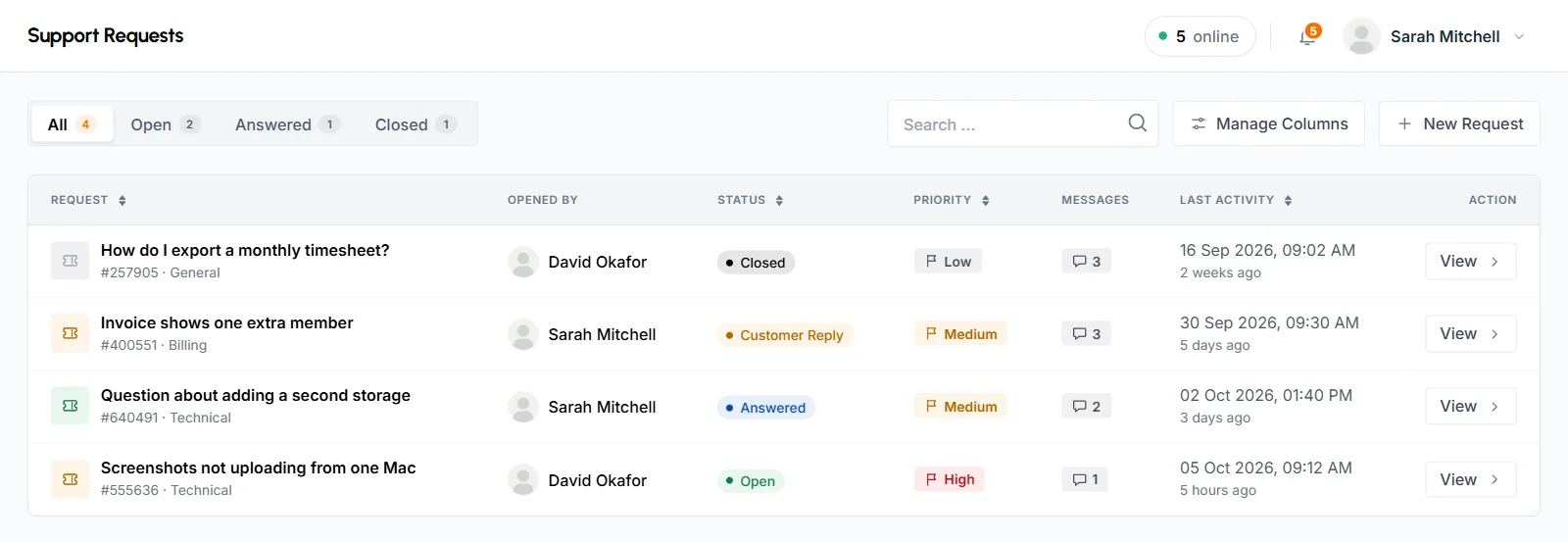
The tabs at the top filter the list, and each tab shows a count: All, Open (Open and Customer Reply), Answered and Closed. You can search by subject, request ID or the name of the person who opened the request. You can also sort the columns and hide columns you don't need with the column picker.
- Request
- The subject, with the request ID and department under it, for example "#482913 · Technical". Click the subject to open the request.
- Opened By
- The organizer or business manager who sent it.
- Status
- Open, Answered, Customer Reply or Closed. See what each status means.
- Priority
- Low, Medium or High.
- Messages
- How many messages are in the thread.
- Last Activity
- The date and time of the latest message.
- Action
- View opens the request.
If you haven't sent any requests yet, the list shows No support requests yet.
What does a support request show?
At the top, a request shows its subject, request ID, department, opening date and status. Under that is the reply box, and then the conversation, with the newest message first.
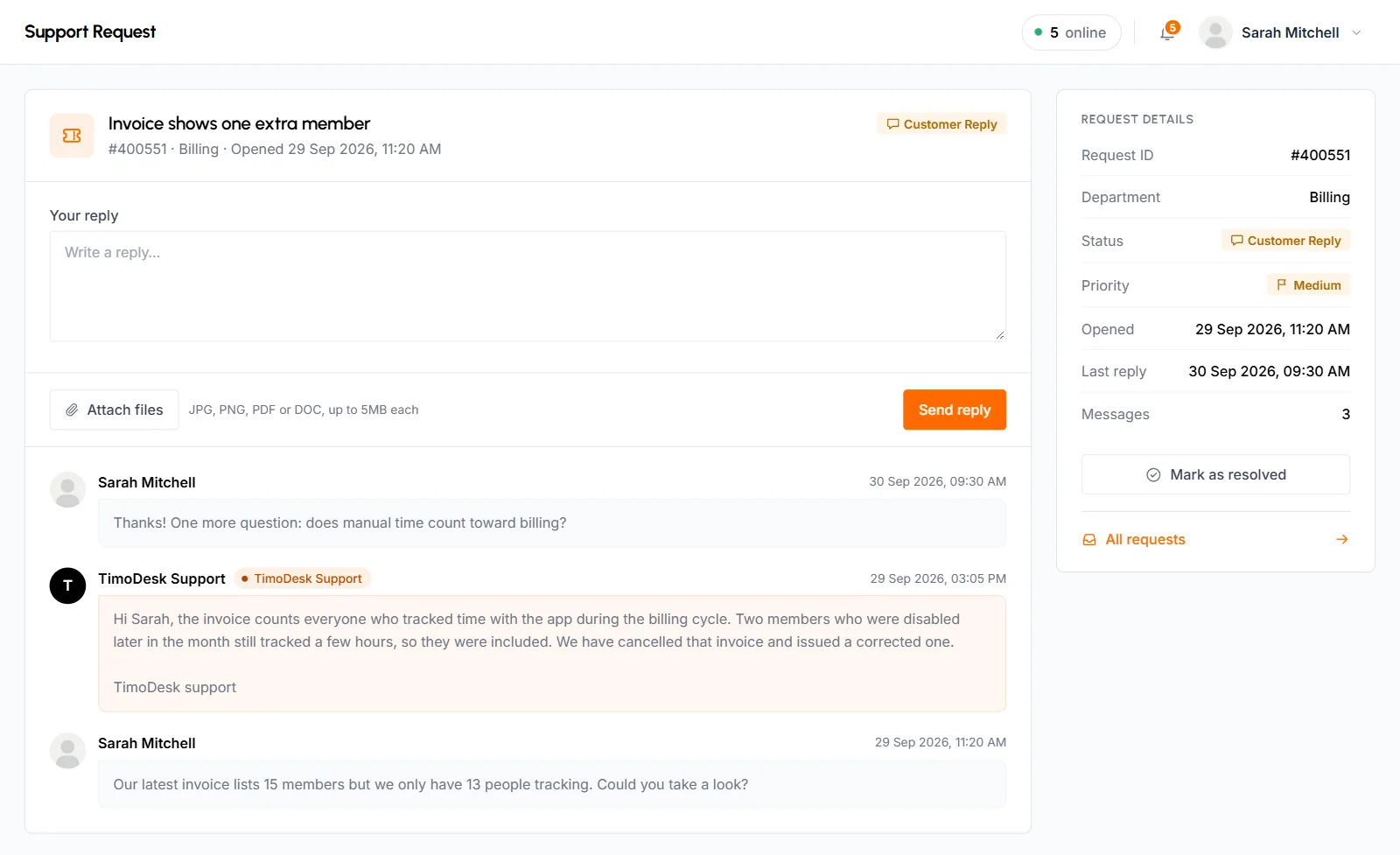
- Reply box
- Type in Your reply. If needed, attach files with Attach files (the same types and 5 MB limit as a new request). Then click Send reply. You'll see "Reply sent successfully!".
- Conversation
- Every message with its author and time. Replies from the support team have a TimoDesk Support badge. Attachments show as download links, such as Attachment 1 with the file type.
- Request details
- The side panel lists the Request ID, Department, Status, Priority, Opened, Last reply and Messages. An All requests link takes you back to the list.
How to mark a request as resolved
Click Mark as resolved in the side panel, then Close Request to confirm. The status changes to Closed, and the button goes away.
How to reopen a closed request
Send a reply on the closed request. Above the reply box, a closed request shows "This request is closed. Sending a reply will reopen it." After you reply, the status changes back to Customer Reply, so the team sees it again.
Common questions
Can staff members send support requests?
No. Only organizers and business managers can open the Support Requests page and send requests.
How do I know when support has replied?
The status changes to Answered. The person who opened the request also gets an email with the reply and a link to the request.
Can I send a support request while my organization is suspended?
Yes. The organizer can still open Support Requests while the organization is suspended for unpaid billing.
What files can I attach?
You can attach JPG, JPEG, PNG, PDF, DOC and DOCX files, up to 5 MB each. You can attach several at once.