
Manage members
The Members page is where you add people to your organization, approve people who join with your invite link, and choose who can track time and capture screenshots. This guide covers every tab, popup and setting on the page.
Who can use it: Organizers and Business Managers. Team Managers can open the page too. They only see themselves and the members of the teams they manage, and they can't add members or change member settings.
What the Members page shows
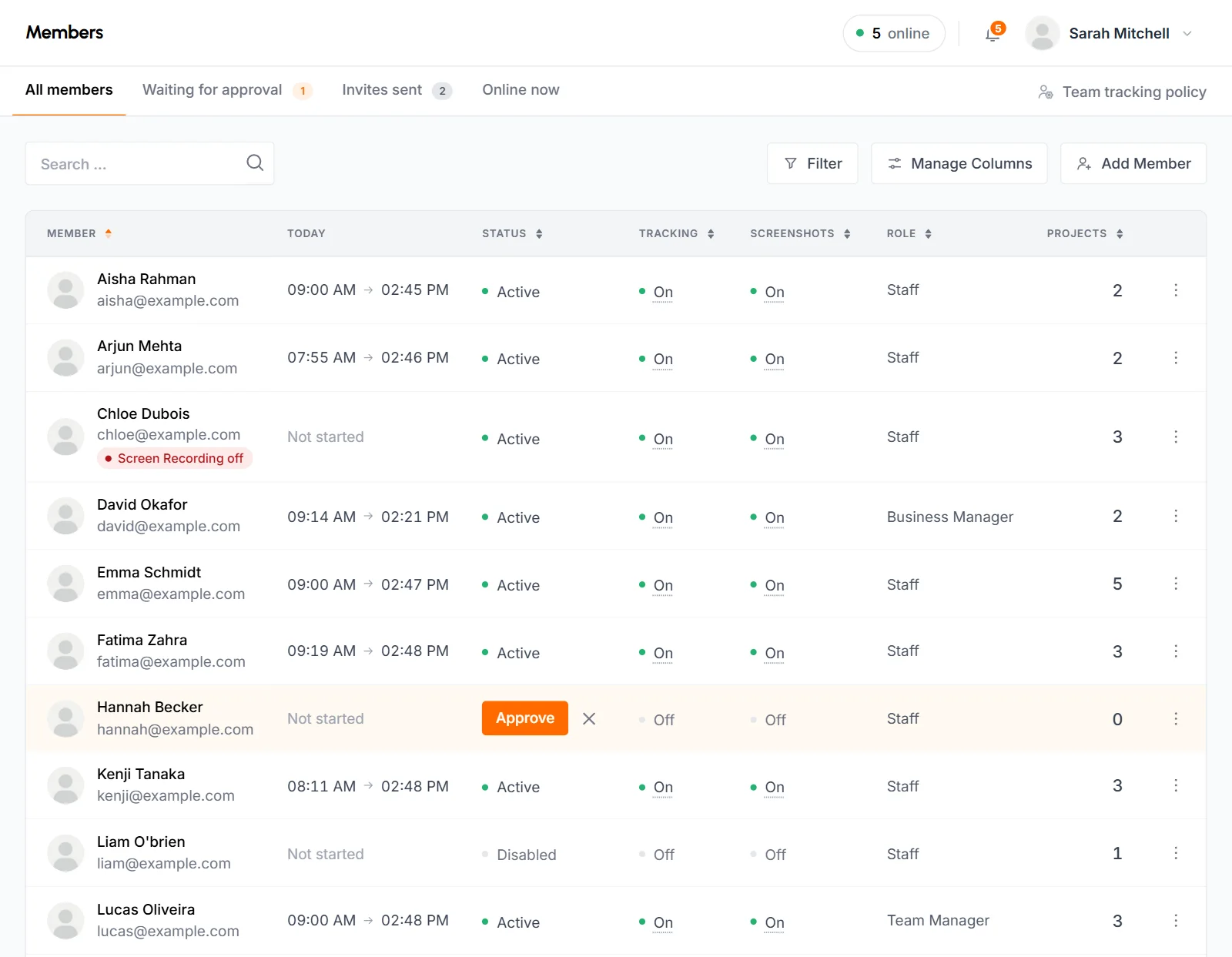
The Members page lists the people in your organization, split into up to 4 tabs. Click Members in the sidebar to open it. Organizers and Business Managers see a number next to it: how many people are waiting for approval.
| Tab | What it shows |
|---|---|
| All members | Everyone in your organization, with their status, tracking and screenshot settings, role and projects. |
| Waiting for approval | People who signed up with your invite link. They need approval before they can sign in. The tab only appears while someone is waiting. |
| Invites sent | Email invites that nobody has accepted yet. The tab only appears while at least one invite is open. |
| Online now | Members who have the TimoDesk desktop app running right now, with the project and task they're tracking. |
Only Organizers and Business Managers see Waiting for approval and Invites sent. They also see Team tracking policy on the right, which opens the tracking policy page.
What's on the member list?
Each row on the member list is one member. The columns mean the following:
- Member
-
Photo, name and email. Click the name to open the member's details page.
A red badge such as Screen Recording off means the desktop app found a needed permission turned off on the member's computer. Hover over the badge to see when that started. What stops working depends on the permission:
- Screen Recording: the app can't capture screenshots.
- Input Monitoring: the app can't measure activity levels.
- Accessibility: the app can't track apps and URLs.
- Notifications: the member won't see idle or screenshot alerts.
- Today
- When the member started tracking today and when they were last active, in your organization's time zone. It says Not started if they haven't tracked anything today.
- Status
- Active, Waiting for approval or Disabled. For people waiting for approval, Organizers and Business Managers see an Approve button and a reject icon in this column. People you rejected show as Rejected, but only when you filter by that status.
- Tracking
- On or Off: whether the member can track time. Organizers and Business Managers can click it to change it. See turn tracking and screenshots on or off.
- Screenshots
- On or Off: whether the app captures screenshots while the member tracks time. Click it to change it.
- Role
- Organizer, Business Manager, Team Manager or Staff. See roles.
- Projects
- How many projects the member is on. Click the number to see them or add the member to more.
- Action menu (⋮)
-
Every row has these items:
- View profile opens the member's details page.
- Screenshots opens the Screenshots page for the member.
- Weekly worklog opens the member's weekly worklog.
- Projects opens the member's projects.
Organizers and Business Managers also get Time tracking and Screenshots switches once the member is approved and has confirmed their email. Depending on the member's status, they also see Disable member, Enable member, or Approve member and Reject member.
Business Managers don't get these items for Organizers, and other people don't get them for the owner. Hover over a grayed-out On or Off to see why. A rejected person's row has no action menu.
On the Online now tab, a Working on column shows the project and task each member is tracking, or Online, not tracking. That tab leaves out the Status and Tracking columns, since everyone on it is active.
How to search, sort and filter members
You can search the member list, sort it by column and filter it by project, status, role and settings.
- Search finds members by name or email.
- Sort by clicking a column header: Member, Status, Tracking, Screenshots, Role or Projects.
- Filter opens the Filter members panel. Pick a Project, Status (Active, Disabled, Pending or Rejected; Rejected lists the join requests you turned down), Role, Time tracking (On or Off) and Screenshots (On or Off), then click Show results. Clear all removes every filter.
- Manage Columns hides or shows columns. TimoDesk saves your choice for your account. Reset to default brings every column back.
Each active filter appears as a chip above the table. Click the x on a chip to remove that filter. If you open a team's member list from the Teams page, the team shows up as a chip too.
How to invite a member by email
An email invite lets the person create their own account. They join with the role you pick and can start work right away, with no approval step.
-
Open the Add a member popup
On the Members page, click Add Member. The Add a member popup opens on the Invite by email tab.
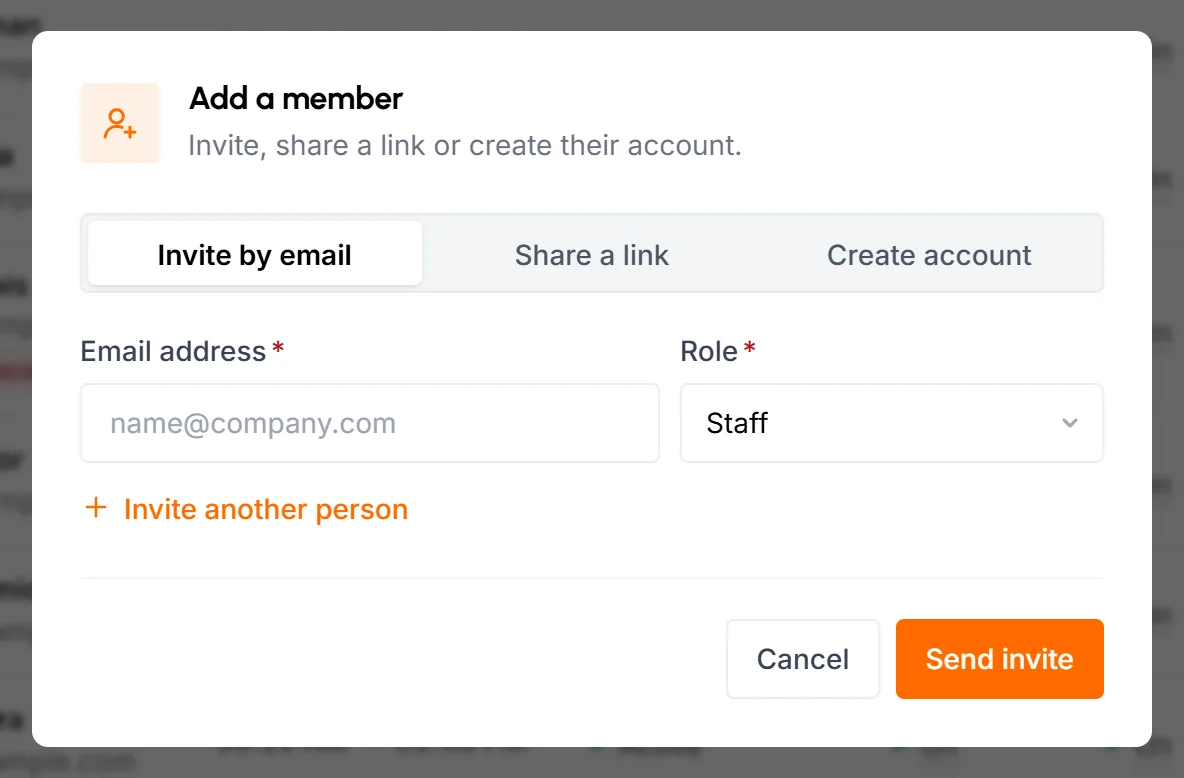
If you haven't confirmed your own email address yet, the popup asks you to do that first. You need a confirmed email to invite people or create accounts.
-
Enter the email and role
Type the person's Email address and pick their Role. The role is Staff by default. Business Managers can't pick Organizer.
To invite more than one person, click Invite another person for each extra row. You can also paste a list of addresses into an email field. TimoDesk then fills one row per address, skips duplicates and gives each new row the role of the row you pasted into.
-
Send the invites
Click Send invite. With several rows, the button changes to match, for example Send 3 invites. TimoDesk emails each person and takes you to the Invites sent tab.
What the invited person gets
They get an email with the subject "[Organization name] invited you to TimoDesk". The button in the email opens a join page with their email already filled in. There, they enter their name (up to 40 characters) and a password of at least 6 characters, confirm the password and click Join the team.
Their account is active right away, their email counts as confirmed, and time tracking and screenshots are on. TimoDesk signs them in to the dashboard with the role you chose. The invite leaves the Invites sent tab, and every active Organizer and Business Manager gets an email saying the person has joined, with a link to the member list.
An email invite works for 48 hours. After that, the link sends the person to the sign-in page with the message "This invitation has expired. Ask your organization to send you a new one." To send a new one, invite the same address again.
You can't invite an email address that already belongs to a TimoDesk account or already has an open invite from your organization. When you leave the field, the popup shows "Email is already taken". An invite from another organization doesn't block yours. If 2 organizations invite the same person, they join whichever one they accept first, and the other invite stops working.
How to invite members with a link
An invite link is one link for your whole organization that you can share many times. Anyone who opens it can ask to join, and you approve each person before they get in. It works well when you add a group of new hires or contractors at the same time.
-
Open the Share a link tab
Click Add Member, then Share a link.
-
Create or copy the link
The first time, the field says you don't have a link yet. Click Create link. When the link shows under Invite link for your organization, click Copy.
-
Share it
Send the link by email, chat or any other channel. Only share it with people you trust, because anyone who has it can ask to join.
-
They sign up
The link opens a join page for your organization. The person enters their email, name (up to 40 characters) and a password of at least 6 characters, confirms the password and clicks Join the team. A page then tells them their account is waiting for approval. Every active Organizer and Business Manager gets an email about the new sign-up, with a link to the Waiting for approval tab.
-
Approve them
The person appears on the Waiting for approval tab. They can't sign in until you approve them.
Everyone who joins with the link starts as Staff. You can change their role after you approve them.
Replace the link
Click Create a new link to replace the link. The old link stops working right away. People who already signed up with it stay on the Waiting for approval tab. You can't turn the link off without creating a new one.
How to create a member's account
Create the account yourself when you don't want to wait for someone to accept an invite. The member is active as soon as you save.
-
Open the Create account tab
Click Add Member, then Create account.
-
Fill in the details
- Full name
- The member's name.
- The address they'll sign in with. It can't already belong to a TimoDesk account.
- Role
- Organizer, Business Manager, Team Manager or Staff. The default is Staff. Business Managers can't pick Organizer.
- Password
- Their first password, at least 6 characters. Click Generate a strong password to let TimoDesk make one, and click the eye icon to see it. The member can change it after they sign in.
-
Click Create account
The member appears on the All members tab as Active, with time tracking and screenshots on. TimoDesk sends them 2 emails:
- An email with the subject "Your [Organization name] account on TimoDesk". It shows the email and password they sign in with and has a Sign In button. It asks them to change the password after they sign in for the first time.
- A link to confirm their email address. The link works for 30 minutes. If it expires, they can sign in and get a new one with Send Verification Link in the Verify your email step on their dashboard.
Until the member confirms their email, you can't add them to projects or change their tracking and screenshot switches.
How to approve or reject join requests
People who sign up with your invite link wait on the Waiting for approval tab until you approve or reject them. Each of their rows is highlighted and has an Approve button and a reject icon. The same actions are in the row's action menu and in the member's Edit Member popup.
Approve someone
Click Approve, then Approve Member to confirm. The member becomes Active. If they've confirmed their email address, time tracking and screenshots turn on too. They get a welcome email with a link to the sign-in page. Next, add them to projects so they have something to track time on.
If they haven't confirmed their email address yet, tracking and screenshots stay off, and you can't add them to projects. Their dashboard shows a Verify your email step with a Send Verification Link button. After they confirm, turn tracking and screenshots on for them. Neither one turns on by itself.
Reject someone
Click the reject icon, then Reject Member. TimoDesk declines the request and removes the person from your list. They can't sign in, and TimoDesk doesn't email them about it. You can invite their email address again later. To see the people you rejected, filter the list by the Rejected status.
How to see and cancel email invites
The Invites sent tab lists every email invite that nobody has accepted yet. Its columns are Sent to, Role, Sent (how long ago, with the date and time) and Status. The status reads Not accepted yet, or Expired once 48 hours have passed.
To cancel an invite, click the trash icon on its row, then Yes, Cancel Invite. The link in the email stops working right away. You can invite the same address again at any time.
There's no resend button. For an expired invite, invite the same address again, and the new invite replaces it. For an invite that hasn't expired, cancel it first, then invite the person again.
How to edit a member's phone, role and access
You change a member's phone, role, status and tracking settings in one popup and save them with one button.
-
Open the member's profile
Click the member's name on the list, or choose View profile in the action menu.
-
Click the pencil icon
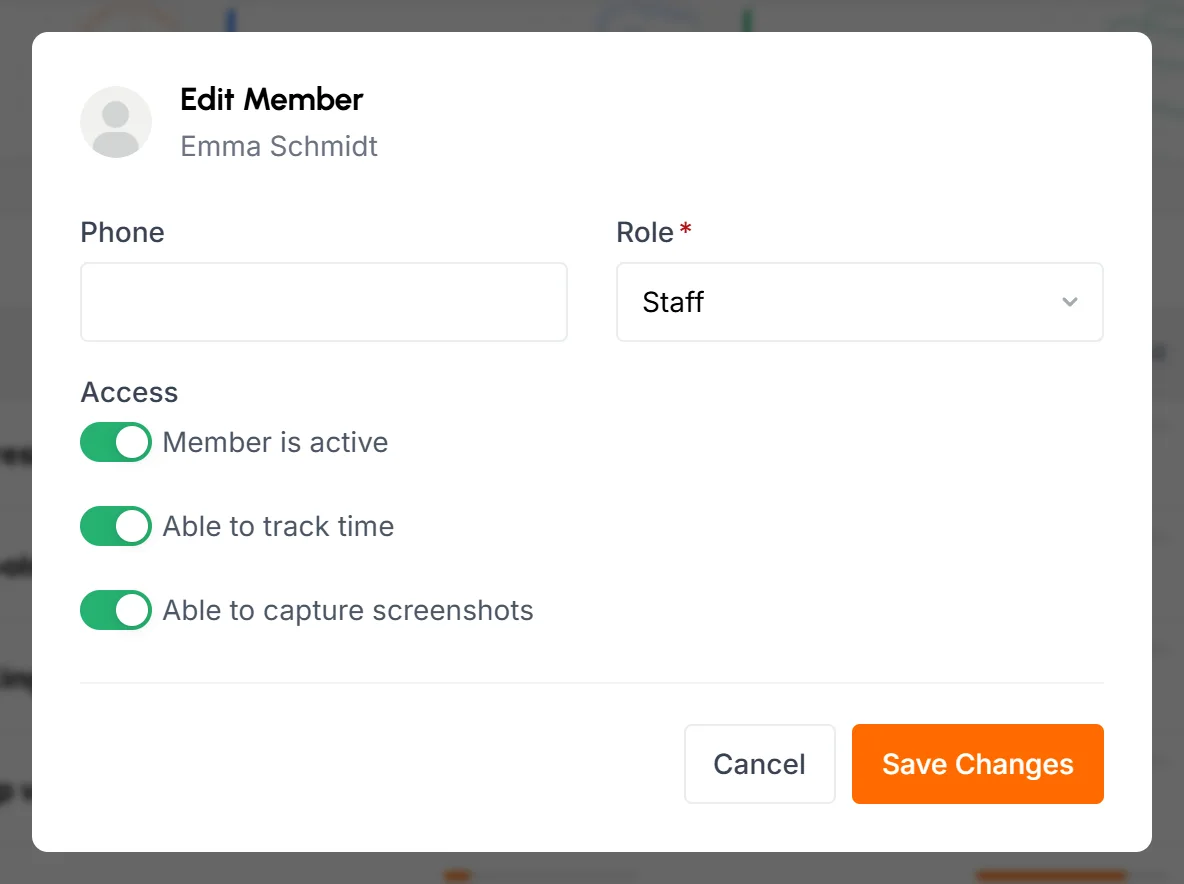
The Edit Member popup opens.
-
Make your changes and click Save Changes
- Phone
- Optional, up to 40 characters.
- Role
- Shown only when you're allowed to change it. See change a member's role.
- Member is active
- Turn it off to disable the member, or on to enable them. For someone waiting for approval, this spot shows Approve Member and Reject Member buttons instead.
- Able to track time
- Whether the member can track time with the desktop app.
- Able to capture screenshots
- Whether the app takes screenshots while they track. It can only stay on while Able to track time is on.
A switch you can't change yet is grayed out. Hover over it to see the reason: the member is waiting for approval, hasn't confirmed their email, or is disabled. If the only reason is that they're disabled, the switches unlock as soon as you turn on Member is active.
Business Managers don't see the pencil icon on an Organizer's profile. Only the owner can edit the owner's profile.
How to change a member's role
You change a member's role in the Edit Member popup. These rules apply:
- Organizers can give any role, including Organizer.
- Only the owner (the person who created the organization) can change another Organizer's role.
- Business Managers can give Business Manager, Team Manager or Staff. They can't make someone an Organizer or change an Organizer's role.
- Nobody can change their own role or the owner's role.
- When a Team Manager gets a different role, they stop managing all the teams they managed. The popup warns you first. The teams' members, projects and tasks stay the same.
- A new Team Manager doesn't manage any team until you assign them to teams.
How to turn time tracking and screenshots on or off
To change a member's time tracking or screenshots, click On or Off in the Tracking or Screenshots column. You can also use Time tracking and Screenshots in the action menu. Confirm with Turn Off Tracking, Turn On Tracking, Turn Off Screenshots or Turn On Screenshots. The switches in the Edit Member popup work too.
- When you turn tracking off, screenshots turn off too.
- You can only turn screenshots on while tracking is on.
- You can't turn tracking on for someone who is waiting for approval or hasn't confirmed their email.
- For a disabled member, enable them first.
- Business Managers can't change these for Organizers.
- The member's desktop app gets the change right away and shows a notice about what changed.
To change tracking or screenshots for many members at once, use the tracking policy page. How often the app takes screenshots is a separate setting. See set a tracking policy for one member.
How to disable or enable a member
Disable a member when they should no longer have access, for example when they leave the company. Open the action menu, choose Disable member and confirm with Disable Member. You can also turn off Member is active in the Edit Member popup.
What happens when you disable someone
- TimoDesk signs them out, and they can't sign in to the dashboard or the desktop app.
- They can't track time. TimoDesk keeps their Tracking and Screenshots settings as they were, but you can't change them while the member is disabled.
- Their status shows as Disabled.
- Nothing is deleted. Their tracked time, activity, screenshots, projects and team memberships stay. Their work still shows in reports for the dates they tracked.
Enable someone again
Choose Enable member and confirm with Enable Member. The member can sign in again. Their Tracking and Screenshots settings are the same as before you disabled them.
You can't disable your own account or the organization's owner. Business Managers can't disable Organizers.
How to set a tracking policy for one member
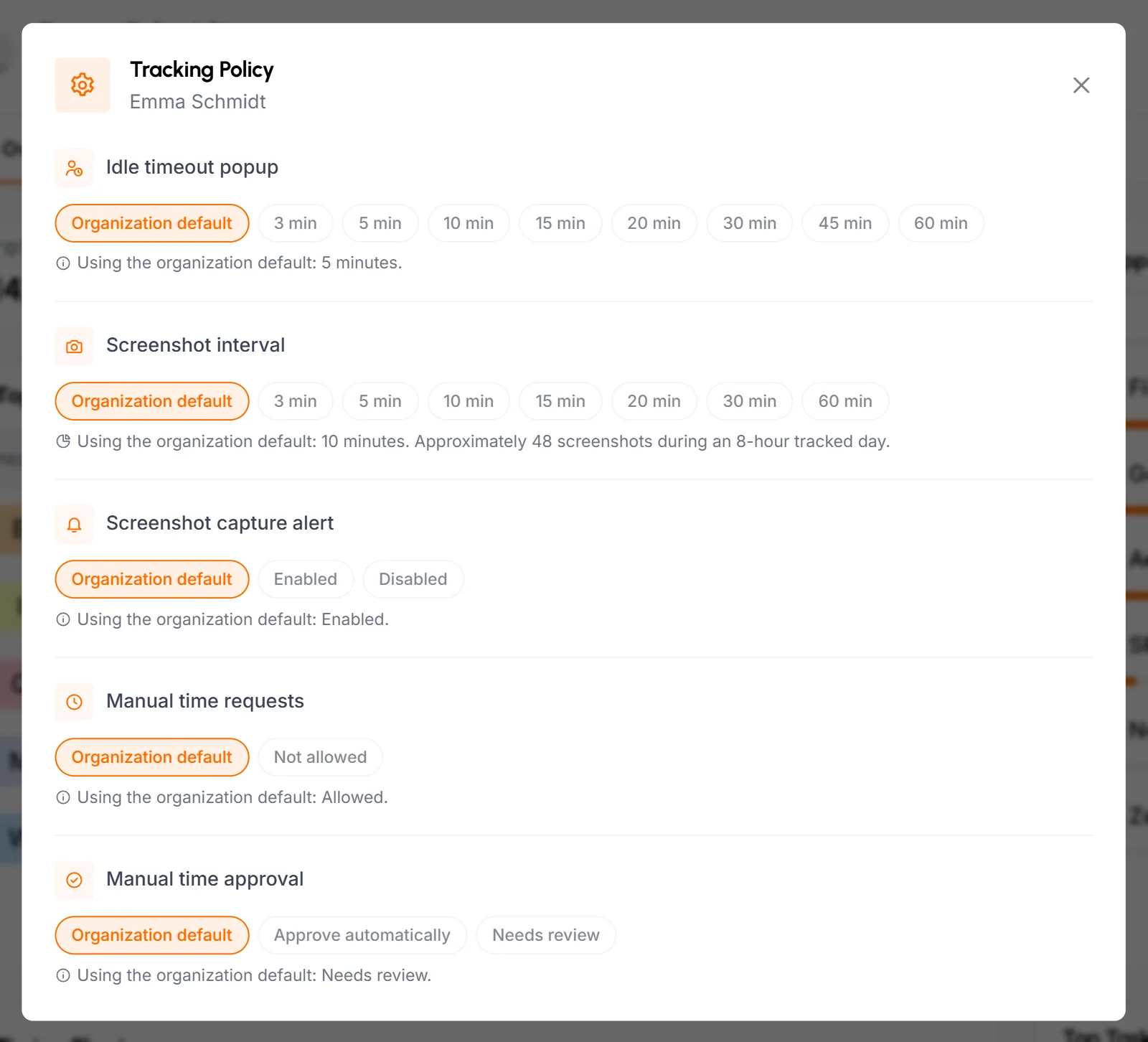
A member's tracking policy lets you give one person a different idle timeout, screenshot interval, screenshot alert or manual time rule from the rest of the organization. To change it for one member, open their profile and click the gear icon, Tracking Policy. To see and change everyone's settings on one page, and to set the organization defaults, use the tracking policy page.
- Idle timeout popup
- How long the member can go without keyboard or mouse activity before the desktop app asks about the idle time: 3, 5, 10, 15, 20, 30, 45 or 60 minutes.
- Screenshot interval
- How often the app takes a screenshot while the member tracks time: 3, 5, 10, 15, 20, 30 or 60 minutes. The hint below it estimates how many screenshots that makes in an 8-hour day.
- Screenshot capture alert
- Enabled notifies the member right after each screenshot. Disabled doesn't.
- Manual time requests
- Not allowed stops this member from requesting manual time, even when the organization allows it. You can't allow it for one member while it's off for the organization.
- Manual time approval
- Approve automatically adds this member's requests to their timesheet right away. Needs review sends them to a reviewer. Either one replaces the organization's Approval setting for this member.
Each setting also has Organization default, which uses the organization's value and changes when it changes. Every click saves on its own, and the desktop app gets the new values right away.
- Organizers can set a policy for anyone except themselves and the organization's owner.
- Business Managers can set one for Business Managers, Team Managers and Staff, but not for Organizers or themselves.
- While manual time is off for the organization, the 2 manual time settings are grayed out with the message "Manual time is off for your organization. Turn it on first."
- The policy only changes how the app takes screenshots. Whether it takes them at all depends on the member's Able to capture screenshots switch.
What's on the member details page?
The member details page shows one member's settings, teams, projects and reports. Click a member's name or View profile to open it. The header shows their name, role, email (a green dot means it's confirmed), phone or No phone, and whether tracking and screenshots are on.
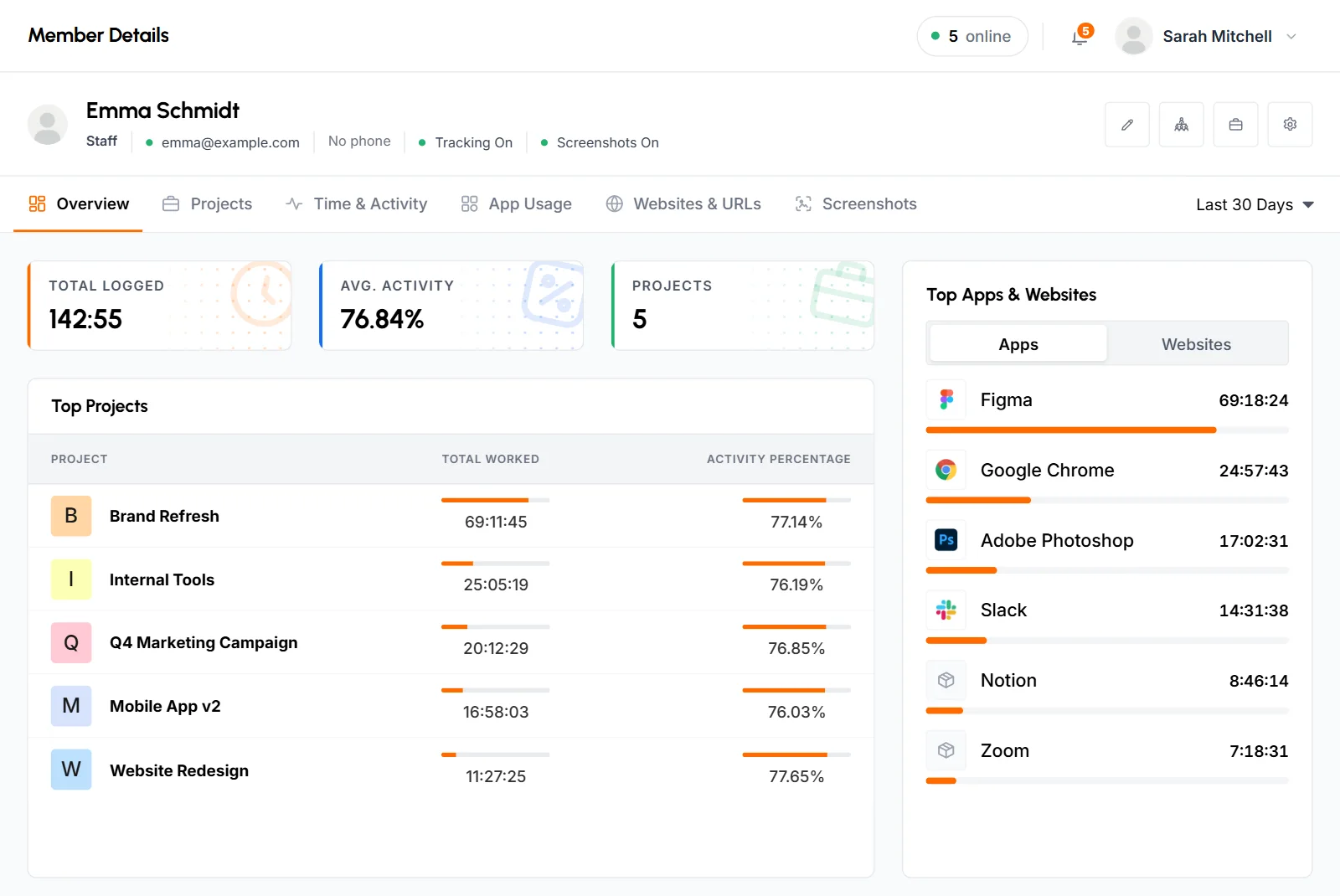
The icon buttons next to the header:
- Edit Member (pencil) opens the Edit Member popup. Organizers and Business Managers only.
- Teams lists the teams the member belongs to. Organizers and Business Managers can remove the member from a team here.
- Manages (Team Managers only) opens Assigned Teams, the teams they manage. See team managers.
- Projects opens the member's projects. See add a member to projects.
- Tracking Policy (gear) opens the member's tracking policy, if you're allowed to change it.
Tabs
| Tab | What it shows |
|---|---|
| Overview | Summary cards and charts for the dates you pick. It opens on the last 30 days. |
| Projects | Every project the member tracked time on or is assigned to, with total time and activity. Open a project to see its dates, then open a date to see its tasks. |
| Time & Activity | The member's time and activity report, grouped by date or project, with export. |
| App Usage | The apps the member used, grouped by date or app. See App usage. |
| Websites & URLs | The websites the member visited, grouped by date or website. |
| Screenshots | A card for each day with screenshots in the dates you pick. Click a card to open that day on the Screenshots page. |
The Overview tab
- Total Logged, Avg. Activity and Projects
- Time tracked, average activity and the number of projects the member worked on in the dates you picked.
- Top Projects
- The projects the member spent the most time on.
- Top Apps & Websites
- The apps and websites the member used most, on 2 tabs.
- Timing Chart
- Hours tracked each day.
- Top Tasks
- The tasks where the member spent the most time, with their project, time worked and status: Completed, Ongoing or Pending.
- Average Activity
- The member's activity percentage for each day.
- Task Overview
- The tasks assigned to the member as of today: completion rate, Completed, In Progress, Due in 7 Days, Overdue and open tasks by priority.
How to add a member to projects
A member needs at least 1 project before they can track time. To add one, click the Projects number on the member list, or the Projects icon on the member's profile.
- Click Assign Projects.
- Pick one or more projects. Add All selects every project you can assign, and Clear All clears your selection.
- Click Add to Projects. The member gets a notification for each new project.
To start a new project for the member, open the New project tab in the same popup. TimoDesk creates the project and adds the member to it. To take someone off a project, click the x next to it and confirm with Remove From Project. They lose access to the project and can't track time on it anymore. The time they already tracked stays in your reports.
You can only add active members who have confirmed their email. Team Managers can only add people to projects they have access to. For more ways to assign people, see assign members to a project.
How does a member start tracking time?
-
Check that the member is ready
On the member list, their status should be Active and Tracking should be On. Tracking can only be on after they're approved and have confirmed their email.
-
Add them to a project
-
Install the desktop app
The member downloads TimoDesk from the download page. It runs on Windows, macOS (Apple silicon and Intel) and Linux.
-
Sign in
They sign in with the email and password of their TimoDesk account.
-
Start the timer
They pick a project and task and start the timer. Their tracked time, activity and screenshots (if screenshots are on) appear in the dashboard.
If a member forgets to start the timer, they can ask for the missing time with a manual time request, if your organization allows it.
What's the difference between the roles?
TimoDesk has 4 roles: Organizer, Business Manager, Team Manager and Staff. The person who creates the organization is its Organizer and owner.
| What they can do | Organizer | Business Manager | Team Manager | Staff |
|---|---|---|---|---|
| See members | Everyone | Everyone | Themselves and their teams | No |
| Add, approve, disable members and change their settings | Yes | Yes | No | No |
| Create and edit teams | Yes | Yes | View the teams they manage | No |
| Create projects | Yes | Yes | Yes | No |
| Whose time, activity and screenshots they see | Everyone's | Everyone's | Their own and their teams' | Their own |
| Member Timing, Monthly Timesheet, Top Performers and Low Performers | Yes | Yes | Yes, for their teams | No |
| Productivity Leaders, Billing and Support Requests | Yes | Yes | No | No |
| Storage, Manual Time settings, Referral Option and the organization profile | Yes | No | No | No |
- Organizer
- Has full access to everything. An organization can have more than one Organizer. Nobody can disable the owner (who created the organization) or change the owner's role.
- Business Manager
- Runs the organization day to day: members, teams, projects, reports, billing and support requests. Business Managers can also change the organization's tracking policy, except the manual time defaults. They can't manage Organizers.
- Team Manager
- Runs one or more teams and sees only those teams' members and work. See what a team manager can see and do.
- Staff
- Tracks time on their assigned projects and sees their own time, activity and screenshots. A Staff member can also be a project leader, which gives them more access on the projects they lead. See Projects and tasks.
Your organization's manual time settings decide whether a Business Manager or Team Manager can review manual time.
Common questions
Can I delete a member?
No. Disable the member instead. They lose access right away, and TimoDesk keeps their tracked time, screenshots and reports.
Why can't I turn on tracking for a member?
You can only turn on tracking for members who are approved, have confirmed their email and aren't disabled. Hover over the grayed-out switch to see which reason applies.
Why does TimoDesk say an email is already taken?
That address already belongs to a TimoDesk account or already has an open invite from your organization. Check the Invites sent tab, and cancel the old invite if you want to send a new one.
How long does an email invite work?
48 hours. After that, the invite shows as Expired on the Invites sent tab, and you can invite the same address again to send a new link.
Can people who join with the invite link choose their role?
No. Everyone who joins with the link starts as Staff. You can change the role in the Edit Member popup after you approve them.
Does disabling a member remove their data from reports?
No. Their tracked time, activity and screenshots stay in every report for the dates they worked. Disabling only stops them from signing in and tracking new time.