
App Usage report
The App Usage report shows which apps your team used while tracking time, who used them and for how long. It opens grouped by app, and you can expand each row to see a member and a single day.
Who can use it: Everyone. Organizers and Business Managers see the whole organization. Team Managers see themselves and the members of the teams they manage. Staff see only their own usage.
What the App Usage report counts
The report counts the time members spend in each app while they track time. The TimoDesk desktop app records this. To open the report, go to Activity > App Usage in the sidebar.
- Only tracked time counts. The app records nothing while the timer is stopped.
- App time in a tracked stretch is never more than the time tracked in it. When idle time is removed from a stretch, it's removed from that stretch's apps too.
- Manual time has no app usage. A day with approved manual time shows less app time than tracked time.
- TimoDesk lists known process names under one app name, so the same app doesn't appear twice.
- Days follow your organization's time zone.
Browser time appears here under the browser's name. To see which websites that time went to, use Websites & URLs.
How to filter and group the report
The filter bar controls what the report shows. Your exports use the same settings.
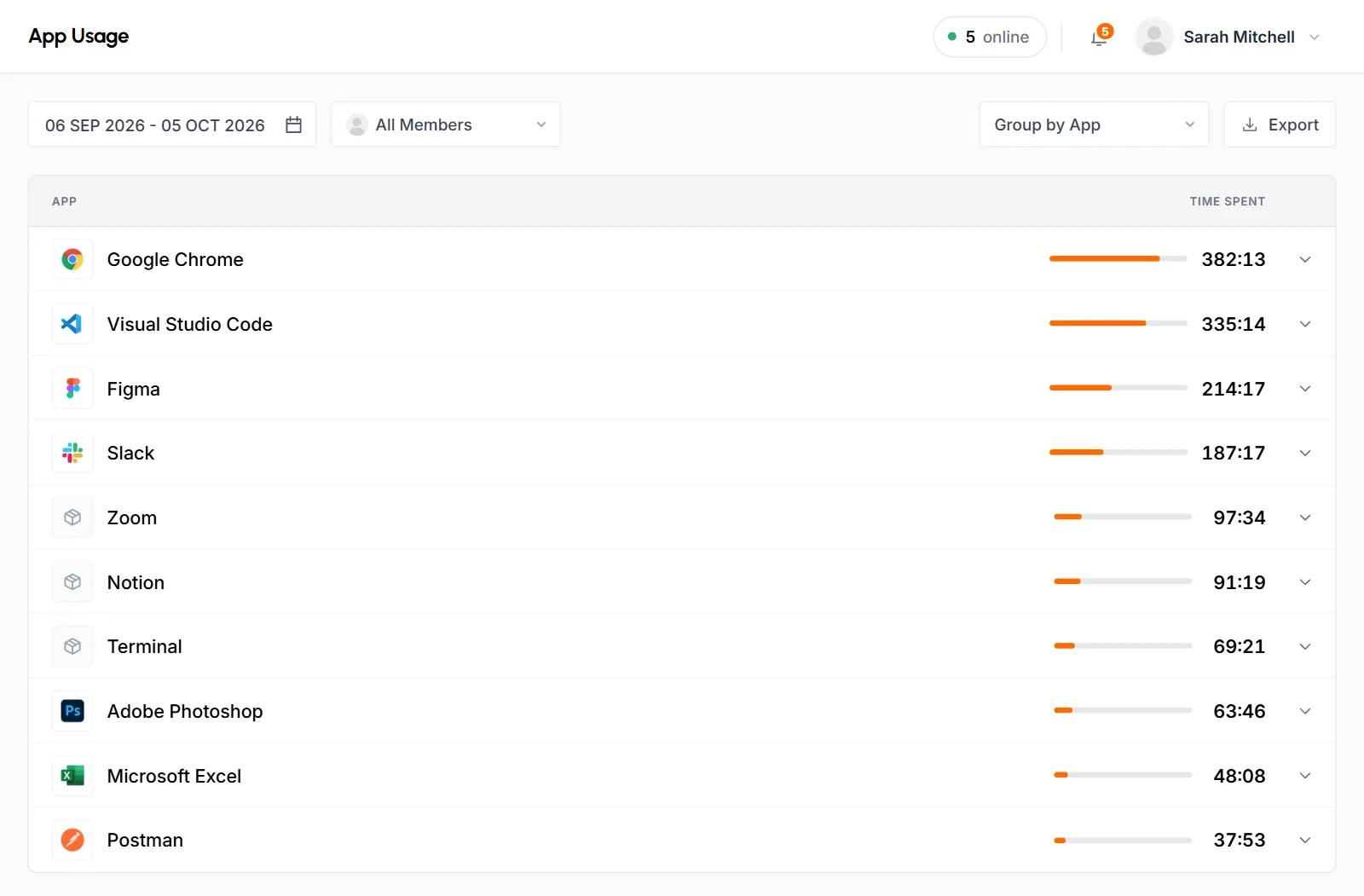
Date range
The report opens on the last 30 days, including today. Click the date field and pick a preset (Today, Yesterday, Last 7 Days, Last 30 Days, This Month or Last Month). A preset loads right away. For other dates, click the first and last day on the calendar, then click Apply. You can't pick dates after today.
Member
Keep All Members to see everyone you have access to, or pick one member. You can search the dropdown, and it lists active members only. Usage from members who were disabled later still counts in the All Members totals. Staff don't see this filter.
Group by
- Group by app (default)
- Group by App lists each app, then who used it, then on which days. See Group by App view.
- Group by date
- Group by Date lists each day, then the apps used that day, then who used them. See Group by Date view.
- Group by member
- Group by Member lists each member, then their apps, then the days. Staff can't use it. See Group by Member view.
When you change a filter, the list reloads and the other filters stay the same. The page address keeps the date range, member and grouping. A bookmark or a copied link opens the same view.
How to read and expand the rows
Every row shows a name, a bar and the Time spent in hours and minutes. For example, 12:30 means 12 hours 30 minutes. Anything under a minute shows as < 1m. Each bar is scaled against the largest row at the same level, so the apps with the most time stand out.
Click a row, or its arrow, to open the next level. Each level loads when you open it, so a long report stays fast.
- Group by App and Group by Member show the first 20 rows, sorted by time. Click Show more at the bottom to load 20 more.
- Group by Date lists every day with usage in the range, newest first. Days with no app usage don't appear.
- If the app recorded nothing in the range, the report says No app usage in this period. Try a wider date range or another member.
Group by App view
The report opens in this view. It starts with the app, so it's the quickest way to check which tools your team uses, or to find a lot of time in apps that aren't part of the work.
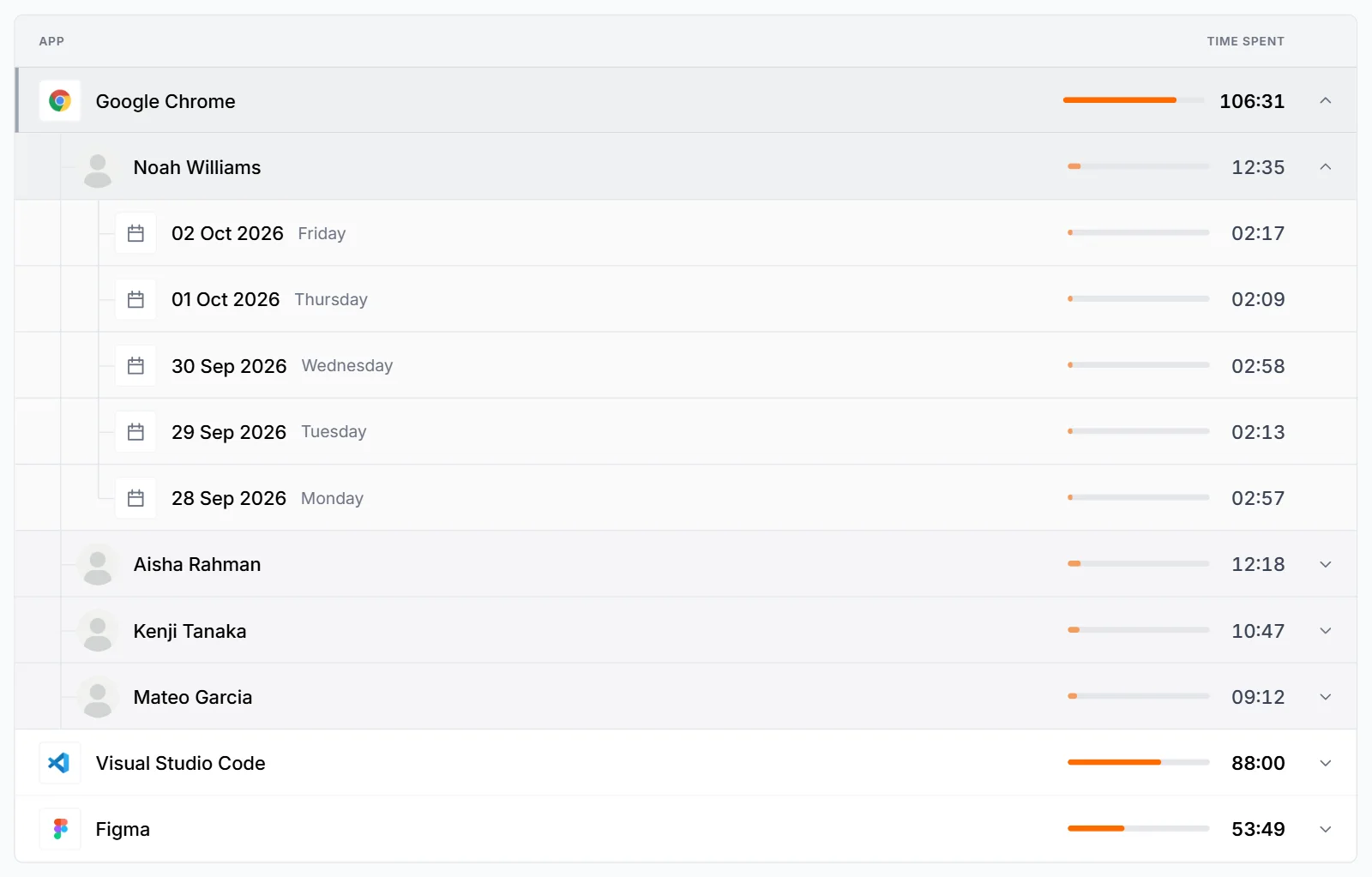
- App (top level)
- Each app used in the range, with its total time for everyone in view, highest first.
- Member (second level)
- Expand an app to see who used it and how long each person spent in it.
- Date (third level)
- Expand a member to see the days they used the app, with the time on each day.
When you pick a single member in the filter, the member level is skipped. Expanding an app shows the days directly.
Group by Date view
Use this view for daily reviews, or to see how the team used apps on a certain day.
- Date (top level)
- Each day in the range with app usage, with its weekday and the total app time for everyone in view.
- App (second level)
- Expand a day to see the apps used that day and the time spent in each.
- Member (third level)
- Expand an app to see who used it that day and for how long.
With a single member picked, the app level is the last one.
Group by Member view
Use this view to see how each person splits their time between tools, or to compare app use across the team.
- Member (top level)
- Each member with their total app time in the range, highest first.
- App (second level)
- Expand a member to see the apps they used and the time in each.
- Date (third level)
- Expand an app to see the days the member used it and for how long.
How to export app usage to PDF or CSV
You can download the report as a PDF or CSV file. Set the date range, member and grouping first, because the file uses those settings.
-
Open the export options
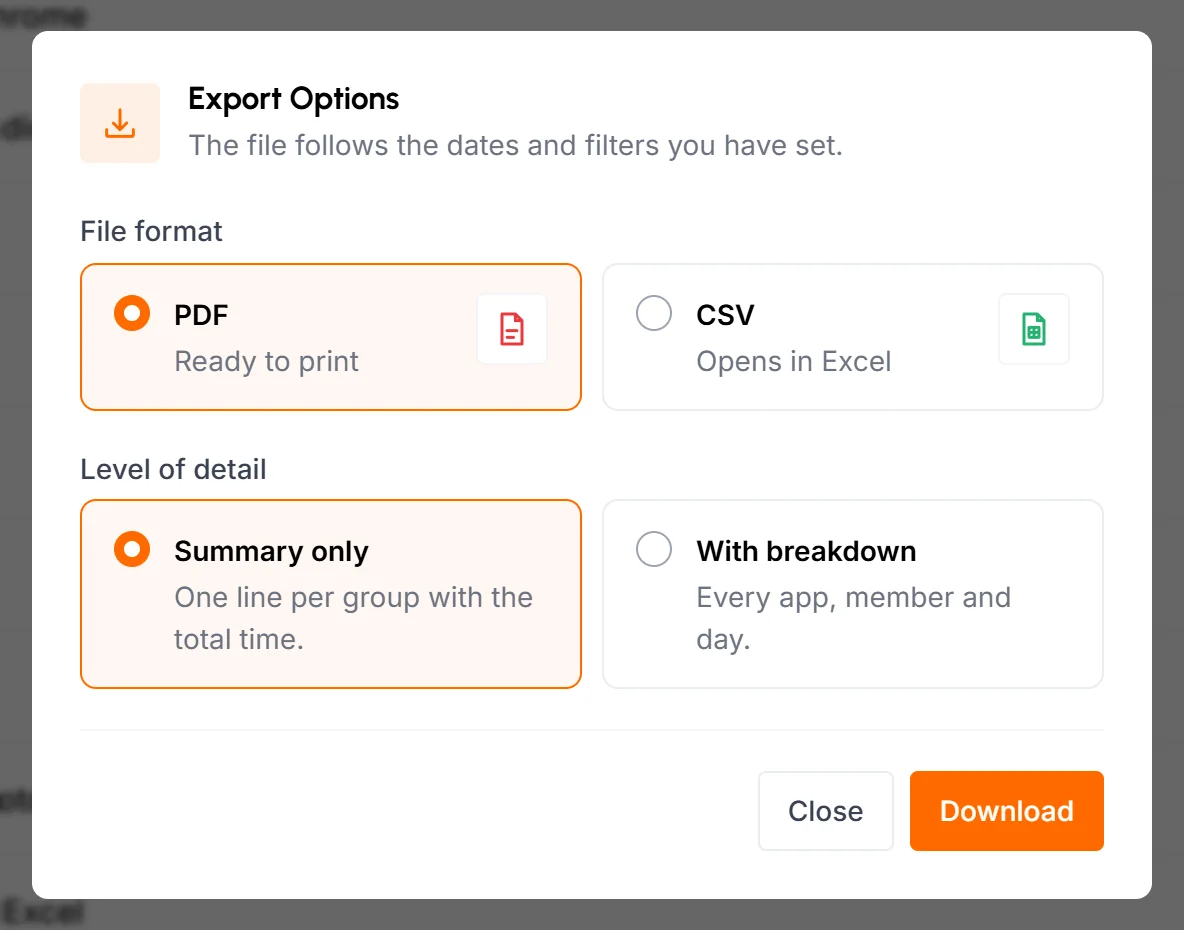
Click Export at the right of the filter bar. The Export Options popup opens.
-
Choose a file format
Pick PDF (ready to print) or CSV (opens in Excel or any spreadsheet app). PDF is selected by default.
-
Choose the level of detail
Pick Summary only for one line per group with the total time. Pick With breakdown for every app, member and day. Summary only is selected by default.
-
Download the file
Click Download. The popup closes and the file downloads.
| Grouping | Summary only | With breakdown |
|---|---|---|
| Group by App | One row per app, with the number of members and the total time | One row per app, member and day |
| Group by Date | One row per day, with the number of members, the number of apps and the total time | One row per day, member and app |
| Group by Member | One row per member, with the number of apps used and the total time | One row per member, app and day |
A PDF starts with your organization's name, the period and the date and time it was made, then the total time and the number of apps and members. A CSV starts with rows for the organization, the period and the total usage. Then comes a blank row, then the table. Times are in hours and minutes. When Staff export, the file has no member columns or member count.
A PDF With breakdown can cover up to 31 days. For a longer range, the report shows "The expanded PDF can only be exported for up to 31 days." and the popup stays open. Pick CSV, Summary only or a shorter range.
What staff see
Staff open the same report from Activity > App Usage and see only their own usage. They get the date range, Group by App, Group by Date and Export. They don't get the member filter or Group by Member. When they expand an app, they see the days directly.
Where else you can see app usage
A member's page, a project's page, a team's page and a task's page each have an App Usage tab. It shows the same report, limited to that member, project, team or task. For one member's apps on one day, the quickest view is the Top App Usage card on the Screenshots page.
Common questions
Why is the app time lower than the tracked time?
Manual time has no app usage. Also, when idle time is removed from a tracked stretch, it's removed from that stretch's apps too. A member's app total for a day can be lower than their tracked time, but never higher.
Can I export more than 31 days at once?
Yes, as a CSV or as a PDF with Summary only. Only a PDF With breakdown is limited to 31 days.
Why can't staff group by member?
Staff see only their own usage, so every row would be the same person. They can group by app or by date.