
Dashboard
The TimoDesk dashboard is the first page you see after you log in. It shows tracked time, activity, who is working now, where the hours went and what needs your attention. Organizers, Business Managers and Team Managers get a team dashboard. Staff get the same page for their own work.
Who can use it: Everyone. Organizers and Business Managers see the whole organization. Team Managers see themselves and the members of the teams they manage. Staff see only their own time.
How the dashboard works
One date range at the top of the page controls most of the cards. Pick a period there, and the key figures, charts and lists below it follow. The page opens on Last 15 Days. The date range has these presets:
- Today and Yesterday
- Last 7 Days, Last 15 Days and Last 30 Days
- This Month and Last Month
- Last 6 Months and This Year
- Custom Range, with two calendars to pick a start date and an end date
A preset applies as soon as you click it. For Custom Range, click a start date and an end date, then click Apply. Click the month or the year above a calendar to jump to another month or year. The calendars start each week on your organization's week start day.
You can't pick a date after today. Last 6 Months starts on the first day of the month 5 months back, so on September 30 it covers April 1 to September 30. Each day starts and ends at midnight in your organization's time zone.
| Card | What it covers | Who sees it |
|---|---|---|
| Key figures | The date range | Everyone |
| Team Day (My Day for Staff) | One day, picked on the card. Opens on today. | Everyone |
| Live Now | Right now and today | Organizers, Business Managers, Team Managers |
| Top Apps & Websites | The date range | Everyone |
| Time Allocation | The date range | Everyone |
| Performance Map | The date range | Organizers, Business Managers, Team Managers |
| Action Center | The date range, plus open tasks and requests | Organizers, Business Managers, Team Managers |
| Recent Team Activity | The date range | Organizers, Business Managers, Team Managers |
| Billing | The current billing cycle | Organizers and Business Managers |
Staff see a few cards of their own. See The Staff dashboard.
The charts draw one column or point for each day when the range is up to 31 days. For longer ranges up to about 6 months, they draw one for each week, and each week starts on your organization's week start day. Longer ranges get one for each month.
Setup checklist first
Until your workspace is set up, the dashboard shows a setup checklist instead of the cards. Organizers and Business Managers get 5 steps: verify your email, create your first project, invite a team member, enable tracking for a member, and assign a project to a member. Staff and Team Managers get 3 steps: verify your email, join a project, and start tracking time. Click Skip to hide it until your session ends. For details on each step, see Account setup.
How tracked time and activity are calculated
The dashboard uses the same definitions as the Time & Activity, Member Timing and Project Timing reports. With the same date range and members, they show the same tracked time.
- Tracked time
- Time the desktop app recorded while a member's timer was running, plus approved manual time. Time the app reported as idle doesn't count.
- Activity percentage
- Activity is the share of tracked seconds with keyboard or mouse input. The desktop app counts active seconds, not keystrokes, and never records what anyone types. For each block of tracked time the app sends, TimoDesk divides the seconds with any keyboard or mouse input by the seconds tracked.
- Average activity
- Average activity is weighted by time, so longer blocks count more. Two hours at 80% and one hour at 50% average to 70%, not 65%.
- Manual time
- Approved manual time counts toward tracked time. It has no keyboard or mouse input, so the reports leave it out of activity averages.
Right now the dashboard's own activity figures still count manual time as 0% activity. If the range has approved manual time, the dashboard can show a lower activity than the reports.
Activity measures input, not output. Reading, calls and meetings create little keyboard or mouse input, so think about the kind of work before you judge a low percentage.
What do the key figures show?
The key figures are 6 tiles at the top of the page. Each one shows a total for the date range and a small chart of how it changed across the range. Hover over the chart to see the value for each day or week.
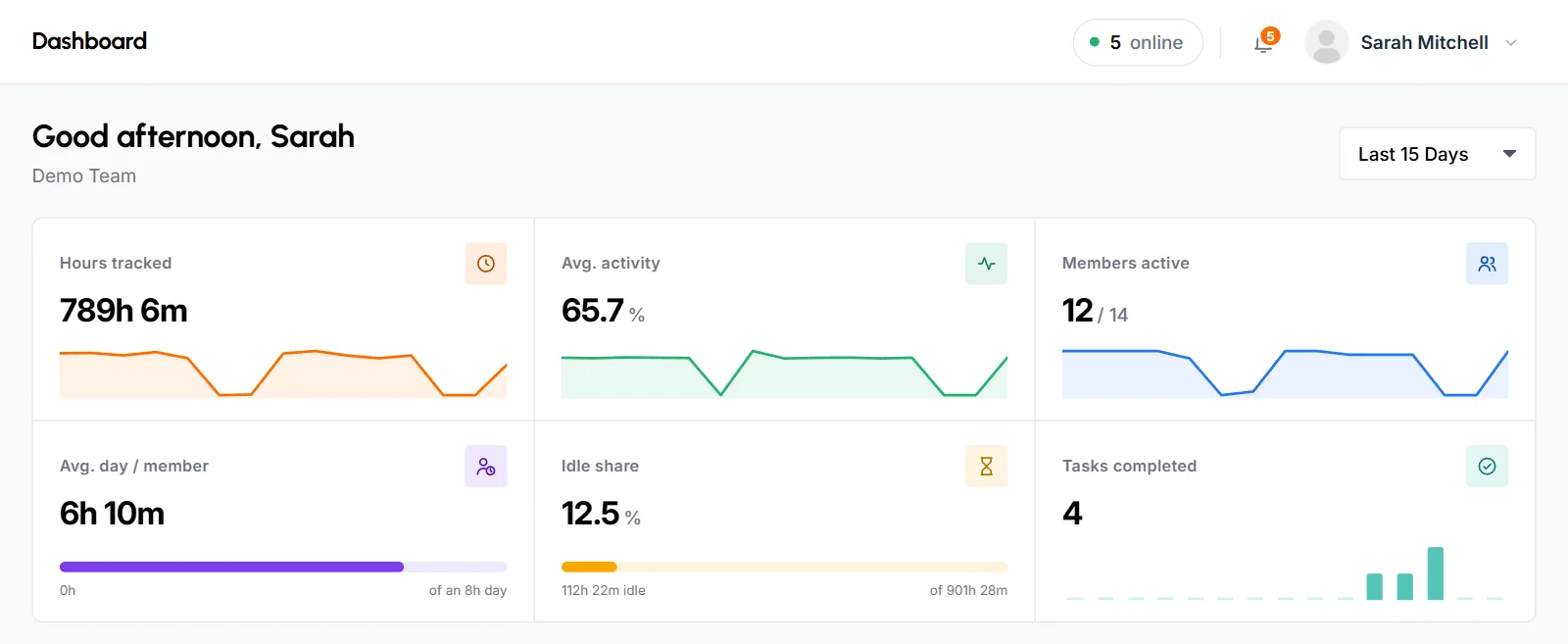
- Hours tracked
- All tracked time in the range.
- Avg. activity
- The time-weighted average activity for the range, with 1 decimal.
- Members active
- The number of members who tracked any time in the range, out of all active members you can see. The chart shows how many members tracked time each day.
- Avg. day / member
- The average tracked time for a member on a day they worked. TimoDesk divides the tracked time by the number of days each member tracked time. The bar compares it with an 8-hour day.
- Idle share
- The share of time that was idle. TimoDesk adds the idle time the desktop app cut out to the tracked time, then shows what part of that total was idle. Below the bar you see the idle hours and the total.
- Tasks completed
- The number of tasks marked complete in the range, with a column for each day or week. Archived tasks don't count.
What does the Team Day card show?
The Team Day card shows who worked when on one day, as a timeline with one row per member. It opens on today. Use the arrows to move one day back or forward, or click the date to pick any day from a calendar. You can't move past today. This card doesn't follow the date range at the top of the page.
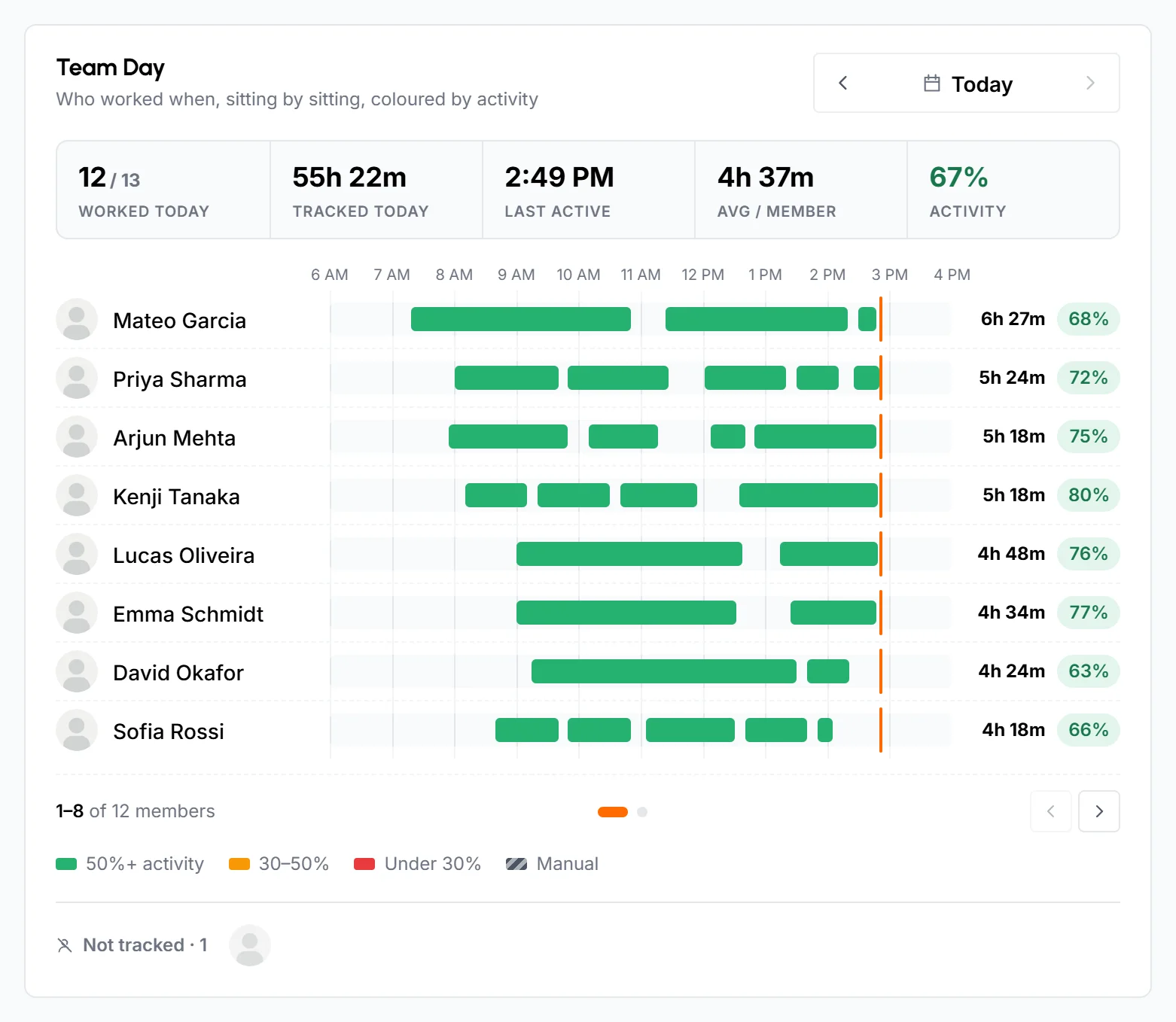
Above the timeline, 5 figures sum up the day: how many members worked out of everyone who could have, the time tracked, the last time anyone was active, the average time for each member who worked, and the day's activity.
- Each colored bar is a sitting. Tracked time with gaps of 2 minutes or less joins into one sitting.
- The color shows the sitting's activity: one color for 50% or more, one for 30% to 50% and one for under 30%. Manual time has its own color. The legend under the timeline names them.
- Hover over a bar to see its start and end time, the time tracked and its activity. Hover over a name to see the member's first start, last finish and longest sitting.
- On the right of each row are the member's total time and activity for the day. A green dot on the photo means the member is online now.
- Members who tracked the most time come first. The card shows 8 members at a time. Use the arrows or dots under the timeline to see the rest.
Under the timeline, Not tracked lists the members who have tracking turned on but recorded no time that day. Click it to see the full list. If nobody tracked time on the day you picked, click Go to the last active day to jump to the last day with tracked time.
What does the Live Now card show?
Live Now shows who is working at this moment and who worked earlier today. At the top are 3 figures: how many members are Online now, how many Worked today out of the members who could have, and the total time Tracked today.
Below them, the card lists up to 8 members. Members who are online come first, with the project and task they're tracking. Click either one to open it. Members who are offline show how long ago they were last active. Each member has a badge with their tracked time today. If more people worked today, click and N more worked today to see them all, or click View All to open the list of online members.
The card updates by itself when members start or stop tracking, and every 3 minutes while the page is open.
What does the Top Apps & Websites card show?
Top Apps & Websites lists the 7 apps and the 7 websites where people spent the most time in the date range, with the time and a bar for each. Click Apps or Websites to switch between the two lists. For the full lists, open App Usage or Websites & URLs.
What does the Time Allocation card show?
Time Allocation shows where the hours went, project by project. The chart has one column for each day, week or month of the date range, split into colors by project. Hover over a column to see each project's time in it.
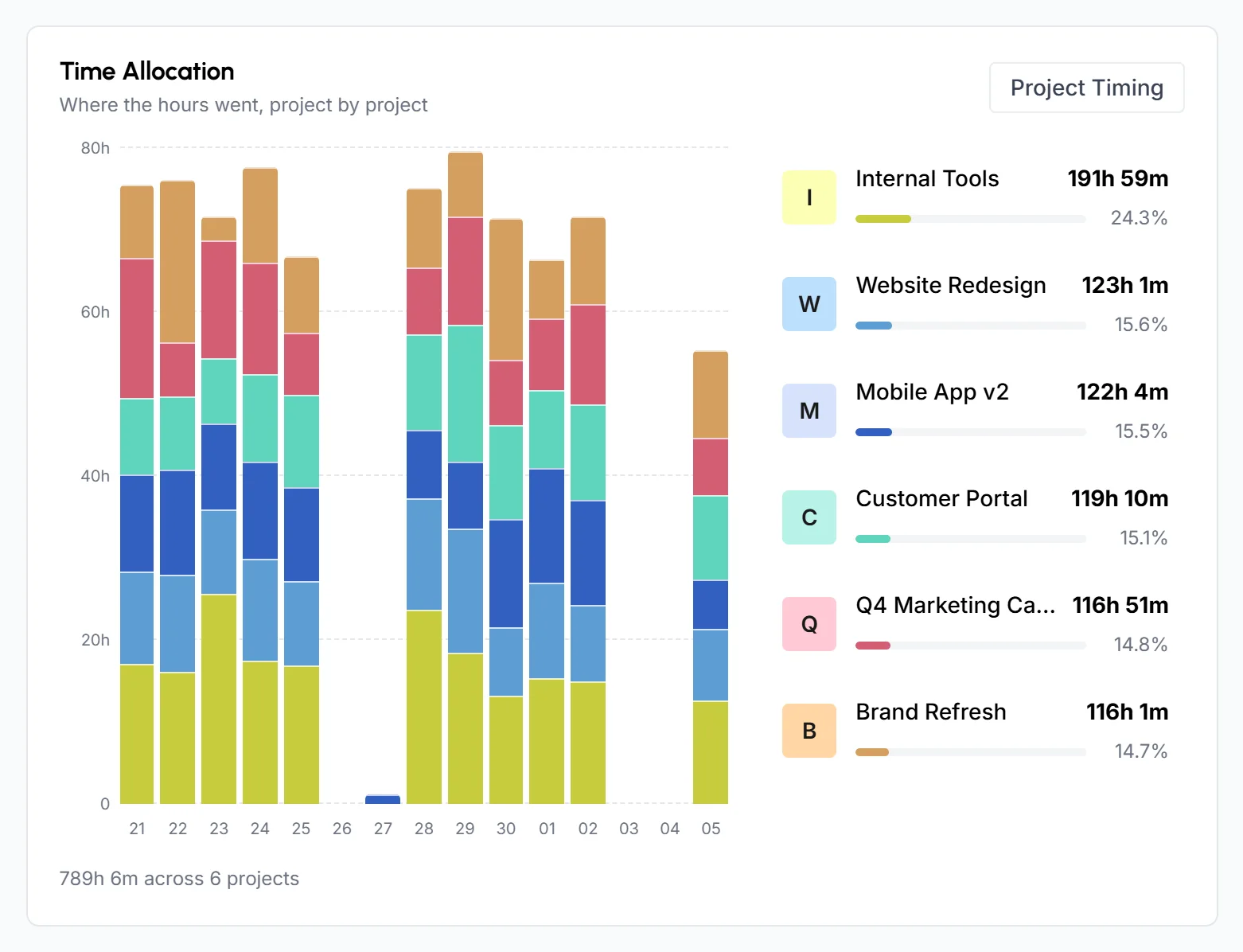
Next to the chart, the legend lists the 6 projects with the most time, with their hours and their share of the total. All other projects are grouped into one row, such as "4 other projects". Hover over a project to highlight it on the chart and see its activity and how many members worked on it. Click a project name to open the project. Under the chart is the total time and the number of projects.
Click Project Timing to open the full Project Timing report, which splits each project by date or member.
What does the Performance Map show?
The Performance Map places each member on a chart by hours a day and activity. Hours a day runs from left to right and is the member's tracked time divided by the days they worked. Activity runs from bottom to top. Two dashed lines mark the team's middle value (the median) for each and split the chart into 4 groups:
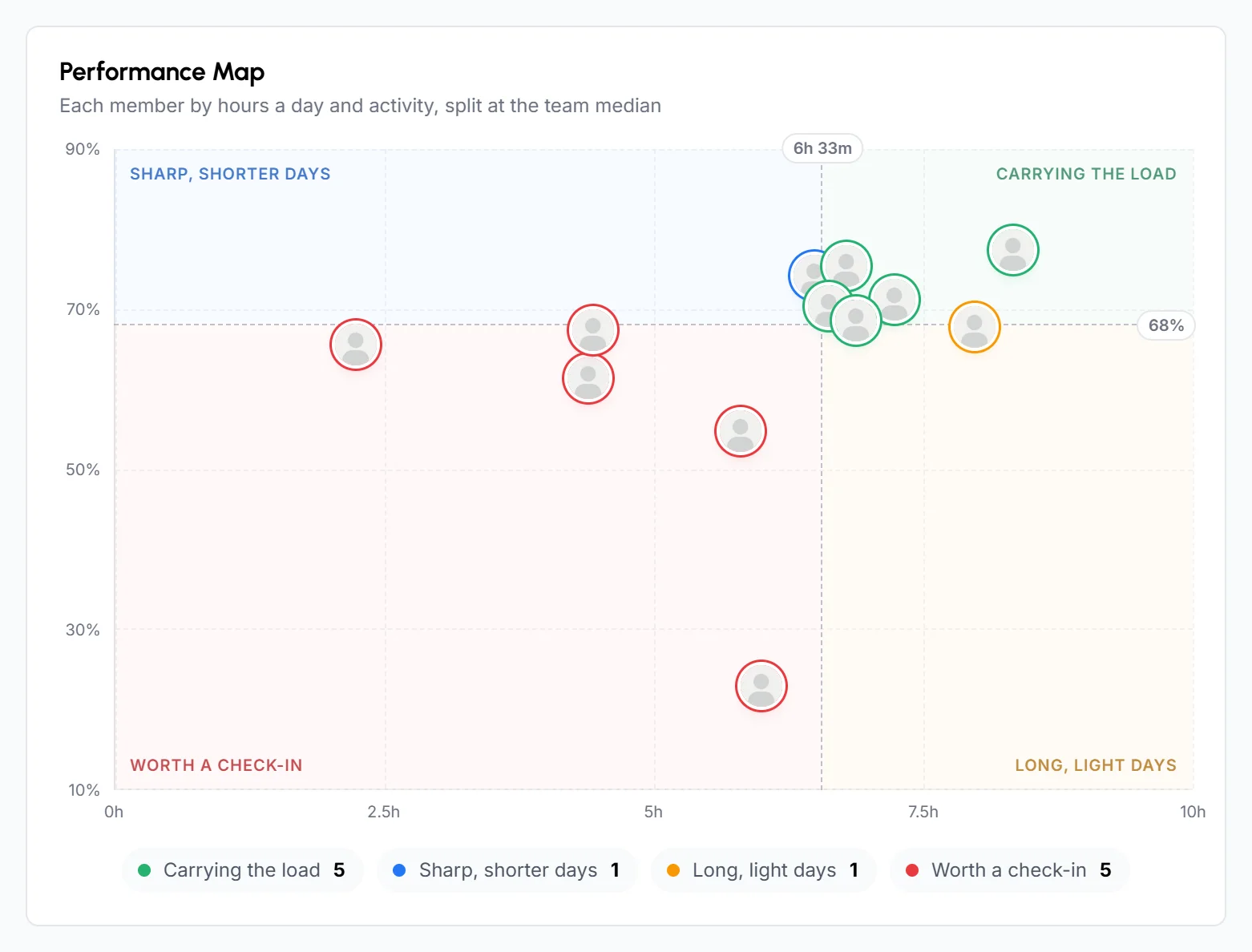
- Carrying the load
- Longer days, higher activity.
- Sharp, shorter days
- Shorter days, higher activity.
- Long, light days
- Longer days, lower activity.
- Worth a check-in
- Shorter days, lower activity.
Only members with at least 1 hour of tracked time in the range appear on the map, and it needs at least 2 of them. Hover over a member to see their hours a day, activity, days worked and total time. The card also shows how hours a day and activity changed from the period before, which has the same number of days and comes right before your range. Click View member to open their page. Hover over a group name under the chart to highlight its members.
To rank members by hours, open Top Performers or Low Performers under Performance in the sidebar. See Top and Low Performers.
What does the Action Center show?
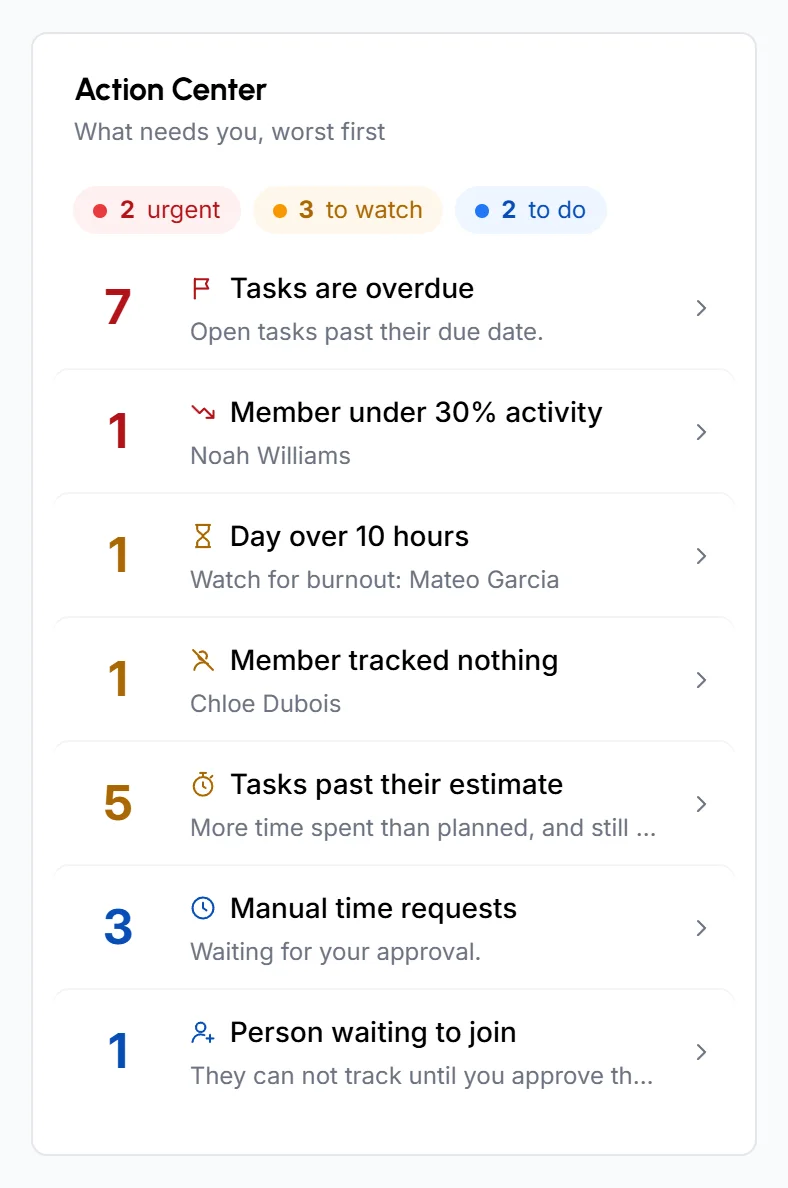
The Action Center lists the checks that need your attention, the most urgent first. Each row shows a count and a short line, such as the names of the members involved. The top of the card sums up how many checks are urgent, to watch or to do. A check with nothing to report stays in the list, grayed out with a check mark.
| Check | What it counts |
|---|---|
| Tasks overdue | Open tasks past their due date. |
| Members under 30% activity | Members with at least 1 hour of tracked time in the range and an average activity under 30%. |
| Days over 10 hours | Days in the range on which a member tracked 10 hours or more. |
| Members who tracked nothing | Active members with tracking turned on who recorded no time in the range. |
| Tasks past their estimate | Open tasks with more time spent than estimated. |
| Manual time requests | Manual time requests waiting for your approval. |
| People waiting to join | People who joined with your invite link and are waiting for approval. Only Organizers and Business Managers see this check. |
Click a row to open a popup with the items behind the number, up to 50. Each item links to its task, member or request.
What does the Recent Team Activity card show?
Recent Team Activity shows the 8 latest changes to tasks on your project boards in the date range, newest first and grouped by day. Changes include tasks that were completed, reopened, moved to another section, created, assigned or given a new due date. Use the tabs All, Completed, Moved and Updates to filter the list. Click a row to open the task, or click a name to open that member's page.
What does the Billing card show?
Organizers and Business Managers see a Billing card with the next bill and how it adds up.
- Status
- A label such as Active, the days left in your free trial, or a note that a payment is due.
- Next invoice
- The amount you'll pay and the date of your next invoice. A ring shows how many days are left in the billing cycle.
- Billable members
- The number of members, including you, who tracked time in the current billing cycle. Click it to see who they are.
- Price per member
- The price for each billable member for one billing cycle.
- Billable clients
- Shows only when your bill includes clients. It's the number of clients who can see a project that had time tracked in the current billing cycle, with the price per client and their total. Click it to see who they are.
- Discount
- If your organization has an active discount, the card shows the percentage and the amount taken off.
- You pay
- Billable members times the price per member, plus the total for billable clients, minus any discount.
- Last invoice
- The number, date, amount and status of your latest invoice. Click it to download the invoice.
Organizers also get a button to open the invoice list. If there are unpaid invoices, it says how many and takes you there to pay.
Notices at the top of the dashboard
- Unpaid invoices
- Organizers see how many unpaid invoices the organization has, the total amount due and the date to pay by. Click Pay now or Invoices to open the invoice list. See Billing.
- Browser extension
- On a computer, Organizers, Business Managers and Team Managers see a notice about the TimoDesk Live Team Monitor extension until they install it. Click Download now to get it for Chrome or Firefox. Click Skip to hide the notice in this browser for 7, 15 or 30 days, or choose Don't show again to hide it for a year. See The browser extension.
What does the browser extension show?
The TimoDesk Live Team Monitor extension shows who is working right now and a summary of today from your browser toolbar, without opening the dashboard. Organizers, Business Managers and Team Managers can use it. See the Browser extension guide to install it and read what it shows.
The Staff dashboard
Staff get the same page about their own work. It uses the same date range at the top, and every card shows only their own time.
Key figures
Staff get 6 tiles: Hours tracked, Avg. activity, Active days, Avg. day, Idle share and Tasks completed. Active days is the number of days you tracked any time, with a column of your hours for each day or week. Avg. day is your tracked time divided by your active days. Tasks completed counts the tasks you created, are assigned to or tracked time on, plus the tasks in projects you lead.
My Day
Your own day as a timeline, the same as Team Day. The figures above it show your first start, the time tracked, your last finish, your longest sitting and your activity.
Activity Heatmap
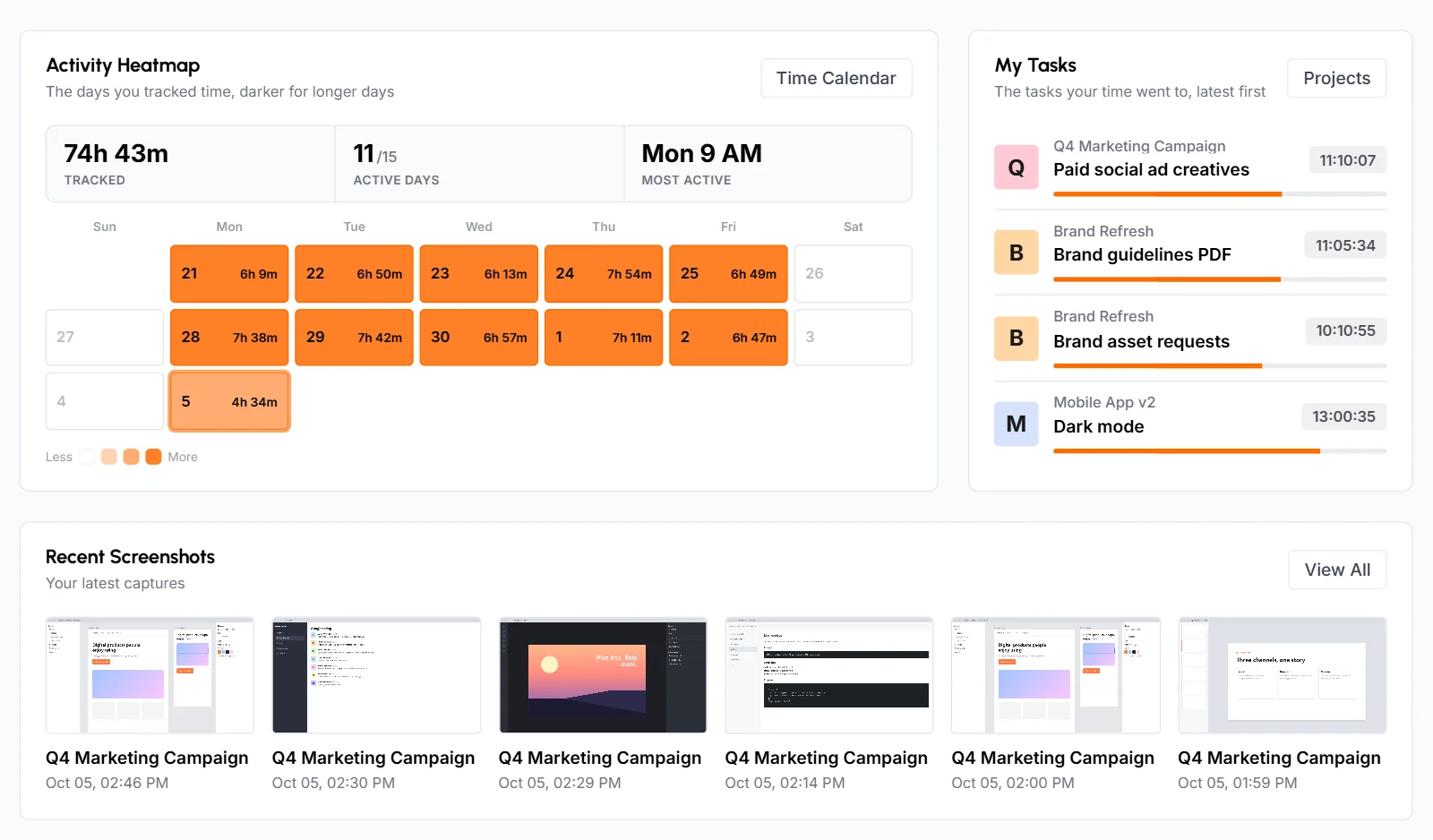
A calendar of the date range with one cell per day. Cells have 3 shades, compared with your busiest day in the range. At the top are your total time, your number of active days and Most active, the weekday and hour with the most tracked time. Ranges longer than 6 weeks show as a compact strip. Click Time Calendar to open the Time Calendar.
My Tasks
Up to 4 tasks assigned to you that you tracked time on in the date range, most recently tracked first. Each shows the project, the task and your own time on it. Click one to open its project.
Recent Screenshots
Your 6 latest screenshots, newest first, with the project and the capture time. If the project was deleted, the screenshot says "Deleted project". Click a screenshot to see it full size, or click View All to open the Screenshots page. This card doesn't follow the date range.
Cards shared with the team dashboard
Top Apps & Websites and Time Allocation work as described above, but only with your own time. Staff don't see Live Now, the Performance Map, the Action Center, Recent Team Activity or Billing.
How to take the dashboard tour
The dashboard tour is a short walk through the parts of the page. It starts by itself the first time you open the dashboard in a browser, once the setup checklist is done or skipped. Click Show me around to start it or Skip tour to close it. Use Next and Back to move between steps, and Done on the last one.
To take the tour again, click your photo at the top right and choose Take a tour.
How to read your notifications
Click the bell at the top of the page to see your latest unread notifications, up to 10. The number on the bell is how many you haven't read. It shows 9+ when there are more than 9. Click a notification to mark it as read and open the page it's about.
Click View All Notifications to open the Notifications page with your full list, newest first. There you can:
- Click Mark all as read to clear the unread count.
- Click the trash icon next to a notification to delete it.
- Click Delete all to clear your whole list. This can't be undone.
Common questions
Why don't the dashboard numbers match the Time & Activity report?
Check the date range first: the dashboard opens on the last 15 days, and Time & Activity opens on the last 30 days. With the same range and members, both show the same time and activity.
Can a Team Manager see the whole organization on the dashboard?
No. A Team Manager's dashboard covers only themselves and the members of the teams they manage, and it has no Billing card.
Does manual time count on the dashboard?
Yes. Approved manual time is part of every time total and shows in its own color on Team Day. It has no keyboard or mouse data, and right now the dashboard counts it as 0% activity, so it lowers the dashboard's activity figures.
Why isn't a member on the Performance Map?
A member needs at least 1 hour of tracked time in the date range to appear on the map, and the map needs at least 2 such members.
Where did Top Performers and Low Performers go?
Both have their own pages under Performance in the sidebar. The dashboard shows members by hours and activity on the Performance Map instead.
For more detail, open the full reports: Time & Activity, Member Timing, Project Timing, App Usage and Top and Low Performers.