
Account settings
Account settings is where you change your organization's details, the manual time rules, your referral link, and your own profile and password. The tabs you see depend on your role.
Who can use it: Every member has a profile page. Organizers also see Organization Setting, Manual Time and Referral Option. Business managers see Organization Setting but can't change it. Team managers and staff see only their profile, with no tabs.
How to open your account settings
In the sidebar, under Settings, click Account. Organizers and business managers see the Organization Setting tab first. Team managers and staff go straight to their profile. You can also open your profile from the account menu at the top right, with Profile Setting or Change Password.
| Tab | What it holds | Who sees it |
|---|---|---|
| Organization Setting | Organization name, logo, time zone, week start and address, plus the tracking settings in use and a link to change them | Organizers (can edit) and business managers (view only) |
| Manual Time | Whether members can request manual time, who reviews it and the request limits | Organizers |
| Referral Option | Your referral link, code and referred organizations | Organizers |
| Profile | Your name, phone, photo and password | Everyone. Team managers and staff see it without the tab bar. |
Screenshot storage has its own page under Settings. See Screenshot storage settings.
How to change your organization's name, time zone and week start
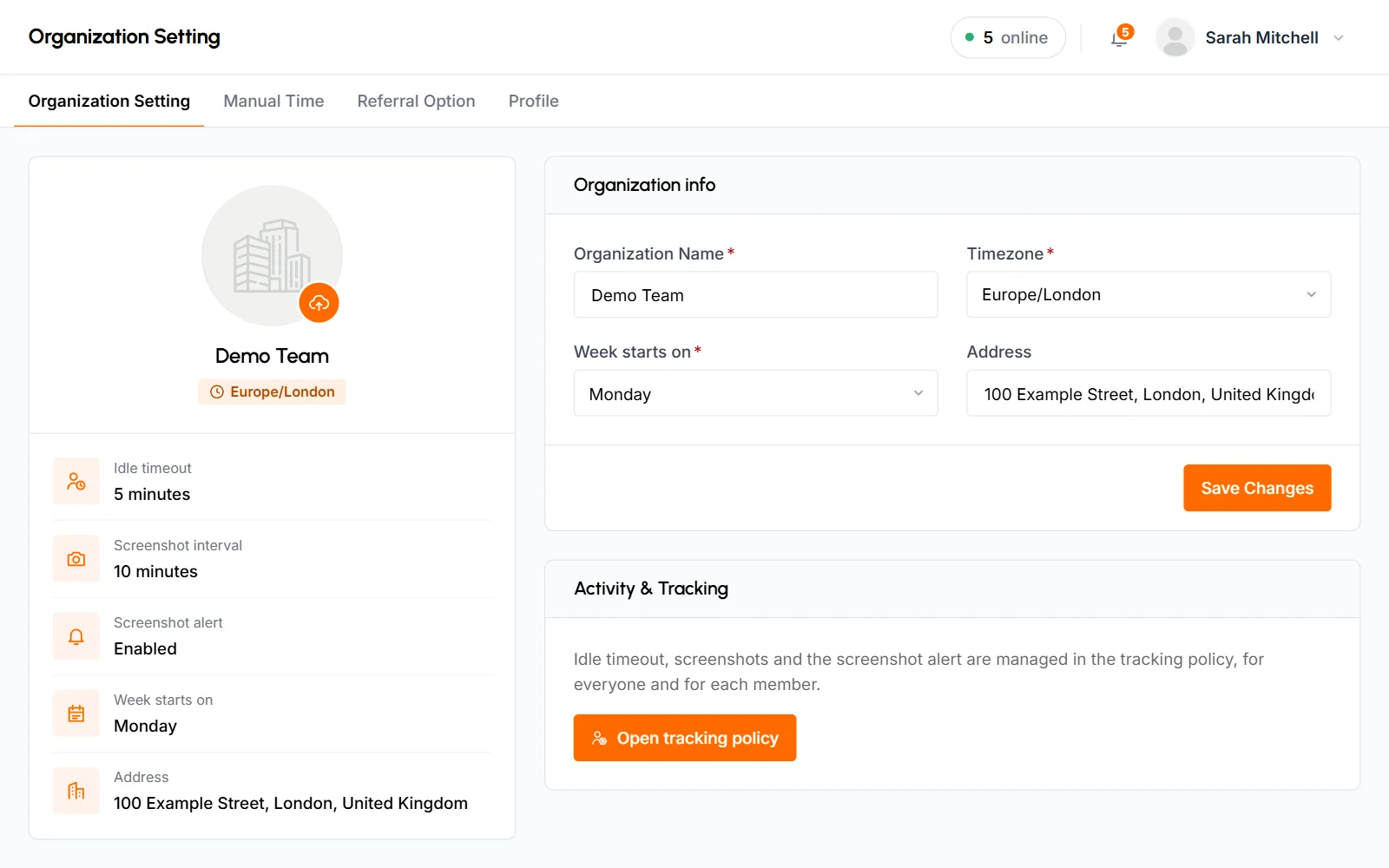
Only the organizer can edit the Organization info form. Business managers see the summary card on the left and the Activity & Tracking panel, but not the form.
-
Open Organization Setting
Go to Settings > Account. The Organization Setting tab opens.
-
Edit the fields
- Organization Name
- Required, up to 255 characters. It shows across the dashboard and on your invoices.
- Timezone
- Required. When you create the organization, TimoDesk sets it from your location, or to UTC if it can't tell. Reports, the start and end of each day, and all times on the dashboard follow this time zone for everyone in the organization.
- Week starts on
- Sunday by default. It sets the first day of the week on the Time Calendar, the Weekly Worklog and the date pickers. TimoDesk also sends the weekly summary email on this day.
- Address
- Optional, up to 255 characters. It's printed under Billed To on your invoices.
-
Save
Click Save Changes. You'll see "Organization updated successfully".
Change the organization logo
Click the upload icon on the logo in the summary card and pick a JPG or PNG file. The upload starts right away. TimoDesk scales a larger image down to fit inside 512 by 512 pixels, keeps its shape, and saves it as WebP. Only the organizer sees the upload icon.
The summary card
The card on the left shows the logo, the organization name and time zone, and the current Idle timeout, Screenshot interval, Screenshot alert, Week starts on and Address. A value marked (default) is the TimoDesk system default, not a value your organization picked.
Where to set the idle timeout, screenshot interval and screenshot alert
You set them on the Team tracking policy page under Members, for the whole organization and for each member. The Activity & Tracking panel on the Organization Setting tab has an Open tracking policy button that takes you there. Organizers and business managers can open it.
The Organization default row at the top of that page sets the value everyone follows unless they have their own. There's no save button. Each change saves as soon as you pick a value, and the page shows Saving…, then Saved, or Could not save if it fails. TimoDesk then sends the new values to the desktop app of every member who's signed in.
| Setting | What it does | Choices | System default |
|---|---|---|---|
| Idle timeout | How long a member can go without keyboard or mouse activity before the tracker asks about the idle time. | 3, 5, 10, 15, 20, 30, 45 or 60 minutes | 5 minutes |
| Screenshot interval | How often the tracker takes a screenshot while a member tracks time. | 3, 5, 10, 15, 20, 30 or 60 minutes | 3 minutes |
| Screenshot alert | Tells the member right after the tracker takes a screenshot. | Enabled or Disabled | Disabled |
For the idle timeout and screenshot interval, the first choice in the organization default is System, with the TimoDesk default in parentheses. It follows that default. To set your own organization default, pick a number of minutes instead.
The screenshot alert doesn't turn screenshots on or off. Each member has their own Screenshots switch on the same page, next to their Tracking switch.
How to give specific members their own tracking settings
On the Team tracking policy page, each member has a row. A setting starts at Default, with the organization's current value in parentheses. Pick another value to give that member their own setting. To put them back on the organization default, pick Default again. For the details, see how to give one member their own settings.
- A member's own setting always takes priority over the default, even if you change the default later.
- You don't see yourself or the organization's owner, because their tracking always follows the default.
- Business managers can set values for other business managers, team managers and staff. Organizers can set them for everyone else.
- To change many members at once, select their rows, pick a setting and a value in the bar that appears, and click Apply.
- Custom only shows just the members with their own settings. Find a member filters the list by name or email.
You can also change one member's settings from their page on Members.
How to set the manual time rules
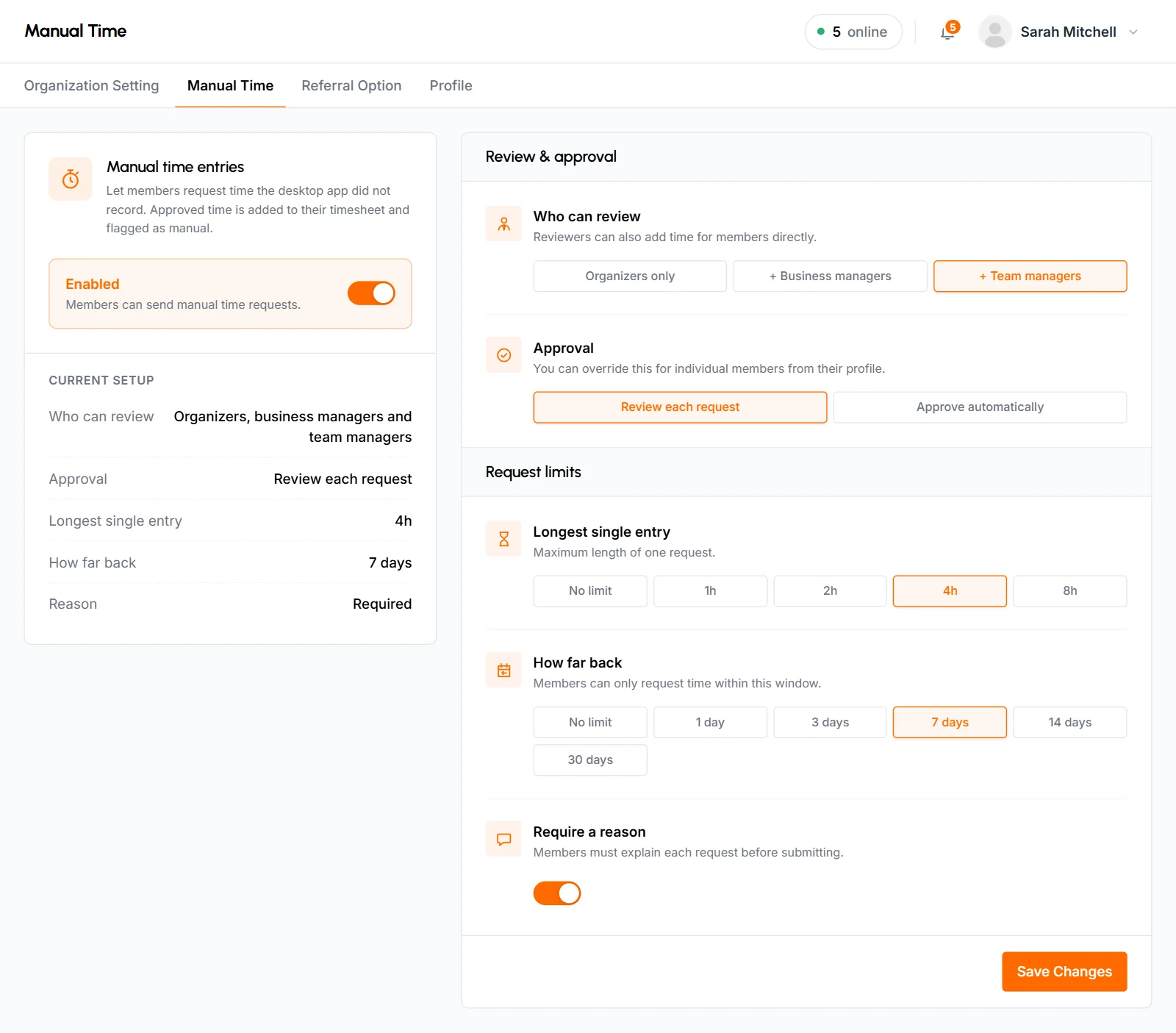
The Manual Time tab controls whether members can request time the desktop app didn't record, who approves it and what limits apply. Only the organizer sees this tab. For how members request time and how reviewers approve it, see manual time. TimoDesk adds approved time to the member's timesheet and marks it as manual.
-
Turn manual time on
Turn on Manual time entries. New organizations start with it Disabled. The Current setup box under the switch shows a summary of your choices as you make them.
-
Choose who reviews and how
- Who can review
- Organizers only, Organizers and business managers (the default) or Organizers, business managers and team managers. Team managers review only members of the teams they manage. Reviewers can also add time for members directly.
- Approval
- Review each request (the default) means a reviewer approves or rejects every request. Approve automatically means requests go straight onto the timesheet.
-
Set the request limits
- Longest single entry
- The longest one request can be: No limit (the default), 1h, 2h, 4h or 8h.
- How far back
- How many days back members can request time: No limit (the default), 1, 3, 7, 14 or 30 days.
- Require a reason
- On by default. Members must give a reason for each request before they can submit it.
-
Save
Click Save Changes. Nothing on this tab saves until you click it.
- The limits and the reason rule apply when members request their own time. They don't apply when a reviewer adds time for someone else.
- The organizer can always review. When the organizer adds their own time, it's approved right away. Business managers and team managers can't approve their own requests.
- When manual time entries are disabled, nobody can add manual time. Only the organizer still sees Manual Time in the sidebar.
- You can turn manual time off for one member, or give them a different approval rule, in the Manual time and Manual time approval columns on Team tracking policy, or from their member page. A member can't have manual time while it's disabled for the organization, and these columns are locked until you turn it on.
- The organizer can also change Manual time and Manual time approval for the whole organization in the Organization default row of that page. Business managers see those two values there but can't change them.
Where to find your referral link and code
The Referral Option tab shows your referral link and code, your referral stats and the organizations that joined through you. Only the organizer sees it. To learn how it works, see Referral program.
How to update your profile
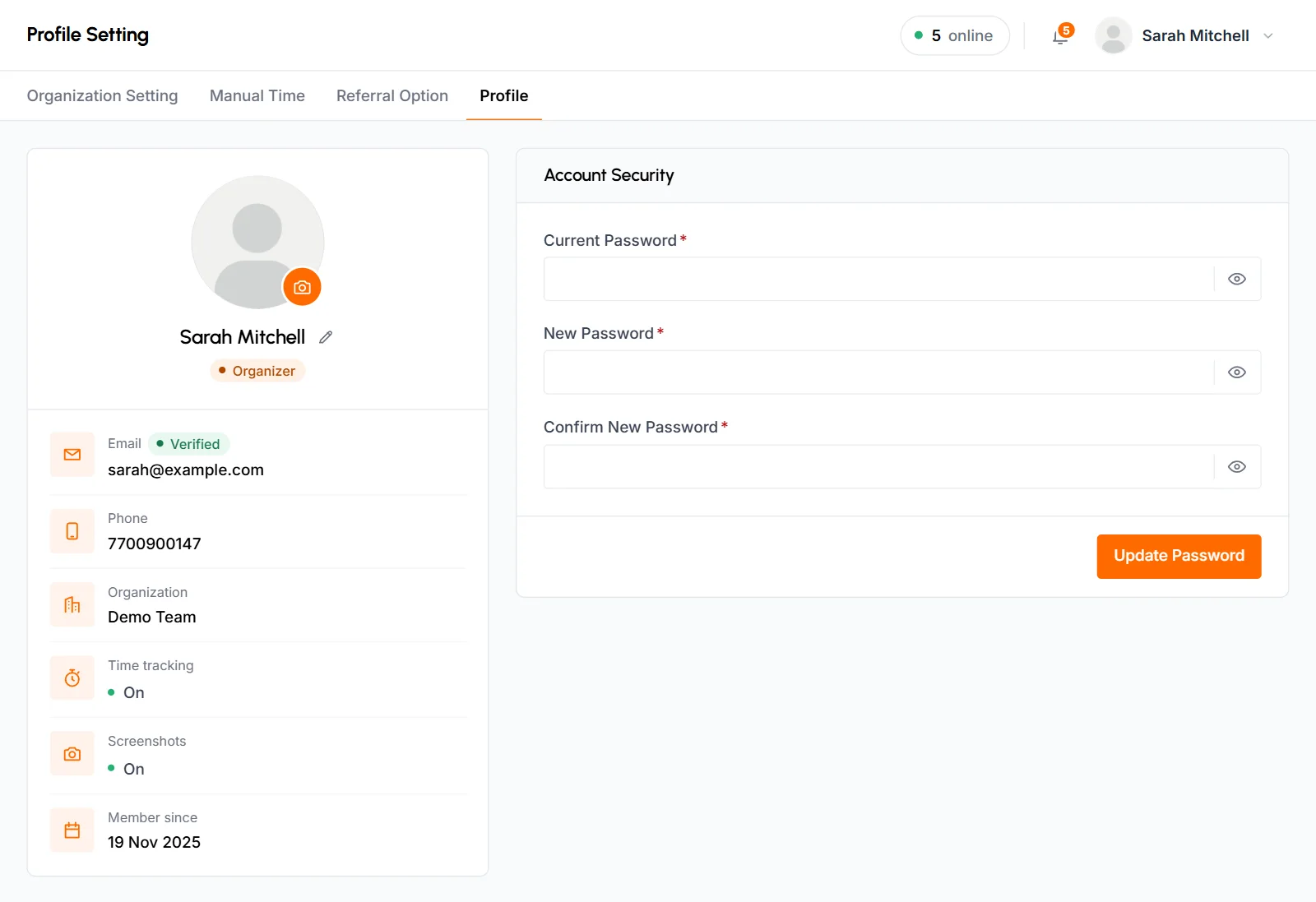
Your profile shows your photo, name and role. It also has a card with your Email (marked Verified or Unverified), Phone, Organization, Time tracking and Screenshots (On or Off for you), and Member since.
-
Open Edit Profile
Click the pencil next to your name. If you haven't added a phone number yet, Add phone opens the same popup.
-
Change your details
- Name
- Required, up to 40 characters. Your team sees this name across TimoDesk.
- Phone
- Optional, up to 40 characters. This field only shows while you have no phone number saved. After you save one, you can't change it here, but the TimoDesk team can.
-
Save
Click Save Changes.
To change your photo, click the camera icon on it and pick a JPG or PNG file. It uploads right away, and TimoDesk resizes it to 256 by 256 pixels.
You can't change your email or your role on your profile. An organizer or business manager changes roles on the Members page.
How to change your password
Use the Account Security form on your profile to change the password you sign in with.
-
Enter your current password
Type it in Current Password. The eye icon shows or hides what you type.
-
Enter the new password twice
Type it in New Password, then again in Confirm New Password. It needs at least 6 characters.
-
Update
Click Update Password. If the current password is wrong, you'll see "The password doesn't match!" and nothing changes.
After the change, TimoDesk signs you out of the desktop app and the browser extension. Sign in there again with your new password.
Can I delete or leave an organization?
Not from the dashboard. It has no option to delete an organization, delete your own account or leave an organization. Organizers and business managers can ask the TimoDesk team with a support request. To stop someone from using TimoDesk, an organizer or business manager can disable them on the Members page.
Common questions
Why can't I see the Organization Setting tab?
Only organizers and business managers have it. Team managers and staff see only their profile.
What are the default screenshot interval and idle timeout?
If your organization doesn't pick its own values, the desktop app takes a screenshot every 3 minutes. It asks about idle time after 5 minutes without keyboard or mouse activity, and the screenshot alert is off.
Do tracking changes apply right away?
Yes. Each change on Team tracking policy saves as soon as you pick it, and TimoDesk sends the new values to the desktop app of members who are signed in.
Can I change my email address?
No. On your profile you can change your name, add a phone number, change your photo and change your password, but not your email.