
Task board
The task board is where you plan and move a project's work, with one board for every project. This guide covers sections, adding and moving tasks, completing, starring and archiving them, filters, and the List and Calendar views.
Who can use it: Everyone who can open the project. Organizers, Business Managers, Team Managers and project leaders manage the whole board. Staff work on their own tasks. See who can do what.
How to open a project's board
On the Projects page, click Board in the project's Action column. You can also open the project's details page and click Open Board.
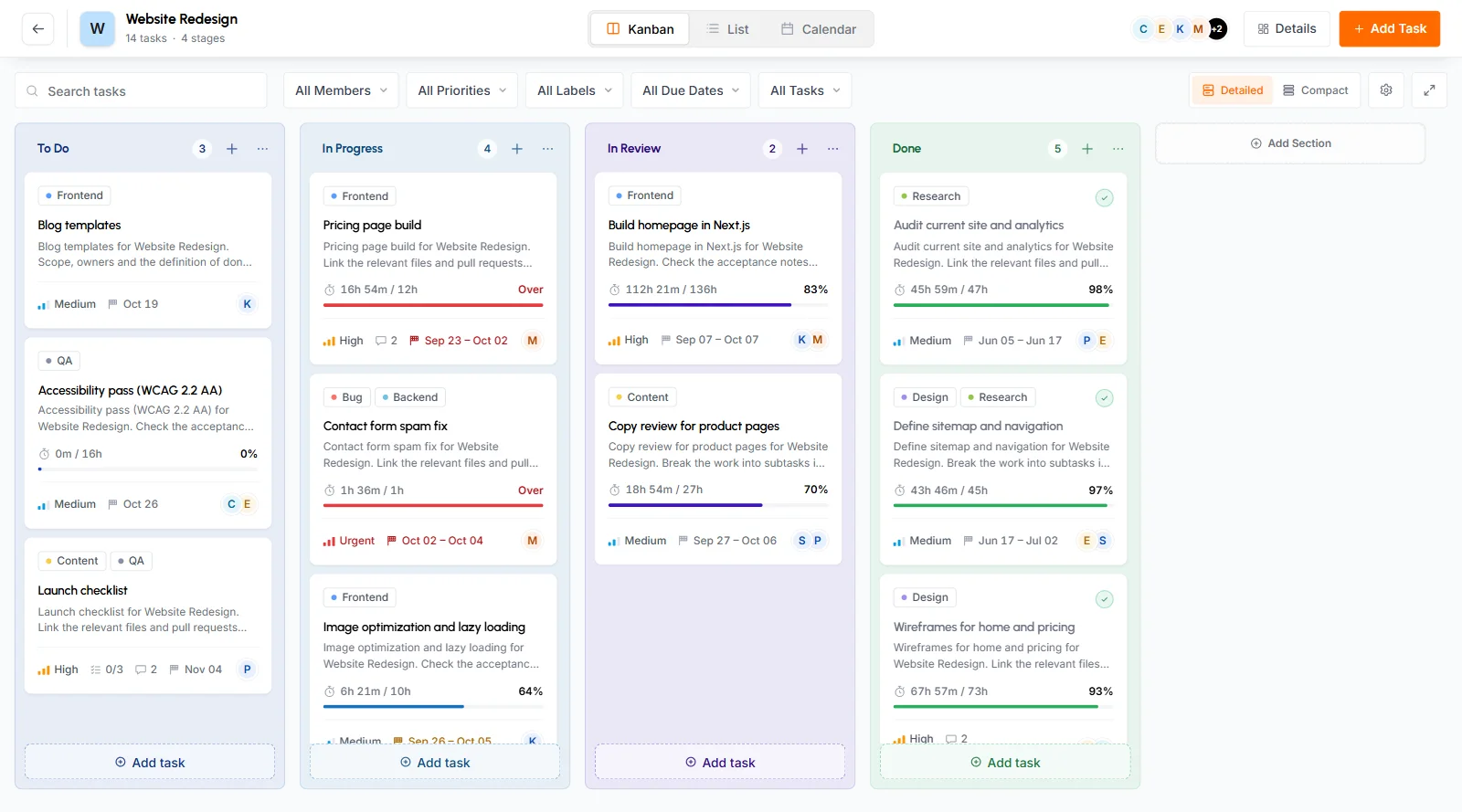
The board uses the full window and hides the sidebar. The bar at the top shows:
- Back arrow
- Takes you back to the Projects page and keeps its search and sort order.
- Project name
- Shown with the number of tasks and sections on the board. Archived tasks and subtasks aren't counted.
- Kanban, List and Calendar
- Three views of the same tasks. Kanban is the default.
- Board members
- Avatars of the project's members and anyone assigned to one of its tasks. Click them to see the full list. Staff don't see this.
- Details
- Opens the project details page.
- Add Task
- Opens the Add New Task form.
How to add and manage sections
Sections are the columns on the board, such as To Do, In Progress and Done. A new project starts with one section, To Do. Each task sits in one section, and each section shows its task count. Organizers, Business Managers, Team Managers and project leaders can add and change sections.
Add a section
-
Scroll to the right end of the board and click Add Section.
-
Type a name and click Add.
A section name can have up to 60 characters. Two sections in the same project can't have the same name. The new section appears at the right end of the board with its own color. Some stage names get a matching color: Done is green, In Progress is blue, Review is violet, Blocked is rose, On Hold is amber and To Do is slate.
Rename a section
Click the section's name and type the new one. Press Enter or click somewhere else to save it, or press Esc to cancel.
Change a section's color
Click the section's options button (the three dots) and pick a color under Section colour. Everyone on the board sees the new color right away.
Reorder sections
Drag a section by the handle to the left of its name. Add Section always stays last.
You can't delete a section.
How to add tasks from the board
Anyone who can open the project can add tasks, in four ways:
- Quick add: click Add task at the bottom of a section, or the + next to its name to add at the top. Type a title and press Enter. The box stays open for your next task. Press Esc to close it.
- Quick add with details: type a title in the quick add box and click its expand button. The full form opens with your title in it.
- Full form: click Add Task in the top bar, or Add task with details in a section's options menu. See Add a task for the fields.
- Calendar: in Calendar view, click a day to add a task due that day.
The full form starts with Medium priority selected. Tasks you add with quick add get Default priority, which the card doesn't show. Tasks you add with the + button or the full form go to the top of their section. Tasks from the Add task button go to the bottom. When staff add a task, TimoDesk assigns it to them and gives it Default priority.
How to move tasks with drag and drop
Drag a card to another section to move it, or up and down in a section to change its place. Everyone sees the new order. Moves between sections appear in the task's activity, for example "moved this task from To Do to In Progress". You can also change a task's section in its details.
To scroll a wide board sideways, drag an empty part of the board. Each section loads 20 cards first, and more load as you scroll down.
Staff can only drag tasks they created or are assigned to. Other cards don't move for them.
What a task card shows
- Labels
- The task's labels, across the top.
- Star and check
- The star marks the task as important for you. The check marks it complete. See complete, star and archive.
- Title and description
- The first line of the description shows under the title. Click anywhere on the card to open the task's details.
- Estimate bar
- Appears when the task has an estimate. It shows tracked time as a percentage of the estimate, or Over once the estimate is passed.
- Assignees
- Up to 3 avatars and a count of the others. A ring around an avatar means that person is tracking time on the task right now. An empty icon means nobody is assigned.
- Priority
- Low, Medium, High or Urgent. Tasks with Default priority don't show one.
- Subtasks and comments
- Completed subtasks out of the total, for example 2/5, and the number of comments.
- Time tracked
- Appears when the task has no estimate and someone has tracked time on it.
- Dates
- The due date, Today when it's due today, a start to due range, or From and the start date when there's no due date. Overdue dates turn red. A task with no dates shows the day it was created.
The time on a card depends on what you're allowed to see. Staff see their own time, Team Managers see their team's time, and everyone else sees all time.
How to complete, star and archive tasks
Mark a task complete
Click the check on a card or a list row, or click Mark complete in the task's details. One click completes the task for everyone on it, no matter who clicks. Click again to reopen it. A completed task stays in its section. Organizers, Business Managers, Team Managers and project leaders can complete any task. Staff can complete tasks they created or are assigned to.
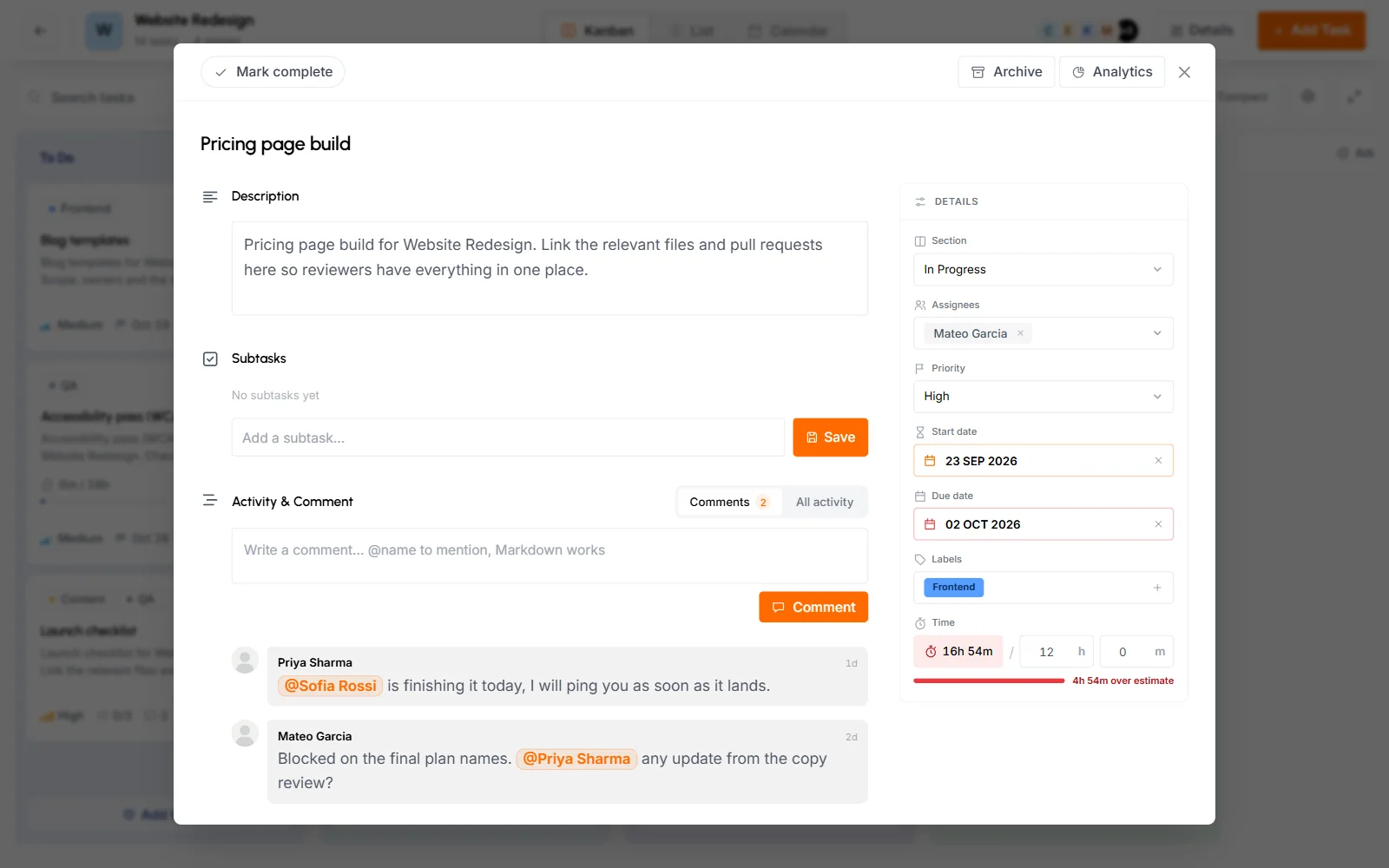
Mark a task as important
Click the star on a card or list row. A star is a personal bookmark, so only you see your stars. Anyone who can see a task can star it. To see your starred tasks, filter by Important.
Archive a task
-
Open the task's details.
-
Click Archive.
Archived tasks leave the board and members' desktop apps. Their tracked time, assignees and completion don't change. To restore a task, choose Archived in the status filter, open the task and click Unarchive.
Organizers, Business Managers, Team Managers, project leaders and anyone assigned to the task can archive it.
You can't delete tasks. Archive a task you don't need anymore.
How to search and filter the board
The toolbar above the board limits what every view shows:
- Search tasks
- Finds words in task titles and descriptions.
- All Members
- Pick a person, Working now (tasks someone is tracking at this moment) or Unassigned. Only people who manage the project's tasks see this filter.
- All Priorities
- Pick one priority level.
- All Labels
- Pick one label.
- All Due Dates
- Overdue (open tasks past their due date), Due today (open tasks due today), Due in 7 days (open tasks due from today to 7 days from now) or No due date. Completed tasks don't show under Overdue, Due today or Due in 7 days.
- All Tasks
- Incomplete, Completed, Important (your starred tasks) or Archived. Archived tasks only appear with this filter.
To reset all filters, click Clear. It shows how many filters are on. Your filters stay when you switch between Kanban, List and Calendar.
How to use List view
Click List in the top bar to see the same tasks as a table, grouped by section. The columns are Task (with its check, subtask count and comment count), Assignees, Priority, Labels, Due date, Time (tracked time, plus the estimate if there is one) and the star. Time turns red when a task goes over its estimate.
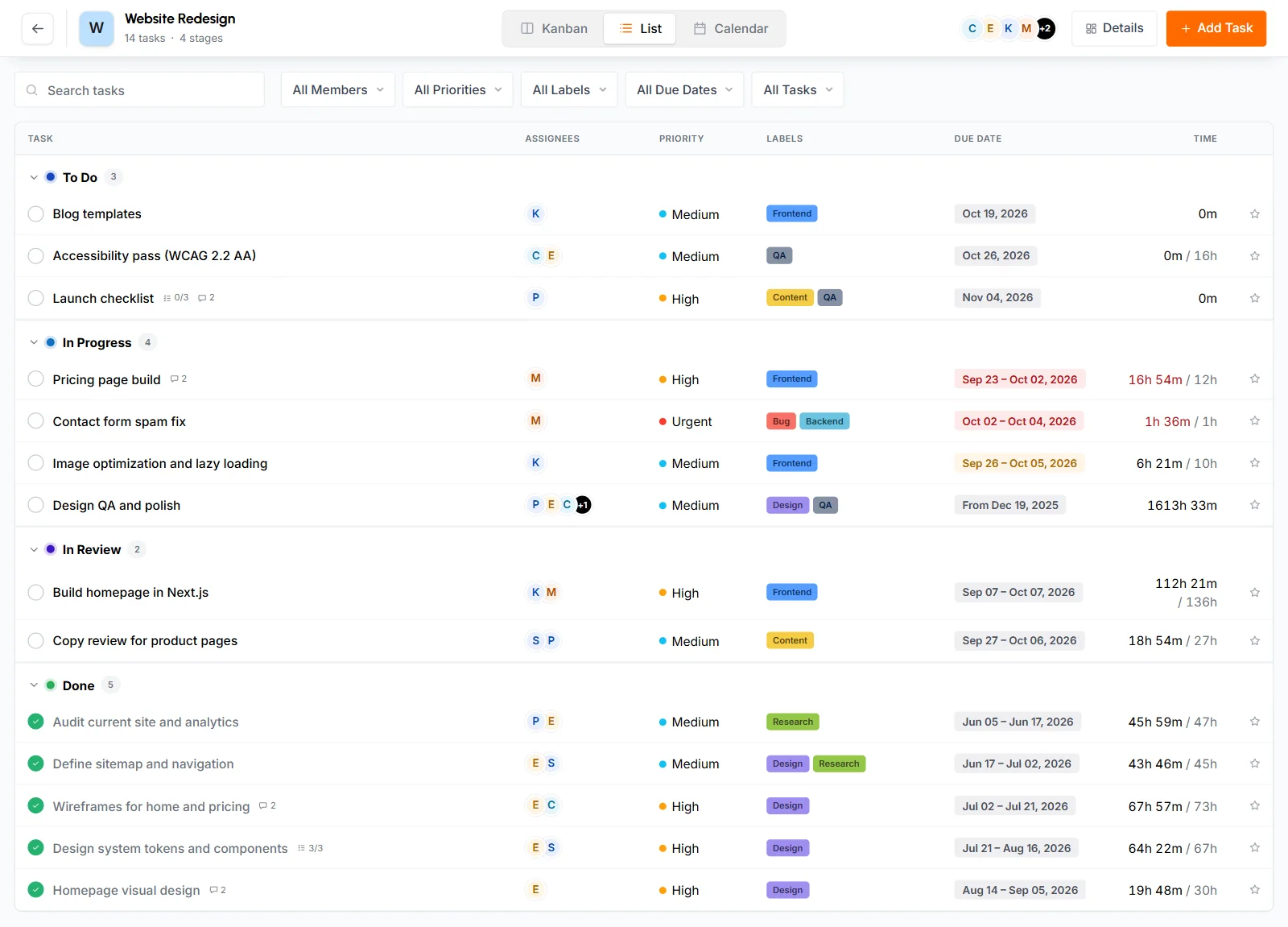
Click a section's name to collapse or expand it. Click a row to open the task. The list shows up to 500 tasks per section. If a section has more, a line tells you, and you can narrow the filters to see the rest. You can't drag tasks in List view.
How to use Calendar view
Click Calendar in the top bar to see tasks on their dates. A task with a start date and a due date spans those days. A task with one date sits on that day. The colored dot shows the priority.
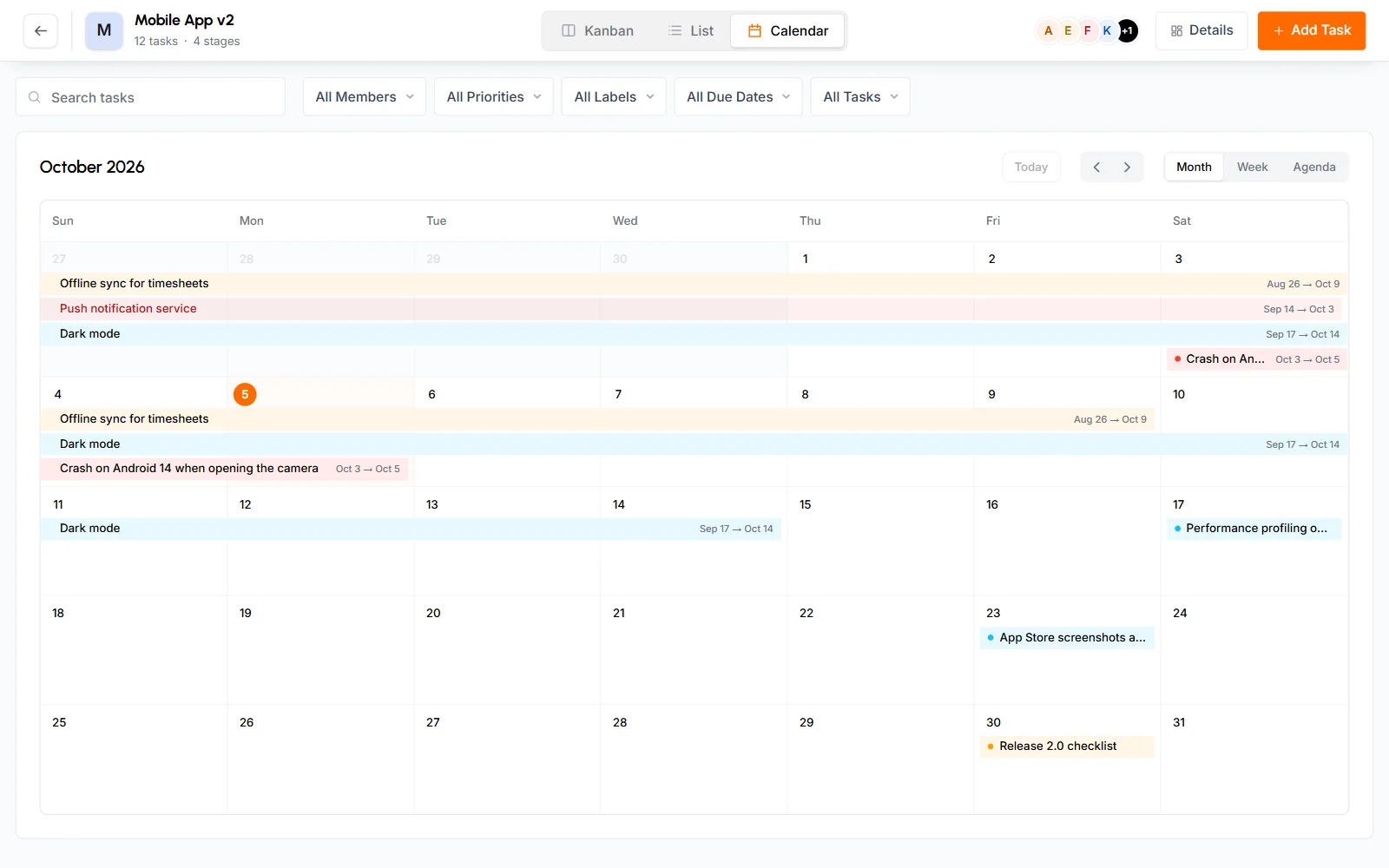
- Switch between Month, Week and Agenda. Use Today and the arrows to move around. This browser remembers your choice.
- Hover over a task to see its start and due dates, how many days it runs, who's on it, and whether it's completed or overdue. Click it to open its details.
- Drag a task to another day to reschedule it, or drag its start or end to change its dates. Only Organizers, Business Managers, Team Managers and project leaders can move tasks on the calendar, because staff can't change dates.
- Click a day to add a task due that day. Staff can add a task this way too, but it gets no due date.
- The No due date panel lists open tasks with no dates. If you can move tasks on the calendar, drag one onto a day to give it that due date. The panel shows up to 50 tasks. Click View all in List to see the rest in List view.
How to change the board's look
These settings apply to Kanban view. Your browser saves them, so they only change what you see:
- Detailed or Compact: full cards, or only the title and key facts.
- Board background: click the gear button and pick a color or an image. Each project keeps its own background on this device.
- Focus mode: click the expand button to show only the board, in full screen. Click it again or press Esc to leave.
Does the board update in real time?
Yes. The board updates while it's open. You see new tasks, moves, edits, completions, archived tasks and section changes by others without reloading, whether they come from the web or the desktop app. When someone starts tracking time on a task, a ring appears around their avatar on the card.
What do clients see of the board?
Clients see a read-only copy of the board in the client portal, for the projects you assign to them, if their permissions include the Kanban board. They can switch between Kanban and List layout and filter the cards. Each card shows the title, the start of the description, labels, priority, dates, the subtask count and time against the estimate. It shows who's assigned only if the client is allowed to see team members. Archived tasks stay hidden.
Clients can't change anything on the board. They never see comments or task activity, but they can read the start of each description, so keep internal notes in comments. See Clients.
Who can do what on the board
Team Managers have these rights on projects their teams work on. Project leaders have them on projects they lead.
| Action | Organizer and Business Manager | Team Manager | Project leader | Staff |
|---|---|---|---|---|
| See tasks | All tasks | Tasks their team members created, are assigned to or have tracked time on | All tasks | Tasks they created, are assigned to or have tracked time on |
| Add tasks | Yes | Yes | Yes | Yes, assigned to themselves |
| Edit the title, description, section, labels and subtasks | Yes | Yes | Yes | Tasks they created or are assigned to |
| Set priority, dates and estimate, and move tasks on the calendar | Yes | Yes | Yes | No |
| Assign people to tasks | Yes | Their team members only | Yes | No |
| Drag and complete tasks | Yes | Yes | Yes | Tasks they created or are assigned to |
| Archive tasks | Yes | Yes | Yes | Tasks they're assigned to |
| Star and comment | Yes | Yes | Yes | Yes |
| Add, rename, color and reorder sections | Yes | Yes | Yes | No |
| Create labels | Yes | Yes | Yes | No |
| Edit and delete labels | Yes | No | No | No |
Common questions
Can I delete a task or a section?
No. You can't delete tasks or sections. To remove a task from the board and the desktop apps, archive it.
Why can't I drag a card?
Staff can only drag tasks they created or are assigned to. In List view, nobody can drag tasks.
Why does a section say "Nothing assigned to you"?
Team Managers only see tasks that involve their teams. This message means the section has tasks from other members, and it shows how many.
Where did an archived task go?
Choose Archived in the status filter to see archived tasks. Open one and click Unarchive to put it back on the board.