
Tasks
A task in TimoDesk is a piece of work your team tracks time against. You can add and edit tasks, assign people, use labels, subtasks and comments, and see the tracked time on each task's analytics page.
Who can use it: Everyone. Organizers, Business Managers, Team Managers and project leaders create and edit any task in the projects they manage. Staff add tasks for themselves and edit the tasks they created or are assigned to.
How to add a task
You add a task with the Add New Task form. Open it from any of these places:
- Add Task in the top bar of the task board, or Add task with details in a section's options menu.
- The + Add Task button on the project details page.
- The Add a task link on the Projects page, for a project with no tasks yet.
If you only need a title, use quick add on the board instead.
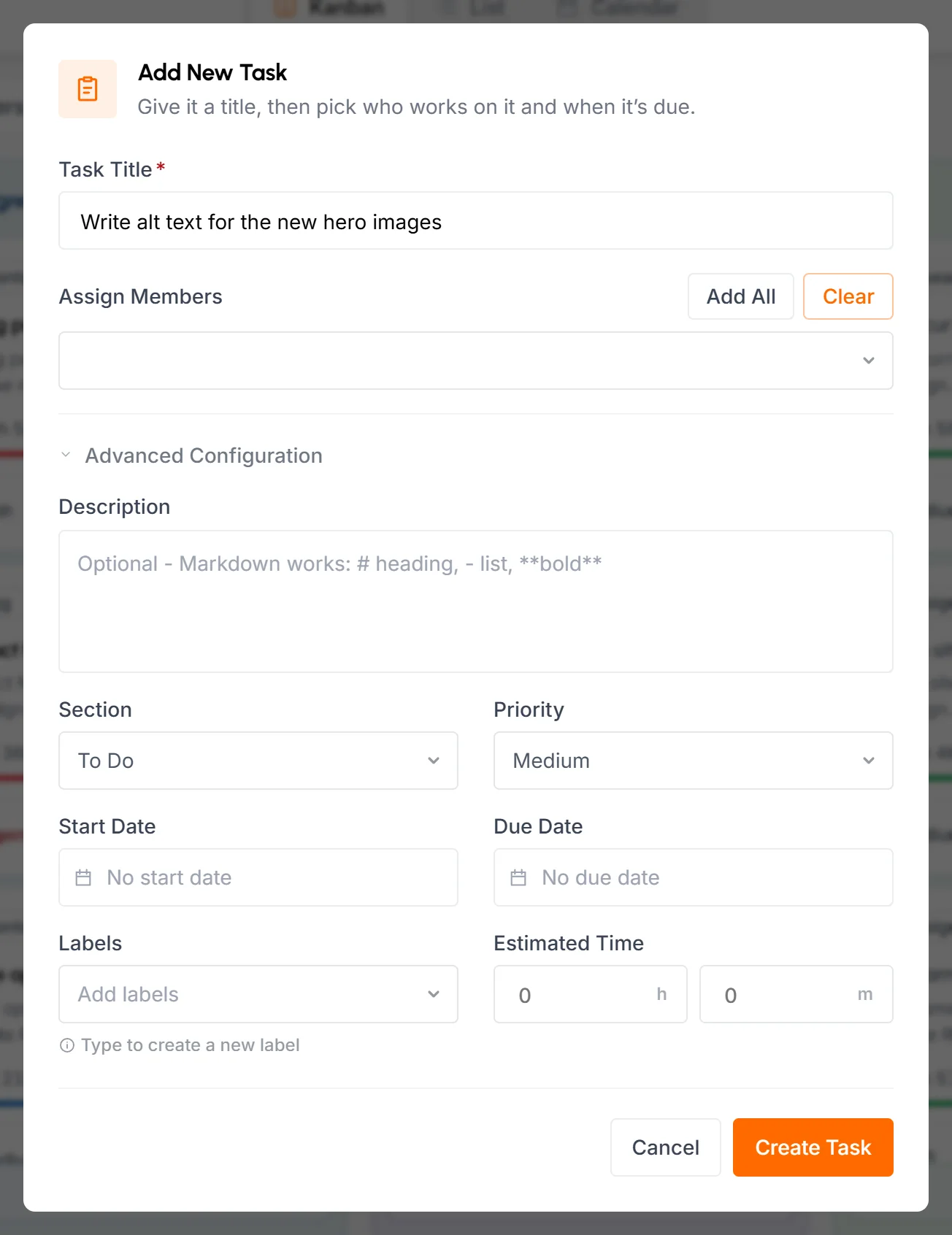
- Task title
- Required, up to 255 characters.
- Assign members
- The people who'll work on the task. The list shows only active members of the project. Add All picks all of them, and Clear removes everyone.
Click Advanced Configuration for the other fields. It shows how many of them are filled in. When you edit a task that already uses them, it opens by itself.
- Description
- Optional, up to 20,000 characters. Markdown shortcuts work, such as
#for a heading,-for a list and**bold**. Clients who can see the project's board in the client portal see the start of the description on the card. - Section
- The board section the task goes in.
- Priority
- Default, Low, Medium, High or Urgent. Medium is selected for you.
- Start date and due date
- Optional. The start date can't be after the due date.
- Labels
- Pick existing labels, or type a new name to create one. You can add up to 10 labels, each up to 60 characters.
- Estimated time
- Hours (up to 9999) and minutes (up to 59).
Click Create Task.
Staff don't see Assign Members, and Priority, the dates and Estimated time are grayed out for them. TimoDesk assigns their task to them and gives it Default priority.
How to open a task's details
To open a task's details, click a card on the board, a row in List view or a task in Calendar view. The details open on top of the board. Every change saves right away: you see Saving… and then Saved at the top.
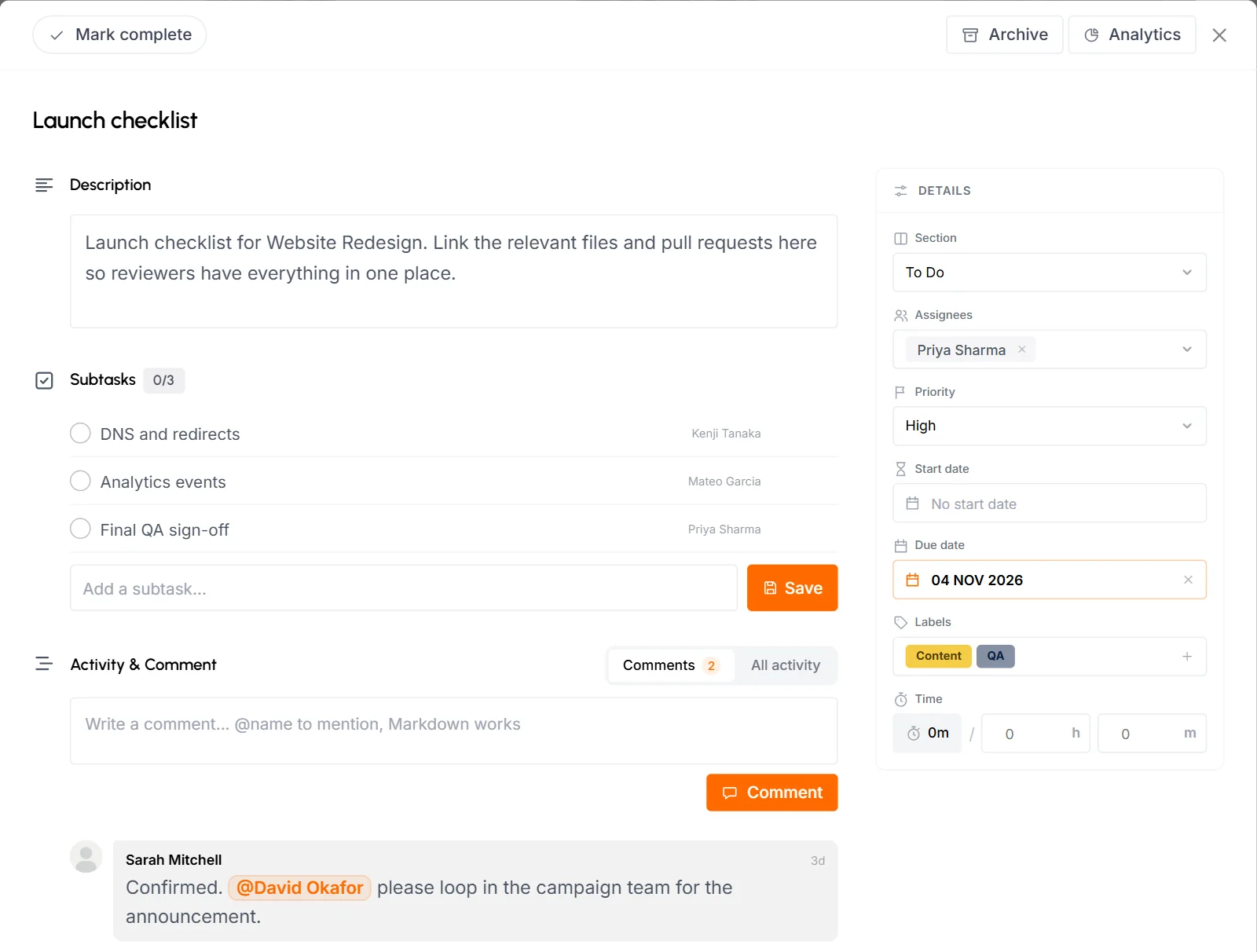
Across the top:
- Mark complete
- Completes the task for everyone on it. The button then reads Completed. Click it again to reopen the task.
- Archive
- Hides the task from the board and from desktop apps. An archived task shows Unarchive instead. See archive a task.
- Analytics
- Opens the task analytics page in a new tab. Only people who manage the project's tasks see it.
Click the title to rename the task. The Details column holds its fields:
- Section
- Moves the task to another section of the board.
- Assignees
- Who's working on the task. See assign people to a task.
- Priority
- Default, Low, Medium, High or Urgent. The card doesn't show Default priority.
- Start date and due date
- A task is overdue when it's still open and its due date has passed in your organization's time zone. Overdue dates show in red on the board, in the list and on the project's Tasks tab. Completed tasks are never overdue.
- Labels
- Click to open the label picker. See labels.
- Time
- The time tracked on the task, next to its estimate in hours and minutes. When the task has an estimate, a bar shows how much of it you've used, for example "40% of 5h". Past the estimate, it shows how far over it is, for example "30m over estimate".
The main column holds the Description, the Subtasks and Activity & Comment. Fields you're not allowed to change are grayed out. Staff can change the title, description, section, labels and subtasks of tasks they created or are assigned to. Only Organizers, Business Managers, Team Managers and project leaders can change the assignees, priority, dates and estimate.
How to edit a task with the Edit Task form
You can also edit a task in the Edit Task form, not only in its details on the board. Open it with the Edit Task button on the project's Tasks tab, or with Edit on the task analytics page. The form has the same fields as the Add New Task form. Change what you need and click Save Changes. Staff can use this form on the tasks they created or are assigned to. They can change the title, description, section and labels. If you can't edit a task, its Edit Task button on the Tasks tab is grayed out.
How to assign people to a task
You can only put active project members on a task, so add people to the project first. To change who's on a task, use the Assignees field in its details, the Assign Members field of the Add New Task and Edit Task forms, or the Top Tasks card on the project's Overview tab.
- Members see the tasks assigned to them in the TimoDesk desktop app, and track time against them there.
- When you take someone off a task, it leaves their desktop app. The time they already tracked on it stays.
- The task's activity logs every change, for example "assigned Emma".
- If you remove someone from the project, in its members list or in the Edit Project form, TimoDesk also takes them off all of its tasks.
Organizers, Business Managers and project leaders can assign any project member. Team Managers can assign members of their own teams. Staff can't change who's on a task, but a task they add is assigned to them.
How to use labels
Labels are colored tags, such as Bug or Design, that every project in your organization shares. Label names ignore capitalization, so Bug and bug are the same label.
Add or remove labels on a task
In the task's details, click the Labels field. Search the list, then click a label to add it to the task or remove it. You can also pick labels in the Add New Task and Edit Task forms.
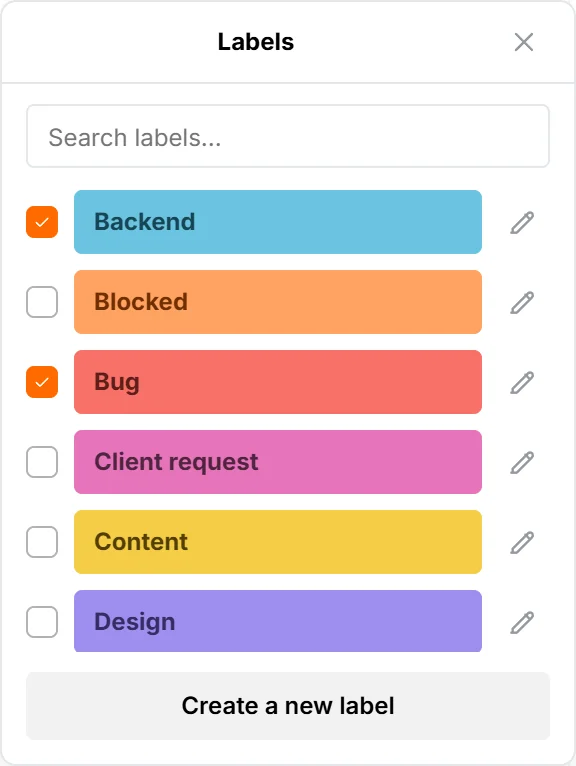
Create a label
Organizers, Business Managers, Team Managers and project leaders see Create a new label in the picker.
-
In the label picker, click Create a new label.
-
Type a name of up to 60 characters and pick one of the 10 colors.
-
Click Save. TimoDesk creates the label and adds it to the task.
You can also type a new name in the Labels field of the Add New Task form. That creates the label with the next color that isn't in use yet.
Edit or delete a label
Only Organizers and Business Managers can edit or delete labels, because a label is shared by every project. In the label picker, click the pencil next to a label. Change its name or color and click Save. The change shows on every task that has the label. To delete it, click Delete and confirm. TimoDesk then removes the label from every task in every project.
Staff can add and remove labels on the tasks they created or are assigned to.
How to use subtasks
Subtasks turn a task into a checklist. In the task's details, type in Add a subtask... and click Save. A subtask title can be up to 255 characters. Click the check next to a subtask to complete it, and click it again to reopen it.
The card on the board shows completed subtasks out of the total, for example 2/5. Subtasks don't get their own cards. Completing every subtask doesn't complete the task.
You can add subtasks to the tasks you're allowed to edit. Anyone who can complete the task can complete its subtasks.
Rename or delete a subtask
Click the pencil next to a subtask to rename it. Press Enter or click somewhere else to save, or press Esc to cancel. Click the trash button to delete it. You can do this on tasks you're allowed to edit, and on subtasks you added yourself.
You can't delete a subtask that has time on it. Renaming and deleting subtasks doesn't show in the task's activity.
Task activity history
The All activity tab shows comments together with a log of changes, newest first and grouped by day. Each entry names who made the change and how long ago. Hover over the time to see the exact date and time. TimoDesk logs changes made on the board, for example when someone:
- creates, renames, completes, reopens, archives or restores the task
- moves it to another section
- assigns or unassigns a person
- changes the priority, start date, due date, dates on the calendar or estimate
- changes the labels or adds a subtask
Changes to the description aren't logged. The Edit Task form on the project details page only logs new tasks and section moves. If the same person makes the same change several times in a row, the entries combine into one with a count such as ×3. Click the count to see each one.
Where tracked time shows on a task
Members track time in the TimoDesk desktop app. There they pick a project and one of the tasks assigned to them. They can also add their own task in the app. TimoDesk assigns it to them and puts it in the board's first section. See start tracking.
Tracked time shows up:
- On the task's card, next to a stopwatch, or on the estimate bar when the task has an estimate.
- In the Time field of the task's details.
- On the project's Tasks tab and the Top Tasks card. There a task reads Pending until someone tracks time on it, then Ongoing until it's completed.
- On the task's analytics page and in the reports.
While someone tracks time on a task, a ring shows around their avatar on the card, and the Working now filter lists the task.
Staff see only their own time on a task. Team Managers see their team's time. Project leaders see everyone's time on the projects they lead.
What the task analytics page shows
The task analytics page shows the time, activity, apps and screenshots for one task. It works like the project details page. Open it with the Task Analytics button on the project's Tasks tab, by clicking a task title on the Top Tasks card, or with Analytics in the task's details.
The header shows the task's title, its project (click it to go to the project), its status (Completed, Ongoing or Pending) and who's assigned. If you can edit the task, an Edit button opens the Edit Task form.
Overview
The overview covers the date range at the right of the tabs. It opens on Last 30 Days.
- Total logged
- Time tracked on the task in the range.
- Avg. activity
- The average activity percentage of that time. Manual time isn't part of the average.
- Members worked
- How many people tracked time on the task in the range. Staff see Days Worked instead, which counts the days they worked on it.
- Top members
- Up to 5 people who tracked the most time on the task, with their time and activity.
- Top apps and websites
- The 7 apps, or websites, used most while tracking on the task.
- Timing chart and average activity
- Time tracked and activity percentage on each day of the range.
Staff don't see the Top Members or Top Apps and Websites cards.
Other tabs
- Members
- Everyone who tracked time on the task, most time first, then assigned people with no time yet. Click a person to see the days they worked on it. Staff don't see this tab.
- Time & Activity, App Usage, Websites & URLs and Screenshots
- The same tabs as on the project details page, limited to this task.
Common questions
Can I delete a task?
No, but you can archive it. An archived task leaves the board and the desktop apps, and its tracked time stays in your reports.
Why can't I assign someone to a task?
You can only assign active members of the project, so add them to the project first. Team Managers can only assign members of their own teams.
Why doesn't a task show up in someone's desktop app?
The desktop app only lists tasks assigned to the person, in projects they're a member of, and it never shows archived tasks.
How to comment and mention people
Anyone who can open a task can comment on it. Under Activity & Comment in the task's details, write in the comment box and click Comment. Markdown works, and a comment can be up to 20,000 characters.
To mention someone, type @ and pick a name from the list. They get a dashboard notification that you mentioned them on the task. Clicking it opens the task on the board. Organizers, Business Managers and Team Managers can get this notification on any project. Staff only get it on projects they're assigned to. You never get notified about your own comments.
Switch between Comments and All activity above the list. Your browser remembers your choice. The newest 12 entries show first. To load the rest, click Show older comments or Show older activity.
You can't edit or delete a comment after you post it. Comments and the activity log stay inside your team: clients who can see the project in the client portal never see them. See what clients see of the board.