
Teams
Teams put your members into groups, so a Team Manager can manage them and you can see one group's time, activity and projects in one place. Organizers and Business Managers create teams and assign managers and members. This guide also shows what a Team Manager can see.
Who can use it: Organizers and Business Managers create and manage teams. Team Managers see the teams they manage but can't change them. Staff don't have a Teams page.
The Teams page
The Teams page lists every team in your organization. Click Teams in the sidebar. Organizers and Business Managers see all teams in a table:
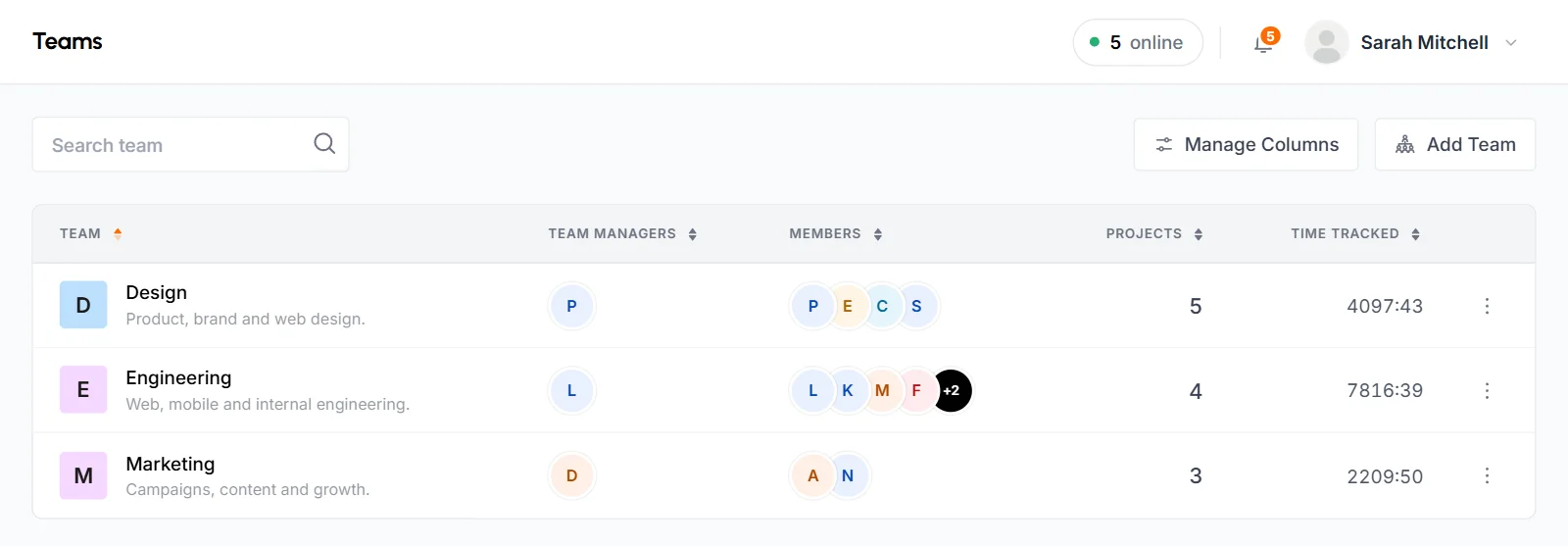
- Team
- The team's name. Click it to open the team details page.
- Team Managers
- The people who manage the team. Click the avatars to see all of them, add more or remove one. A team without a manager shows No manager and an Assign managers link.
- Members
- The people on the team, with the same options. An empty team shows No members and an Assign members link.
- Projects
- How many projects the team's members are assigned to. Click the number to see the list.
- Time Tracked
- All the time the team's current members have tracked.
- Action menu (⋮)
- View details, Projects, Edit team and Delete team.
Use Search team to find a team by name. Click a column header to sort. Use Manage Columns to hide columns you don't need.
How to create a team
Organizers and Business Managers create a team from the Teams page.
-
Click Add Team
On the Teams page, click Add Team. If you have no teams yet, click Create your first team. The Add New Team popup opens.
-
Fill in the team
- Name
- Required, up to 255 characters. Each team in your organization needs its own name.
- Description
- Optional, up to 255 characters.
- Team Managers
- Optional. The list shows only people with the Team Manager role, and you can pick more than one. If nobody has the role yet, the popup says so. Give someone the role first in their Edit Member popup.
- Members
- Required. Pick at least 1 active member who has confirmed their email. Add All selects everyone in the list, and Clear empties it. If you save with nobody picked, the popup says "A team needs at least one member".
-
Click Create Team
The team appears in the list. Everyone you added gets a dashboard notification that says they're on the team or that they manage it.
How to add or remove team managers
A Team Manager manages a team: they see its members and the projects, tasks, time and reports of those members. Only people with the Team Manager role can manage a team. A team can have several managers or none, and one Team Manager can manage several teams.
Add a manager
- From the Teams page or a team's details page, click the managers (or the plus next to Managers). Choose Assign Team Managers, pick people and save.
- From a Team Manager's profile, click the Manages icon to open Assigned Teams. Click Assign Priya to teams (the button uses their first name), pick the teams and click Assign Teams.
- In the team's edit form, add them under Team Managers.
From the Teams page or a team's details page, you can add only active Team Managers who have confirmed their email.
Remove a manager
Click the x next to the manager, then Remove Manager. They get a notification. After that, they don't see that team's members or work, unless another team they manage has the same people. You can remove a team's last manager. The team still works without one.
If you change a Team Manager's role to any other role, they stop managing every team they manage. The teams' members, projects and tasks stay the same.
How to add or remove team members
Anyone in your organization can be on a team, including Team Managers and Business Managers. One person can be on several teams.
Add members
From the Teams page or the team's details page, click the members (or the plus next to Members). Choose Assign Members, pick people and save. This way, you can add only active members who have confirmed their email. You can also add people in the team's edit form.
Remove a member
Click the x next to the member, then Remove Member. You can also do it from the member's profile: click the Teams icon, then the x next to the team, then Remove From Team. The member gets a notification.
Removing a member from a team doesn't change their projects, tasks or tracked time. It only takes them out of the team and its reports. A team must keep at least 1 member, so you can't remove the last member this way.
How to edit a team
Choose Edit team in the team's action menu, or click Edit on its details page. The same popup opens, named Edit Team. You can change the name, description, managers and members at the same time. Click Save Changes. New managers and members get a notification.
The team must keep at least 1 member. You can only add active members who have confirmed their email. Someone who is already on the team stays on it even if they're now disabled or waiting for approval.
How to delete a team
Organizers and Business Managers can delete a team from the Teams page or the team details page.
- Choose Delete team in the team's action menu, or click the trash icon next to Edit on its details page.
- Confirm with Delete Team.
TimoDesk takes every member and manager off the team and removes it. You can't undo this. Nothing else changes: the members keep their projects, tasks and tracked time, and their work stays in every other report. Their former Team Managers no longer see them through that team.
The team details page
The team details page shows one team's time, activity, members and projects. Click a team's name to open it. The header shows the team's name, description, managers and members. Organizers and Business Managers also see an Edit button and a trash icon to delete the team.
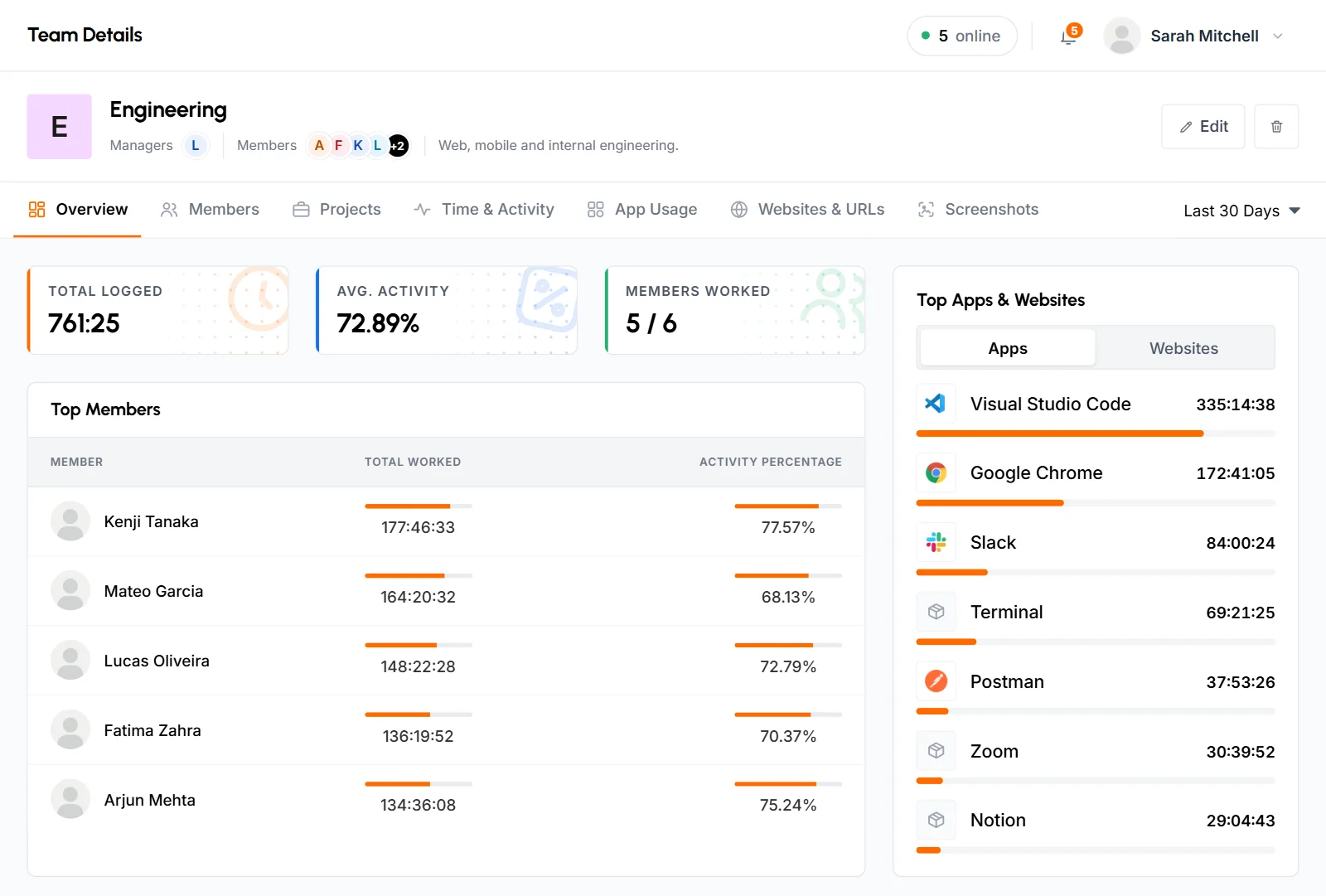
| Tab | What it shows |
|---|---|
| Overview | Total Logged, Avg. Activity and Members Worked (how many of the team's members tracked time, for example 4 / 6). It also has Top Members, Top Apps & Websites, Timing Chart, Top Projects, Average Activity, Task Overview and Recent Team Activity. It opens on the last 30 days. |
| Members | Each member's total time and activity. Open a member to see their dates, and open a date to see its tasks. |
| Projects | The projects the team works on, with total time and activity. Projects with no time yet show zero. |
| Time & Activity, App Usage, Websites & URLs | The same reports as the pages in the sidebar, for the team's members only. |
| Screenshots | The team's screenshots for the dates you pick. |
What can a team manager see and do?
A Team Manager can see their own data plus the data of every member of the teams they manage. They can also see any project those people are assigned to, lead, have tracked time on or have tasks in.
A Team Manager can
- Open the Teams page. It shows a card for each team they manage, with its members, projects, total tasks, time tracked and who's working now. Team Details opens the team details page in read-only mode.
- Open the Members page, which shows only themselves and their teams' members, and open those members' profiles.
- Add their teams' members to the projects they can see.
- Create projects and work with the tasks on projects they can see. See Projects and tasks.
- See the Dashboard, Screenshots, App Usage, Websites & URLs, Member Timing, Time & Activity, Project Timing, Weekly Worklog, Time Calendar, Monthly Timesheet, Top Performers and Low Performers for themselves and their teams.
- Review their team members' manual time, if your organization lets team managers review.
A Team Manager can't
- Invite, create, approve, reject, disable or enable members.
- Change anyone's role, phone, tracking, screenshots or tracking policy.
- Create, edit or delete teams, or add and remove team managers and members.
- Open Productivity Leaders, Billing, Support Requests, Storage or the organization's settings.
A new Team Manager sees only their own data until you assign them to a team.
How to filter reports by team
You can see a team's numbers on the team details page and in a few other places.
- On the team details page, each tab shows its report for the team's members only.
- On the Projects page, open Filter and pick a Team to see the projects its members are assigned to.
- On a Team Manager's team card, View all next to Members opens the member list filtered to that team.
- For a Team Manager, every report automatically shows only them and their teams' members.
The report pages in the sidebar, such as Time and activity, don't have a team filter. To see one team's numbers, use the team details page.
Team reports use the team's current members. When you add someone, all of their past time counts for the team, including time from before they joined. When you remove someone, their time leaves the team's reports, but it stays in all other reports.
Common questions
Can a member be on more than one team?
Yes. A member can be on as many teams as you want, and a Team Manager can manage several teams.
Can I delete a team?
Yes. Organizers and Business Managers can choose Delete team in the team's action menu. The members keep their projects, tasks and tracked time.
Why can't I pick someone as a team manager?
Only people with the Team Manager role can manage a team. Change their role in the Edit Member popup on their profile, then assign them to the team.
Can a team have no manager?
Yes. You can create a team without a manager, and you can remove its last manager later. Organizers and Business Managers can still see and manage it.