
Partner program
The TimoDesk Partner program pays you a commission for the teams you send to TimoDesk. You apply in the partner portal at partner.timodesk.com, share your campaign links or coupon codes, and earn a fixed amount for each team that pays TimoDesk. Your commission goes into a balance you can withdraw.
Who can use it: anyone can apply. You don't need a TimoDesk organization. Campaigns, coupons, referrals, reports and payouts open after TimoDesk approves your application.
How does the Partner program work?
You share a link, a team signs up through it, and you earn once that team has paid TimoDesk a minimum amount. The program works in 3 steps:
- You share: after approval, you get campaign links to put in front of teams.
- They sign up: a team that creates a TimoDesk organization after clicking your link, or with your coupon code, becomes your referral.
- You earn: when that team's payments to TimoDesk reach the minimum deposit, a fixed commission goes into your balance right away.
TimoDesk sets the commission amount, the minimum deposit and the link tracking period, and can change them. Before approval, your dashboard lists all 3 in How the program works. After approval, the line under your name gives the commission and the minimum deposit, and the Your link card gives the tracking period. There's no minimum to withdraw.
How is this different from the Referral program?
The Referral program is for organizations that already use TimoDesk, and it pays account credit. The Partner program is a separate account for anyone, and it pays a balance you can withdraw.
| Referral program | Partner program | |
|---|---|---|
| Who joins | The Organizer of a TimoDesk organization | Anyone who applies and is approved |
| Where | In the TimoDesk dashboard, on the Referral Option tab | In the partner portal, with its own sign-in |
| What you get | Account credit that pays your TimoDesk invoices | A balance you withdraw with a payout method |
| Tools | 1 referral link and code | Campaign links, sub-IDs, QR codes, coupons and reports |
TimoDesk pays once for each new organization. If a sign-up is credited to a partner, the organization that referred it through the Referral program doesn't get referral credit for it.
How to apply to become a partner
Create a partner account, verify your email and fill in a short application. It takes a few minutes.
-
Create your account
Go to
partner.timodesk.comand click Apply now. On Become a partner, enter your Full name, Email and a Password of at least 6 characters, then type the password again. Check the box to agree to the Program Terms and the Privacy Policy, and click Create account. -
Verify your email
TimoDesk emails you a 6-digit code. Enter it and click Verify email. If the email doesn't arrive, click Send a new code. You can ask for a new code every 2 minutes. After 5 wrong tries, the code stops working and you need a new one.
-
Tell us about you
Pick your Country. It's required, and it decides which payout methods you see later. Company, Website, Phone, your social profiles and How did you hear about the program? are optional. Click Continue.
-
Tell us how you will promote TimoDesk
Choose your Main promotion channel. If you pick Other, name the channel. Then describe your plan in How do you plan to promote TimoDesk? in 50 to 2,000 characters. Audience size, Main market and Who is your audience? are optional.
-
Submit
Click Submit application. You get an email that confirms TimoDesk received it.
If the page says Applications are closed, TimoDesk isn't taking new partners at the moment. Existing partners can still sign in.
What happens after you apply?
TimoDesk reviews each application and emails you the decision.
- Approved: you get an email and a notification, and your first campaign, named Default, is ready to share. The Promote, Performance and Payments menus appear.
- Under review: your dashboard shows Your application is under review. While you wait, you can update your profile, read the program terms and open support requests.
- Not approved: your dashboard shows the reason. You can edit your application and apply again once the waiting period ends. The dashboard shows the date, and the Apply again button appears when you can.
How to sign in and reset your password
Sign in at partner.timodesk.com with your email and password. Check Remember me to stay signed in on that browser. After several wrong passwords in a row, you have to wait a short time before you try again.
If you forgot your password:
-
Ask for a reset code
Click Forgot password?, enter the email you sign in with and click Send reset code. The email's subject is "Your one-time reset code".
-
Enter the code
Type the 6-digit code and click Verify code. The code works for 30 minutes. After 5 wrong tries, it stops working, and you can ask for up to 5 codes an hour.
-
Set a new password
Enter your New password twice and click Reset password. You go back to the sign-in page. TimoDesk emails you to say the password changed, and browsers that remembered your old password are signed out.
What the partner dashboard shows
The Dashboard shows how your links performed over a date range and where your money stands today. It covers the last 30 days until you pick other dates. Use the date field for Today, Yesterday, Last 7 Days, Last 30 Days, This Month, Last Month or a Custom Range of up to 2 years.
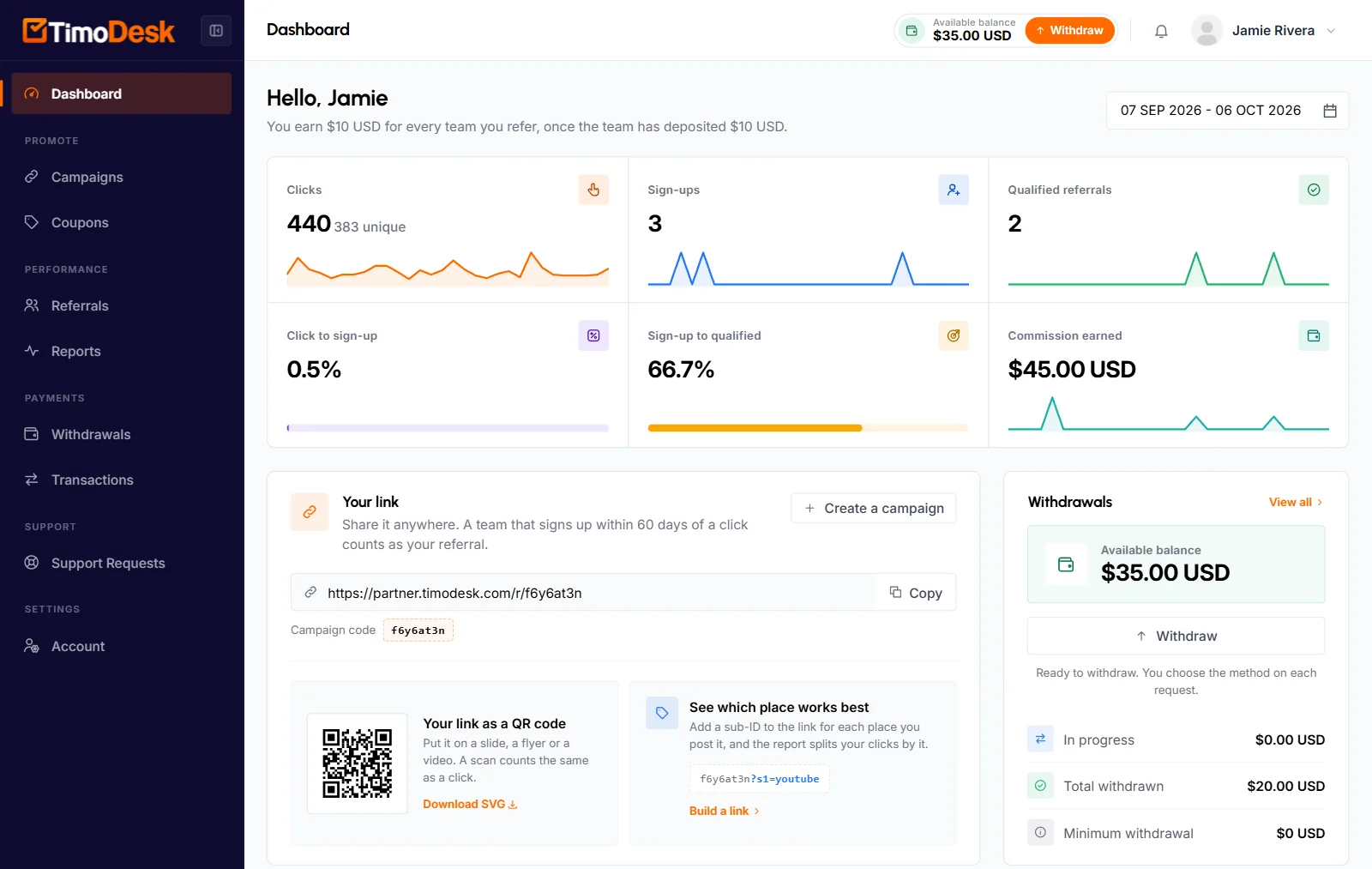
- Clicks
- Every recorded click on your links, with the number of unique clicks under it.
- Sign-ups
- Teams that signed up through your links or coupons.
- Qualified referrals
- Teams that reached the minimum deposit in the period.
- Click to sign-up
- Link sign-ups as a share of unique clicks. Coupon sign-ups aren't counted here.
- Sign-up to qualified
- Qualified referrals as a share of sign-ups.
- Commission earned
- The commission added to your balance in the period.
Below the figures, you'll find:
- Your link: the link of your Default campaign with a Copy button, its campaign code, a QR code and Build a link for sub-IDs.
- Withdrawals: your available balance, the amount in progress and the total withdrawn. See Partner payouts.
- Clicks and sign-ups: a chart with a point per day, or per month for ranges over 3 months. Full report opens the performance report.
- Latest referrals and Latest commissions: your 5 newest of each.
How to create a campaign and share its link
A campaign is a tracking link with its own name, code and destination page. Create one for each place you promote TimoDesk, so you can compare them. Open Promote > Campaigns.
-
Open the New Campaign form
Click New Campaign. If TimoDesk limits the number of campaigns, the page shows how many you've used out of the limit.
-
Fill in the campaign
Give it a Name you haven't used yet. In Code, type 3 to 32 letters, numbers, dashes or underscores, or leave it blank and TimoDesk generates an 8-character code. Codes are unique across the whole program, saved in lowercase, and some words such as
timodeskorpartnerare reserved. Pick a Destination, the TimoDesk page a visitor lands on. Notes are optional, and only you see them. -
Save and share
Click Save Campaign. The new row shows the tracking link, for example
https://partner.timodesk.com/r/your-code. Click Copy and share it.
Each row shows the campaign's clicks and unique clicks, sign-ups, paying teams with the sign-up rate, and the commission earned. The menu at the end of a row has View report, Build link with sub-IDs, QR code, Edit campaign and Deactivate campaign.
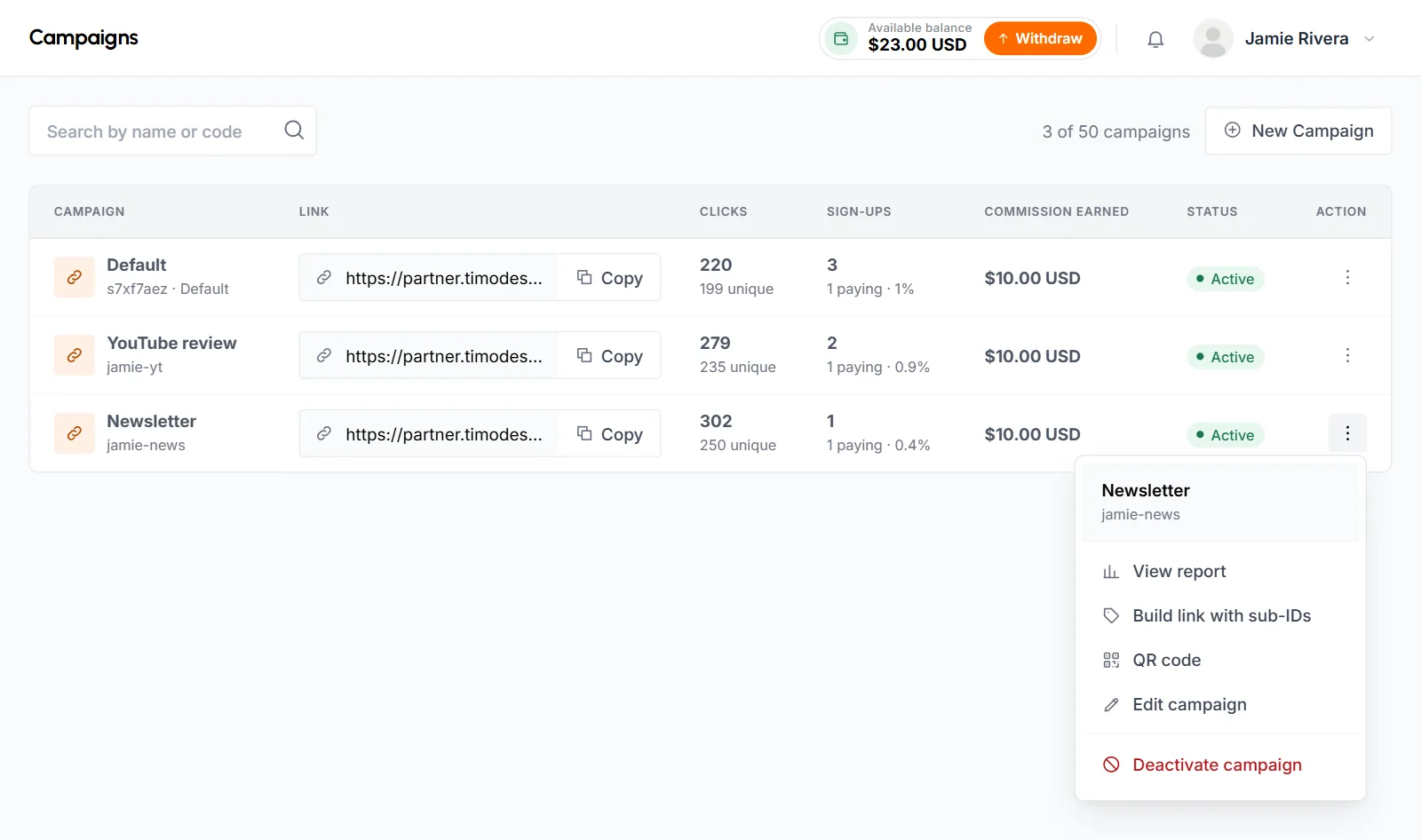
- You can change a campaign's name, destination and notes at any time. You can change its code only until it gets its first click, because links you already shared would stop working.
- When you deactivate a campaign, its link still sends visitors to the destination, but clicks and sign-ups are no longer tracked. Activate it again to start tracking again.
- The Default campaign can't be deactivated. Coupon sign-ups are credited to it.
How to track placements with sub-IDs and QR codes
Sub-IDs are labels you add to a campaign link to tell your placements apart, for example a newsletter from a video. Open a campaign's menu and click Build link with sub-IDs, or click Build a link on the dashboard.
- Fill in Sub-ID 1, Sub-ID 2 and Sub-ID 3, up to 40 characters each. Your link updates as you type. Click Copy.
- Sub-IDs aren't saved on the campaign. They live only in the link you copy, so build a new link for each placement.
- The report splits your clicks by sub-ID in By sub-ID.
Every campaign also has a QR code. Click QR code in the campaign's menu, or the QR image on the dashboard, and click Download SVG. Put it on a slide, a flyer or a video. A scan counts the same as a click.
How a sign-up is credited to you
A sign-up is yours when someone clicks your link and creates a TimoDesk organization in the same browser within the link tracking period. Your dashboard shows that period on the Your link card: "A team that signs up within [number] days of a click counts as your referral."
- When someone opens your link, TimoDesk records the click, saves your campaign in a cookie in their browser and sends them to the campaign's destination.
- The credit happens when they create their organization, not when they click. If they sign up in another browser, after the tracking period or after clearing cookies, the sign-up isn't credited.
- The most recent click wins. If the person later clicks another partner's link, the sign-up goes to that partner.
- Each organization can be credited to only 1 partner, and only once.
- If there's no valid link click, a sign-up with your coupon code is credited to you.
Some clicks and sign-ups never count:
- Clicks from bots and link previews aren't recorded. A click counts as unique when it's the first one from that network on that campaign in 24 hours.
- When too many clicks come from one network in an hour, TimoDesk flags them, and a flagged click credits nobody.
- You can't refer yourself. A sign-up isn't credited to you when it uses your own email, your company's email domain (shared domains such as gmail.com are fine) or a network you signed in to the partner portal from in the last 30 days. It also isn't credited when the person already owns another TimoDesk organization.
- Links of a deactivated campaign, and all your links while your account isn't approved, don't track anything.
If tracking missed a referral and you can show the team came from you, open a support request. TimoDesk can credit it to you by hand. The referral then shows the source Manual.
How partner coupons work
A partner coupon is a discount code that TimoDesk gives you to share. When a new team enters your code while it creates its TimoDesk organization, it gets the discount and the sign-up is credited to you, even without a click on your link. You can't create coupons yourself. If you'd like one, open a support request.
Open Promote > Coupons to see your codes. The top of the page totals Your coupons, Sign-ups, Qualified teams and Commission. For each coupon you see:
- Coupon
- The code, with a Copy button.
- Discount
- The percentage off and how long it lasts: a number of months, or Every month.
- Sign-ups, Qualified, Commission
- The teams that signed up with the code, how many reached the minimum deposit, and what they earned you.
- Status
- Active, Limit reached when the code has been used the maximum number of times, or Disabled.
Click the button in the Action column to open Teams that used this coupon. It lists up to 100 of the latest teams with their status, deposit progress and commission.
- The team types the code under Have a coupon code? on the TimoDesk form where it names its organization.
- A link click wins over a coupon. If the team clicked a partner's link within the tracking period, the sign-up goes to that link's partner, even when it uses your code.
- Coupon sign-ups count toward your Default campaign and show the source Coupon on the Referrals page.
How to follow your referrals
Open Performance > Referrals to see every team credited to you, newest first. To protect the customer's privacy, organization names are partly hidden, for example "A****** S****".
Use the tabs to show one status. Filter by campaign or by sign-up date, or search by campaign name. Each row shows the organization and its source (Link, Coupon or Manual), the campaign, the sign-up date, the status, the deposit progress and the commission.
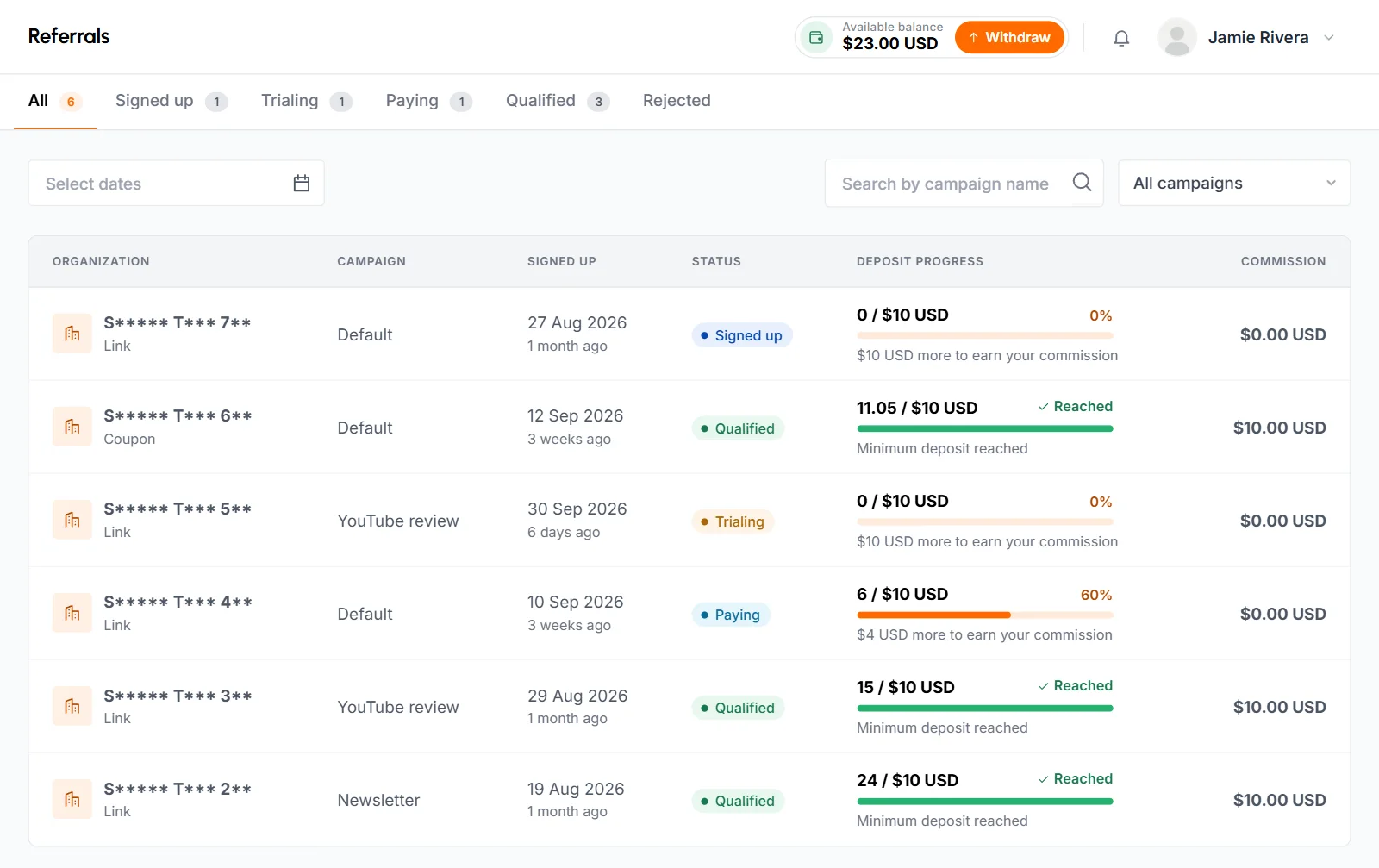
- Signed up
- The team signed up and hasn't paid anything yet.
- Trialing
- The team signed up during its free trial and hasn't paid anything yet. Most new teams start here.
- Paying
- The team has paid, but its total is still below the minimum deposit.
- Qualified
- The team's payments reached the minimum deposit, and the commission was added to your balance.
- Rejected
- TimoDesk found that the referral isn't genuine. It earns nothing from then on.
Deposit Progress shows how much the team has paid out of the minimum deposit, with a bar and a line such as "[amount] more to earn your commission". When the team reaches it, it shows Minimum deposit reached.
You get a notification and an email each time a new team signs up through your campaign.
When do you earn a commission?
You earn a commission when a team credited to you has paid TimoDesk at least the minimum deposit in total. Several smaller payments that add up count too. The commission is a fixed amount, paid once per team. It isn't a share of the team's invoices.
- The commission goes into your balance right away with the status Available. There's no holding period and no manual approval.
- You get a notification, "Commission available", and an email.
- The amount is the one in effect when the team reaches the minimum deposit.
- Your account must be approved at that moment. If it's suspended or closed then, that team earns you nothing, even if your account is reinstated later.
- Rejecting a referral later doesn't remove commission already added to your balance.
Your commissions appear in Latest commissions on the dashboard, in the Commission column on the Referrals page and on the Transactions page. Besides Referral commissions, you may see a Bonus or an Adjustment that TimoDesk added by hand. A commission marked Reversed was taken back and doesn't count in your totals.
How to read your performance report
The performance report shows your clicks, sign-ups and commission over time, for all campaigns or one. Open Performance > Reports, or click View report in a campaign's menu to open it for that campaign.
- Pick dates in the date field and a campaign in All campaigns. The report updates as soon as you pick. It covers the last 30 days by default and up to 2 years at most.
- The top shows Clicks, Unique clicks, Sign-ups, Paying referrals and Commission. In this report, a paying referral is a team that reached the minimum deposit.
- The Performance chart shows all 5 figures, or one when you click its tab.
- The table below lists each day, week or month that had activity, newest first. The report groups by day for up to 92 days, by week for up to a year and by month after that. Conversion is sign-ups as a share of unique clicks.
- By campaign compares your campaigns. By sub-ID, By country, By device and By referring site show the top 20 of each by clicks, with unique clicks and how many clicks became sign-ups.
At the start of each month, TimoDesk also emails you a summary of the month before: clicks, sign-ups, commission and your balance. Months with no activity get no email.
How to update your account
Open Settings > Account. It has 2 tabs.
- Profile: click the camera on your picture to upload a JPG, PNG or WebP image up to 4 MB. It saves right away. Click the pencil to open Edit Profile and change your name, company, country, phone, website and address, then click Save Changes. The tab also shows your Partner ID and the date you joined.
- Account Security on the same tab: enter your Current Password and the New Password twice, then click Update Password. Other browsers that remembered you are signed out.
- Promotion: update your main promotion channel, audience, plan and social profiles, then click Save Changes.
You can't change your email yourself, because it's how you sign in and get paid. Open a support request to change it. Changing your country changes the payout methods you see.
How to get help from the partner team
Open Support > Support Requests and click New Request. You can do this before approval too.
- Write a Subject, pick a Priority and a Topic: General, Payouts, Technical or Promotion.
- Describe the problem in Message. Name the campaign, or the withdrawal or transaction number, if it's about one.
- Attach up to 5 files: JPG, PNG, PDF or DOC, up to 5 MB each. Click Submit request.
Replies appear in the request, and you get a notification and an email. The list has All, Open, Answered and Closed tabs. The bell at the top of every page shows your latest notifications. The full Notifications page has Mark all as read.
What happens if your account is suspended or closed?
A suspended account stops earning, and a closed account can't be used at all. TimoDesk emails you the reason either way.
- Suspended: your dashboard shows the reason. Your links still send visitors to TimoDesk, but they don't record clicks or sign-ups, and you earn nothing. The commission already in your balance is kept. Campaigns, coupons, referrals, reports and payouts are hidden until TimoDesk reinstates you. Click Contact support to ask for a review.
- Closed: after you sign in, you see Partner account closed and the reason. TimoDesk can remove any balance left on a closed account.
Common questions
How much do I earn per team?
A fixed amount per team that TimoDesk sets. Your dashboard shows the current amount and the minimum deposit the team has to reach.
Do I earn again when the team keeps paying?
No. You earn once per team, when its payments first reach the minimum deposit.
Why doesn't a team I referred appear in my list?
They probably signed up in another browser, after the link tracking period, after clicking another partner's link or from a network you use yourself. If you can show the team came from you, open a support request.
Can I refer my own company?
No. Sign-ups that use your email, your company's email domain or your own network aren't credited to you.
Can I see who signed up?
No. You see each organization's name partly hidden, its status and its deposit progress, but not who the customer is.
Are there banners or logos to download?
No. The portal gives you campaign links, sub-ID links and a QR code for each campaign.
Can I be a partner and use TimoDesk for my own team?
Yes. They're separate accounts with separate sign-ins, but your own organization can't be credited to you as a referral.
Can I use the Referral program and the Partner program together?
Yes, but each new organization pays out only once. If it's credited to a partner, nobody gets referral credit for it.