
Member timing
Member Timing is a time tracking report that shows how much time each member tracked in a date range. You can open each member's time by project, then by task in that project, then by the days they worked on each task. It tells you what a person spent their week on in a few clicks.
Who can use it: Organizers, Business Managers and Team Managers. Team Managers see themselves and the members of the teams they manage. Staff don't have this report.
How to open the report and set the filters
Open Member Timing under Analytics in the sidebar. Two filters control the whole report:
- Date range
- The report opens on the last 7 days, including today. Pick Today, Yesterday, Last 7 Days, Last 30 Days, This Month or Last Month, or set a Custom Range. You can't pick a date after today.
- Member
- Keep All Members to list everyone who tracked time, or pick one member to see only their time.
The page address keeps your filters. If you reload, go back or bookmark the page, you get the same view.
How to drill down from member to project, task and date
The report is a list you open one level at a time. Each level loads the first time you open it.
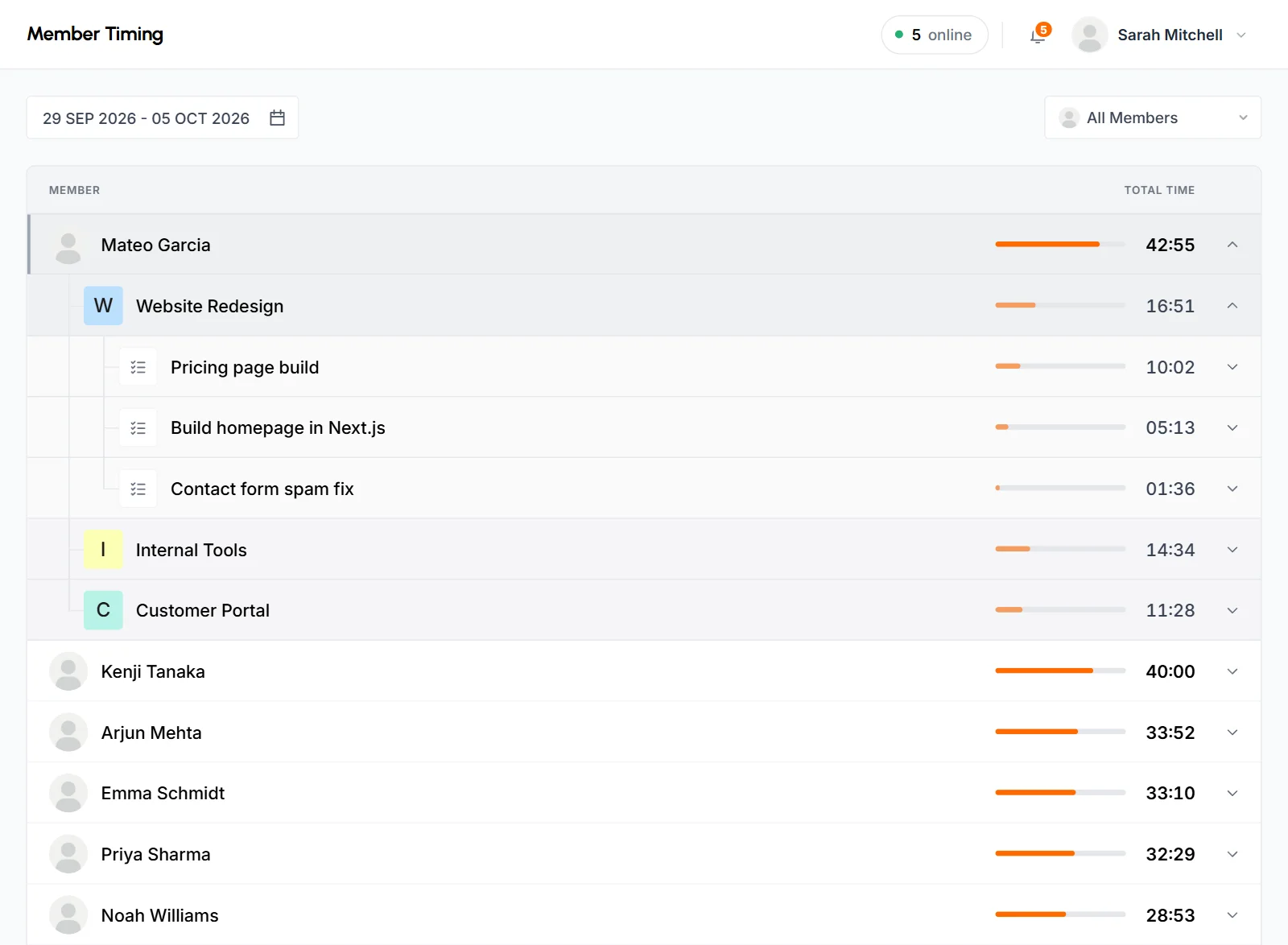
| Level | What each row shows | Order |
|---|---|---|
| Member | The member's total tracked time in the range | Most time first |
| Project | The member's time on each project | Most time first |
| Task | The member's time on each task in that project | Most time first |
| Date | Each day the member tracked time on that task | Newest first |
- Click a member to see the projects they tracked time on.
- Click a project to see the tasks in it that they tracked time on.
- Click a task to see the days they worked on it and the time for each day.
Time shows as hours and minutes (HH:MM). Anything under a minute shows as < 1m. The bar next to each figure is sized against the longest row in the table. Time tracked without a task appears as "Untitled task", and time with no project appears as "No Project".
What time the report counts
- The report counts all tracked time in the range, including approved manual time.
- Only members who tracked time in the range appear. Someone with no tracked time isn't listed.
- The report shows time only, with no activity percentage. For activity, use the Time & Activity report grouped by member.
- You can't export this report. To download the same time data, export Time & Activity grouped by member.
Member Timing, Time & Activity or Project Timing?
| Report | Starts from | Breaks down into | Activity | Export |
|---|---|---|---|---|
| Member Timing | Members | Projects, tasks, dates | No | No |
| Time & Activity | Dates, members or projects | Members, dates or projects | Yes | PDF and CSV |
| Project Timing | Projects | Dates or members | No | No |
Member Timing is the only report that shows time per task.
Common questions
Why isn't a member listed in Member Timing?
Either they didn't track any time in the selected range, or you're a Team Manager and they aren't in a team you manage. Try a wider date range or check the member's teams.
Does Member Timing include manual time?
Yes. Approved manual time is part of every total, down to the task and date.
Can Staff see Member Timing?
No. Member Timing is for Organizers, Business Managers and Team Managers. Staff can see their own time in Time & Activity and Project Timing.