
Time calendar
The Time Calendar shows a month of tracked time as a grid of day cards, each with the day's total. You can open any day to see who worked and on which projects. Staff use it to review their own month and download their monthly timesheet.
Who can use it: Everyone. Organizers and Business Managers see the whole organization. Team Managers see themselves and the members of the teams they manage. Staff see only their own time.
How the Time Calendar is laid out
The calendar is a grid of day cards for one month. To open it, go to Analytics in the sidebar and click Time Calendar. It opens on the current month.
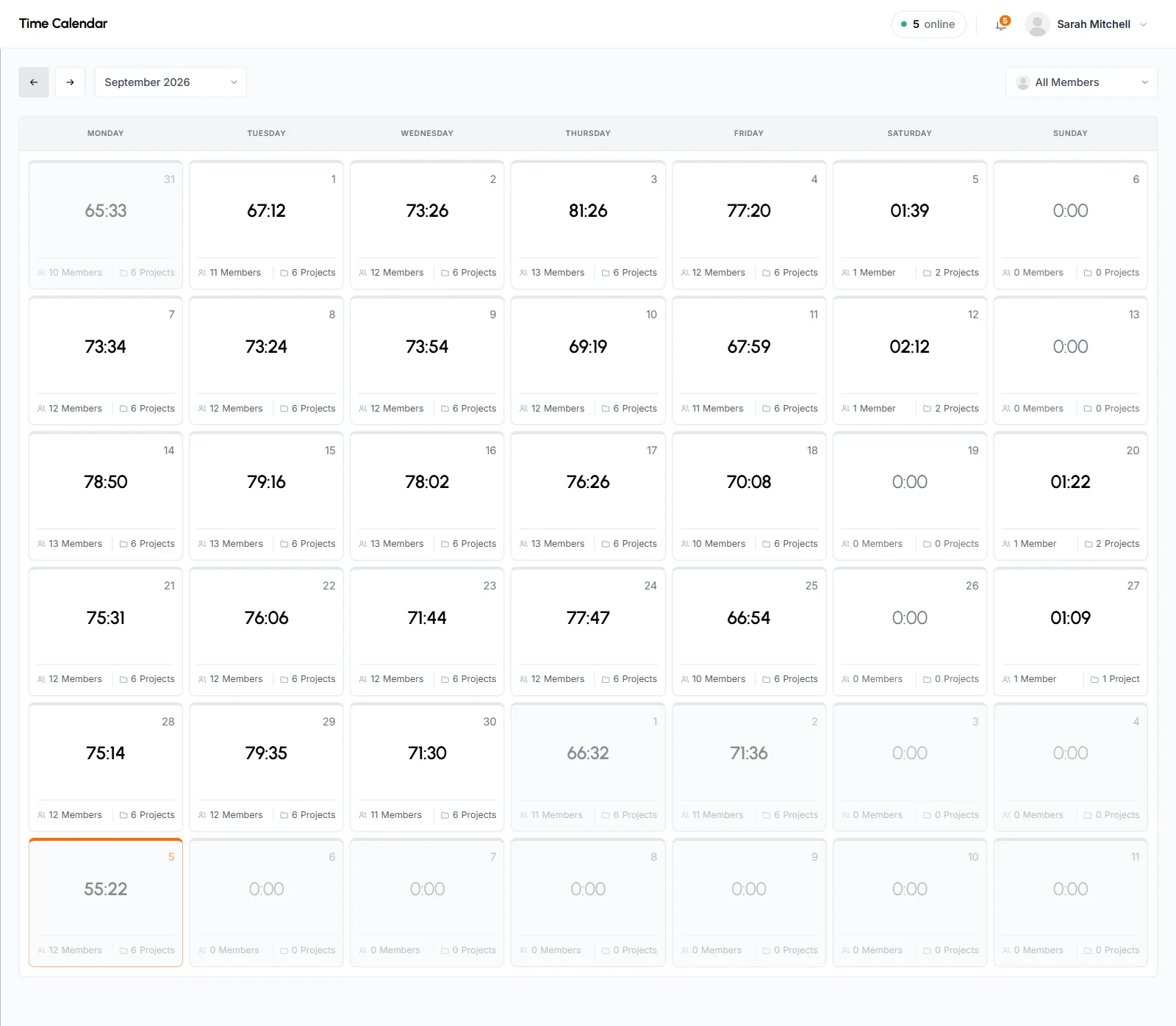
The grid always has 6 rows of 7 days, 42 cards in all. It starts on your organization's first day of the week, on or before the 1st. Because of this, the first and last rows usually include days from the months before and after. Those days are faded. They show their total, but you can't open them. Today's card is highlighted.
Each day card shows:
- Day number
- The day of the month.
- Total time
- The time tracked that day in hours and minutes (HH:MM). A day with nothing tracked shows a dimmed
0:00. - Members
- How many members tracked time that day. It appears when the member filter is on All Members.
- Activity
- The day's average activity, weighted by time and rounded to a whole percent. It replaces Members when you filter to one member, and Staff always see it.
- Projects
- How many projects had time tracked on them that day.
Each day runs from midnight to midnight in your organization's time zone. Totals include approved manual time. Manual time is left out of Activity, so a day with only manual time shows 0%. See how time and activity are calculated.
The Organizer sets the first day of the week under Week starts on. It's Sunday unless someone changes it.
How to filter by member
The member filter at the top right starts on All Members. Pick one member to see only their time. Every card updates, the Members count changes to that member's Activity percentage, and the day breakdown lists projects only.
The list shows active members only. Time tracked by members who were disabled later still counts under All Members.
Staff don't get a member filter. They get a Download button for their monthly timesheet in its place.
How to see a day's breakdown
Click Members or Projects on a day card to open that day. The dialog's title is the full date. The line under it gives the day's totals, for example "07:42 tracked by 3 members across 4 projects."
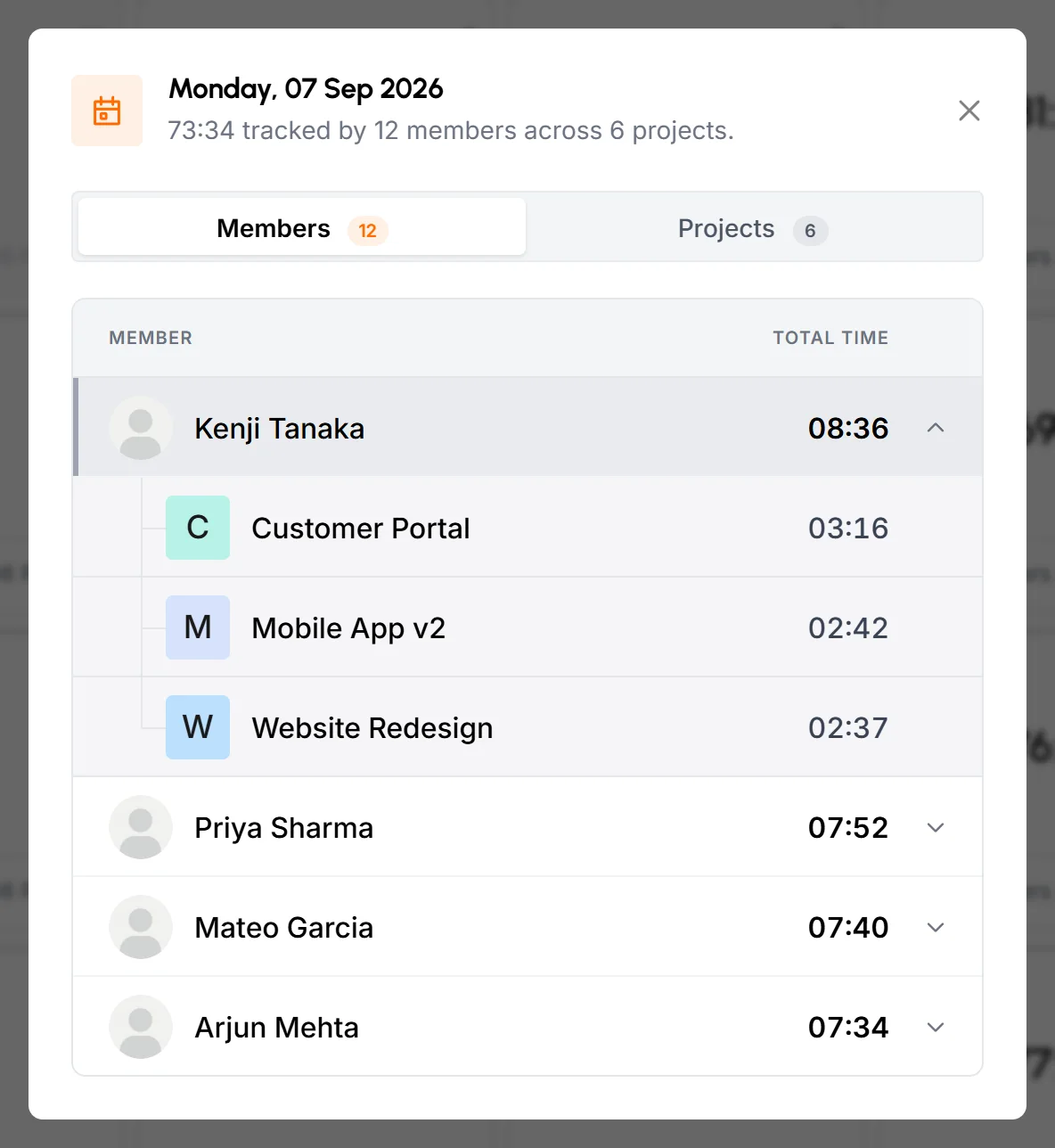
- Members tab
- Each member who tracked time that day, with their total, longest first. Click a member to see the projects they worked on and the time on each.
- Projects tab
- Each project with time that day, longest first. Click a project to see the members who worked on it and the time each one tracked.
The count on each tab shows how many members or projects there are. Anything under a minute shows as < 1m. The tab that opens first depends on the button you clicked on the card.
When you filter to one member, or when you're Staff, the dialog has no tabs. It lists that person's projects and their time, with nothing to expand.
You can't open days with no tracked time, or faded days from the months before and after.
What Staff see and how to download the monthly PDF
Staff see only their own calendar. Their cards show Activity and Projects, and the day breakdown lists their projects.
The Download button at the top right saves the month on screen as a one-page PDF, with a name like my-timesheet-2026-09.pdf. It's the same page managers get from the Monthly Timesheet with the User wise layout:
- The title "Timesheet" with the month, the date and time the file was made, the member's photo and name, and the organization's name.
- Present Days: days in the month with any tracked time.
- Absent Days: past days with no tracked time. Holidays and days that haven't happened yet don't count.
- Avg / Day: total time divided by Present Days.
- Total Time: all time tracked that month, including approved manual time.
- A Work Calendar grid that starts on your organization's first day of the week. Each day shows its time, "Off" for a holiday or "Absent". Days that haven't happened yet are blank.
In this PDF, a holiday is a past day on which nobody in your organization tracked time.
When to use the Time Calendar
- Find the busy and quiet days in a month.
- Check who worked on a certain day, and on what.
- Follow one member's month day by day, with their activity.
To see each member's daily hours in one grid, use the Monthly Timesheet. For a week split by project, use the Weekly Worklog.
Common questions
Why can't I open a day on the calendar?
A day opens only when it's in the month on screen and has tracked time. Days with nothing tracked and faded days from the months before and after stay closed.
Why do the cards show Activity instead of Members?
With one member selected, or when you're Staff, there's only one person to count. The card shows that person's activity for the day in its place.
Does the Time Calendar include manual time?
Yes. Approved manual time counts toward each day's total. It has no keyboard or mouse input, so it's left out of the day's Activity.