
Tracking policy
The tracking policy decides how the desktop app tracks each member: their idle timeout, screenshot interval, screenshot alert and manual time rules. You set organization defaults and give single members their own settings, all on one page called Team Tracking Policy.
Who can use it: Organizers and Business Managers. Only Organizers can change the organization's manual time defaults. Team Managers and Staff can't open the page.
How to open the tracking policy page
Open Members in the sidebar and click Team tracking policy, on the right of the tabs. You can also go to Account, Organization Setting and click Open tracking policy in the Activity & Tracking section.
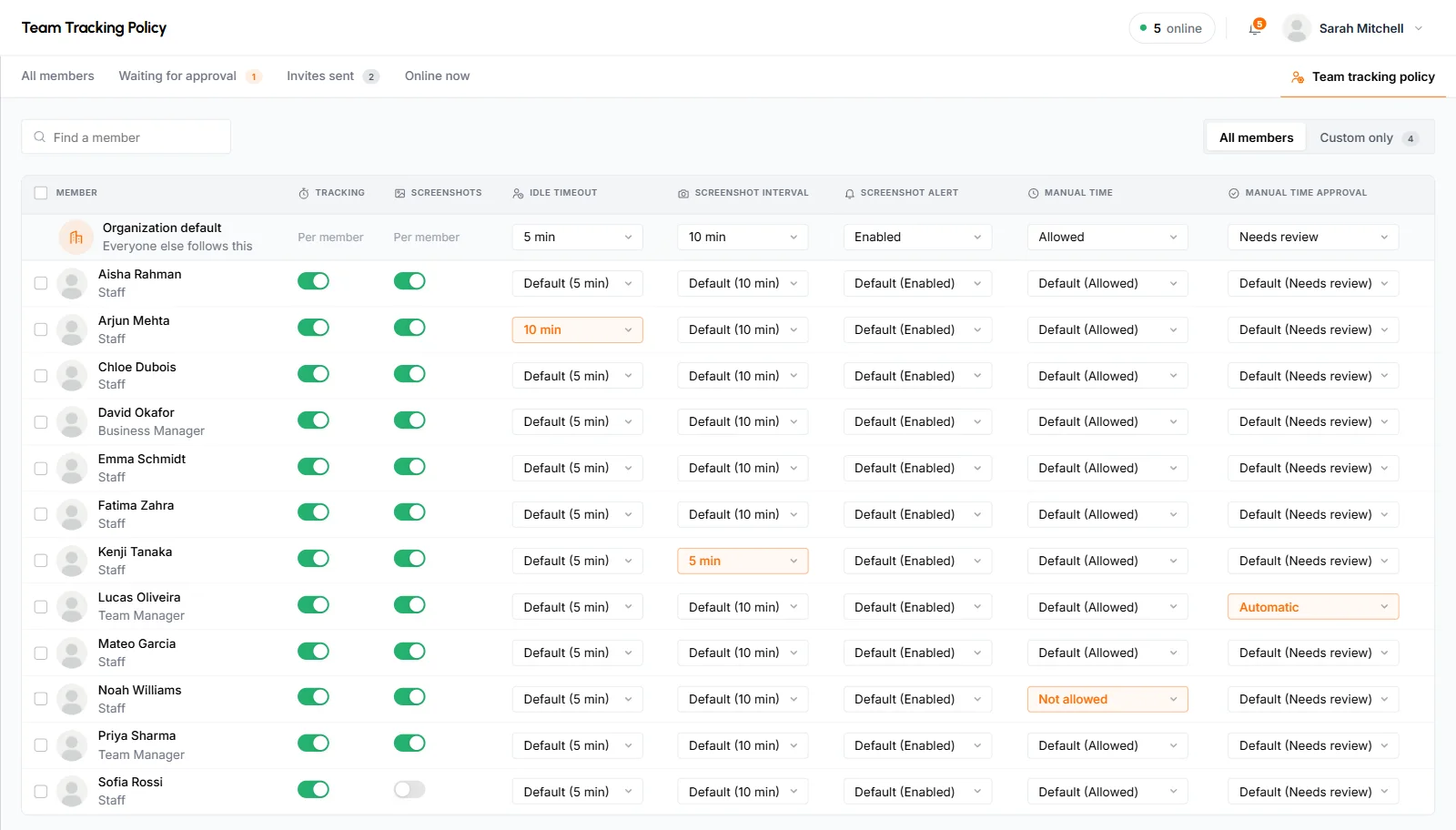
The page is a table. The first row is Organization default. Under it, each member has a row with a column for every setting.
What each setting does
Each column is one setting. The table shows what you can pick for the organization row and for a member's row.
| Column | What it controls | Organization default | Member choices |
|---|---|---|---|
| Tracking | Whether the member can track time with the desktop app. | None. It shows Per member. | A switch, on or off. |
| Screenshots | Whether the app takes screenshots while the member tracks time. | None. It shows Per member. | A switch, on or off. It only works while Tracking is on. |
| Idle timeout | How long the member can go without keyboard or mouse activity before the app asks about the idle time. | System (the TimoDesk default, shown in parentheses) or 3, 5, 10, 15, 20, 30, 45 or 60 min. | Default or 3, 5, 10, 15, 20, 30, 45 or 60 min. |
| Screenshot interval | How often the app takes a screenshot while the member tracks time. | System (the TimoDesk default, shown in parentheses) or 3, 5, 10, 15, 20, 30 or 60 min. | Default or 3, 5, 10, 15, 20, 30 or 60 min. |
| Screenshot alert | Whether the app notifies the member right after each screenshot. | Enabled or Disabled. | Default, Enabled or Disabled. |
| Manual time | Whether the member can request manual time. | Allowed or Not allowed. Organizers only. | Default or Not allowed. |
| Manual time approval | Whether the member's manual time requests wait for a reviewer or go into their timesheet right away. | Automatic or Needs review. Organizers only. | Default, Automatic or Needs review. |
In a member's row, Default shows the value it stands for, for example Default (5 min).
The manual time defaults are the same settings as Manual time entries and Approval on the Manual Time settings page. Change one and the other changes too. Business Managers see these 2 defaults with a lock icon.
How to change the organization defaults
Pick a new value in the Organization default row. TimoDesk saves it as soon as you pick it. Every member whose cell says Default follows the new value right away, and their desktop app gets it.
For the idle timeout and screenshot interval, System means your organization uses the TimoDesk default. Members with their own setting keep it when you change the default.
How to give one member their own settings
Find the member's row and pick a value in the column you want to change. You can type a name or email in Find a member to jump to them. Each change saves on its own. The status next to the tabs says Saving…, then Saved, or Could not save if something went wrong.
- To send a member back to the organization value, pick Default.
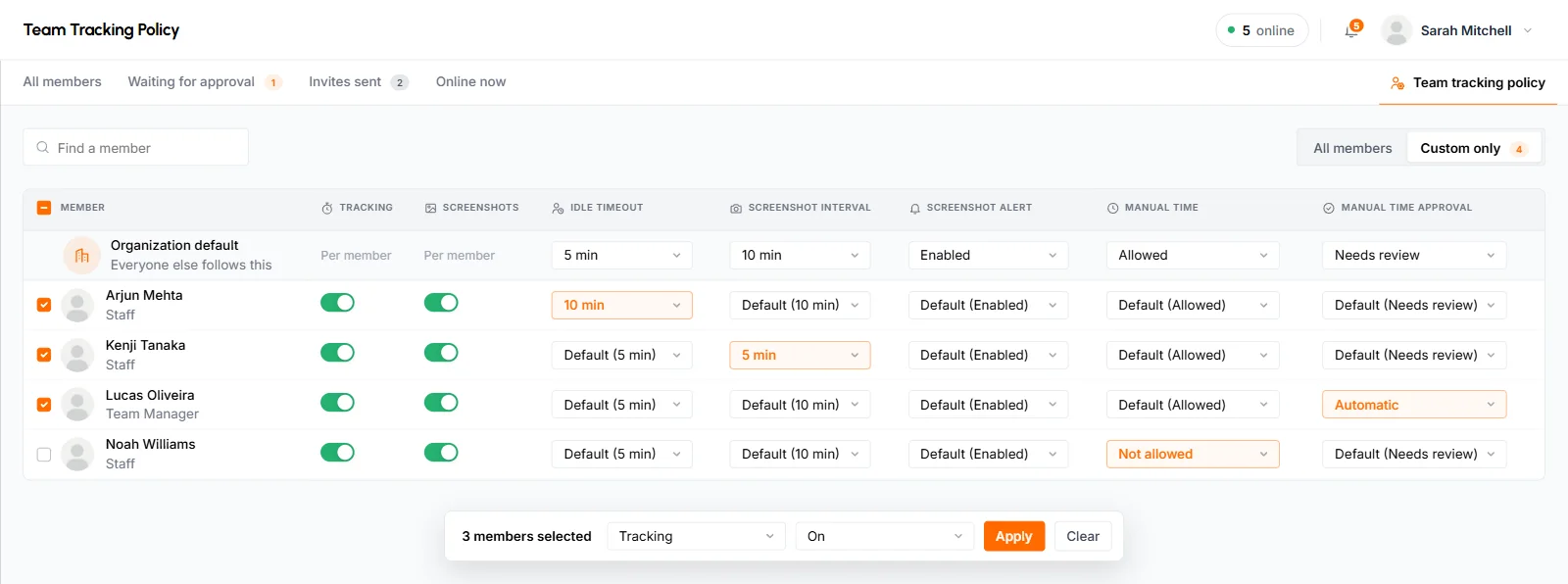
- Click Custom only to see only members with at least one setting of their own. The number on the tab is how many there are. All members shows everyone again.
- Turning Tracking off turns Screenshots off too. The Screenshots switch is grayed out until Tracking is on.
- The member's desktop app gets the new tracking and screenshot values right away.
You can also change one member's settings from their profile. Open the member and click the gear icon, Tracking Policy. See set a tracking policy for one member.
How to change a setting for several members at once
-
Select the members
Check the box next to each member. The box in the header selects every member the table shows, so search or use Custom only first to narrow the list.
-
Pick the setting and the value
A bar appears with the number of members you picked, for example 3 members selected. Pick the setting in the first list and the value in the second. For Tracking and Screenshots the values are On and Off.
-
Click Apply
TimoDesk changes the setting for everyone you picked and shows how many members it updated. Click Clear instead to uncheck everyone.
If you turn on Screenshots for members whose tracking is off, TimoDesk skips them and tells you how many it skipped.
Which members are on the page?
The page lists active members who have confirmed their email address, sorted by name. These people never appear:
- You. Your own policy is the organization default.
- The organization's owner, the person who created the organization.
- Organizers, when you're a Business Manager.
Members who are waiting for approval, disabled or haven't confirmed their email aren't listed either. To set a policy for a disabled member, use the Tracking Policy button on their profile.
How member settings and organization defaults work together
A member's own setting always wins over the organization default, and the organization default wins over the TimoDesk default. Manual time has one extra rule.
- Manual time: you can only switch a member off. While the organization's manual time is Not allowed, nobody can request manual time, and the members' manual time cells are grayed out with the message "Manual time is off for your organization. Turn it on first."
- Manual time approval: a member's setting works both ways. With Automatic, their requests skip review even when the organization uses Needs review. With Needs review, their requests wait for a reviewer even when the organization approves automatically.
- Screenshot interval and Screenshot alert only matter while the member's Screenshots switch is on.
Common questions
Why isn't a member on the tracking policy page?
The page only lists active members who have confirmed their email. It leaves out you and the owner. For Business Managers, it also leaves out Organizers.
Can I turn manual time on for one member only?
No. Manual time must be on for the organization first. After that, you can switch it off for single members by picking Not allowed.
Can a Business Manager change the manual time defaults?
No. Business Managers can change the other defaults and every member setting, but only Organizers can change the organization's Manual time and Manual time approval defaults.