
Manual time
Manual time lets members add work time the desktop app didn't record, such as a call away from the computer. A member sends a request, a reviewer approves it, and the time goes into their timesheet marked as manual.
Who can use it: Any member can request time after an Organizer turns manual time on, unless it's switched off for them. Organizers review requests. Business Managers and Team Managers can review too, if your settings allow it. Only Organizers can change the organization settings.
How manual time works
- An Organizer turns manual time on and sets the rules under Account, Manual Time.
- A member opens Manual Time in the sidebar and requests the time. They give the project, task, date, start and end, and a reason.
- A reviewer approves the request as sent, changes it and then approves it, or rejects it. If your organization approves requests automatically, there's no review step.
- Approved time goes into the member's timesheet. Reports show it as manual time, with no activity, screenshots or app usage.
Nobody can edit time the desktop app tracked. You can only change manual entries, and only a reviewer can change them.
How to turn on manual time and set the rules
An Organizer turns on manual time from the Manual Time tab in Account.
- Click Account in the sidebar, then the Manual Time tab.
- Turn on Manual time entries.
- Pick the settings below.
- Click Save Changes.
- Manual time entries
- Off by default. While it's off, members can't request time, and Manual Time isn't in their sidebar. Organizers always see it.
- Who can review
- Organizers only, Organizers and business managers (the default) or Organizers, business managers and team managers. Team managers review only the teams they manage. Reviewers can also add time for members directly.
- Approval
- Review each request (the default) sends every request to a reviewer. With Approve automatically, requests go into the timesheet right away.
- Longest single entry
- The longest time one request can cover: No limit (the default), 1h, 2h, 4h or 8h.
- How far back
- How old the requested time can be: No limit (the default), 1, 3, 7, 14 or 30 days.
- Require a reason
- On by default. Members must give a reason before they can send a request.
The Current setup panel on the left shows a summary of your choices.
Settings for single members
Organizers and Business Managers can change 2 rules for one member: switch manual time off for them, or give them their own approval setting (Approve automatically or Needs review). Use the gear icon, Tracking Policy, on the member's profile, or the tracking policy page for many members at once. You can't turn manual time on for one member while it's off for the organization. The Manual time entries and Approval settings also appear as organization defaults on the tracking policy page.
The last 3 settings apply only to requests. They don't limit a reviewer who adds time for someone else. Every entry, from anyone, has a 12-hour maximum.
How to request manual time
Members request time from Manual Time in the sidebar.
-
Open Manual Time
Click Manual Time in the sidebar. If you also review requests, open the My Requests tab. Click Request Time.
-
Fill in the form
- Project
- Required. The list shows the projects you're assigned to, plus any project you already tracked time on, even if you were taken off it later.
- Task
- Optional. Pick one of your tasks on that project or a task you already tracked time on, or No task. Archived tasks aren't listed.
- Date
- Today or an earlier day.
- Start and End
- You pick them in 5-minute steps, in your organization's time zone. If the end is earlier than the start, the time runs past midnight, and the form says it ends the next day. The start and end can't be the same.
- Reason
- Up to 1,000 characters. Required if your organization asks for a reason.
-
Check the day bar
A bar under the times shows what that day already has: Tracked time, Manual time and requests Waiting for review. Under the bar, Already recorded lists those times, or it says Nothing recorded on this day yet. You can't pick times that overlap them. The line under the bar shows the duration, or the problem with the times you picked.
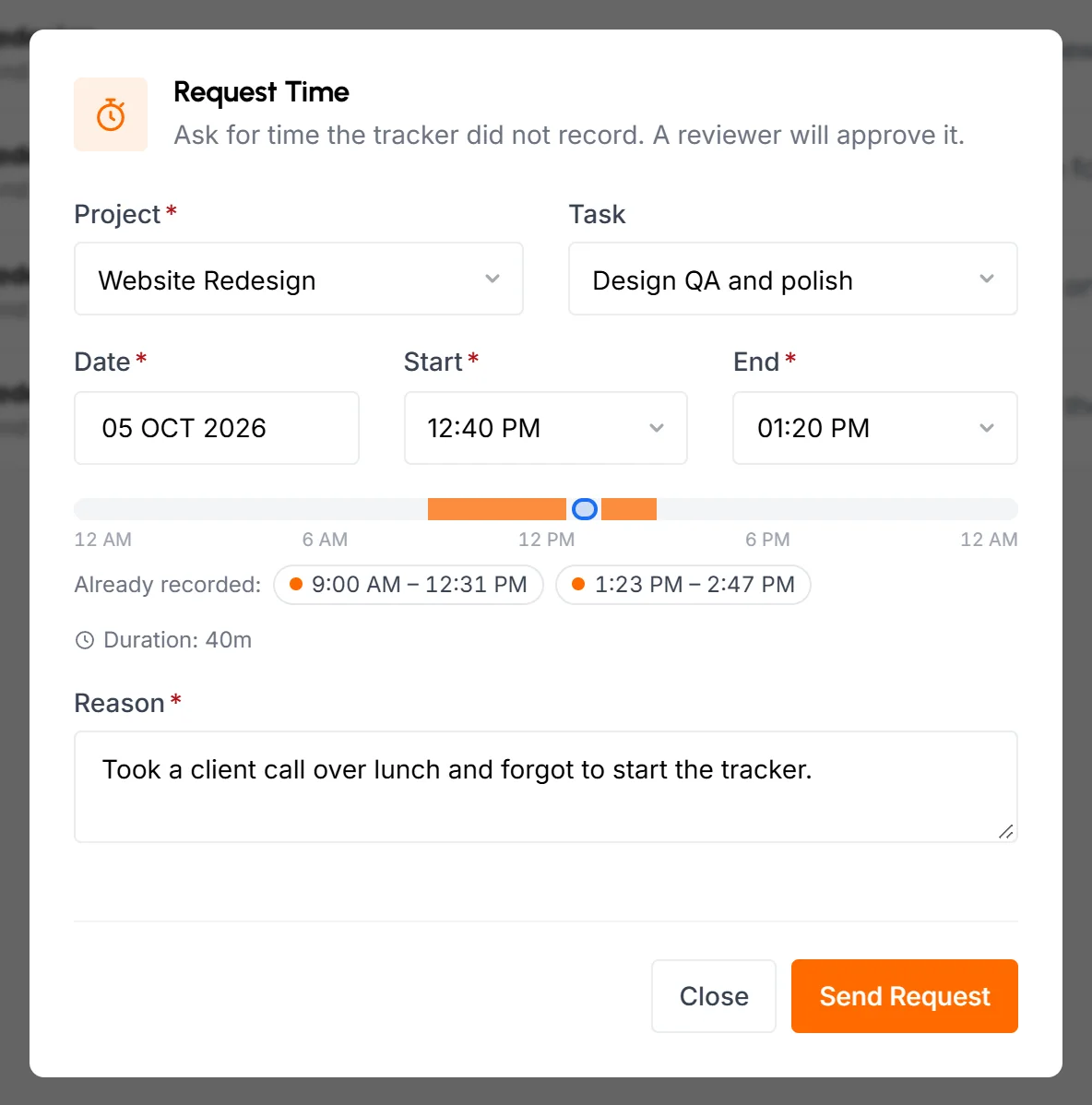
Your pick shows on the bar too. Drag it to move it, or drag one of its edges to change the start or end, in 5-minute steps. The drag stops at recorded time, at the current time and at the longest entry allowed, and the line under the bar says why. A pick that runs past midnight can't be dragged; set it with the Start and End lists.
-
Click Send Request
You'll see Request sent for review. If your organization approves requests automatically, you'll see Time added instead.
Manual time limits and rules
Some rules apply to every manual entry, and some apply only to requests from members.
| Rule | Applies to |
|---|---|
| Manual time must be on for the organization. | Everyone, including reviewers who add time |
| One entry can be 12 hours at most. Add longer time as separate entries. | Everyone |
| The time can't end in the future. | Everyone |
| The time can't overlap tracked time, manual time or another request waiting for review. | Everyone |
| The member must be assigned to the project, or have tracked time on it before. The same goes for the task, if you pick one. | Everyone |
| Longest single entry, if set | Requests only |
| How far back, if set | Requests only |
| Require a reason, if on | Requests only |
How far back counts whole days in your organization's time zone. For example, with 7 days, on September 30 a member can request time that starts on September 23 or later.
Who can approve manual time
The reviewer depends on the member's role and your Who can review setting.
- Organizers can review anyone's time.
- Business Managers can review anyone except Organizers and themselves. They can't review when the setting is Organizers only.
- Team Managers can review members of the teams they manage, but not Organizers or themselves. They review only when the setting is Organizers, business managers and team managers.
Nobody reviews their own time. When an Organizer adds their own time, it's approved right away.
How to approve or reject a request
Reviewers handle requests on the Review tab of Manual Time.
-
Open the Review tab
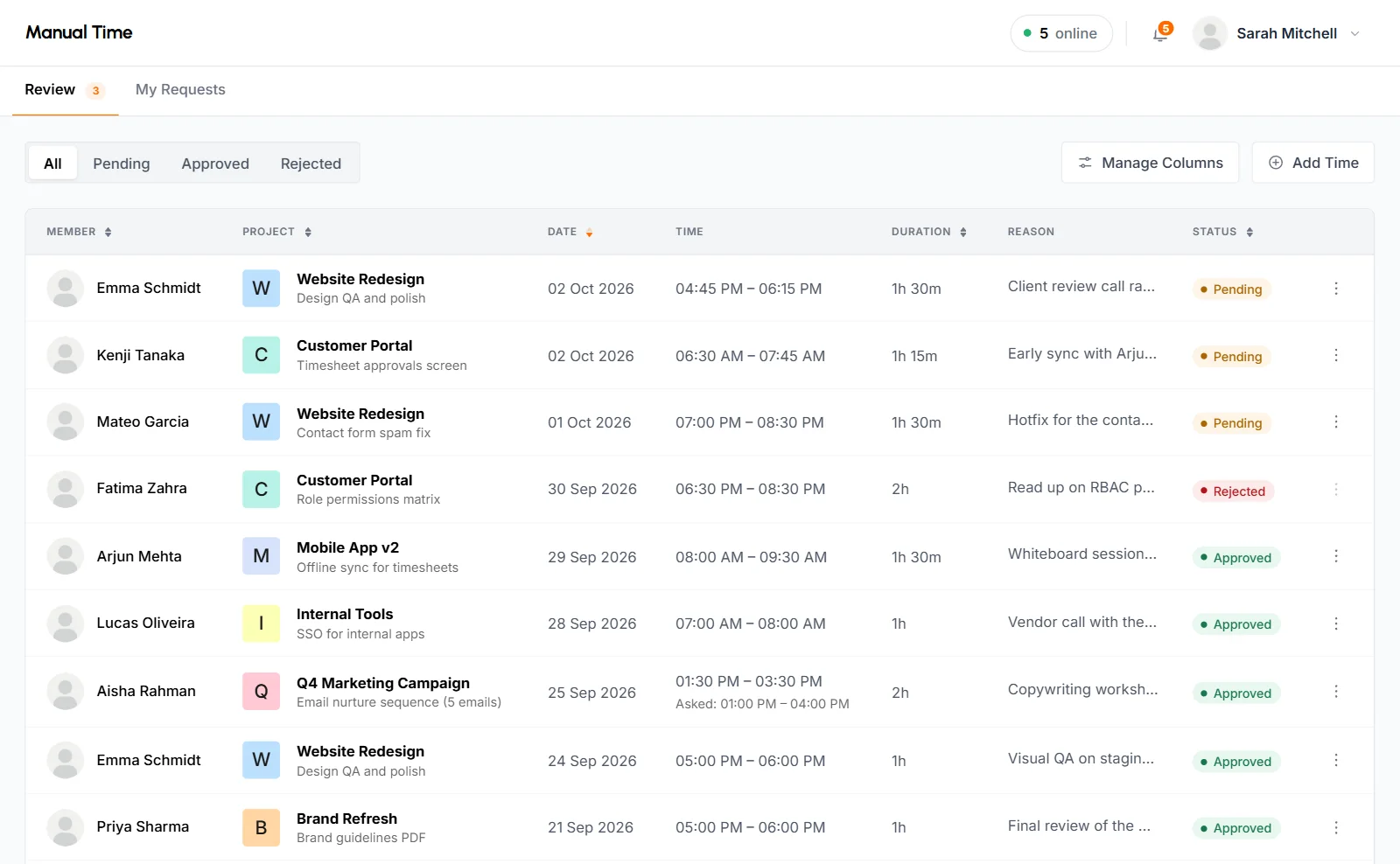
Click Manual Time in the sidebar. Reviewers start on the Review tab, which shows All requests with pending ones first. Click Pending to see only those. The number next to Manual Time and on the tab shows how many requests are waiting for you.
-
Open the request
Click the ⋮ menu on the request and choose Review request. The Review Request dialog shows the member and the requested project, task, date and times. It also shows the Reason given. The day bar shows what the member already has on that day.
-
Approve or reject
Click Approve to accept the time as sent. To fix it first, change the project, task, date or times, then approve. Click Reject to turn it down. In both cases you can add a Note to member of up to 1,000 characters. The member sees it with your decision.
To decide without opening the dialog, choose Approve or Reject in the ⋮ menu and confirm. This approves the time exactly as asked, with no note.
Approved time goes into the member's timesheet right away, and the task's total time goes up to match. If you changed anything, the list shows the original times under the new ones as Asked, and hovering over the status says "Changed by the reviewer before approving".
How to add time for a member
Reviewers can add time for a member without a request. On the Review tab, click Add Time. Pick the Member (anyone whose time you review), fill in the rest and click Add Time. The time is approved and added right away. The Action By column shows who added it, and the member gets a notification.
Your organization's length, how-far-back and reason rules don't apply when you add time for someone else. The 12-hour maximum, the overlap check and the project assignment rule still apply.
The Member list includes you too, marked (me). If you pick yourself and you aren't an Organizer, the time becomes a request for another reviewer.
How to edit or remove approved manual time
A reviewer can edit or remove approved time from the ⋮ menu on the entry, on the Review tab.
- Edit time opens Edit Manual Time. Change the project, task, date or times and click Save Changes. The member's timesheet updates to match.
- Remove time asks you to confirm with Remove Time. The time comes out of the member's timesheet and reports. The entry stays in the list as Removed. You can't restore it, so add the time again if you need it back.
The member gets a notification when you change or remove their time.
You can only edit or remove approved entries. Pending, rejected, canceled and removed entries can't be changed.
How to edit or cancel a request
Members can edit or cancel their own request while it's still pending. Both buttons are on the request's row, on My Requests (or on the Manual Time page if you don't review requests).
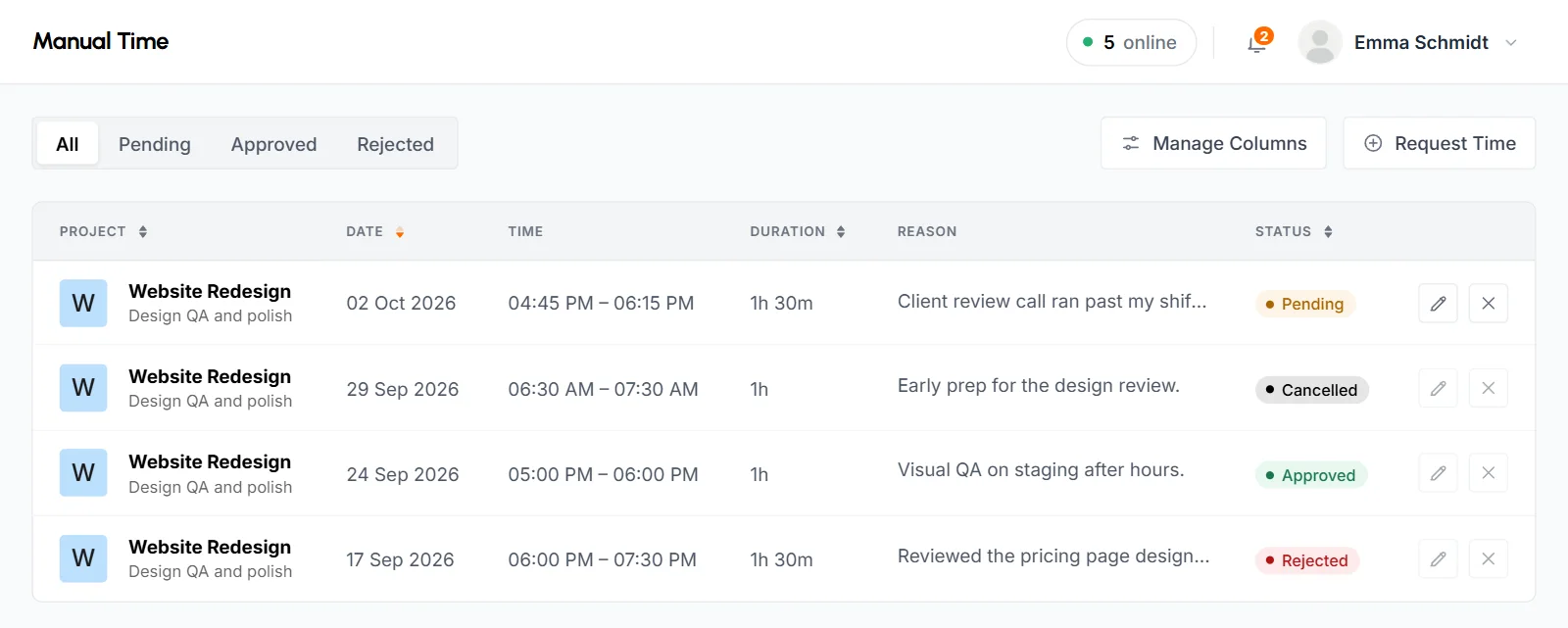
- The pencil icon, Edit Request, opens the form with your request filled in. Change it and click Update Request. The same rules apply as for a new request, and it stays pending.
- The x icon, Cancel Request, asks you to confirm with Cancel Request. The request is withdrawn, and no one reviews it.
Once a request is approved, rejected or canceled, both buttons are grayed out.
What each request status means
Each manual time entry has one of these statuses.
- Pending
- Waiting for a reviewer.
- Approved
- Added to the timesheet. The Action By column shows who approved it, or Automatically if the request was approved automatically. If a reviewer changed it before approving, the original times show under the time as Asked.
- Rejected
- A reviewer turned it down.
- Cancelled
- The member withdrew it before review.
- Removed
- A reviewer approved the time, then later took it out of the timesheet.
The filters above the list are All (the default), Pending, Approved and Rejected. Canceled and removed entries appear only under All, and the Review tab doesn't show canceled requests. The list shows the Member (on the Review tab), Project with the task under it, Date, Time, Duration, Reason, Status and Action By (the reviewer who acted on it). Hover over the status to read the reviewer's note. Rejected and canceled requests don't block that time, so the member can send a new request for it.
How manual time shows in reports
Approved manual time counts as worked time in every report that shows hours: the Dashboard, Time and activity, Time calendar, Weekly worklog, Monthly timesheet, Project timing, Member Timing, Top and low performers, and the member, team and project details pages. When you edit or remove an entry, these reports update.
Manual time has no keyboard or mouse activity, screenshots, apps or websites. It never appears on App usage or Websites & URLs.
Because manual time has no activity to measure, activity averages leave it out. A member's average activity is based on the time the desktop app tracked, so adding manual time doesn't lower it. This applies to Time and activity, the timesheets, Top and low performers, the member, team and project details pages and the summary emails.
Manual time doesn't count toward billing either. A member who has only manual time in a billing cycle isn't a billed user for that cycle.
The Screenshots page marks manual time clearly:
- A 10-minute block with only manual time says Manual time, Added by hand, not tracked, Manual entry and Activity not tracked.
- A block with both tracked and manual time gets a Manual badge with the manual minutes.
- The summary shows how much of the work time is manual.
- The activity average on this page leaves manual time out.
On the Dashboard, the day timeline shows manual time in its own color, labeled Manual in the legend, and hovering over it says Added manually.
Right now, the Dashboard's activity figures still count manual time as 0% activity, so a member's average activity there goes down when manual time is added. The other reports leave it out.
Does TimoDesk send manual time notifications?
Yes. TimoDesk sends a dashboard notification and a pop-up alert, but no email. Clicking the notification opens Manual Time.
- When a member sends a request that needs review, everyone who can review it gets a notification, for example "Priya requested manual time (2h 30m on Sep 30)". It opens the Review tab, filtered to Pending.
- The member gets a notification when a reviewer approves their request (it says "with changes" if the reviewer changed it), rejects it, adds time for them, changes their approved time or removes it.
Nobody gets a notification when a member edits or cancels a pending request, or when time is approved automatically. Reviewers also see the number of pending requests next to Manual Time in the sidebar and on the Review tab.
Common questions
Can members edit time the desktop app tracked?
No. Nobody can edit tracked time. To add missing time, a member sends a manual time request, and a reviewer approves it.
Why don't I see Manual Time in the sidebar?
Your organization hasn't turned manual time on, or it's switched off for you, and you don't review requests. Ask an Organizer or Business Manager to check your tracking policy, or an Organizer to turn manual time on under Account, Manual Time.
Can I change a request after I send it?
Yes, while it's still pending. Click the pencil icon on the request, change it and click Update Request. After a reviewer decides, you can't change it.
What happens to pending requests if manual time is turned off?
They stay in the list, and Organizers can still approve or reject them. Business Managers and Team Managers lose the Review tab until manual time is on again, and members can't send new requests.
Can I request time again after a rejection?
Yes. Rejected and canceled requests don't block that time, so you can send a new request for it.