
Client portal
The client portal is a read-only website where you follow the work a team does on your projects. You can see the hours they track, their activity, tasks, boards and reports, but only for the projects and pages the team chooses to share with you.
Who can use it: Clients an organization invites by email. You don't need a TimoDesk account, a paid plan or the desktop app. The organization decides which projects and pages you see.
What is the client portal?
The client portal is where an organization that uses TimoDesk lets its clients see the work on their projects. The team tracks its time with the TimoDesk desktop app, and the portal shows you that tracked time, read-only, as it comes in.
- You only see the projects the organization shared with you. Other projects and other clients never show.
- The organization picks which pages you can open, and whether you see the names and photos of the people doing the work. See why you may not see some pages.
- The sidebar shows the organization's logo and name, so you know whose portal you're in.
- All dates and times use the organization's time zone, and weeks start on the organization's first day of the week.
Where do I find the client portal?
The client portal has its own address, separate from the team's TimoDesk dashboard: client.timodesk.com. You sign in at client.timodesk.com/login.
The first time, you don't sign in. You open the invitation link from your email instead, which looks like client.timodesk.com/invitation/ followed by a long code. After you accept it, you sign in with your email and password.
Bookmark the sign-in page after your first visit. The invitation link works only once.
How to accept your invitation
You accept your invitation by opening the link in the invitation email and choosing a password. The email's subject is "[Organization name] invited you to their client portal", and it lists the projects shared with you.
- Open the email and click Open Your Portal.
- On the Accept your invitation page, check your email address. It's filled in and you can't change it.
- Enter your First name and Last name. The organization may have filled them in already.
- Type a password in Choose a password, at least 8 characters, and type it again in Confirm password. If the form asks for a stronger password, use uppercase and lowercase letters, a number and a symbol.
- Click Create my account.
You're signed in right away and land on your Dashboard. Accepting the invitation also confirms your email address, so you don't need a code this time.
- The link works for 7 days. The page shows the date it expires.
- The link works once. After you accept it, sign in at
client.timodesk.com/login. - If the organization sends a new invitation, the old link stops working. Use the newest email.
- An expired, used or withdrawn link shows a Page not found error. Ask the organization to send you a new invitation.
How to sign in
You sign in with the email address the invitation went to and the password you chose.
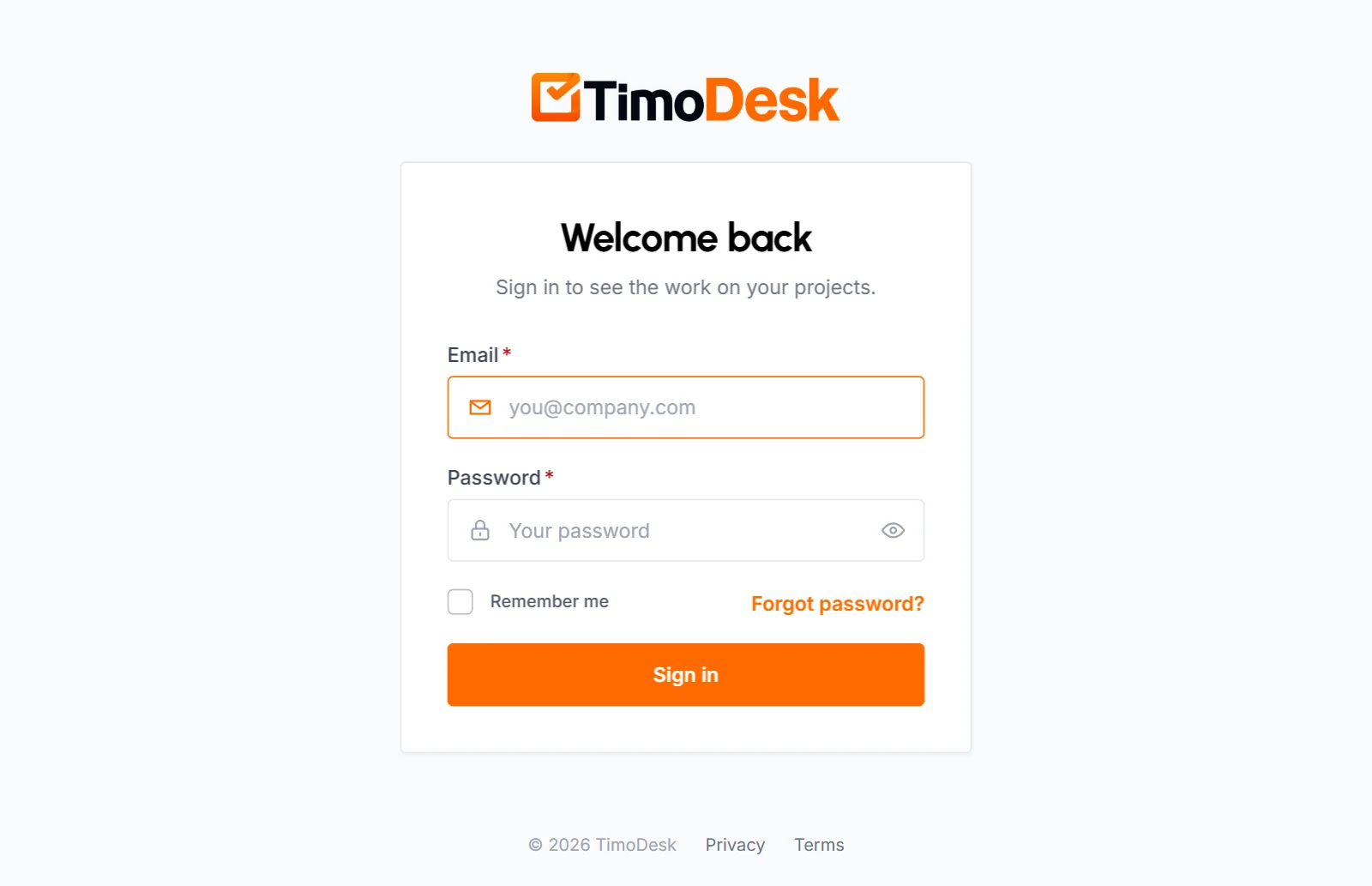
- Go to
client.timodesk.com/login. - Enter your Email and Password.
- Check Remember me if you want to stay signed in on this browser.
- Click Sign in.
You land on your Dashboard. If you opened a portal link while signed out, for example from an email, you go to that page instead.
- After 5 failed tries, the portal makes you wait about a minute before you try again.
- If you don't check Remember me, the portal signs you out after 2 hours without use.
- You can't sign in before you accept your invitation, because you don't have a password yet.
Why does the portal ask for an email code?
The portal asks for a 6-digit code when your email address hasn't been confirmed yet. This happens when the organization changes the email address on your account: you then confirm the new address the next time you sign in.
- Sign in as usual. The Verify your email page opens and the portal emails you a code. The subject is "Verify Your Email Address".
- Type the 6-digit code from the email.
- Click Verify email.
If the email doesn't arrive, check your spam folder. After 2 minutes, a Send a new code link appears. A new code replaces the old one, so always use the newest email. To leave without verifying, click Sign out.
How to reset a forgotten password
You reset your password with a 6-digit code the portal sends to your email.
- On the sign-in page, click Forgot password?
- Enter the email you sign in with and click Send reset code. The email's subject is "Your one-time reset code".
- On the Check your email page, type the code and click Verify code.
- On the Set a new password page, type your new password twice and click Reset password.
- Sign in with the new password.
- The code works for 10 minutes. Asking for a new code makes the old one stop working.
- The new password needs at least 6 characters. If the form asks for a stronger password, use uppercase and lowercase letters, a number and a symbol.
- After the reset, you get a "Your password has been updated" email. If you didn't change your password, contact the organization that invited you.
- If the portal says The account could not be found, check the spelling, or use the address the invitation went to.
How to find your way around the portal
The sidebar on the left lists every page you can open, grouped by what it shows. Pages the organization hasn't shared with you don't appear at all.
- Dashboard
- A summary of the work on all your projects. Every client has it.
- Your work
- Projects and Tasks.
- Activity
- Screenshots, App Usage and Websites & URLs.
- Analytics
- Time & Activity, Project Timing, Weekly Worklog and Time Calendar.
- Account
- Profile, where you change your name, photo and password.
The project board has no sidebar item. You open it from a project or from the Tasks page. The bell at the top right shows your notifications, and the menu under your name has Profile Setting, Change Password and Log Out. On a phone, open the sidebar with the button at the top left.
How to pick the dates a page shows
Most pages have a date field at the top that sets the period the figures cover. Click it to open a calendar.
- Click a preset to apply it right away: Today, Yesterday, Last 7 Days, Last 30 Days, This Month, Last Month or All time.
- For other dates, click a start day and an end day on the calendar, then click Apply.
- You can't pick days after today.
- Pages open on Last 30 Days. The Tasks page opens on All time.
Each day runs from midnight to midnight in the organization's time zone. Weekly Worklog, Time Calendar and Screenshots have their own week, month or day picker instead.
What the Dashboard shows
The Dashboard sums up the work on all the projects shared with you, for the period in Reporting period. It greets you by name and shows the organization's name under the greeting.
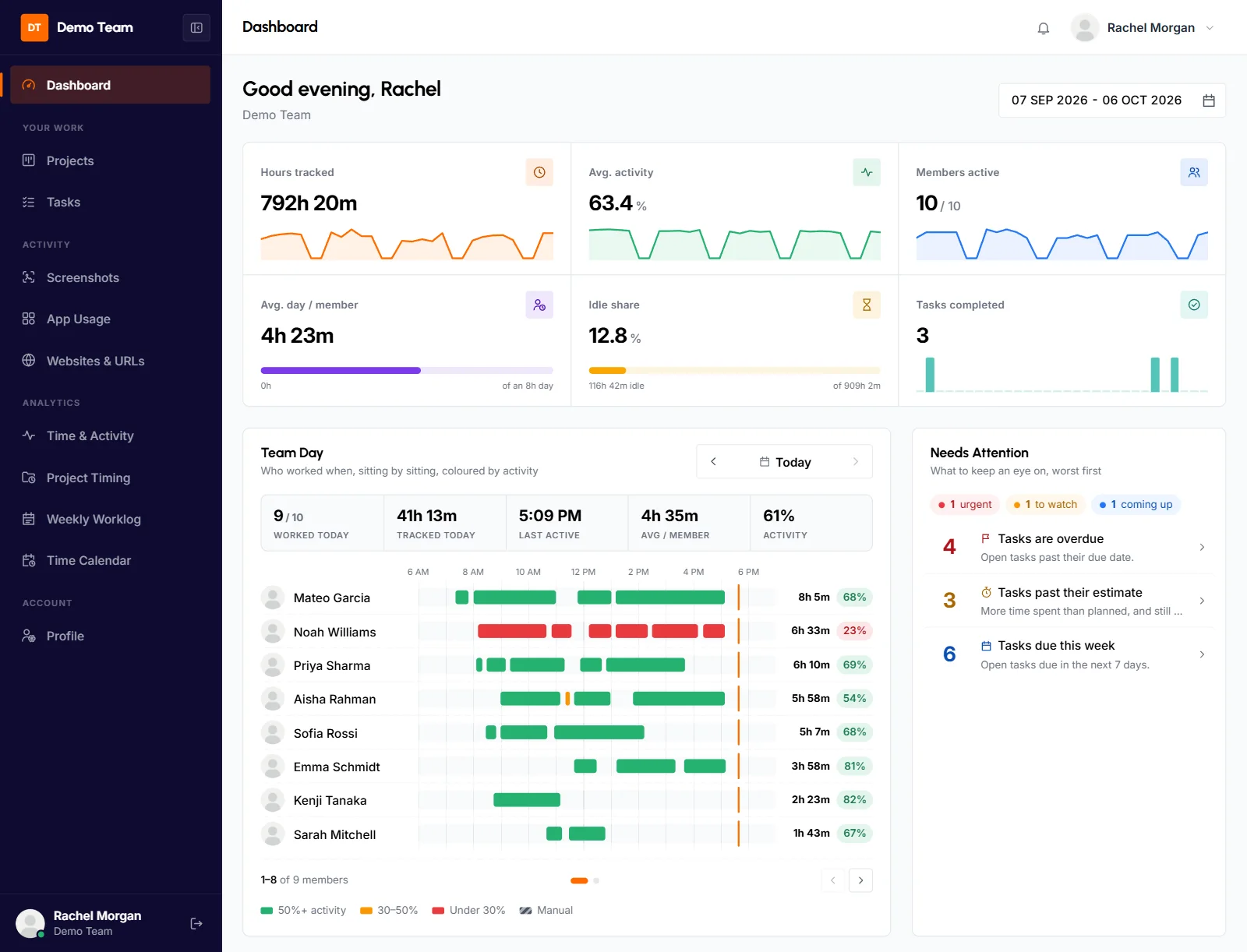
- Key figures
- A row of tiles, each with a small chart across the period: Hours tracked, Avg. activity, Members active (how many people tracked time, out of everyone on your projects), Avg. day / member (compared with an 8-hour day), Idle share (the share of time the desktop app flagged as idle and left out of tracked time) and, if you can see tasks, Tasks completed.
- Team Day
- When each person worked on 1 day, as bars on a timeline, colored by activity. Use the arrows to move a day back or forward, or click the date to pick one. It opens on today.
- Needs Attention
- Open tasks that may need a look: tasks past their due date, tasks that used more time than estimated, and tasks due in the next 7 days. Click a row to see the tasks behind the number. Shown only if you can see tasks.
- Top Apps & Websites
- The 7 apps and 7 websites with the most time on your projects. Shown only if you can see app usage or websites.
- Time Allocation
- How the hours split across your projects, with each project's share. The 6 biggest projects show by name, and the rest are grouped as other projects. Project Timing opens that report for the same period.
- Recent Activity
- The latest changes on your projects' boards, newest first, such as tasks moved or completed. Use the All, Completed, Moved and Updates tabs to filter them. Shown only if you can see tasks.
The Dashboard never shows who is online right now, or who didn't track time. If no project has been shared with you yet, it says "No projects shared with you yet".
What the Projects page shows
The Projects page lists every project shared with you, with the time tracked on each. The project with the most time in the period comes first. Use Figures for to change the period.
- Project
- The project's name and description. Click the name to open its details.
- People
- The faces of the people who tracked time on it.
- Period column
- The time tracked in the period you picked, in hours and minutes. The heading shows the period's name, such as Last 30 Days.
- All time
- All the time ever tracked on the project.
- Last Worked
- The last day anyone tracked time on it, or "Not yet".
- Action
- Board opens the project's board, and Details opens its details page.
What a project's details page shows
A project's details page shows everything you can see about that one project, split into tabs. The top of the page shows the project's leaders and members and, if you can see boards, an Open Board button. The period picker next to the tabs applies to every tab.
- Overview
- Always there. It shows Total Logged, Avg. Activity and Total Tasks, then Top Members, Top Apps & Websites, a Timing Chart of hours per day, an Average Activity chart, Top Tasks and a Task Overview with the completion rate and open tasks by priority. Cards for things you can't see are left out.
- Tasks
- Every task on the project with the time tracked on it in the period. Filter by All, Open, Overdue or Completed, and sort by Most time tracked or Due soonest. A task opens to the people who worked on it, and each person opens to their days.
- Members
- Each person's total time and activity on the project. A person opens to their days, and a day to its tasks. People assigned to the project who tracked nothing show with no time.
- Time & Activity
- The project's time and activity day by day. A day opens to the people who worked, then to their tasks.
- App Usage and Websites & URLs
- The apps or websites used on this project. Group them by app or website, by date or by member.
- Screenshots
- A card for each day (and each person) with its latest screenshot and how many were taken. Pick a member, or group by date or member.
Each tab after Overview appears only if the organization lets you see that kind of information.
How to view a project's board
The board shows the project's tasks in columns, the way the team plans them. Open it with Board on the Projects page, Open Board on a project's page, or Board on the Tasks page when 1 project is picked.
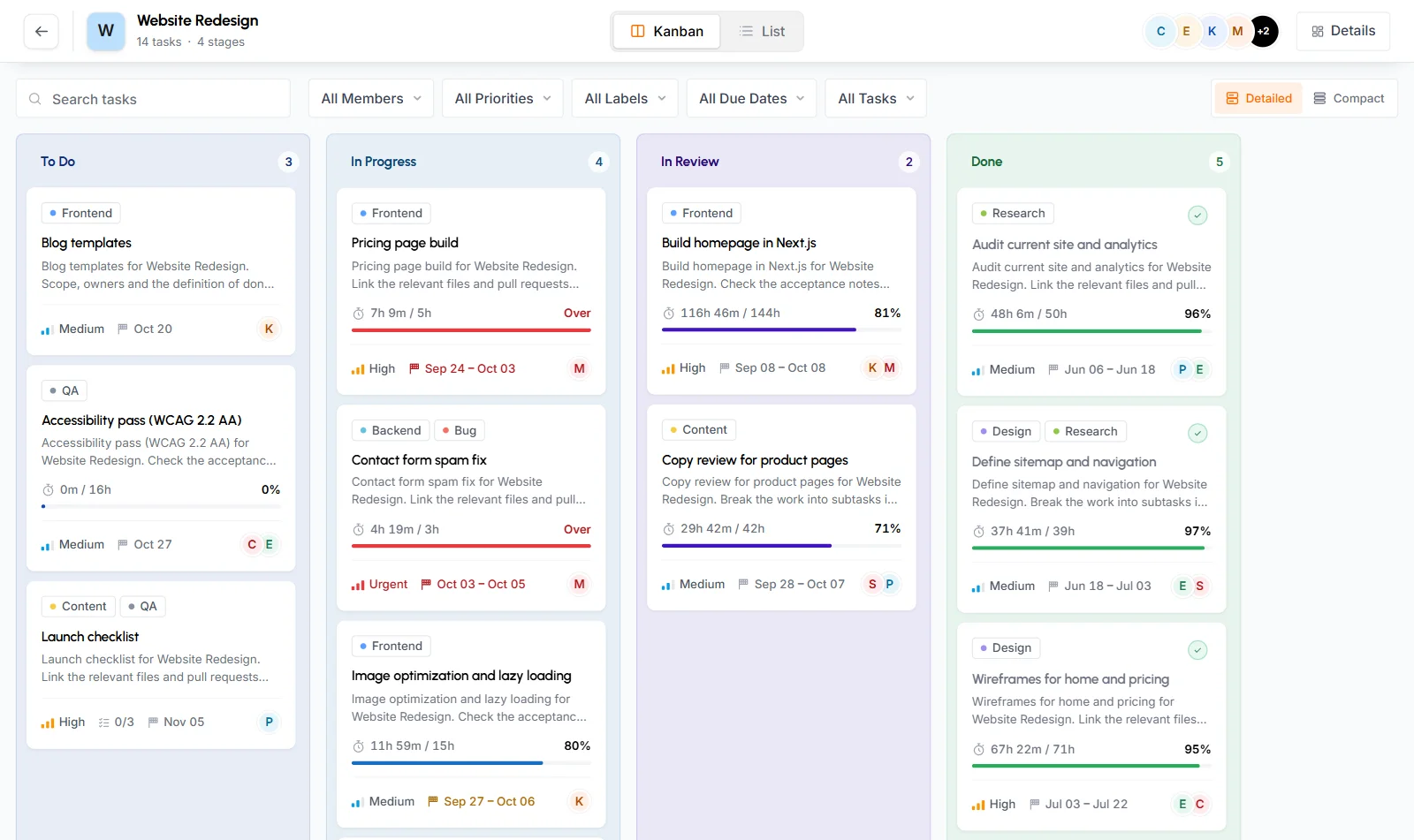
- Switch between Kanban (columns) and List at the top.
- Search tasks, or filter by member, priority, label, due date (Overdue, Due today, Due in 7 days, No due date) and completion. Clear removes the filters.
- On Kanban, choose Detailed or Compact cards.
- Each card shows the task's labels, title, a short description, time tracked against the estimate, assignees, priority, subtasks done and the due date.
- A Kanban column shows up to 60 cards. If a column has more, narrow the filters to see the rest.
The board is read-only. You can't move cards, open a task, or read or post comments.
What the Tasks page shows
The Tasks page lists the tasks on all your projects, with 1 row per project. Click a project's row to see its tasks, 20 at a time, with Show more for the rest.
- Each project row shows its members, how many tasks are done and the total time spent.
- Each task shows its assignees, status (To do, In progress or Done), due date, progress against its estimate and time spent.
- Filter by Updated within (the date the task last changed), project and status.
- Pick 1 project to get a Board button for it.
What the Time & Activity report shows
Time & Activity shows the hours worked on your projects and how active the team was, for the period you pick.
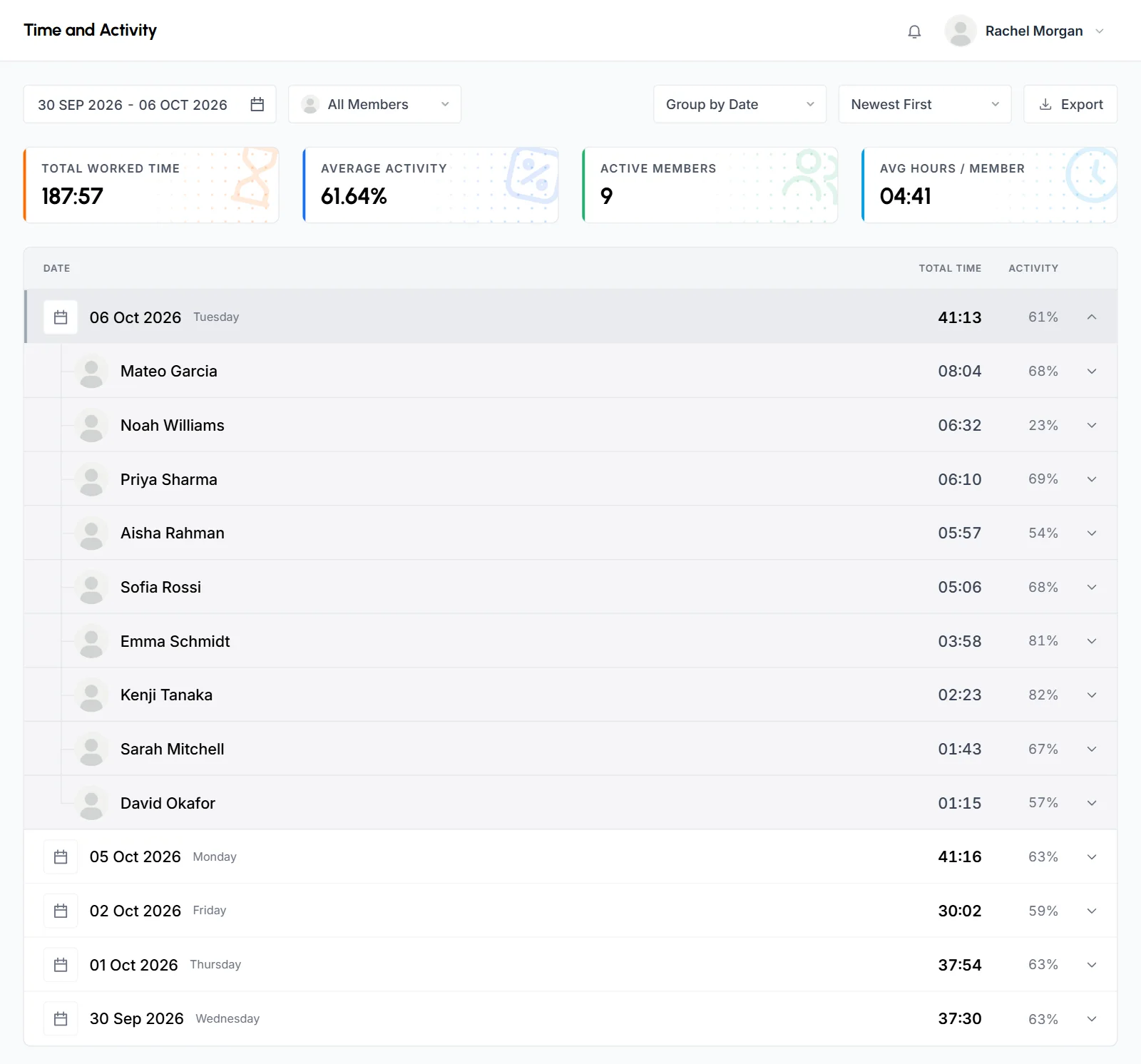
- 4 cards at the top: Total Worked Time, Average Activity, Active Members and Avg Hours / Member, which is the average length of 1 person's working day.
- Below is a table you can open level by level. Choose Group by Date, Group by Member or Group by Project to pick where it starts. For example, a date opens to the people who worked that day, then to their projects.
- Pick 1 member to see only their time, and Newest First or Oldest First to order the days.
Activity is the share of tracked time with keyboard or mouse input. Time added by hand (manual time) counts as worked time but has no activity, so it's left out of activity averages.
What the Project Timing report shows
Project Timing shows the total time on each project for the period, the biggest first. Open a project to see its time day by day, or choose Group by Member to see who worked on it. You can also pick 1 member.
What the Weekly Worklog shows
The Weekly Worklog is a timesheet for 1 week: a row for each project, a column for each day, and Total Hours for each project and each day.
- It opens on the current week. Use the arrows to move a week, or click the dates to pick a week. You can't open a week that hasn't started.
- Click a column heading to sort by it.
- Pick 1 member to see only their time.
What the Time Calendar shows
The Time Calendar shows a month with a card for each day: the time tracked, how many people worked and how many projects they worked on. If you pick 1 member, the card shows activity instead of people.
- Use the arrows or the month list to change the month. The list starts at the first month with tracked time.
- Click the people or projects count on a day to see that day's time by member and by project.
What the Screenshots page shows
The Screenshots page shows the pictures the desktop app took of the team's screens on 1 day, for your projects only. It opens on today. Use the arrows or the date field to change the day.
- By Interval splits each hour into 10-minute blocks, each with its screenshots, time and activity. All Screenshots lists them hour by hour.
- Activity Benchmark sums up the day: Work Time, Average Activity, Screenshot Taken and the tasks or projects worked on. View Details lists them with their time.
- If you can see app usage or websites, Top App Usage and Top Visited Websites show the day's biggest ones.
- Click a screenshot to open it full size. You can zoom in or open the original image.
- Pick 1 member to see only their screenshots.
A block marked as manual time has no screenshots, because the team added that time by hand. A day with no tracked time shows no screenshots.
What App Usage and Websites & URLs show
App Usage lists the apps the team used while tracking time on your projects, and Websites & URLs lists the websites they visited. They're 2 separate pages, and the organization can share either one.
- Choose Group by App (or Group by Website), Group by Date or Group by Member. Each row opens to the next level.
- Filter by period and project. The list shows 20 rows, with Show more for the rest.
- Websites show by site name only, never full page addresses or page titles.
How to export a report
You can download Time & Activity, Tasks, App Usage and Websites & URLs as a file.
- Set the dates and filters you want.
- Click Export.
- In Export Options, choose PDF (ready to print) or CSV (opens in Excel).
- Click Download.
The file follows the dates and filters on the page. It holds the top level of the table you see, not the rows under it. A Tasks export holds up to 5,000 tasks. The Dashboard, project pages, Project Timing, Weekly Worklog, Time Calendar and Screenshots have no export.
Why can't I see some pages?
The organization chooses which pages you can open, and it can change that at any time. A page that isn't shared with you doesn't appear in the sidebar, and its tab or card is left out of other pages. If you ask the organization for access, use the names in this table.
| Switch the organization sets | What it opens for you | On for new clients |
|---|---|---|
| Dashboard | The Dashboard | Always on |
| Projects | The Projects page and each project's details | Yes |
| Time & Activity | The Time & Activity report and the project tab of the same name | Yes |
| Project Timing | The Project Timing report | Yes |
| Weekly Worklog | The Weekly Worklog | Yes |
| Time Calendar | The Time Calendar | Yes |
| Tasks | The Tasks page, task tabs and task cards | Yes |
| Kanban board | Each project's board | Yes |
| Screenshots | The Screenshots page and project tab | No |
| App usage | The App Usage page and project tab | No |
| Websites & URLs | The Websites & URLs page and project tab | No |
| Team members | The names and photos of the people doing the work | Yes |
The organization chooses these when it invites you and can change them later. You don't get an email or a notification when they change: the pages just appear or disappear. A saved link to a page you can no longer open shows Page not found.
What changes when team members are hidden?
If the organization turns off Team members, you still see all the time and activity, but not who did the work.
- Names, photos and member filters disappear, and so do the Members tab and every Group by Member choice.
- The Dashboard shows Work Day with 1 row per project instead of Team Day, Active days instead of Members active, and Avg. day instead of Avg. day / member.
- Time & Activity shows Average Hours instead of Active Members and Avg Hours / Member.
- Names of team members in Recent Activity, task titles and descriptions read "A team member" or "a team member".
How to change your name, photo or password
Open Profile in the sidebar. The left side shows your details, and the right side has Account Security, where you change your password.
- Name
- Click the pencil next to your name, change First Name and Last Name, and click Save Changes. This is the name the organization sees for you.
- Photo
- Click the camera on your picture and choose a JPG or PNG image under 5 MB. The portal crops it to a square.
- Password
- Enter your Current Password, then the New Password twice, and click Update Password. The new password needs at least 6 characters.
Your email, phone, company and address are kept by the organization, so you can only read them here. The page also shows the workspace name, how many projects are shared with you and the date you became a client. To change your email or other details, ask the organization.
How notifications work
The portal tells you when the organization gives you access to a project or removes it. The bell at the top right shows how many are unread and lists the latest 6.
- Click a notification to open it. A new project's notification takes you to that project.
- Click View All Notifications to see them all, 20 to a page.
- Mark all as read clears the unread count.
- Delete all removes your whole list. This can't be undone.
Which emails will I get?
The portal emails you only about your access and your sign-in. It doesn't send reports or summaries.
| When | Subject |
|---|---|
| The organization invites you | [Organization name] invited you to their client portal |
| The organization shares another project with you | [Organization name] shared a project with you |
| You need to confirm your email address | Verify Your Email Address |
| You ask to reset your password | Your one-time reset code |
| Your password was reset | Your password has been updated |
| The organization turns off your access | Your client portal access has been turned off |
You get the project email only after you've accepted your invitation. Before that, the invitation email covers all your projects.
What happens if your access is turned off?
If the organization turns off your access, you can still sign in, but you only see an Access turned off page, with the reason if the organization gave one. You also get an email that says so.
Your account isn't deleted. If the organization turns your access back on, you sign in as before with the same password, and you see the same projects unless they changed them. If you think it's a mistake, contact the team that invited you.
How to sign out
Click your name at the top right and choose Log Out, or click the sign-out button next to your name at the bottom of the sidebar. Sign out when you use a shared computer.
What can't you do in the portal?
The portal is read-only. You can look at the work, but you can't change it.
- You can't create, edit, move or comment on tasks, and you can't open a task's full details or its comments.
- You can't add, edit or approve time, and you can't delete screenshots.
- You can't see projects the organization didn't share with you, other clients, billing or the organization's settings.
- You can't see who is working right now, or who didn't work on a given day.
- You can't invite other people to the portal. Each person needs their own invitation from the organization.
- You can't change your email address or turn pages on for yourself.
Common questions
Do I need to install anything?
No. The portal runs in your web browser. Only the team that does the work uses the TimoDesk desktop app.
Do I pay for the client portal?
No. The organization that invited you manages your access, and you don't need a TimoDesk plan.
My invitation link says Page not found. What do I do?
The link has expired, was already used, or was replaced by a newer invitation. If you already set a password, sign in at client.timodesk.com/login, or ask the organization to send a new invitation.
Can I use the same email for 2 organizations?
No. An email address can belong to only 1 client account in TimoDesk, so use a different address for the second organization.
Does the portal have two-factor sign-in?
No. You sign in with your email and password, and the portal asks for an email code only when your email address needs to be confirmed.
Why don't I see screenshots, app usage or websites?
These are off for new clients. The organization has to turn them on for you.
Why does my project show no time?
Nobody tracked time on it in the period you picked. Try a longer period, such as All time.
Which time zone do the times use?
The organization's time zone, on every page. A day runs from midnight to midnight in that time zone.
Why is a project gone from my portal?
The organization removed your access to it. You get a notification that says your access to that project has ended.
Can the team see what I do in the portal?
The organization sees your name, photo, account details and when you last signed in. It doesn't see which pages you open.