
Desktop app
The TimoDesk desktop app is the time tracker your team runs on its computers. You sign in, pick a project and task, and start the timer. While the timer runs, the app records your time, activity, apps and websites. It also takes screenshots at the interval your organization sets. Then it sends everything to your organization's dashboard.
Who can use it: Anyone who tracks time, in any role, as long as time tracking is turned on for their account.
How to download and install the app
Download the app from the TimoDesk download page. The installers are signed and include everything they need, so you don't have to install anything else first.
| Platform | Download | Good to know |
|---|---|---|
| Windows 10 and 11 | .exe installer | It's signed, so Smart App Control allows it without a publisher warning. |
| macOS | .dmg, in two builds | Pick Apple silicon for an M-series Mac. Pick Intel for any other Mac. To check your chip, open About This Mac in the Apple menu. |
| Linux | .zip archive | Add the URL Tracker extension if you want websites in your reports. |
There's no mobile app. You can't track time on a phone or tablet.
How to sign in
Use the same email and password you use for the web dashboard. The app keeps you signed in when you close it and open it again.
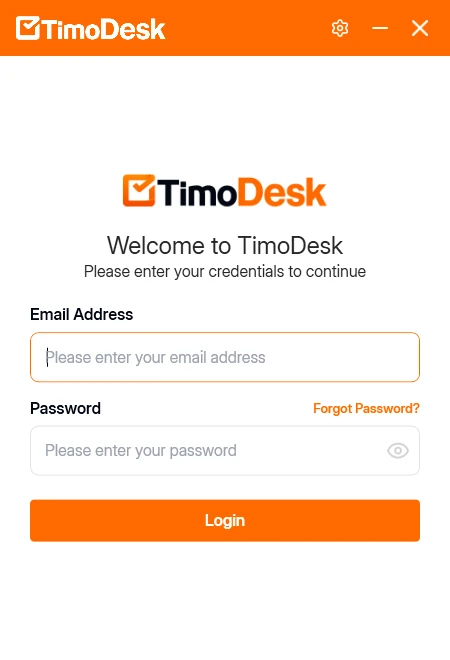
Type your Email Address and Password and click Login. The eye icon shows the password as you type it, and Forgot Password? helps you reset it. If a field is empty, the app says "Please enter your email and password." in a red bar above the form. If the email or password is wrong, it says "Invalid email or password."
You can't sign in if your account is waiting for approval, your request to join was rejected or your account is disabled. If your organization is suspended for an unpaid invoice, the app can't track time until someone pays the invoice.
If you type a wrong password several times in a row, TimoDesk blocks new tries for a short time. Wait a minute, then try again.
Your account can be signed in on one computer at a time. When you sign in on a second computer, the app signs you out on the first one. When you change or reset your password, the app signs you out everywhere, so sign in again with the new password.
How to pick a task and start the timer
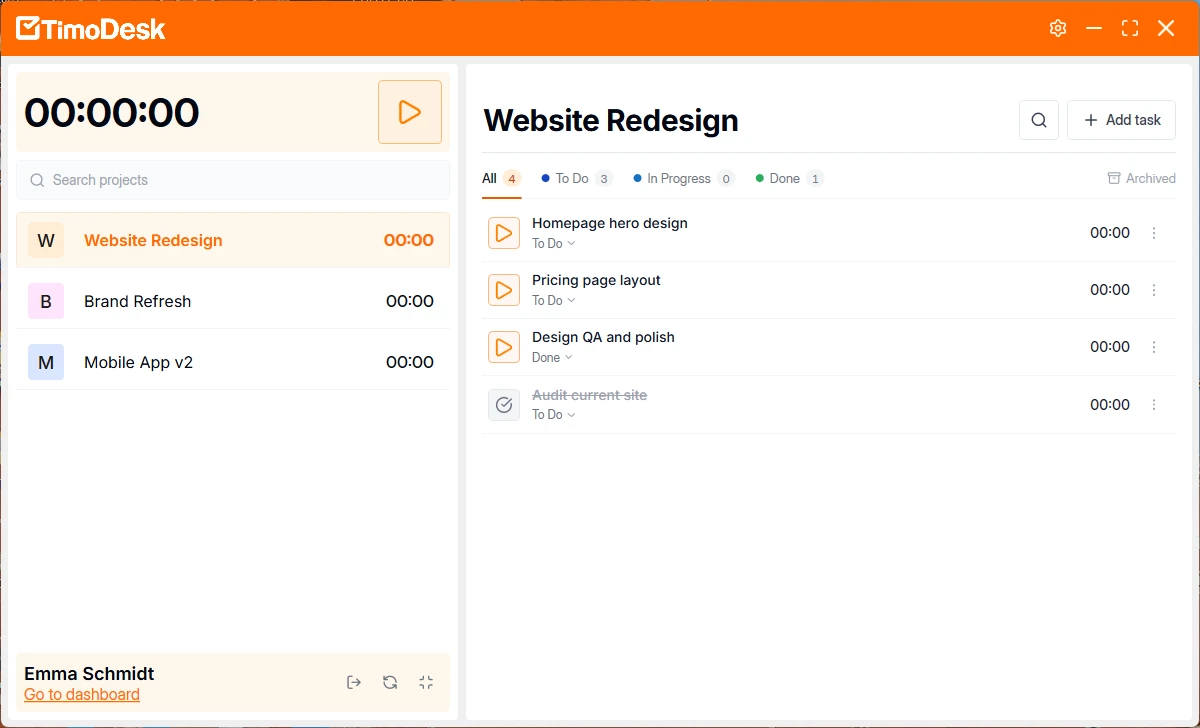
Pick a project on the left, then start the timer on one of its tasks on the right. The app lists the projects you're assigned to, and for the selected project, the tasks assigned to you. All tracked time belongs to one project and one task.
-
Click the project you're working on. Type in Search projects to find it in a long list. Each project shows the time you tracked on it today.
-
Find the task on the right. The tabs All, To Do, In Progress and Done filter the list and show a count each. Use the search icon to find a task by name, and Archived to see archived tasks. If the task you need isn't there, add it (see what you can do with tasks).
-
Click the play button next to the task. The timer at the top starts counting, the project shows a WORKING label, and the task's button turns into a pause button. The timer runs until you click pause or you go idle.
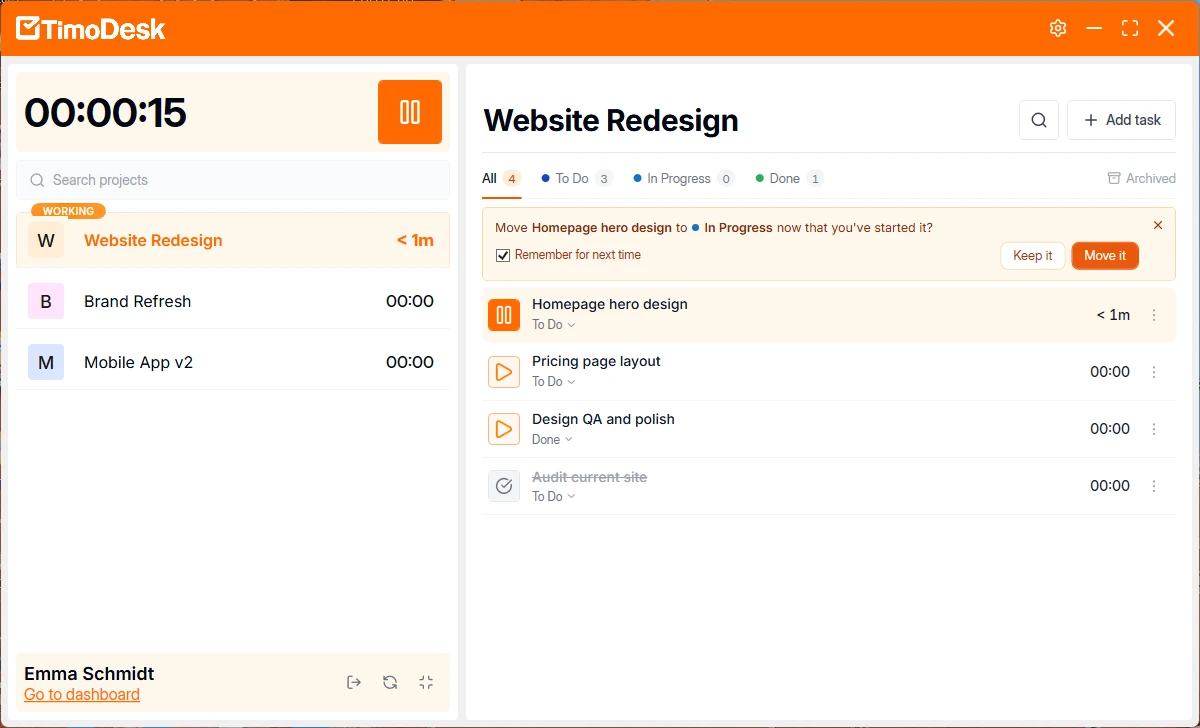
When you start a task that's still in To Do, the app asks if you want to move it to In Progress. Click Move it or Keep it. Check Remember for next time to skip the question from then on.
While the timer runs, the app sends your time to TimoDesk in pieces of up to 10 minutes. Your dashboard and reports update during the day.
The bar at the bottom of the left panel shows your name and a Go to dashboard link. Its icons are Log out, Refresh projects and tasks (loads new projects and tasks without restarting the app) and Compact window (a smaller window with only the timer and your projects).
Don't see a project? You can only track time on projects you're assigned to. Ask your Organizer, a Business Manager or your Team Manager to assign you, then click Refresh projects and tasks. If you're on the project but it has no tasks for you, add one from the app.
What can you do with tasks in the app?
You can add tasks, move them between statuses, complete them and archive them without opening the dashboard.
- Add a task
- Click Add task, type the name in What are you working on? and click Add. TimoDesk creates it in the first section of the project's task board and assigns it to you.
- Change the status
- Click the status under a task's name, such as To Do, and pick To Do, In Progress or Done under Move to.
- Complete or archive a task
- Click the ⋮ menu on the task's row and choose Mark as completed or Archive task. A completed task shows its name crossed out and a check mark in place of the play button.
Which settings does the app have?
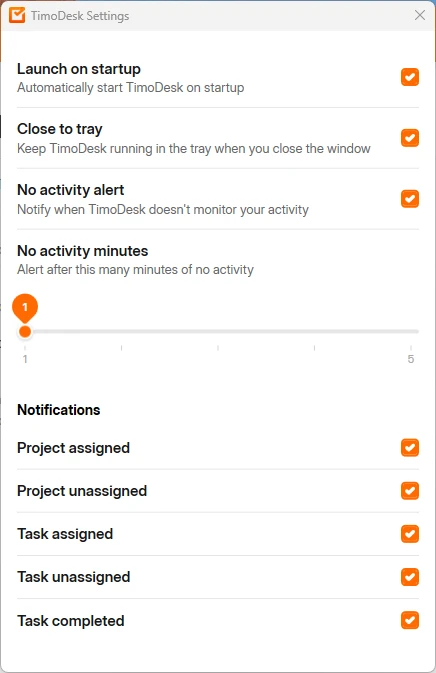
Click the gear icon at the top of the app to open TimoDesk Settings. Each option is a check box.
- Launch on startup
- Starts TimoDesk when you turn on your computer.
- Close to tray
- Keeps TimoDesk running in the system tray when you close the window.
- No activity alert and No activity minutes
- The app notifies you when it sees no keyboard or mouse activity. The slider sets how many minutes it waits first, from 1 to 5.
- Notifications
- Choose which desktop notifications you get: Project assigned, Project unassigned, Task assigned, Task unassigned and Task completed.
How idle detection works
When there's no keyboard or mouse input for the length of your idle timeout, the app stops counting time and asks you about the idle time. TimoDesk never adds idle time to your tracked time, and it deletes any screenshots taken during it.
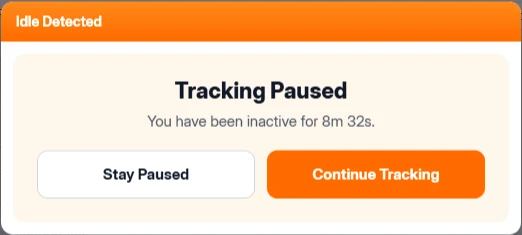
The Idle Detected prompt says Tracking Paused and shows how long you've been inactive. Click Continue Tracking to start the timer again, or Stay Paused to leave it stopped. The idle time isn't added either way.
The default idle timeout is 5 minutes. Organizers and Business Managers can pick 3, 5, 10, 15, 20, 30, 45 or 60 minutes, for the whole organization or for one member. They change it on the Team tracking policy page, which opens from the Members page. A member setting wins over the organization setting.
If you worked away from the computer, for example in a meeting, you can ask for that time back. When your organization has manual time turned on, request it from Manual Time in the dashboard. A reviewer then approves it.
How screenshots work
When screenshots are on for you, the app captures your screen at a set interval while the timer runs. It captures nothing while the timer is stopped. TimoDesk files each screenshot under the project and task you were tracking.
- On or off: screenshots need time tracking. They're on for new members whose tracking is on. An Organizer or Business Manager can turn them on or off for one member, or for several members at once on the Team tracking policy page. There's no switch for the whole organization. When they turn off tracking for someone, that person's screenshots turn off too, and screenshots can't be turned on while tracking is off.
- Interval: the default is every 3 minutes. Your organization can pick every 3, 5, 10, 15, 20, 30 or 60 minutes, for everyone or per member, on the Team tracking policy page.
- Screenshot alert: when this is on, the app notifies you right after it takes each screenshot. It's off unless your organization turns it on.
You can see your own screenshots on the Screenshots page. Who else can see them depends on their role. Organizations can keep screenshots in their own Amazon S3 bucket or FTP server.
How activity is measured
Activity is the share of tracked seconds in which you used the keyboard or mouse. For each piece of tracked time, TimoDesk divides the seconds with any input by the seconds tracked. For example, a 10-minute piece with input in 360 of its 600 seconds has 60% activity.
The app counts active seconds for the keyboard and for the mouse. It doesn't record which keys you press, what you type or where you click. Reading, thinking and video calls can lower activity, even when you're working. Treat activity as a signal, not a score.
What the app tracks and what it doesn't
The app only records while your timer is running. When the timer is stopped, it tracks nothing.
| Tracked while the timer runs | Never tracked |
|---|---|
| Time on each project and task, with start and end times | What you type, or the content of any keystroke |
| Activity: seconds with keyboard or mouse input | Anything while the timer is stopped |
| Apps you used and how long you used each one | Your location (there's no GPS tracking) |
| Websites and URLs, with page titles and the browser | Time on phones or tablets (there's no mobile app) |
| Idle time, which isn't counted in your time | |
| Screenshots, if they're on for you |
You can check your own record in the dashboard at any time: Time and activity, App usage, Screenshots and the Time calendar.
What happens when an admin changes your tracking
The app picks up the change right away. Organizers and Business Managers can turn time tracking, screenshots or your whole account on or off. They can also change your idle timeout, screenshot interval and screenshot alert, for the whole organization or just for you. The app uses your own settings when you have them, and the organization's settings otherwise. The app tells you when your tracking or screenshots are turned on or off.
If your tracking is turned off, ask your Organizer or a Business Manager to turn it back on. They can only turn it on after your email is verified.
Which macOS permissions the app needs
The app uses 4 macOS permissions. You allow them in System Settings:
- Screen Recording
- The app needs this for screenshots. You only need it if screenshots are on for you.
- Input Monitoring
- The app needs this to measure activity from your keyboard and mouse.
- Accessibility
- The app needs this to track the apps and websites you use.
- Notifications
- The app needs this to show you idle alerts and screenshot alerts.
If Screen Recording or Input Monitoring is missing, the app shows a banner with a button that opens the right settings pane.
The app also reports when you turn off a permission. Organizers and Business Managers get a notification that names the permission and says what stopped working, and another one when you turn it back on. The Members page shows a badge such as "Screen Recording off" next to your name until you turn it back on.
How to track websites on Linux
On Linux, install the TimoDesk URL Tracker browser extension to get websites and URLs in your reports. On Windows and macOS, the app reads browser URLs by itself, but on Linux it can't. The extension sends the URL of the active tab to the desktop app.
Without the extension, time tracking, activity, apps and screenshots still work on Linux. Only the website data is missing.
The other extension on the download page, TimoDesk Live Team Monitor, isn't part of tracking. It's the extension that Organizers, Business Managers and Team Managers use to see who's online and today's summary from the browser toolbar. Staff can't sign in to it. See The browser extension.
How the app updates
The app finds new versions and installs them by itself, even from the sign-in screen. Nobody has to roll out updates by hand. After an update, the app shows the release notes. You can also read them on the release notes page.
Can you track time offline?
Yes. If your connection drops, the timer keeps running. The app saves your time, activity and screenshots on your computer and sends them when you're back online, so you don't lose the session. Your projects and tasks stay available offline, even if the app starts without a connection. Tasks you add offline are created when you reconnect.
If your computer's clock is wrong, the app keeps tracked time on your computer and sends it once the clock is correct. TimoDesk never accepts the same stretch of time twice, so a retry after a dropped connection can't double your hours. It also doesn't accept time that started more than 30 days ago, so connect at least once within 30 days of working offline.
How to sign out
Click the Log out icon at the bottom of the left panel. Signing out ends the session on that computer only. To track on a different computer, sign in there. That also signs you out on this computer.
Common questions
Does the app track me when the timer is off?
No. The app records time, activity, apps, websites and screenshots only while your timer is running on a task.
Does TimoDesk record my keystrokes?
No. To measure activity, the app counts the seconds in which you used the keyboard or mouse. It never records which keys you press or what you type.
Why don't I see any projects in the app?
You can only track time on projects you're assigned to. Ask your Organizer, a Business Manager or your Team Manager to add you to a project, and it will show up in the app.
What happens to idle time?
TimoDesk never counts it as tracked time, and it deletes screenshots taken during it. If you were working away from the computer, request the time as manual time, if your organization allows it.
Can I use TimoDesk on two computers?
You can install it on both, but your account is signed in on one computer at a time. When you sign in on the second computer, the first one is signed out.