
Billing, invoices and payments
TimoDesk bills $1 per month for each member who tracked time that month, plus a monthly fee for each client whose projects had tracked time. You pay after the month ends. This guide covers the free trial, invoices, paying by card or account credit, deposits, transactions and what happens when an invoice stays unpaid.
Who can use it: Organizers and business managers. Team managers and staff don't see billing.
How billing works
You pay $1 per member per month, in US dollars, for each member who tracked time in the billing cycle.
- Who counts: every member who tracked time with the desktop app at least once in the billing cycle. The organizer and business managers count too if they track time.
- Who doesn't count: members who didn't track any time with the desktop app in the cycle, no matter how long they were in the organization. Approved manual time alone doesn't make a member billable.
- No proration: a member who tracked for 5 minutes costs the same as one who tracked all month.
- Billed after the month: each invoice covers the month before it, so you pay for the time your team really tracked.
Each invoice has one main line, such as "Members monthly bill 8 members x $1.00 USD". If clients are billed in the cycle, a second line follows, such as "Clients monthly bill 2 clients x" and the price per client. Any discount or late fee lines come after. If nobody tracked time and the invoice would be $0, TimoDesk doesn't create one.
How clients are billed
Each client you invite to the client portal costs a set monthly price, but only in a billing cycle where someone tracked time on a project the client is assigned to. The Invite a Client popup shows the current price per month. If it shows no price, clients add nothing to your bill. To invite and manage clients, see Clients.
- Who counts: every client assigned to at least 1 project that had time tracked with the desktop app in the cycle. A client counts once, no matter how many of their projects had time.
- Who doesn't count: clients whose projects had no tracked time in the cycle. Manual time alone doesn't make a client billable.
- Disabling isn't enough: a client whose portal access is disabled is still billed if their projects had tracked time. To stop the charge, remove the client from their projects.
- Discounts: a coupon discount applies to the whole invoice, clients included.
How the free trial works
Every new organization gets a 15-day free trial, starting the day you create it. You don't need to add a payment method to start, and TimoDesk doesn't bill time tracked during the trial.
Your first billing cycle starts when the trial ends, and the first invoice comes about a month later. After that, you get a new invoice every month on the same day. If a billing date would fall on the 28th or later, TimoDesk moves it to the 1st of the next month.
How to check your current bill on the dashboard
Organizers and business managers see a Billing card on the Dashboard. It shows your next bill and how it adds up.
- At the top, a status label shows where you stand: Trial with the days left, Active, Payment due, an invoice that's overdue, or Suspended. Next to it are the amount you'll pay and the Next invoice date.
- A ring counts down the days left in the billing cycle. While an invoice is unpaid, it counts down the time left to pay before the organization is suspended.
- Below, the bill is written out as a sum: Billable members (members who tracked time in the cycle so far), Price per member, Billable clients when any are on the bill, Discount if you have one, and You pay. The clients line shows the price for each client and their total. Click the member or client count to see who's on the bill.
- Last invoice shows the latest invoice's number, date, amount and status. Click it to download the PDF. Before your first invoice, it shows No invoices yet and the date the first one is issued.
- The organizer also sees a button: View invoices, or a button to pay the unpaid invoices when there are any.
While any invoice is unpaid, the organizer also sees a notice at the top of the dashboard. It says Invoice awaiting payment, or Payment overdue once a day has passed. It shows how many invoices are unpaid, the date and time to pay by before suspension, whether a late fee was added, and the Amount due, with Invoices and Pay now buttons.
Where to find your invoices
Go to Billing > Invoices in the sidebar. The newest invoices are at the top, and you can sort by date, amount or status. The tabs at the top filter the list: All, Unpaid, Paid and Cancelled. Each tab shows how many invoices it holds.
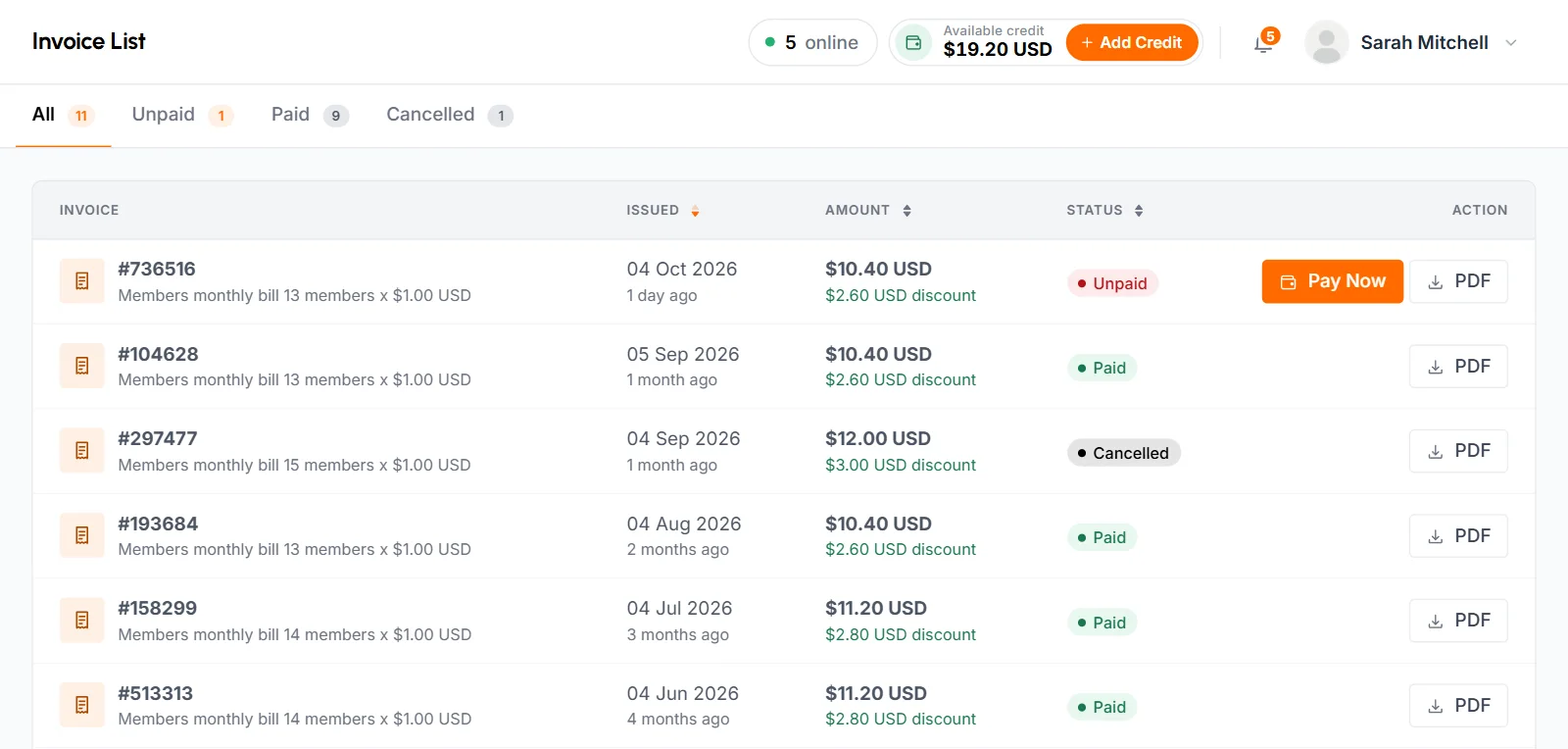
- Invoice
- The invoice number and its main line, for example "Members monthly bill 8 members x $1.00 USD". If clients were billed, their line shows under it.
- Issued
- The date TimoDesk created the invoice.
- Amount
- The total to pay. If a discount applied, the discount amount shows under it.
- Status
- Unpaid, Paid or Cancelled. You don't need to pay a canceled invoice.
- Action
- Pay Now on unpaid invoices, and PDF on every invoice.
When TimoDesk issues an invoice, the organizer gets a dashboard notification and an email with the subject "Your TimoDesk invoice#[invoice number] is ready". If your account credit covers the full amount at that moment, TimoDesk pays the invoice from your credit right away. A second email confirms the payment.
How to download an invoice as a PDF
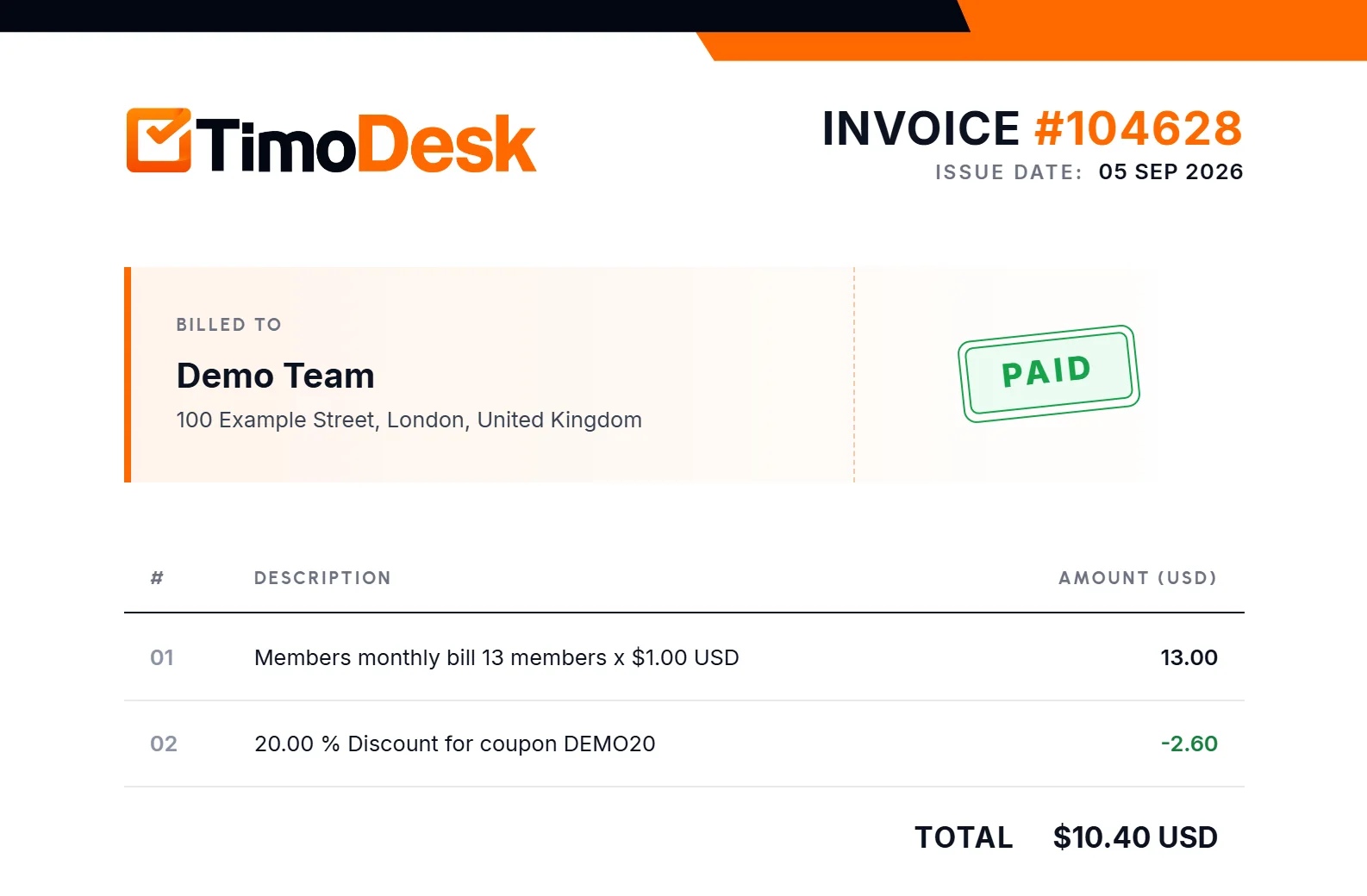
Click PDF on any invoice. The file name uses the invoice number, for example Invoice-482913.pdf. The PDF shows the invoice number and Issue Date, your organization name and address under Billed To, a Paid, Unpaid or Cancelled stamp, every line with its amount in USD, the Total and the Billing Support email address. To change the address, see Account settings.
How to pay an invoice
-
Click Pay Now
On the Invoices page, click Pay Now next to the unpaid invoice. The Invoice Payment popup shows the invoice amount.
-
Choose how to pay
- Account Credit
- Pays from your TimoDesk balance, shown as Available Balance. The balance must cover the whole invoice. You can't pay part of an invoice from credit.
- Card Payment
- Selected by default. You pay with a debit or credit card on a secure Stripe payment page, in US dollars.
-
Confirm
Click Pay Now. With account credit, the invoice is marked paid right away. With a card, you finish the payment on the Stripe page and come back to Invoices. The invoice is marked paid after Stripe confirms the payment.
If your credit is too low, you'll see "You don't have sufficient balance to pay the invoice." Pay by card, or add credit first.
TimoDesk doesn't keep your card on file. It never charges a card for an invoice automatically. Invoices are paid automatically only from account credit.
How discounts work
A coupon you entered when you created your organization gives a percentage off a set number of invoices, or off every invoice. You enter it on the last sign-up step: click Have a coupon code?, type the code and click Apply. The form then tells you the discount and how many invoices it covers, for example "Coupon applied! You will get 20.00% discount for the next 3 invoices." A coupon with no end says "on every invoice" instead. Each discounted invoice gets its own line, such as "20.00 % Discount for coupon" followed by the coupon code. The Amount column shows how much you saved. After the coupon's invoices are used, later invoices are billed at the full price.
What happens if an invoice stays unpaid
An unpaid invoice first gets a late fee, and then the organization is suspended. The times below count from the moment TimoDesk issued the invoice.
| When | What happens |
|---|---|
| Invoice issued | The organizer gets an email and a notification. TimoDesk pays it automatically if your credit covers it. |
| After 72 hours unpaid | TimoDesk adds a late fee of 20% of the invoice amount as a new line, "Late fee applied (20%)", and emails the organizer. Each invoice gets this fee only once. |
| 7 days after the invoice was sent | TimoDesk suspends the organization and emails the organizer. |
TimoDesk checks for late and overdue invoices once a day. Each step can happen up to a day after the time shown.
While the organization is suspended
- Members can't track time with the desktop app.
- The organization's owner (the organizer who created it) can only open Invoices, invoice PDFs, Deposits, Transactions and Support Requests, and can pay invoices and add credit. Every other page sends the owner back to Invoices, which shows a notice that the organization is suspended for unpaid billing.
- Everyone else, including other organizers and business managers, sees a Workspace suspended page. It says the dashboard and time tracking are paused and asks them to contact the organizer. A Sign out link is under it.
- TimoDesk doesn't issue invoices while the organization is suspended. Billing cycles that pass during the suspension aren't billed.
When no unpaid invoices are left, TimoDesk reactivates the organization automatically and emails the organizer. Billing then goes on from your next regular billing date.
If the TimoDesk team agrees to give you more time to pay, they can hold the suspension until a set date. The invoice still gets its late fee, and the suspension happens after that date if the invoice is still unpaid.
How account credit works and how to add credit
Account credit is your organization's TimoDesk balance, used to pay invoices. It shows as Available credit at the top of the Invoices, Deposits and Transactions pages. It comes from credit you add, referral credit and any change the TimoDesk team makes. You can't withdraw it.
-
Open Add Credit
Click Add Credit next to your available credit.
-
Enter an amount
Type an amount or pick $10, $25, $50 or $100. The minimum is $10. The popup shows your current balance and what your new balance will be.
-
Pay
Under Pay with, Card is selected (Visa, Mastercard or Amex, charged in USD). Click Continue to payment and finish on the Stripe payment page. TimoDesk adds the credit after Stripe confirms the payment.
Adding credit doesn't pay invoices that are already unpaid. To pay those, use Pay Now and Account Credit. Later invoices are paid from your credit automatically if it covers them.
Where to see your card payments (Deposits)
Go to Billing > Deposits to see every card payment your organization has made, newest first. The page title reads Deposit History.
- Transaction
- The payment's transaction ID.
- Gateway
- The payment provider, such as Stripe.
- Deposited
- The date and time of the payment.
- Purpose
- For an invoice paid by card, the invoice number, such as Invoice #482913. Click it to open the PDF. For added credit, Credit top-up.
- Amount
- The amount paid.
- Status
- Succeed for a payment that went through. A card payment you didn't finish on the Stripe page isn't listed.
Where to see changes to your credit (Transactions)
Go to Billing > Transactions to see every change to your account credit, newest first. The tabs at the top filter the list: All, Credit (money added) and Debit (money spent). Each tab shows how many transactions it holds.
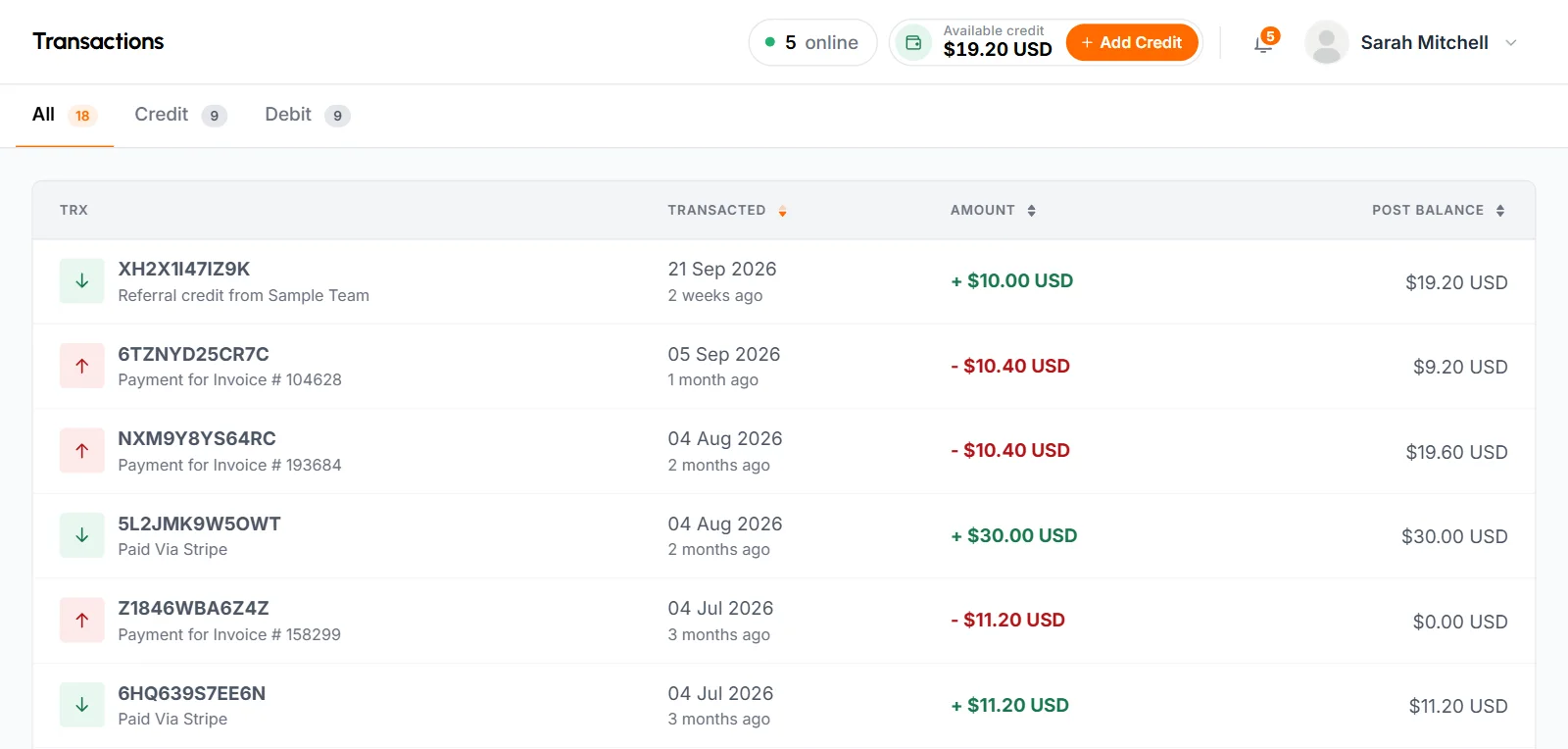
- Trx
- The transaction ID, with a short description under it.
- Transacted
- The date of the change.
- Amount
- Credits show in green with a plus sign. Debits show in red with a minus sign.
- Post Balance
- Your balance right after the change.
A card payment for an invoice shows twice. First you see a credit when the card payment arrives ("Paid Via Stripe"). Then you see a debit when it pays the invoice ("Payment for Invoice #" followed by the invoice number). Referral credit shows as "Referral credit from" followed by the organization's name.
Who gets billing emails and notifications
The organizer gets the emails and dashboard notifications for new invoices, paid invoices, late fees, suspension and reactivation. After a card payment, the person who paid gets a deposit confirmation.
Common questions
Am I billed for members who didn't track time?
No. An invoice counts only the members who tracked time with the desktop app during that billing cycle, at $1 each. A member with only manual time in the cycle isn't billed.
How do I stop paying for a client?
Remove the client from all of their projects. Disabling their portal access doesn't stop the charge, because a client is billed in any cycle where their projects had tracked time.
Is my card charged automatically each month?
No. TimoDesk doesn't store cards. An invoice is paid automatically only when your account credit covers the full amount. Otherwise, you pay it with Pay Now.
What happens if I don't pay an invoice?
After 72 hours, TimoDesk adds a 20% late fee. If it is still unpaid 7 days after it was sent, TimoDesk suspends the organization until every unpaid invoice is paid, and paying reactivates it automatically.
Can business managers pay invoices?
Yes. Organizers and business managers can view invoices, pay them and add credit. While the organization is suspended, only the account owner can open billing.