
Websites & URLs report
The Websites & URLs report shows which websites your team visited while tracking time, who visited them and for how long. It opens grouped by website, and you can expand each row to see a member and a single day. Grouped by member, it goes down to the single pages a member opened on a site. You can also export it as a PDF or CSV file.
Who can use it: Everyone. Organizers and Business Managers see the whole organization. Team Managers see themselves and the members of the teams they manage. Staff see only their own visits.
How TimoDesk tracks website visits
The TimoDesk desktop app records website visits, but only while the member is tracking time. How the app gets the addresses depends on the computer:
| Computer | What the member needs |
|---|---|
| Windows | Only the desktop app. It reads the browser's addresses itself. |
| macOS | Only the desktop app. It reads the browser's addresses itself. |
| Linux | The desktop app and the TimoDesk URL Tracker browser extension for Chrome or Firefox. The extension sends the active tab's address to the app. Without it, a Linux member's time is still tracked, but no websites appear here. |
You can get the app and the extension from the download page. On Windows and macOS the URL Tracker extension adds nothing, so you don't need to install it there.
Some things to know about the numbers:
- The report groups visits by website. It shortens each address to its domain without
www., so all pages on a site add up to one row. Subdomains stay separate:docs.google.comandmail.google.comare two rows. - The app also records the full address and title of each page, and the browser it was open in. You see the address and title at the last level of Group by Member.
- Each visit is linked to the project and task the member was tracking at the time.
- Website time is never more than the time spent in the browser or the time tracked. When idle time is removed from a tracked stretch, it's removed from that stretch's websites too.
- Days follow your organization's time zone.
How to filter and group the report
To open the report, go to Activity > Websites & URLs in the sidebar. The filter bar controls what it shows.
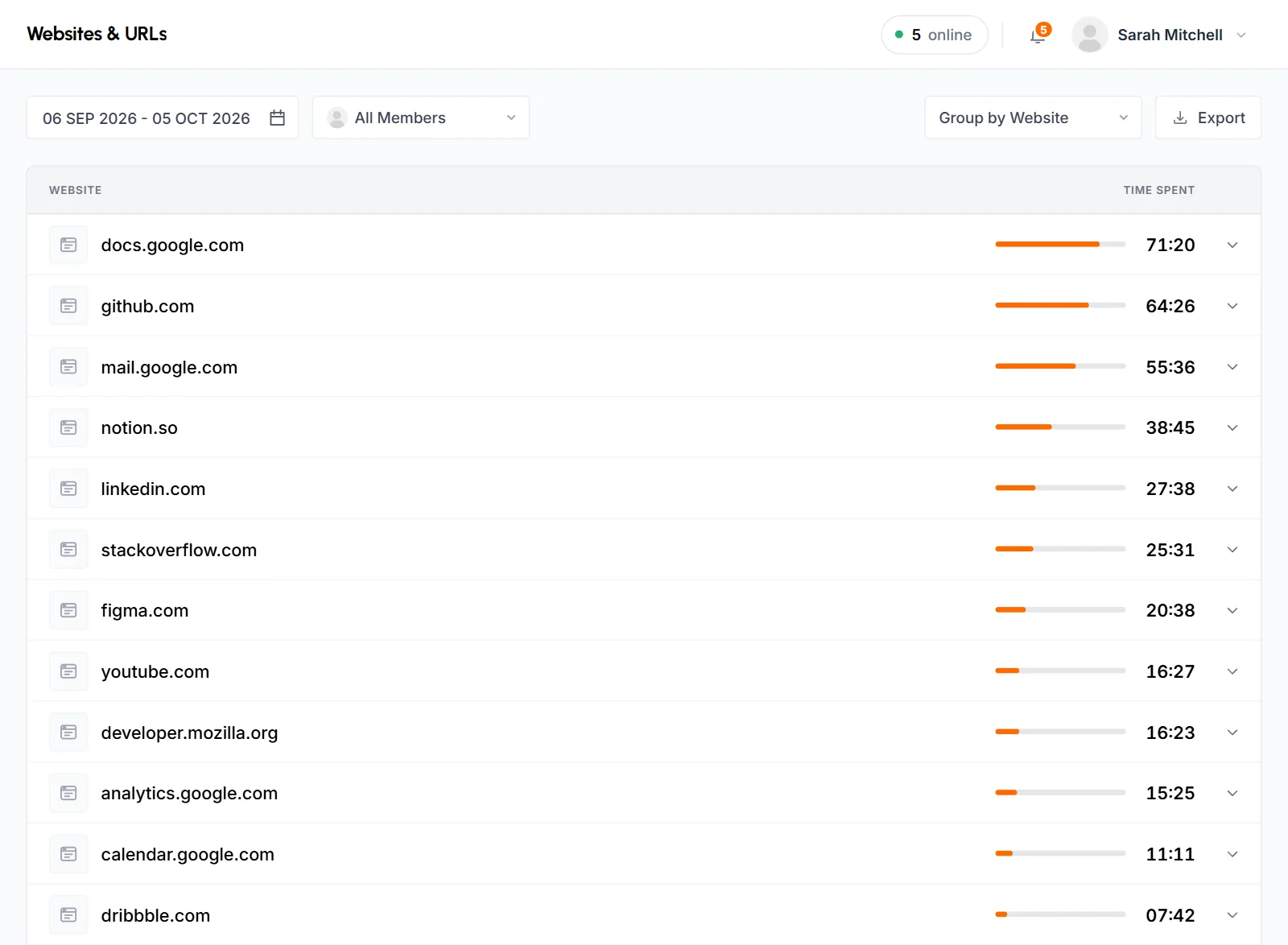
Date range
The report opens on the last 30 days, including today. Click the date field and pick a preset (Today, Yesterday, Last 7 Days, Last 30 Days, This Month or Last Month). A preset loads right away. For other dates, click the first and last day on the calendar, then click Apply. You can't pick dates after today.
Member
Keep All Members to see everyone you have access to, or pick one member. You can search the dropdown, and it lists active members only. Visits by members who were disabled later still count in the All Members totals. Staff don't see this filter.
Group by
- Group by website (default)
- Group by Website lists each website, then who visited it, then on which days.
- Group by date
- Group by Date lists each day, then the websites visited that day, then who visited them.
- Group by member
- Group by Member lists each member, then their websites, then the days. Staff can't use it.
When you change a filter, the list reloads and the other filters stay the same. The page address keeps the date range, member and grouping. A bookmark or a copied link opens the same view.
How to read and expand the rows
Every row shows the website's icon (or a plain browser icon when the site has none), its name, a bar and the Time spent in hours and minutes. For example, 03:15 means 3 hours 15 minutes. Anything under a minute shows as < 1m. Each bar is scaled against the largest row at the same level.
Click a row, or its arrow, to open the next level. Each level loads when you open it.
- Group by Website and Group by Member show the first 20 rows, sorted by time. Click Show more at the bottom to load 20 more. A list of pages works the same way.
- Group by Date lists every day with visits in the range, newest first. Days with no visits don't appear.
- If the app recorded nothing in the range, the report says No website visits in this period. Try a wider date range or another member.
Group by Website view
The report opens in this view. It shows where the team's browser time went across the whole date range.
- Website (top level)
- Each website visited in the range, with its total time for everyone in view, highest first.
- Member (second level)
- Expand a website to see who visited it and how long each person spent on it.
- Date (third level)
- Expand a member to see the days they visited the site, with the time on each day.
When you pick a single member in the filter, the member level is skipped. Expanding a website shows the days directly.
Group by Date view
This view starts with the day, so you can see which websites the team used on a certain date.
- Date (top level)
- Each day in the range with visits, with its weekday and the total time for everyone in view.
- Website (second level)
- Expand a day to see the websites visited that day and the time on each.
- Member (third level)
- Expand a website to see who visited it that day and for how long.
With a single member picked, the website level is the last one.
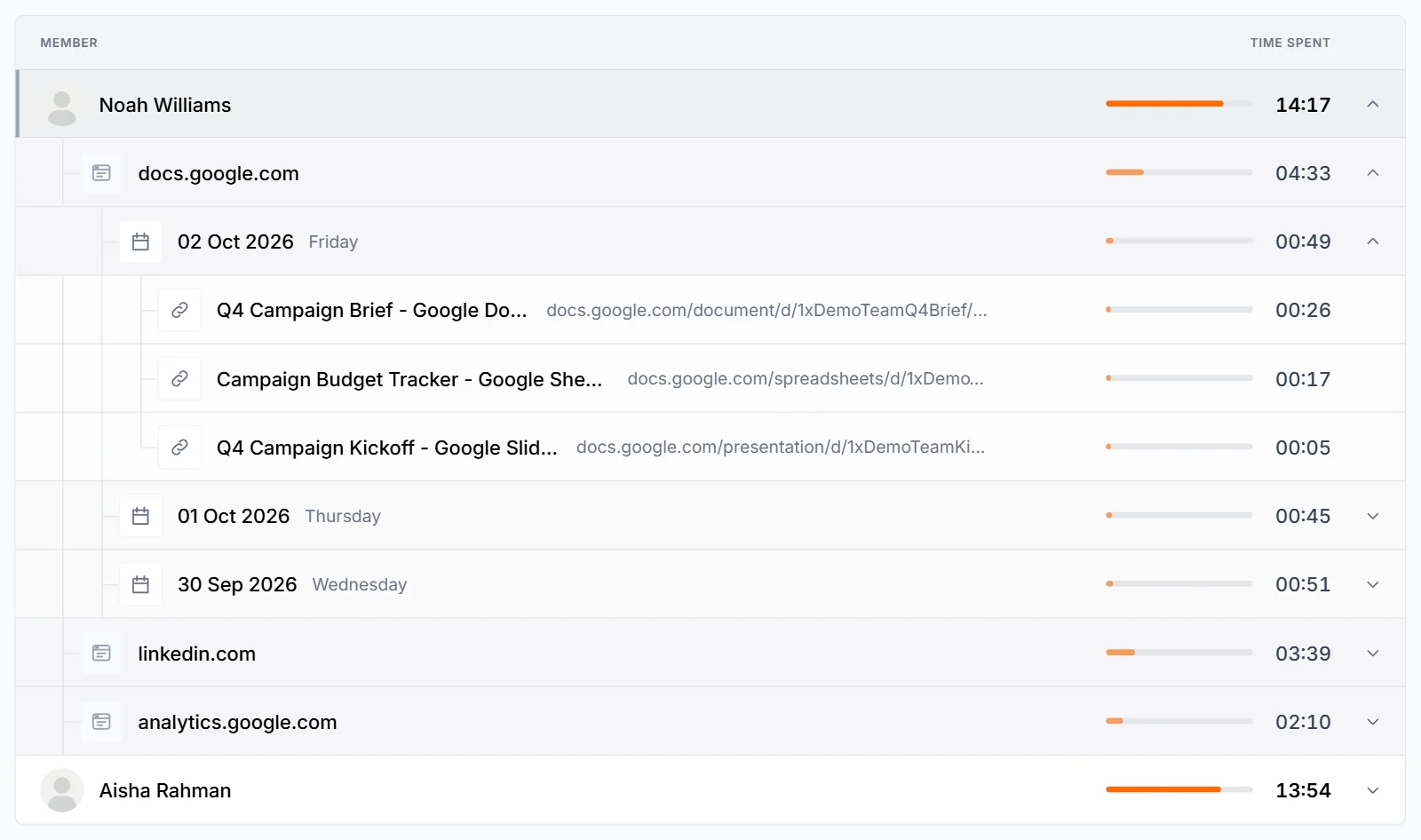
Group by Member view
This view starts with the person, so you can compare how each member spends browser time.
- Member (top level)
- Each member with their total website time in the range, highest first.
- Website (second level)
- Expand a member to see the websites they visited and the time on each.
- Date (third level)
- Expand a website to see the days the member visited it and for how long.
- Page (fourth level)
- Expand a day to see the pages the member opened on that website that day, with the time on each, most time first.
Each page row shows the page title, with the address next to it, without https:// and www.. When the app got no title, the row shows only the address. Click the title to open the page in a new tab. Only http and https addresses open as links. If a page's title changed during the day, the row shows just one of its titles.
The other groupings and the Staff view stop at the day or the member. They don't list single pages.
How to export the Websites & URLs report
Click Export at the right of the filter bar, pick a file format and a level of detail, then click Download. Set the date range, member and grouping first, because the file uses those settings.
-
Open the export options
Click Export. The Export Options popup opens.
-
Choose a file format
Pick PDF (ready to print) or CSV (opens in Excel or any spreadsheet app). PDF is selected by default.
-
Choose the level of detail
Pick Summary only for one line per group with the total time. Pick With breakdown for the same levels the report opens into. Summary only is selected by default.
-
Download the file
Click Download. The popup closes and the file downloads.
| Grouping | Summary only | With breakdown |
|---|---|---|
| Group by Website | One row per website, with the number of members, the number of days and the total time | One row per website, member and day |
| Group by Date | One row per day, with the number of websites, the number of members and the total time | One row per day, website and member |
| Group by Member | One row per member, with the number of websites, the number of days and the total time | One row per member, website and day |
The file stops at the day and doesn't list single pages. A PDF starts with your organization's name, the period and the date and time it was made, then the total time and the number of websites and members. A CSV starts with rows for the organization, the period and the total time. Then comes a blank row, then the table. When Staff export, the file has no member columns or counts.
A PDF With breakdown can cover up to 31 days. For a longer range, the report shows "The expanded PDF can only be exported for up to 31 days." and the popup stays open. Pick CSV, Summary only or a shorter range.
What staff see
Staff open the same report from Activity > Websites & URLs and see only their own visits. They get the date range, the Group by Website and Group by Date options and Export. They don't get the member filter or Group by Member, so they don't see the list of single pages. When they expand a website, they see the days directly.
Where else you can see website visits
- A member's page, a project's page, a team's page and a task's page each have a Websites & URLs tab. It shows the same report, limited to that member, project, team or task, and it has its own Export button.
- The Top Visited Websites card on the Screenshots page shows one member's top 5 sites for a single day.
- The Dashboard has a Top Websites card with the most visited sites for the people you can see.
Common questions
Why don't I see any websites for a member on Linux?
On Linux, the desktop app needs the TimoDesk URL Tracker extension in the member's browser to record addresses. After the member installs it in Chrome or Firefox, visits made while tracking appear in this report.
Can I see the full address of each page visited?
Yes. Pick Group by Member, then open a member, a website and a day to see each page's title, address and time. Exports and the other website cards show websites only.
Why is website time lower than the browser's time in App Usage?
Browser time with no recorded address, for example on Linux without the URL Tracker extension, counts toward the browser in App Usage but not toward any website here. Also, website time is capped so it's never more than the browser's time.
Can I export the Websites & URLs report?
Yes, as a PDF or CSV file, with a summary or a full breakdown by website, member and day. A PDF with breakdown can cover up to 31 days.