
Browser extension
The TimoDesk Live Team Monitor is a browser extension that shows who on your team is working right now, what they're working on and a summary of today, all from your browser toolbar. You don't have to open the dashboard.
Who can use it: Organizers, Business Managers and Team Managers. Staff can't sign in to it.
How to install the extension
Install it from your browser's store, then pin it to the toolbar so it's one click away.
- Chrome and other Chromium browsers
- Get it from the Chrome Web Store. This covers Google Chrome, Microsoft Edge, Brave and other browsers built on Chromium.
- Firefox
- Get it from Firefox Add-ons.
This is a different extension from the TimoDesk URL Tracker, which Linux users add so the desktop app can record websites. The Live Team Monitor doesn't track time or websites. To track time, use the desktop app.
How to sign in
Click the TimoDesk icon in your toolbar and sign in with the same email and password you use for the web dashboard. The extension keeps you signed in until you sign out.
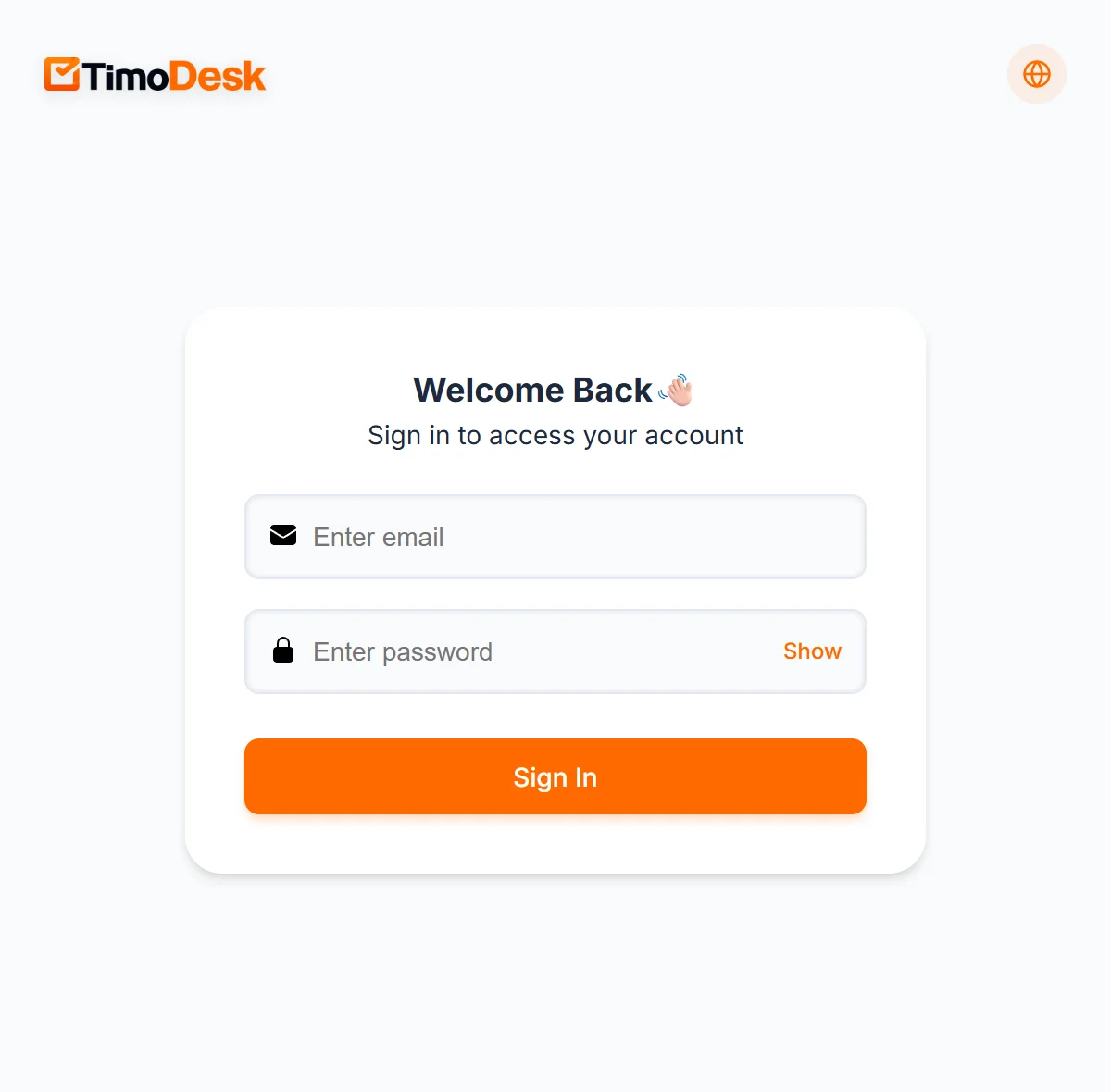
Type your email and password and click Sign In. Show reveals the password as you type it. If sign-in fails, the extension tells you why:
- Credentials mismatch
- The email or password is wrong.
- Extension login is disabled for staff.
- Your role is Staff. Only Organizers, Business Managers and Team Managers can use the extension.
- Your account is pending, banned or rejected
- Your account is waiting for approval, was disabled or was not approved. Ask your Organizer or a Business Manager.
- Too many attempts
- You tried too many times in a row. The message says how many seconds to wait.
Signing in to the extension doesn't sign you out of the desktop app or the dashboard. When you change or reset your password, the extension signs you out, so sign in again with the new password.
What does today's summary show?
The top of the extension shows Today's Summary for your organization, from midnight in your organization's time zone until now.
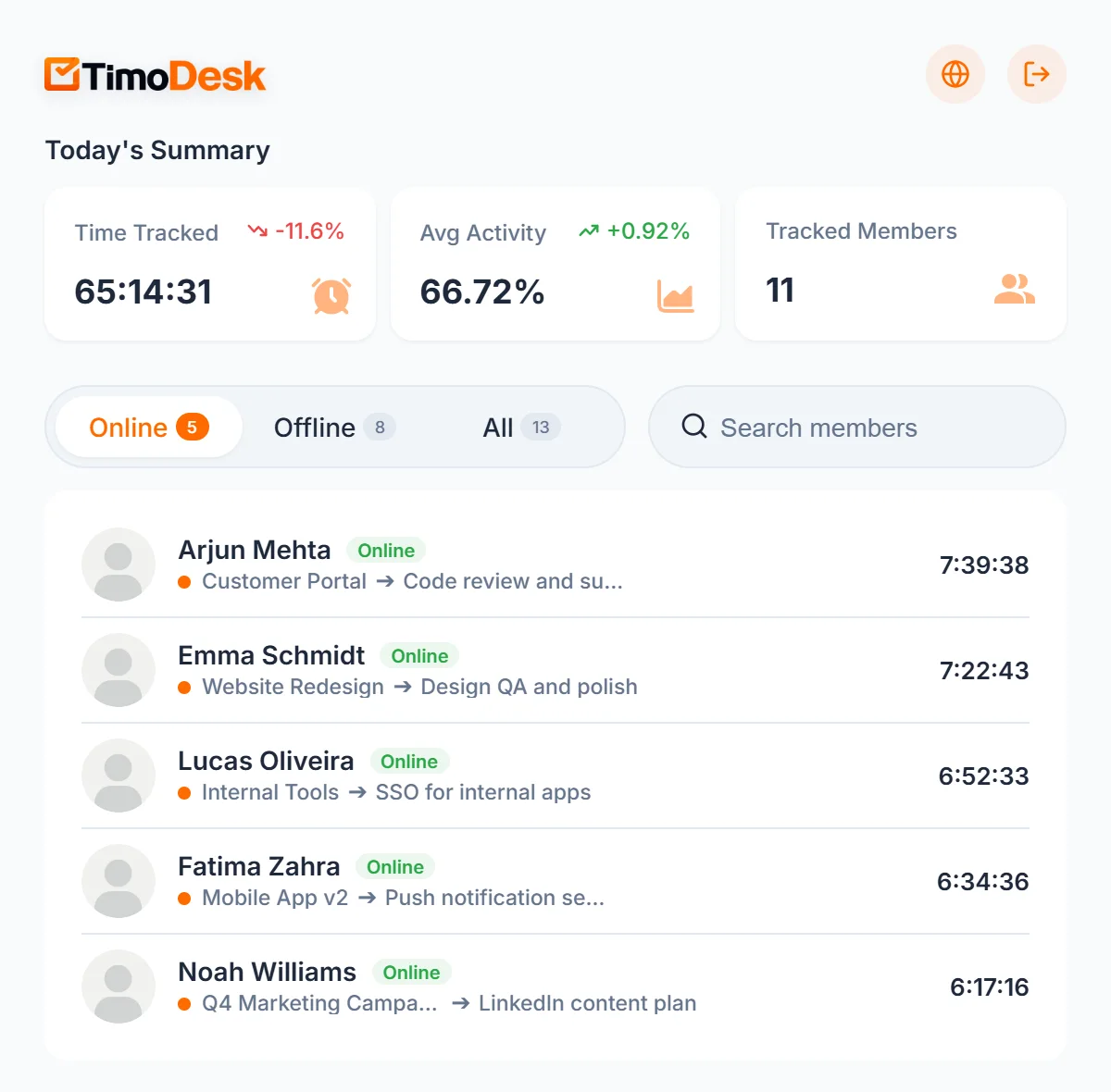
- Time Tracked
- The total time your team tracked today. The arrow and percentage compare it with all of yesterday, so it often reads lower in the morning.
- Avg Activity
- Your team's average activity today. The arrow shows the difference from yesterday in percentage points. See how activity is measured.
- Tracked Members
- How many members tracked some time today.
A Team Manager sees the summary for themselves and the teams they manage only. See team managers.
How to see who is online
Below the summary, the member list shows who is working right now. Use the tabs to switch between Online, Offline and All. Each tab shows how many members it has.
- Online
- Members whose desktop app timer is running, with the most time tracked today first. Each row shows the project and task they're working on, with an arrow between them, and their time today. Hover over the project and task to see their full names.
- Offline
- Members who aren't tracking now, with the most recently active first. Each row shows their email, their time today and when they were last active, such as "2 hours ago", or "Never" if they've never tracked.
- All
- Everyone you can see, with the most time tracked today first. A green or gray dot on the photo shows who is online.
Type in Search members to filter the open tab by name or email. Click a member's name or photo to open their member details page in the dashboard.
The list updates by itself when someone starts or stops their timer, so you don't need to reopen the extension. The toolbar icon shows a green badge with the number of members online.
How to sign out
Click the sign-out icon at the top right of the extension. The badge on the toolbar icon clears. The globe icon next to it opens the TimoDesk website.
What happens when you lose your connection?
When your browser goes offline, the extension shows You are offline and reconnects by itself when your connection comes back, with a short "Back online." message. Click Try again to check sooner.
Common questions
Does the extension track my time?
No. It only shows your team's activity. Time, activity and screenshots come from the desktop app.
Why can't I sign in to the extension?
Staff can't use it. If you're an Organizer, Business Manager or Team Manager, check your email and password, and make sure your account is approved and active.
Why don't I see everyone in my organization?
Team Managers see only themselves and the members of the teams they manage. Disabled members and people waiting for approval aren't listed.
Why does Time Tracked show a drop in the morning?
The change compares today so far with all of yesterday. It evens out as the day goes on.
Which browsers does it work in?
Chrome, Edge, Brave and other Chromium browsers, through the Chrome Web Store, and Firefox, through Firefox Add-ons.