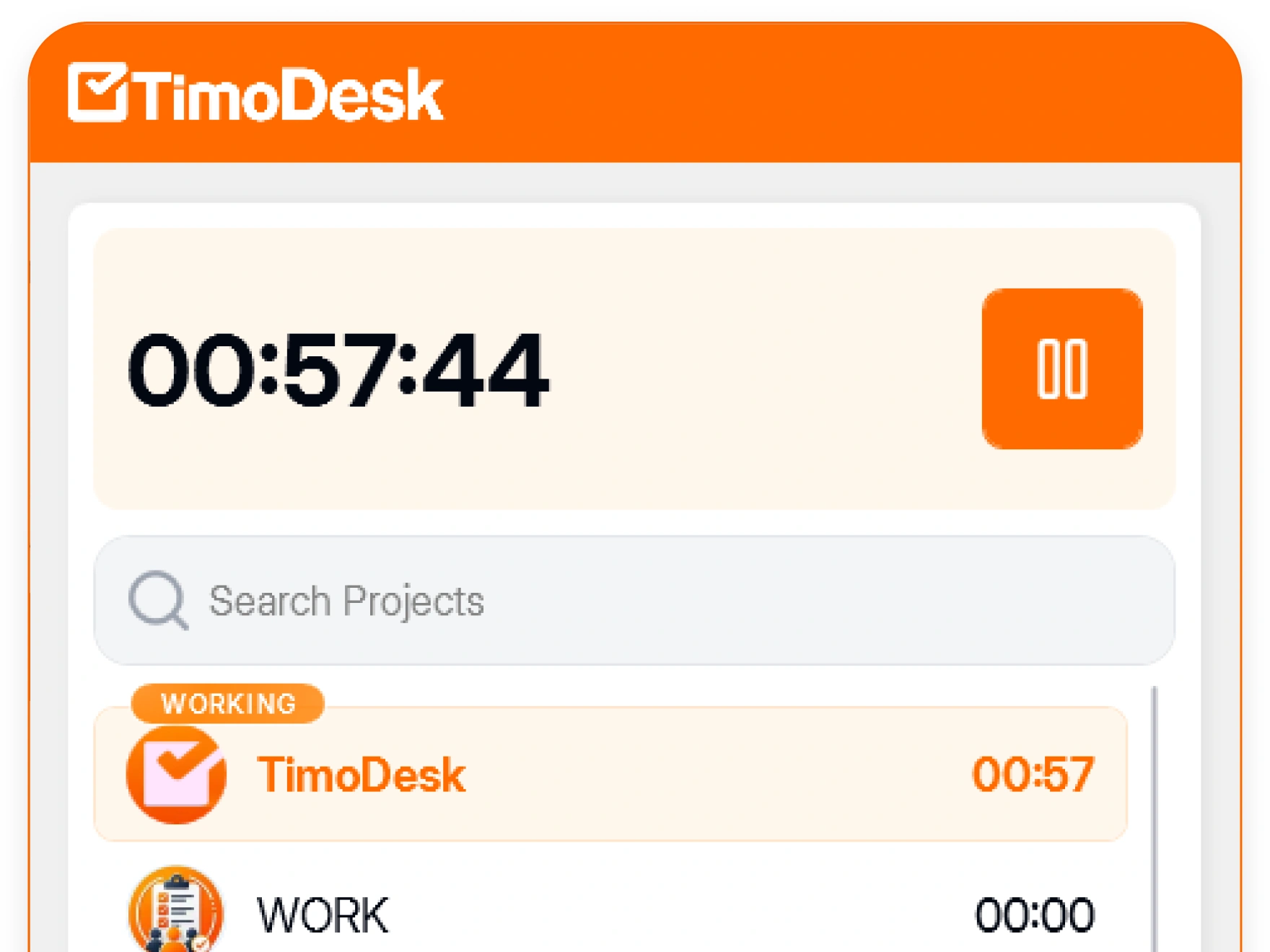
Any tracker can say it is transparent. Ask whether an admin can turn on tracking or screenshots for a person without that person knowing. In TimoDesk, the app always tells them.
Security and privacy in TimoDesk
TimoDesk protects time tracking and employee monitoring data with HTTPS, role-based access and the choice to store screenshots in your own Amazon S3 bucket or FTP server. Every member can see what is recorded about them.
A security review of a time tracker usually asks two questions. Here are our answers to both.
01
Is the data stored safely?
It is encrypted in transit and kept inside your organization. Each person's role decides what they can reach. We delete it when the organization's owner asks. Screenshots can go to your own Amazon S3 bucket or FTP server instead of ours. The Data Policy has the full details in writing.
What that means in the product
02
Will the team accept it?
This question decides whether a rollout works. When people have not agreed to a tracker, they find ways around it, and the data stops being useful. So TimoDesk is built to be open with the people it tracks.
How to introduce it
The part that matters most
Tracking is never turned on in secret
Organizers and managers can turn tracking and screenshots on or off for each person, one at a time or many at once. Most teams need this control. The key part is that the app tells the member when someone makes that change.
- The desktop app shows whether it is tracking on that computer
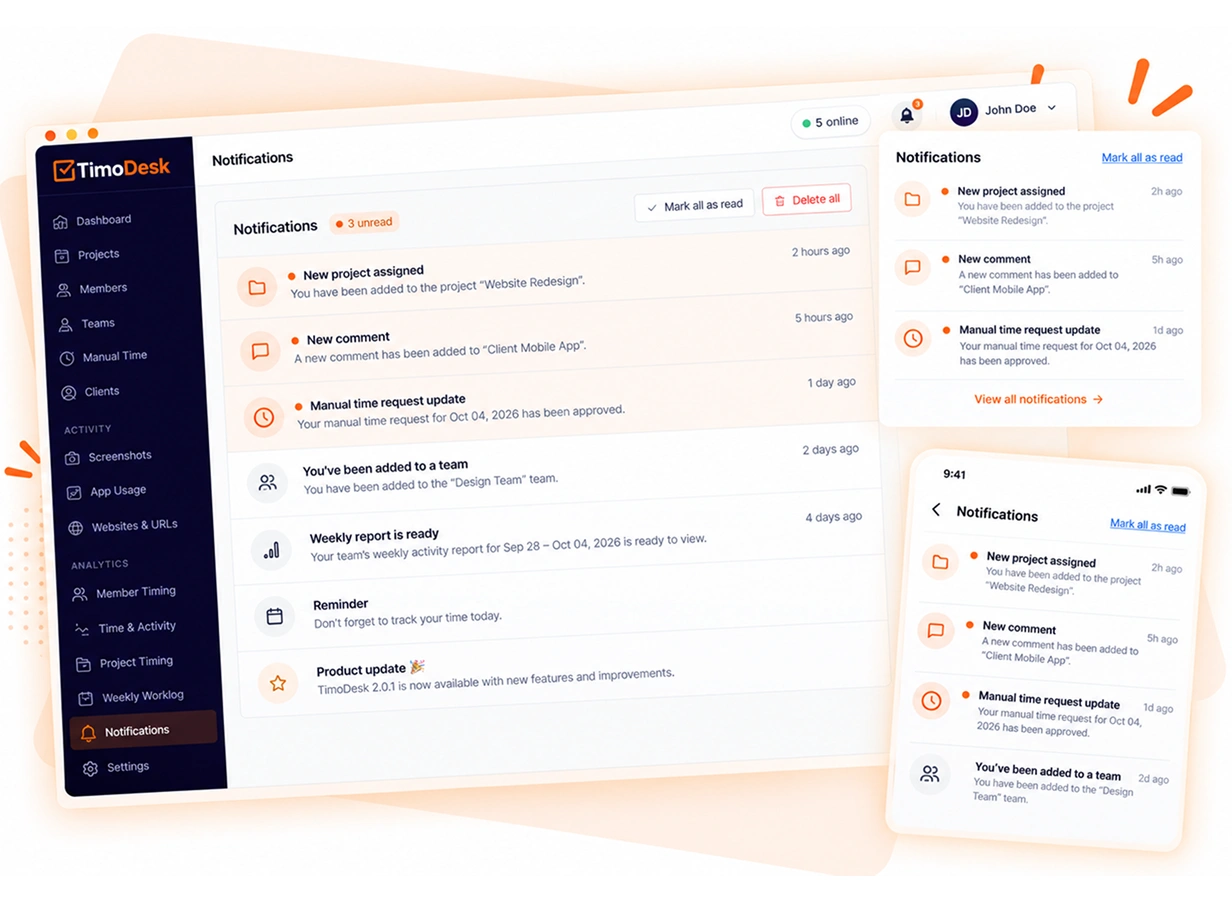
- A member is told when their tracking is turned on or off
- The same happens when their screenshots are turned on or off
- Members can open their own hours, activity and screenshots
The question to ask any vendor
How it works
Who can see it, what is recorded, where it goes
Three areas, in the order a security reviewer checks them. Everything below is visible in the product or written in a published policy. Every control comes with the one plan, at $1 per user per month. For more detail, see the screenshots, activity levels and team members pages.
01 Who can see it
-
Access follows role Organizers and managers see everyone. Team managers see their teams, and members see their own data.
-
Kept inside one organization Data is never shared across accounts.
-
Everyone can see their own Members can open their own hours, activity and screenshots.
02 What gets recorded
-
Screenshots start on Every new member starts with screenshots on. An organizer or manager sets them per member, or for many members at once.
-
Set per person Screenshot interval, screenshot alert and idle timeout can be different for each member.
-
Changes are not hidden The app tells a member when their tracking or screenshots are turned on or off. If a member turns off a permission the app needs, organizers and managers are told what stopped working.
03 Where it goes
-
Encrypted in transit HTTPS between the desktop apps, the dashboard and our servers.
-
Staff access only when needed Authorized staff, for support. The Data Policy sets the rules.
-
Deleted when the owner asks Kept while the account is active. The owner can ask us to delete the organization.
Introducing it
Four steps for a fair rollout
The teams that get the most from TimoDesk use it as a record both sides share. Two of these steps are settings in TimoDesk. The other two are about how you introduce it.
- Tell people before you invite them Explain in writing what you will track and why, before you send the first invitation. Surprises break trust far more than any software does.
- Turn on the screenshot alert The alert tells a member each time a screenshot is taken. Turn it on for the whole organization or for one person, so nobody has to wonder when a capture happens.
- Give people their own numbers Members can already open their own data. Show them where it is. Tracking feels fair when both sides can see the same numbers.
- Review the settings with the team Once you have real data, check what is turned on. Turn off anything you don't use, and then tell the team that you did.
Our policies
The policies behind this page
This page is a summary. These four documents hold the full terms, and they are the ones we are bound by.
01
02
03
04
Privacy Policy
What we collect, why we collect it, and what we never collect.Data Policy
Storage, access, retention, sub-processors, deletion.Cookie Policy
Which cookies this website uses, and how to control them.Terms of Service
The agreement covering your use of TimoDesk.Reviewing TimoDesk for an organization?
Ask us and we will confirm the current sub-processor list in writing. We can also send anything on this page in a form you can file. This is faster than reading every policy.
Contact the team
Questions
Common security review questions
Encryption, screenshots, who can see what, and which TimoDesk staff can access your data.
Is TimoDesk data encrypted?
Yes, in transit. The desktop apps, the dashboard and our servers talk over HTTPS. The Data Policy covers storage and access controls in writing.
Who controls screenshot settings?
Organizers and managers. Screenshots start on for new members, and an organizer or manager sets them per member, or selects all members on the Team Tracking Policy page and changes them at once. The desktop app tells a member whenever their settings change.
Can we store screenshots on our own servers?
Yes. The organization's owner can send screenshots to your own Amazon S3 bucket or FTP server instead of TimoDesk's storage.
Who can see our time tracking data?
It depends on the role. Organizers and managers see the whole organization. A team manager sees only the teams they manage, and a member sees their own data.
Does anyone at TimoDesk look at our data?
Only authorized staff, and only when it is needed to support or improve the service. The Data Policy sets the rules for internal access. If you ask, we will send you the sub-processor list in writing.
Do employees know they are being tracked?
Yes. The desktop app shows its tracking state to the person using it. When an organizer or manager turns tracking or screenshots on or off for someone, the app tells that person.
Get started today
See where your team's hours go
Setup takes a few minutes. Install the desktop app and start a timer. Tracked time shows on the dashboard the same day, and the first full-day reports are ready the next day.
- $1 per user / month
- Windows, macOS and Linux