Team members, roles and permissions
TimoDesk team management covers invitations, teams, four roles and per-member tracking controls, so staffing agencies and remote teams give each person only the access they need.
Team and members
Access is easy to grant and easy to forget
Many teams give everyone the highest role in week one and never check it again. A year later, someone can see reports nobody meant to share. Every role is on one plan at $1 per user per month, and the team manager role suits staffing agencies and remote or hybrid teams run by department. For step-by-step help, see the Members and Roles and permissions guides.
Getting people in
Three ways to add team members
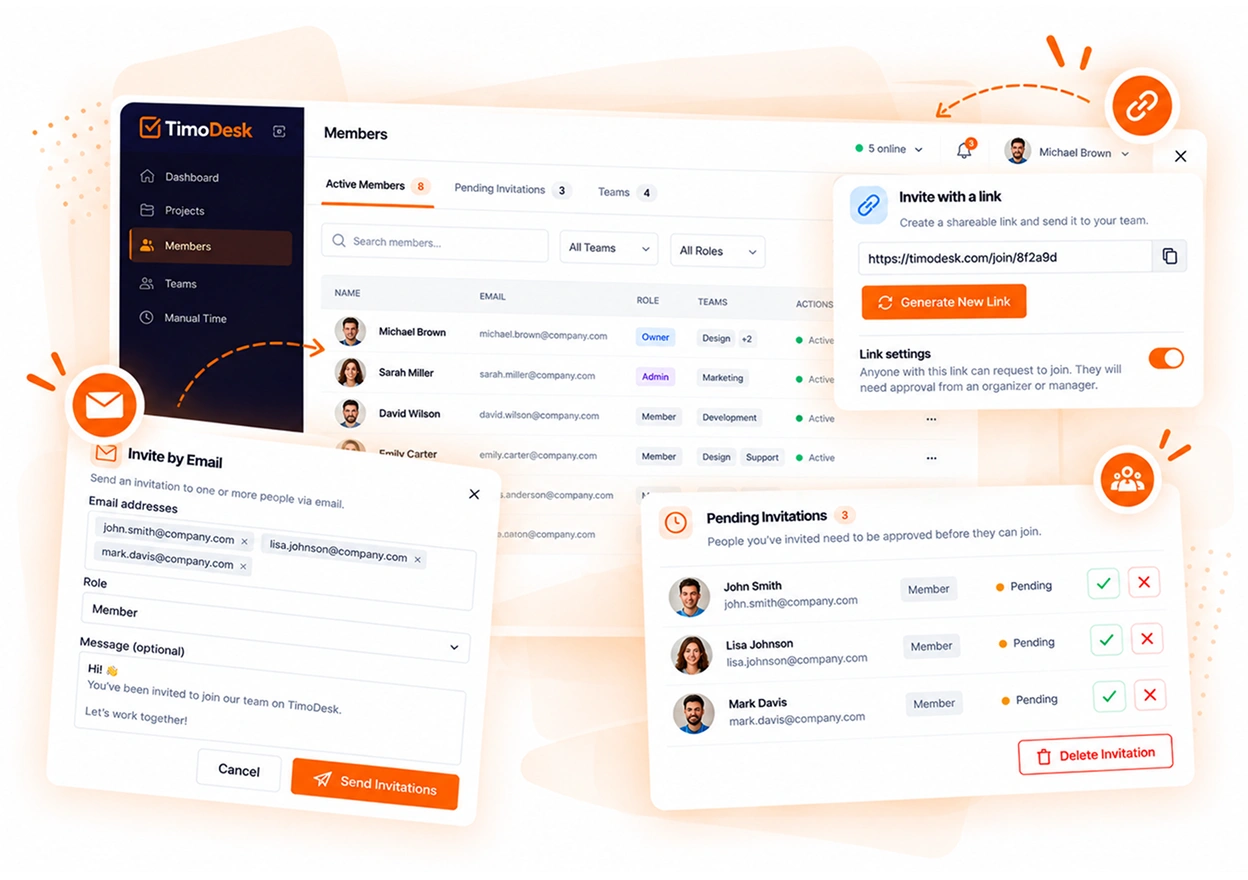
Send an email invitation with a role, or create a link and share it with a group. Anyone who joins through a link joins as staff and stays pending until an organizer or manager approves them. Finding the link is not enough to get in. You can also add a member directly with a password.
- Email invitations with a role, valid for 48 hours
- Shareable invitation links for a whole group
- Pending members wait for approval or rejection
- Add a member directly with a password
- Delete an invitation before anyone uses it
Per-member control
Turn tracking on or off for one person
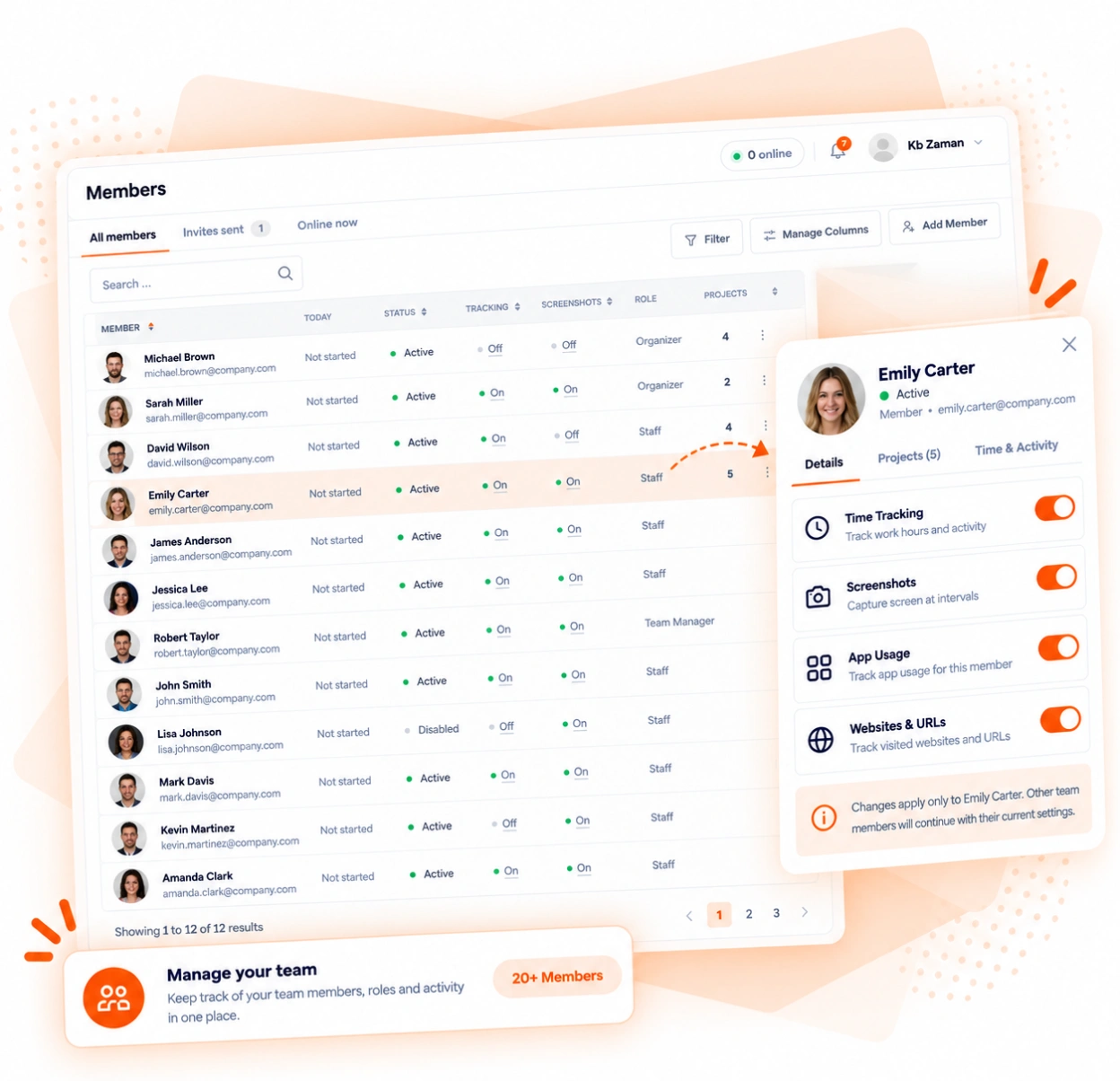
Tracking and screenshots are set per member. The Team Tracking Policy page shows every member in one grid, so you can change one person or many at once. Changes reach the desktop app right away.
- Turn tracking on or off for a single member
- Turn screenshots on or off for a single member
- Turning tracking off also turns screenshots off
- Assign or remove that member's projects from the same place
Members always know
When an organizer or manager turns tracking or screenshots on or off for someone, the
desktop app tells that person right away. Nobody's tracking changes
without them knowing about it. If a member turns off a
permission the app needs, organizers and managers are told what stopped
working.
Roles
Four roles, and what each one can do
Owner, manager, team manager, member. Owners and managers see the whole organization, and a team manager sees only the teams they manage. A member can also be made project leader of one project: they manage its tasks and members and see the whole project. This table shows every permission, so there are no surprises months after you start.
| Can do | Owner | Manager | Team manager | Member |
|---|---|---|---|---|
| See their own tracked time and activity | ||||
| Download their own monthly timesheet | ||||
| Open reporting across the organization | Their teams | |||
| Assign members to projects | Their teams | Projects they lead | ||
| Send invitations and approve pending members | ||||
| Turn tracking or screenshots on for a member | ||||
| Create teams and choose team managers | ||||
| Change a member's role | ||||
| Tracking and screenshot settings | ||||
| Manual time settings | ||||
| Billing and invoices | ||||
| Organization profile and logo | ||||
| Storage settings |
Inside the app, the owner is called the organizer, a manager is shown as Business Manager, and a member is called staff. Every member can always reach their own data, whichever role they hold.
Questions
About team members
Things to decide while your organization is still small.
Can a manager see the whole organization?
Yes. Organizers and managers see the whole organization. A team manager sees only the teams they manage. This works well for someone who handles one client's staff.
What are teams for?
To group people. Each team has its own members and can have team managers, who see reports for that team only.
How do new members join?
In three ways. Send an email invitation with a role, which expires after 48 hours. Share an invitation link with a group; anyone who joins through it joins as staff and stays pending until an organizer or manager approves them. Or add a member directly with a password.
Who can see billing?
Organizers and managers. Both can see billing and invoices. Team managers and staff can't.
Can I turn tracking off for one person?
Yes. Tracking and screenshots are switched per member, one at a time or many at once on the Team Tracking Policy page. The desktop app tells the member when either one changes.
What happens when somebody leaves?
Deactivate them in the member list, and they lose access to the organization right away.
More features
More TimoDesk features
Each feature has its own page that explains what it does and what it doesn't do. All of them are on the same plan.
- Time tracking Time tracked while the work happens
- Project management Kanban boards with time on every card
- Project time tracking Every hour saved to its project and task
- Manual time Request and approve time the app missed
- Team dashboard Your team's day and what needs you
- Time calendar Each member's hours by day, week and month
- Screenshots Screenshots linked to each task
- Activity levels Keyboard and mouse activity, never keystrokes
- App and website usage Which apps and websites were used
Start tracking time this week
Create your organization and invite your team today. Tracked time shows on the dashboard the same day, and the first full-day reports are ready the next day. $1 per user per month, with every feature included.
- $1 per user / month
- 15-day free trial, no card
- Stop anytime. No contract.
