Screenshots linked to the task
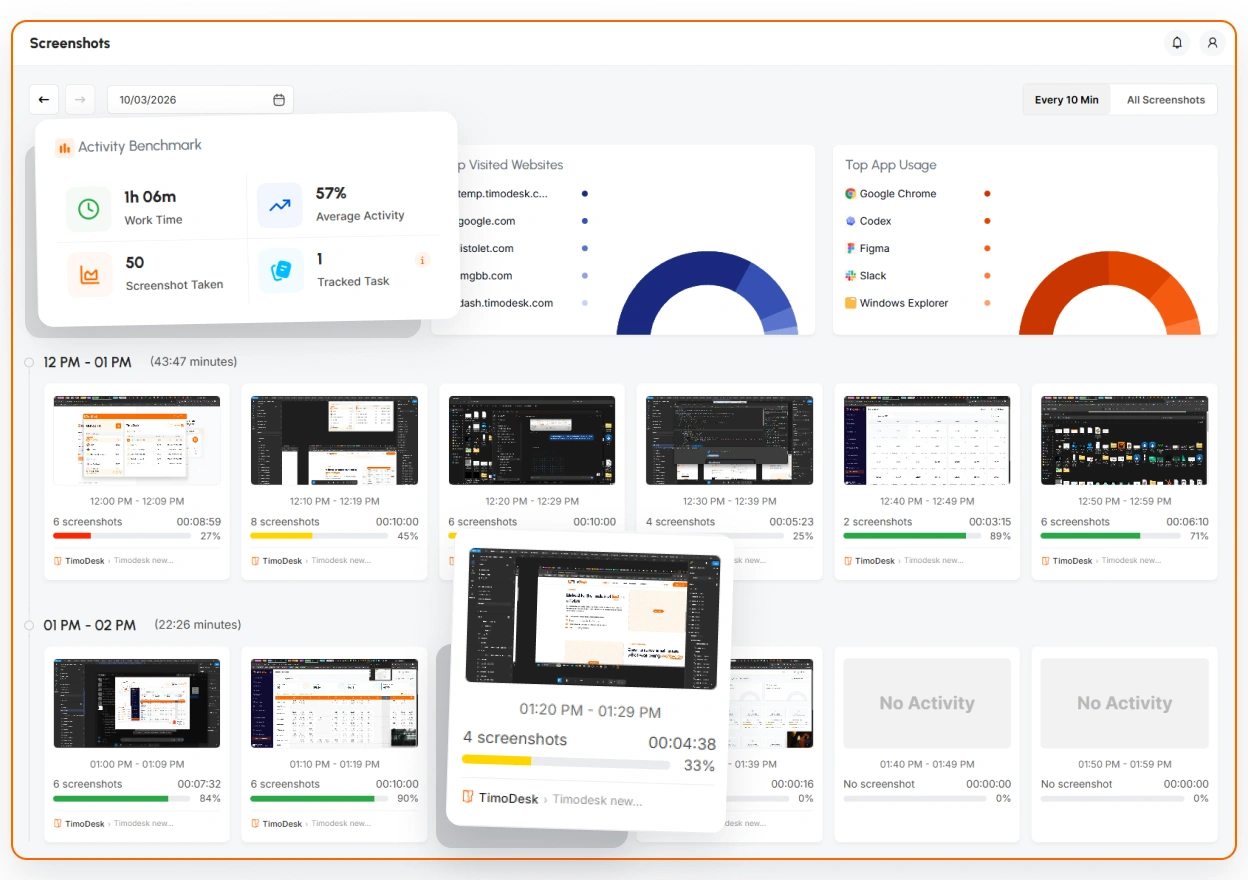
TimoDesk screenshot monitoring takes screenshots every 3 to 60 minutes while the timer runs. Each one is linked to its task, so staffing agencies and remote team managers see progress without check-ins.
Screenshots work best with clear rules
Screenshots build trust or damage it, depending on whether people know the rules and can see when tracking is on. We built the feature so the open, fair way is also the easy way. Screenshots are on the only plan, at $1 per user per month, and matter most for proof of work, staffing agencies and remote teams. For step-by-step help, see the Screenshots guide.
Linked to the task, not lost in a folder
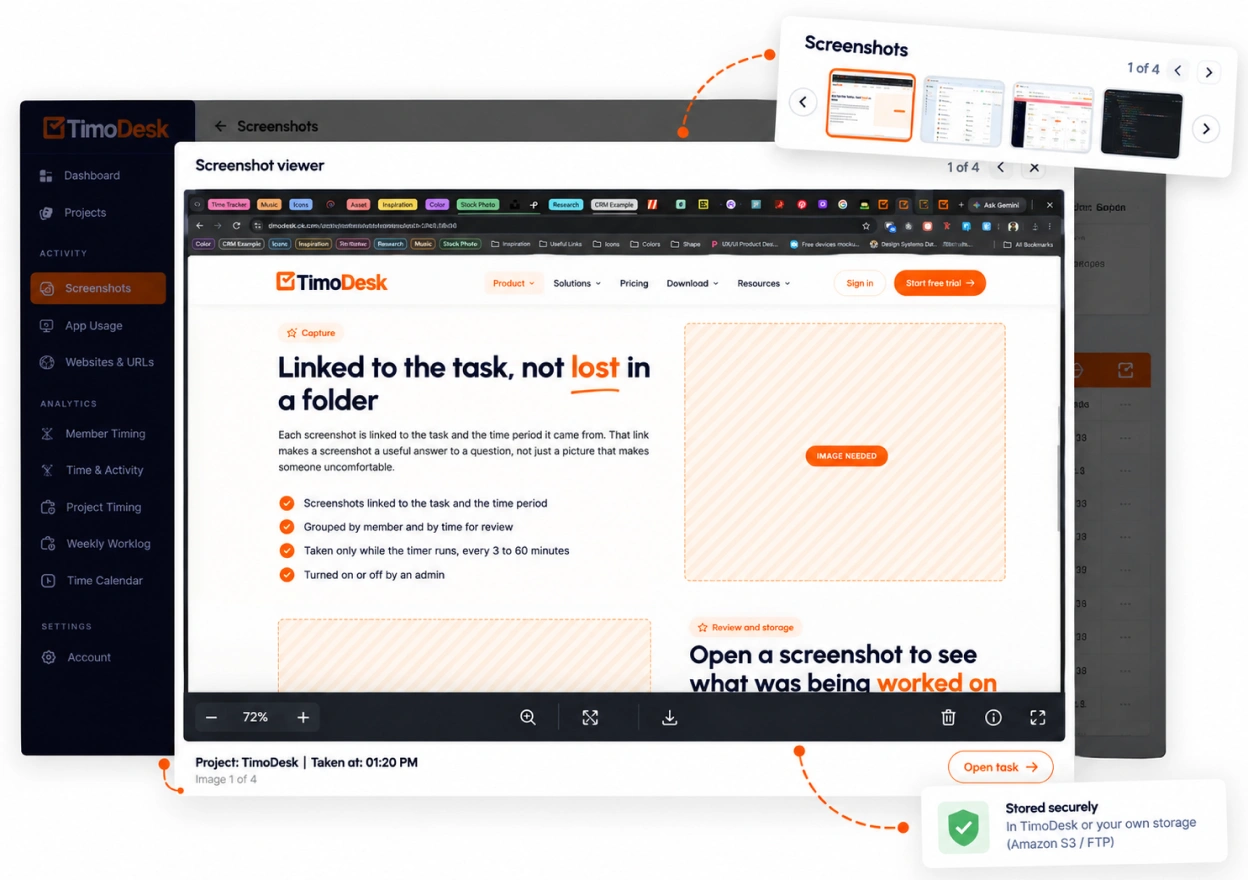
Each screenshot is linked to the task and the time period it came from. That link turns a screenshot into a useful answer to a question. Without that link, a screenshot is just a picture that makes someone uncomfortable.
- Screenshots linked to the task and the time period
- Grouped by member and by time for review
- Taken only while the timer runs, every 3 to 60 minutes
- On for new members, switched per member by an organizer or manager
- Screenshots taken while a member is idle are thrown away
Open a screenshot to see what was being worked on
From any screenshot you can open the task it belongs to. If someone questions an hour, you can answer in two clicks. Screenshots are stored with TimoDesk or in your own Amazon S3 bucket or FTP server. If an upload to TimoDesk storage fails, it is retried later.
- Open the task details from any screenshot
- Your own Amazon S3 bucket or FTP server, if you prefer
- Failed uploads to TimoDesk storage are retried later
- Who can see screenshots depends on their role
Three setups, and what each one means for the member
Screenshots start on for new members, and each member has their own settings. On the Team Tracking Policy page you can select many or all members and change them at once. Changes reach the desktop app right away, and each result is clear to everyone.
- Screenshots on New members start here. Screenshots are taken while the timer runs and linked to the task. The desktop app shows the person that tracking is on the whole time.
- A different interval for one person Each member has their own interval and screenshot alert. Set one person to every 5 minutes and leave the rest of the team on 10, and nobody else changes.
- On, except for one person That member's time is tracked without screenshots, and nobody else changes. The desktop app tells them when the setting changes.
About screenshots
The questions teams ask when they first hear about screenshots, with clear answers.
Can I set screenshots per member?
Yes. Screenshots start on for new members, and each member has their own settings for the interval and the screenshot alert. On the Team Tracking Policy page you can select many or all members and change them at once.
How often does TimoDesk take screenshots?
Every 3, 5, 10, 15, 20, 30 or 60 minutes while the timer runs, as you choose. Set the interval for the whole organization and change it for one member if needed.
Do employees know when screenshots are on?
Yes. The desktop app always shows the person that tracking is on. If an organizer or manager turns their tracking or screenshots on or off, the desktop app tells them. Nothing runs in secret.
Can members get an alert when a screenshot is taken?
Yes. Turn on the screenshot alert for the organization or for one member. The desktop app then tells the person each time a screenshot is taken.
Can we store screenshots on our own servers?
Yes. The organizer can send screenshots to your own Amazon S3 bucket or FTP server instead of TimoDesk's storage.
Who can view screenshots?
Organizers and managers see everyone's screenshots. A team manager sees the teams they manage, and a member sees only their own.
More TimoDesk features
Each feature has its own page that explains what it does and what it doesn't do. All of them are on the same plan.
- Time tracking Time tracked while the work happens
- Project management Kanban boards with time on every card
- Project time tracking Every hour saved to its project and task
- Manual time Request and approve time the app missed
- Team dashboard Your team's day and what needs you
- Time calendar Each member's hours by day, week and month
- Activity levels Keyboard and mouse activity, never keystrokes
- App and website usage Which apps and websites were used
- Timesheets and exports Monthly timesheets you can bill from
Start tracking time this week
Create your organization and invite your team today. Tracked time shows on the dashboard the same day, and the first full-day reports are ready the next day. $1 per user per month, with every feature included.
- $1 per user / month
- 15-day free trial, no card
- Stop anytime. No contract.
