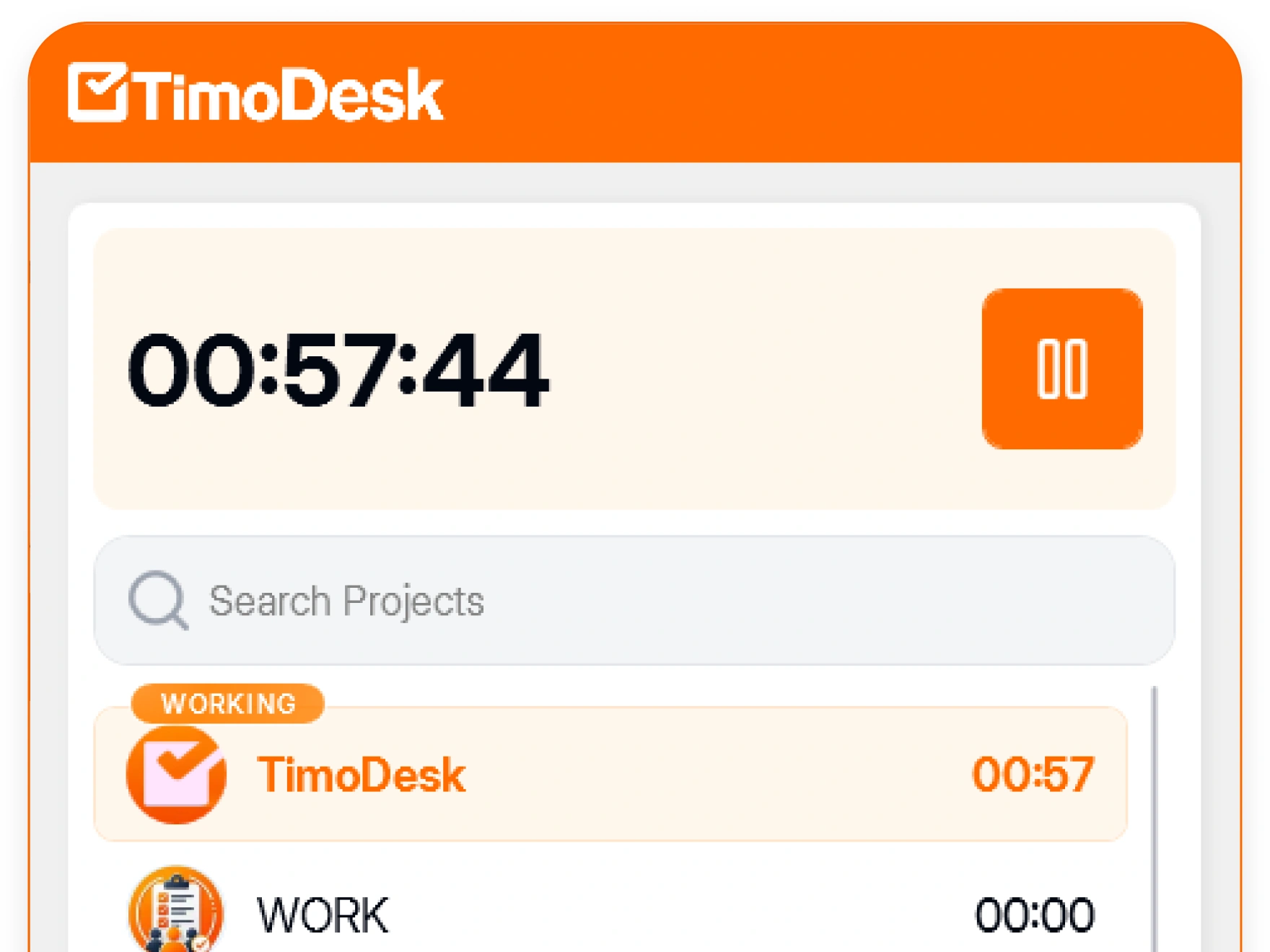
Tracked hours by day, week and month
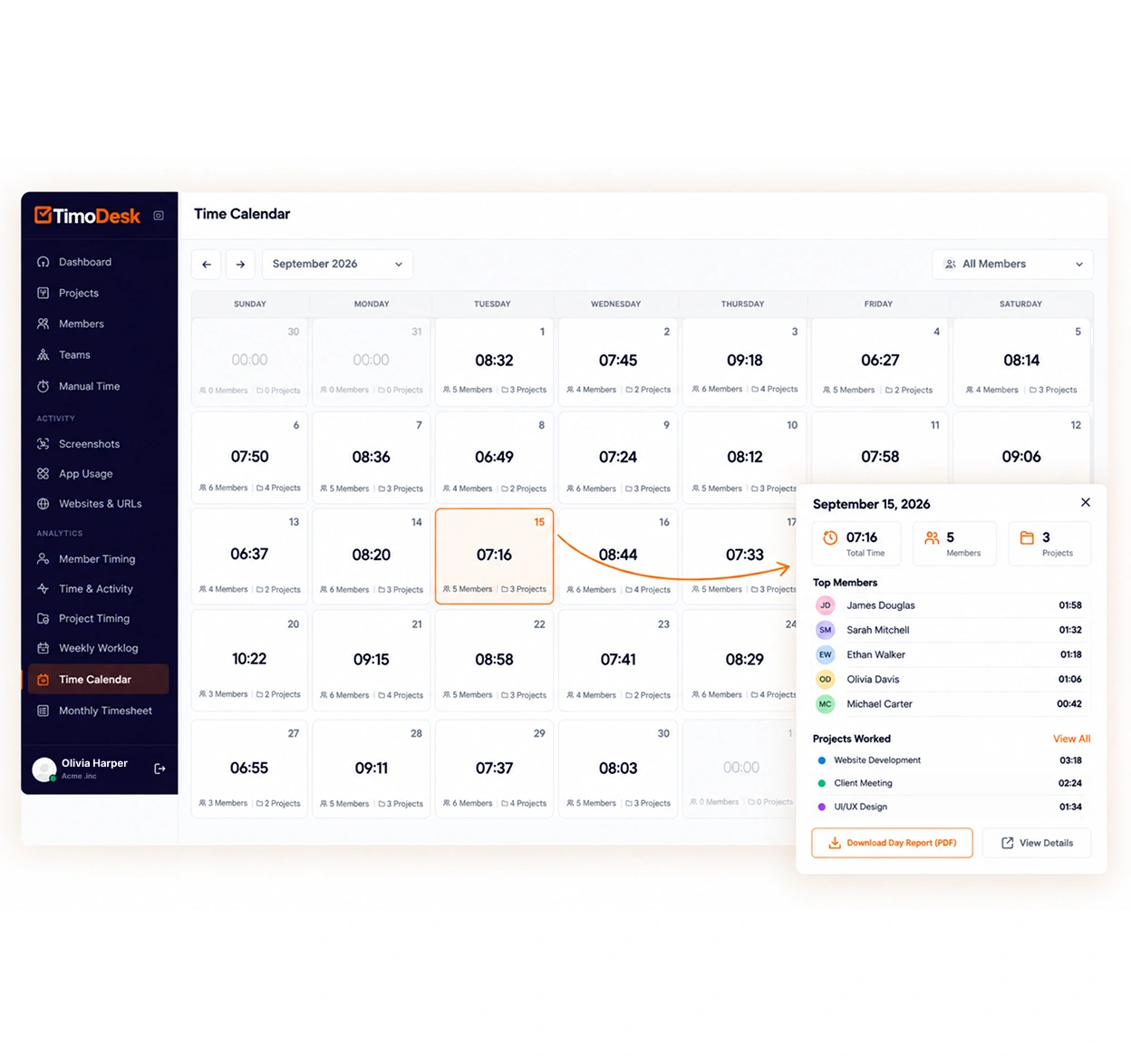
The TimoDesk time calendar shows each member's tracked hours by month, week and day, so staffing agencies, consultants and remote teams can check hours before they bill.
Time calendar
A timesheet that fills itself in
At month end, many teams rebuild their hours from a calendar, a notebook and memory. The time calendar is already complete, because it filled in while people worked. It comes with every account at $1 per user per month, for consultants, staffing agencies and remote teams who report hours monthly. For step-by-step help, see the Time Calendar guide.
What it shows
Every day, already filled in
Open the calendar for anyone on the team and the month is there: which days had tracked time and how much. The mini calendar shows a smaller version in the corner of the screen when you only need a quick view of the month.
- A month view of tracked time, per member
- A mini calendar for a quick look without leaving the page
- Weekly worklogs for the detail behind any one week
- Your own monthly timesheet, downloadable as a PDF
Recorded, never changed
Nobody can edit or delete what the desktop app recorded: not a manager, not
the owner, and not us. If the organizer turns manual time on, members can
request time they worked with the timer off. It stays marked as manual. This is a limit if
you want a timesheet anyone can change. It is also the reason a client who
pays for the hours can trust the record.
The record
Built from tracked sessions, not memory
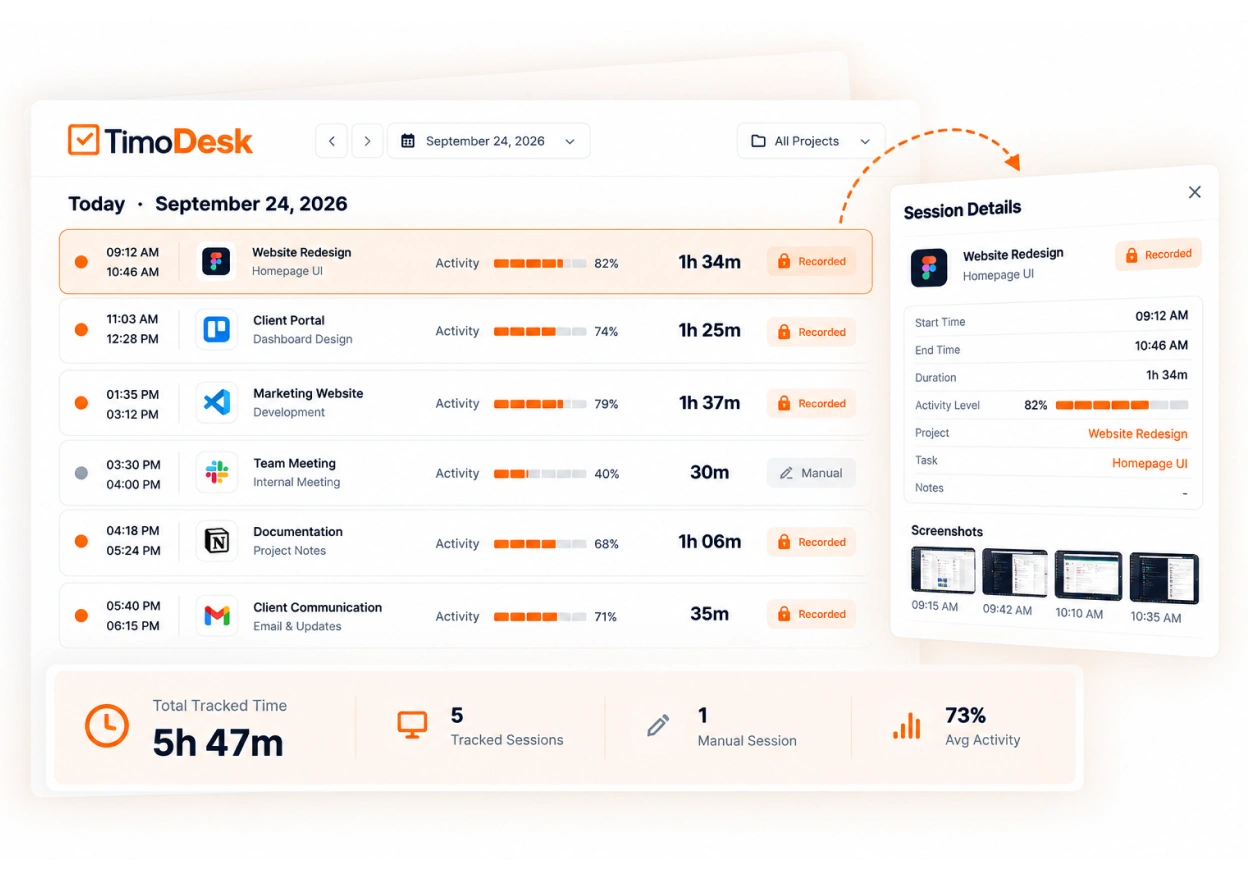
Every day in the calendar comes from sessions the desktop app recorded, each linked to a task and saved with its activity level. Nothing in the month was changed later. Time a person added by hand stays marked as manual, so you can trust the total at the bottom.
- Sessions recorded by the desktop app as the work happens
- Each session linked to the task it was tracked on
- Activity levels recorded with the hours
- Tracked sessions can't be edited, and manual time stays marked
Three views
Month, week and day views
The same record at three levels of detail. Pick the one you need: look back over the month, review the last week, or check what happened on one afternoon.
Month
The calendar
Which days had tracked time and how much, across the whole month. Open this view before you send an invoice, review the team's workload, or explain where a month's hours went.
Week
The worklog
One week, split by member. Use it in one-on-one meetings and weekly team reviews. It is short, so people read it instead of skipping through it.
Day
The sessions
Each tracked session in one day, linked to the task it was recorded on. A workday is rarely one long block of time, and this view shows how the day really went.
The charts above are examples. Every real month looks different, so it helps to look at yours.
Questions
About the time calendar
Read the first answer, about adding time by hand, before you start.
Can I add or edit time by hand?
You can add time, but you can't edit tracked time. Nobody can change a session the desktop app recorded, including the owner. Manual time is off until the organizer turns it on. Then members can request time they worked with the timer off. It needs approval, unless auto-approval is on, and stays marked as manual.
Can a member see other people's calendars?
No. A member sees only their own tracked time. Organizers and managers can open any member's calendar, and a team manager can open the calendars of the teams they manage.
What is the difference between the calendar and the weekly worklog?
The level of detail. The calendar shows how much was tracked on each day of the month, and the weekly worklog shows one week by member and day.
Can I download my own timesheet?
Yes. Every member can download their own monthly timesheet as a PDF from their account.
Does time tracked offline show up?
Yes. The desktop app keeps tracking without internet and syncs when the connection comes back, as long as that happens within 30 days. The session then appears in the calendar.
More features
More TimoDesk features
Each feature has its own page that explains what it does and what it doesn't do. All of them are on the same plan.
- Time tracking Time tracked while the work happens
- Project management Kanban boards with time on every card
- Project time tracking Every hour saved to its project and task
- Manual time Request and approve time the app missed
- Team dashboard Your team's day and what needs you
- Screenshots Screenshots linked to each task
- Activity levels Keyboard and mouse activity, never keystrokes
- App and website usage Which apps and websites were used
- Timesheets and exports Monthly timesheets you can bill from
Get started today
See where your team's hours go
Setup takes a few minutes. Install the desktop app and start a timer. Tracked time shows on the dashboard the same day, and the first full-day reports are ready the next day.
- $1 per user / month
- Windows, macOS and Linux