A client portal for tracked hours
The TimoDesk client portal gives each client their own login, so staffing firms, agencies and consultants can show the hours and reports behind every invoice.
Client portal
Clients want proof before they pay
When a client pays for remote hours, they want to see the work behind the invoice. Sending reports by hand every week takes time and still invites questions. The client portal gives each client their own login, showing only the projects you share. It's built for staffing firms, agencies and consultants. For step-by-step help, see the Clients and Client portal guides.
Inviting a client
One login for each person at the client
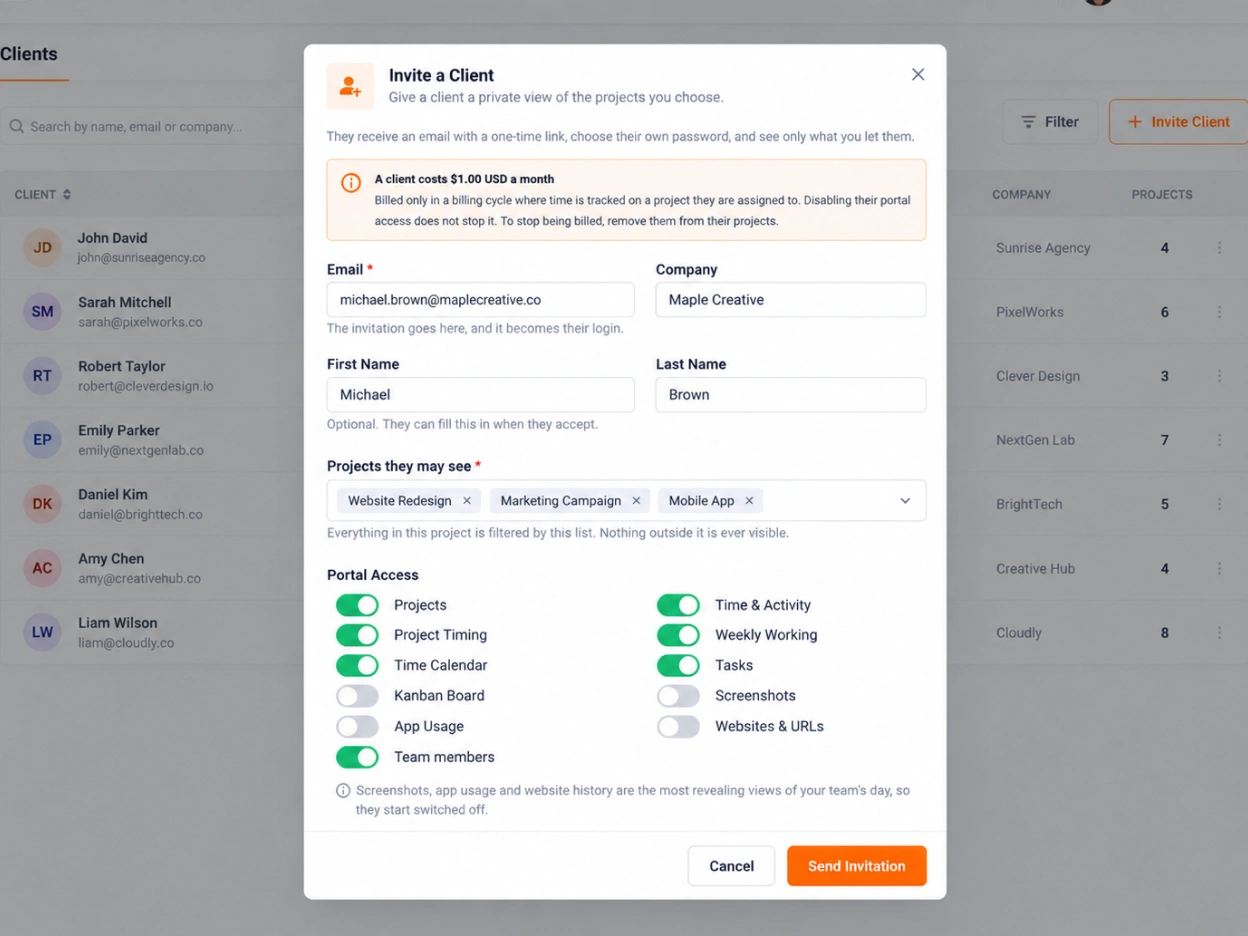
Organizers and managers invite each person at the client by email and pick the projects they can see. The client signs in at client.timodesk.com, which is separate from your team's dashboard.
- Invite by email and choose the projects they can see
- Invitations last 7 days, and you can resend or withdraw them
- Add or remove projects later, and the client is told
- Turn a client's access off, and back on, at any time
What clients see
You choose every screen
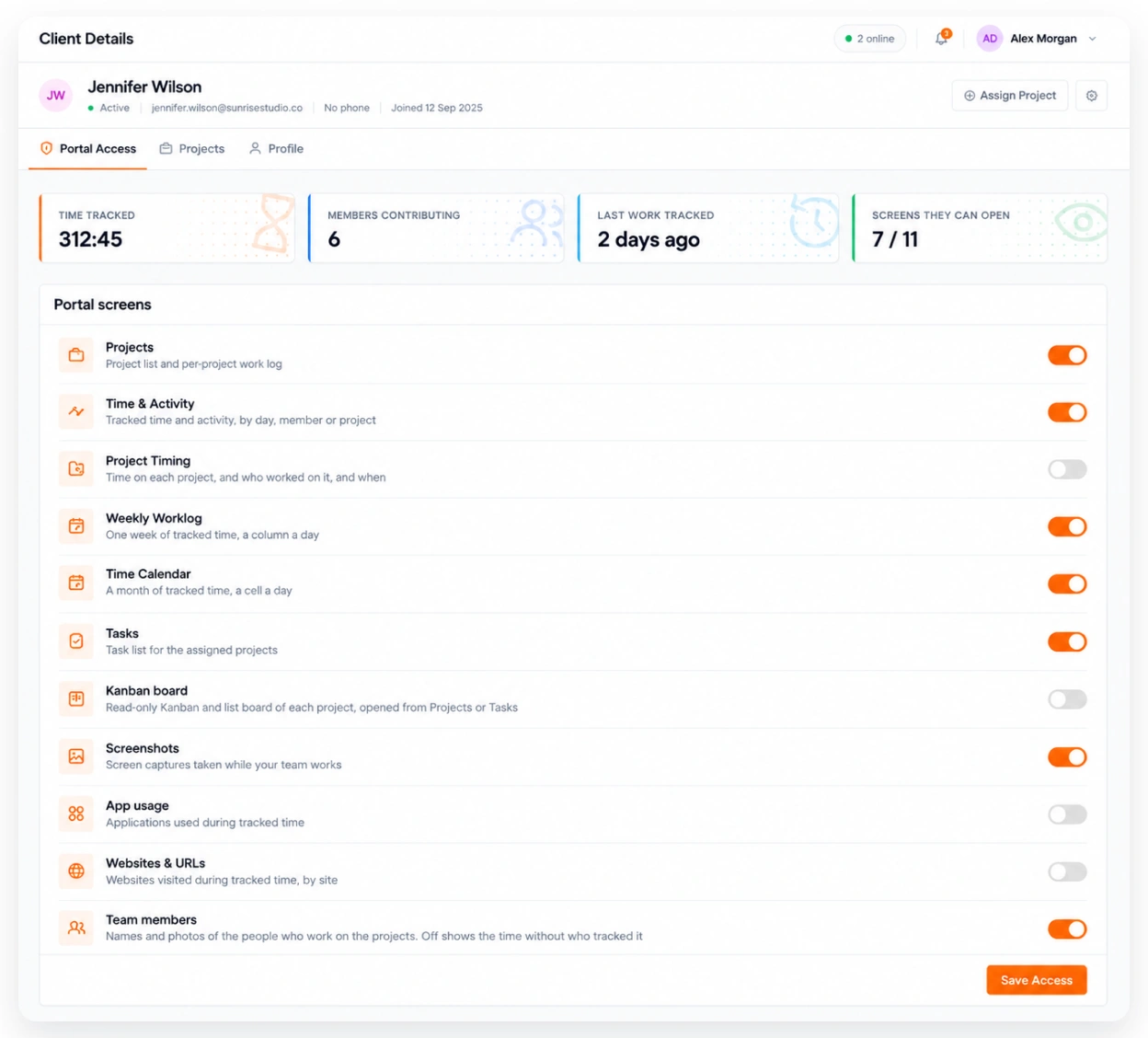
Every client gets a dashboard with a summary of hours, projects and the team. You turn the other screens on or off for each client, so one client can see screenshots while another sees totals only.
- Projects, tasks and a read-only kanban board
- Time and activity by day, member or project
- Project timing, the weekly worklog and the time calendar
- Screenshots, app usage and websites, only when you turn them on
- Hide your team members' names and show the hours only
View only, and only their projects
Clients cannot edit time, tasks or settings. They never see your other
projects, your other clients or the rest of your organization.
Reports
Reports with your logo
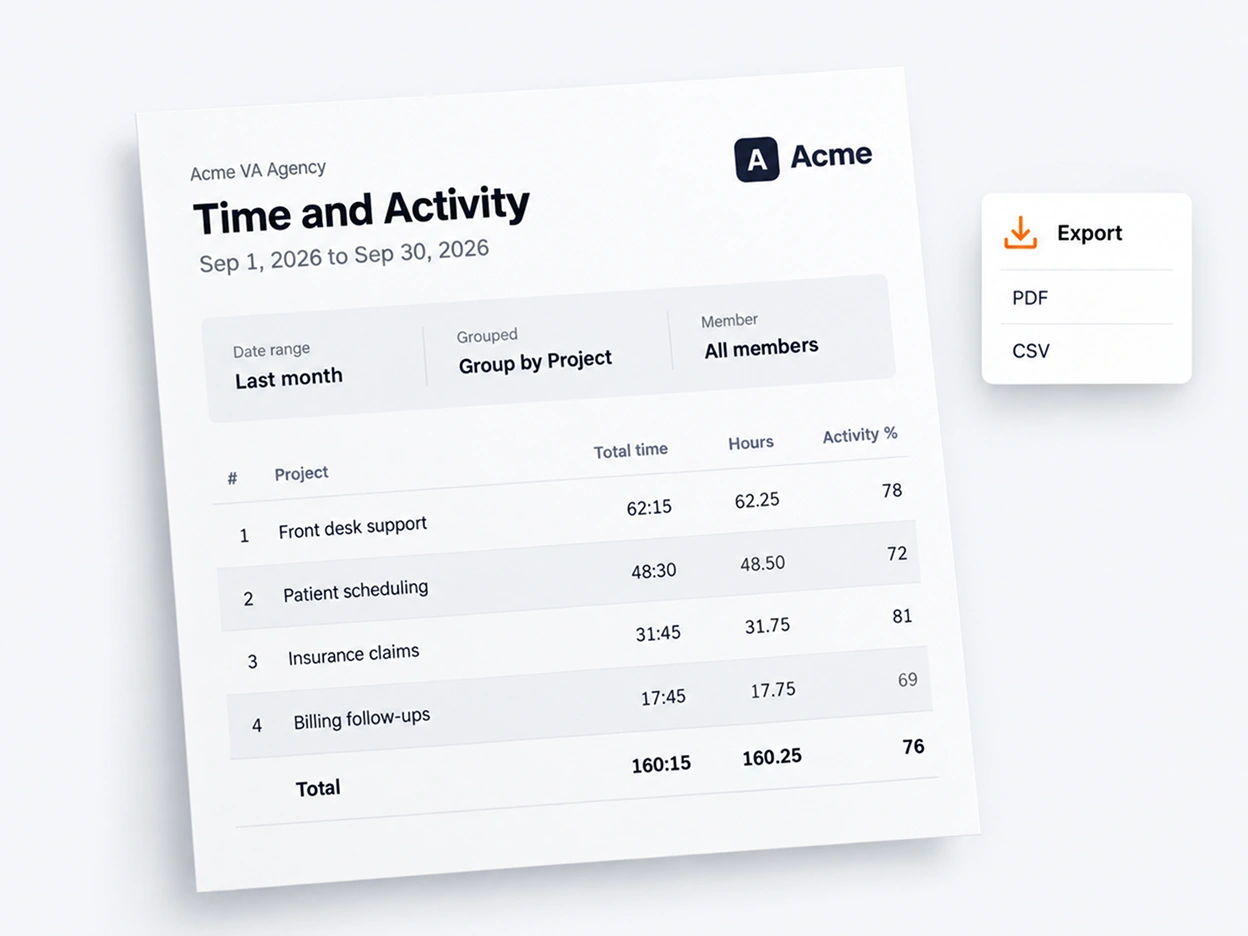
Inside the portal, clients see your organization's logo and name. They can download what they see as a PDF or a CSV file, so they have the record when the invoice arrives and you don't have to send it by hand.
- Project, time, task, screenshot and app reports as PDF or CSV
- Your logo on the PDF reports
- The same tracked data your team sees, for the shared projects
Questions
About the client portal
What clients can see, what they can do, and how you stay in control.
What is the TimoDesk client portal?
It is a separate login at client.timodesk.com. Your clients see the hours, activity and reports for the projects you share with them, and nothing else in your organization.
Can a client see my other projects or my whole team?
No. A client sees only the projects you assign to them. You can also hide your team members' names, so the client sees the hours without who tracked them.
Can clients see screenshots?
Only if you turn that on for the client. Screenshots, app usage and websites start switched off for every new client.
Can a client change anything?
No. Clients can only view. They cannot edit time, tasks or settings. They can download their reports as PDF or CSV.
Who can invite clients?
Organizers and managers. They invite each person at the client by email and choose the projects that person can see.
How do I remove a client's access?
Turn their access off in the client's settings. They cannot sign in until you turn it back on. An invitation that has not been used can be withdrawn at any time.
More features
More TimoDesk features
Each feature has its own page that explains what it does and what it doesn't do. All of them are on the same plan.
- Time tracking Time tracked while the work happens
- Project management Kanban boards with time on every card
- Project time tracking Every hour saved to its project and task
- Manual time Request and approve time the app missed
- Team dashboard Your team's day and what needs you
- Time calendar Each member's hours by day, week and month
- Screenshots Screenshots linked to each task
- Activity levels Keyboard and mouse activity, never keystrokes
- App and website usage Which apps and websites were used
Start tracking time this week
Create your organization and invite your team today. Tracked time shows on the dashboard the same day, and the first full-day reports are ready the next day. $1 per user per month, with every feature included.
- $1 per user / month
- 15-day free trial, no card
- Stop anytime. No contract.
