Time tracker with screenshots, built for proof of work
TimoDesk is a desktop time tracker that takes screenshots at an interval you choose, from every 3 to every 60 minutes, and files each one under its task. Use it for remote teams, client billing and payroll checks, for $1 per user per month.
The basics
What is a time tracker with screenshots?
It is software that records how long someone works and captures their screen at set points during that time. You end up with a work hours tracker with screenshots behind every entry, so a manager or a client can open any hour and see the work that filled it. Nobody has to take a number on trust. TimoDesk does this from a desktop app on Windows, macOS and Linux, and it comes with the one plan at $1 per user per month.
How it works
How a time tracker with screenshots works
There is nothing to remember and nothing to send by hand. Once a member starts tracking, the app does the rest.
-
01 A member starts a timer on a task They open the desktop app, choose the work they are about to do and click play. That task becomes the label for everything captured next.
-
02 The app captures the screen on schedule At the interval your organization picked, the app saves a picture of every connected monitor.
-
03 Idle stretches are filtered out If the computer sat untouched, the capture from that stretch is dropped on the device and never reaches the server.
-
04 The hour is ready to review Captures land in the dashboard in 10 minute blocks, each showing the minutes tracked, an activity bar and the project.
Reasons
Why teams choose time tracking software with screenshots
A number of hours on its own invites questions. Employee time tracking with screenshots puts pictures behind the same hours, which usually settles the matter. Most buyers want one of these four things, and a screenshot time tracker for remote teams covers all of them.
- Evidence for clients who pay by the hour
- A fast answer when someone disputes an invoice
- Confidence before you approve payroll for remote staff
- Fewer status calls with people in other time zones
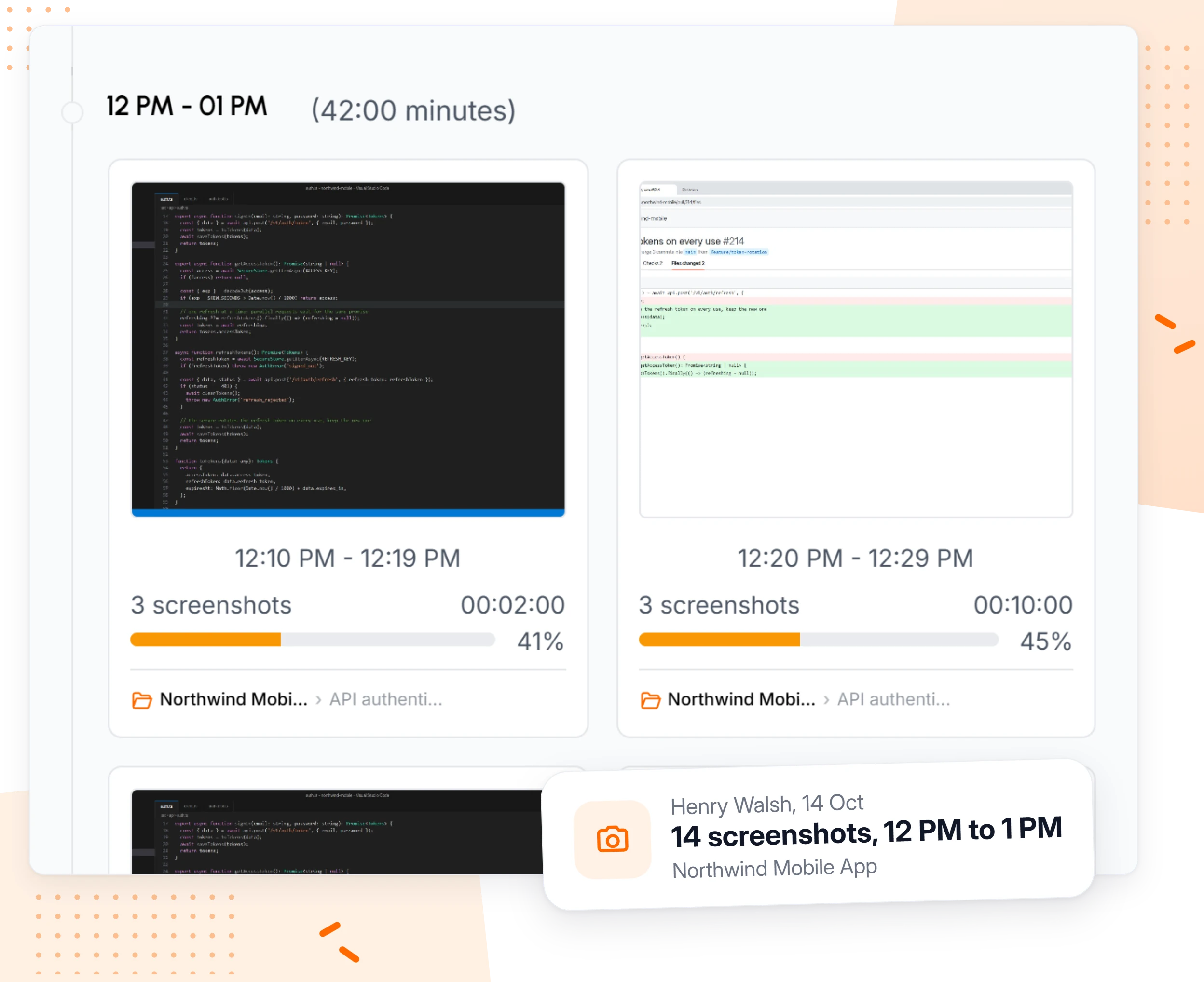
Billing proof
Screenshot proof for client billing and payroll
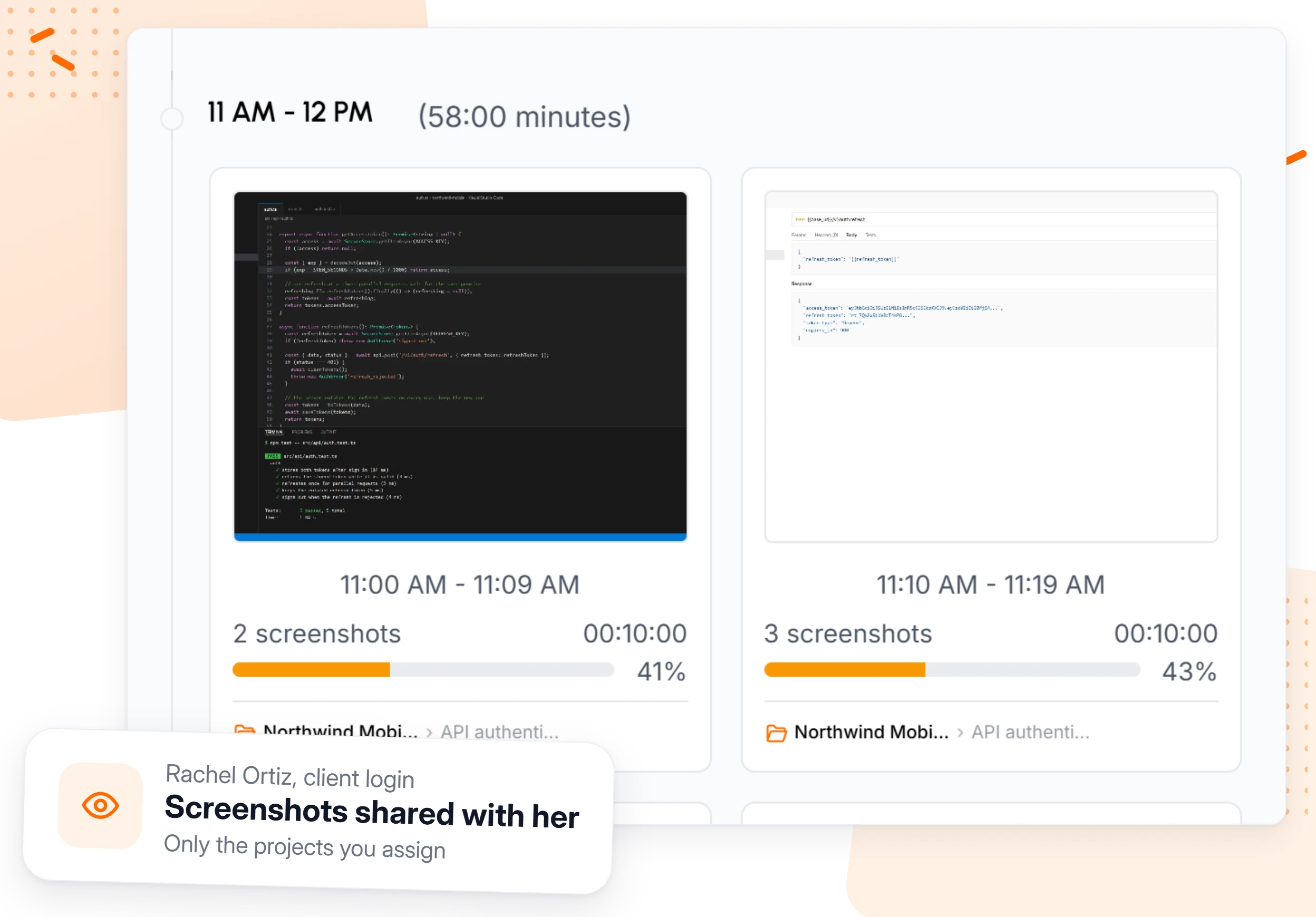
Agencies and contractors often bill hours a client never sees being worked. With the client portal, each person at the client gets a view-only login, and you decide what they may open. Clients get no screenshots until you enable them for that client. It also suits freelancers whose clients want to see the work behind the bill.
- A client sees only the projects you assign them
- Task and member names stay hidden unless you share those screens
- The same record backs your invoices and your pay runs
Use cases
Who uses time tracking with screenshots
Screenshots answer a different question for each kind of team. Start with the one closest to yours.
- Staffing agencies Show each client the work of the people you placed
- Virtual assistant agencies Split a VA's day across the clients they serve
- Agencies and studios Back every billed hour on a client project
- Remote teams Check progress across time zones without a meeting
- Consultants Send clients evidence along with each timesheet
- Proof of work Turn tracked hours into a record a client can open
Intervals
Screenshot intervals from 3 to 60 minutes
Choose how often the app captures: every 3, 5, 10, 15, 20, 30 or 60 minutes. It runs on a fixed schedule rather than at random. A short interval builds a dense record, and a long one stays out of the way of deep work. For the full set of options, read about our screenshot settings in detail.
- Every 3 minutes: about 160 captures per monitor in an 8 hour day
- Screenshots every 10 minutes: about 48, a common middle ground
- Every 30 or 60 minutes: a light record for trusted senior staff
- One default for the organization, and a different interval for any member
Who can change the schedule
Only the organizer and Business Managers can edit intervals and screenshot
switches. Team managers and members can't change them.
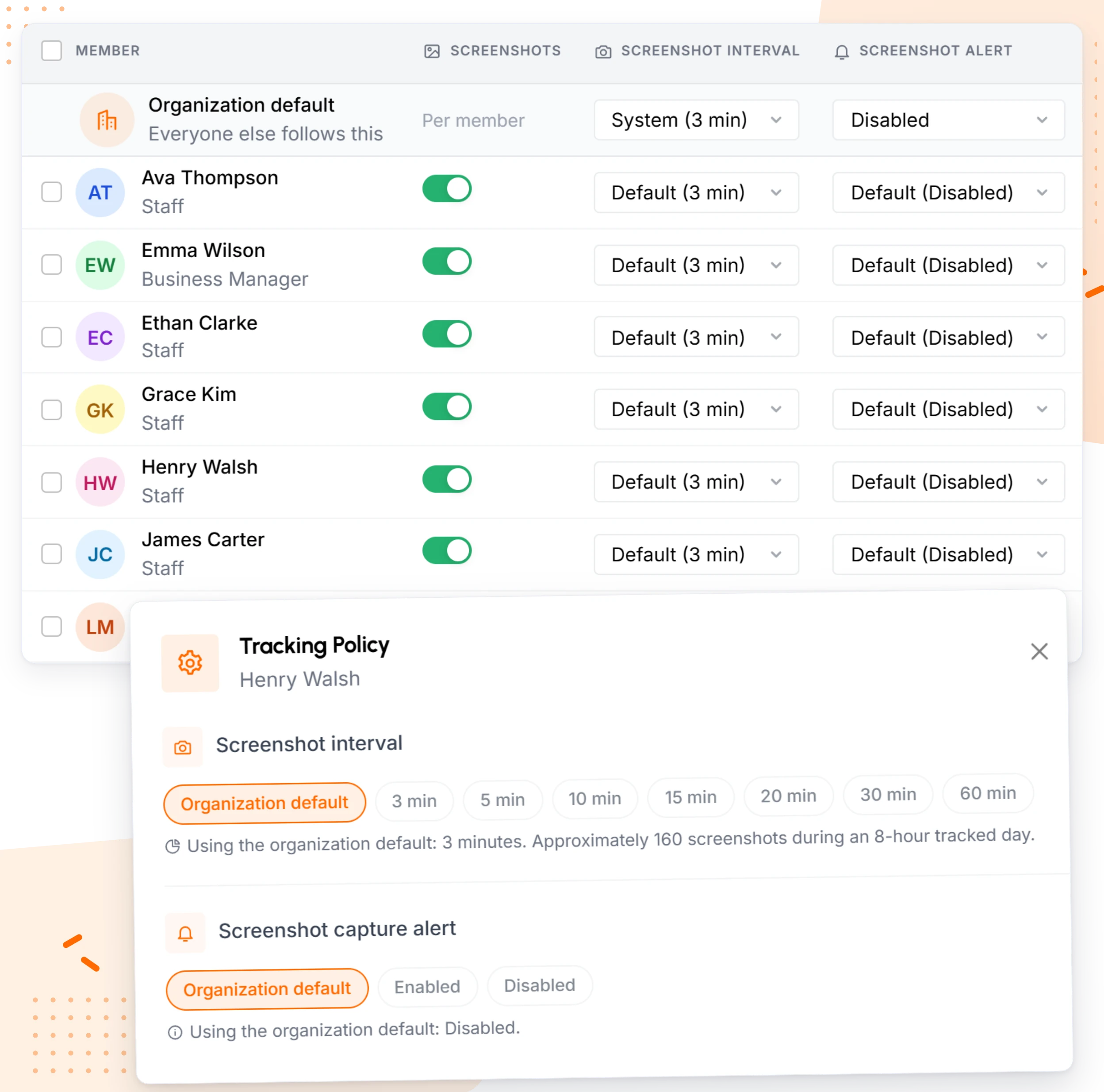
Rollout
Screenshot monitoring your team can accept
How you introduce employee screenshot monitoring matters more than the tool itself. Teams that accept it tend to follow the same few steps.
- Tell people before you switch it on, and say what the captures are for
- Pick an interval that fits the work, not the most frequent one
- Turn on the screenshot alert if people want a notice at each capture
- Switch screenshots off for anyone who handles private data, and keep tracking their time
- Remind members they can open their own captures whenever they like
Changes are never silent
When an organizer or Business Manager switches someone's screenshots on or off,
that person gets a notice in the desktop app.
Buyer's checklist
What to look for in a screenshot time tracker
Plenty of tools capture screens. These details decide whether a time tracking tool with screenshots gives you captures that are useful and fair. Here is how TimoDesk handles each one.
01
Captures tied to a task
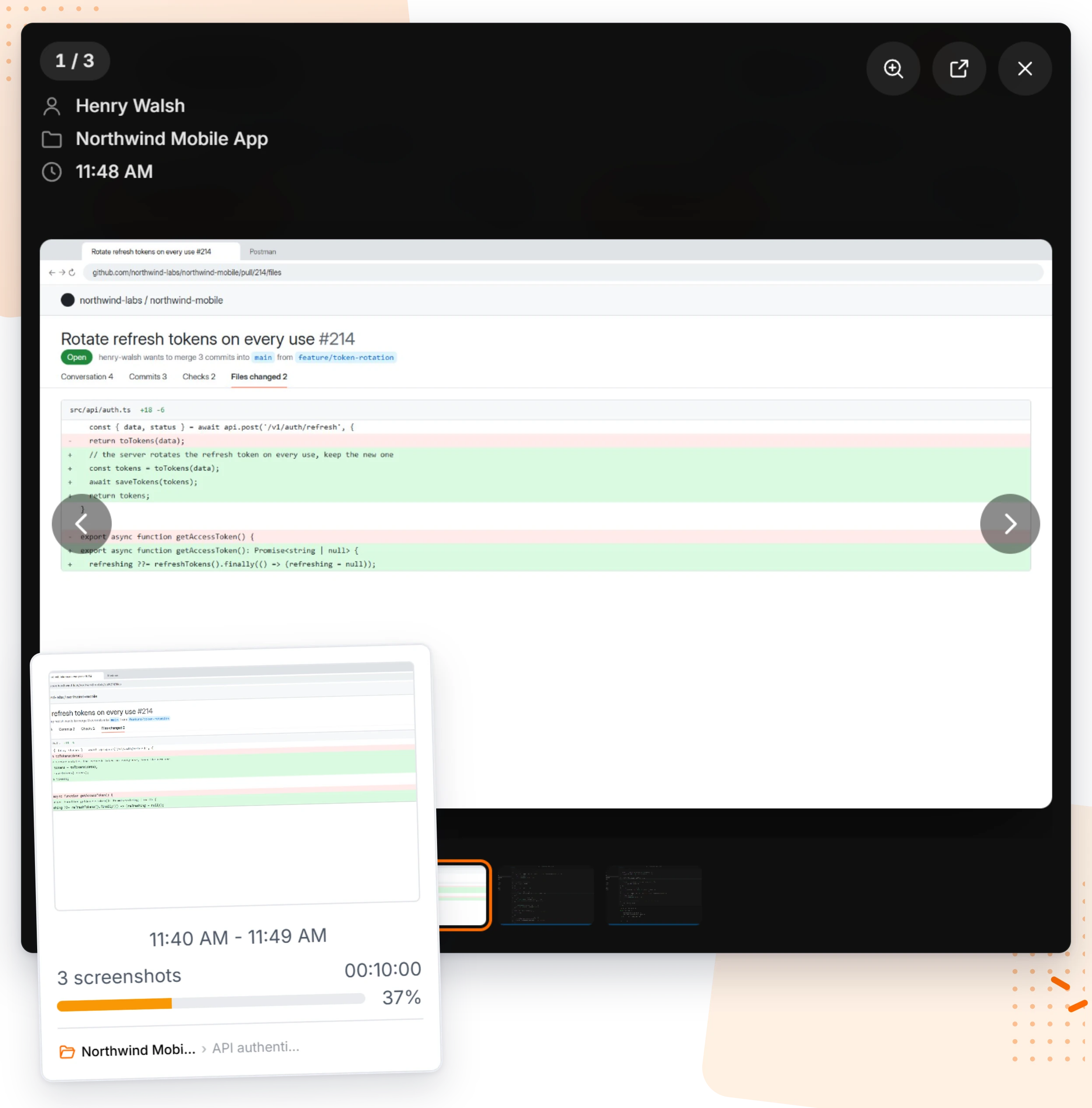
A picture with no context proves little. Each one is filed under the project and task being tracked.
02
Idle captures dropped
Captures from idle stretches are discarded on the computer before upload, so nobody reviews an empty desk.
03
Control for each person
Change the interval or the alert for one member, or switch their screenshots off, without touching anyone else.
04
Every monitor included
People with two or three screens get one image per screen, taken at the same moment.
05
Works through outages
When the internet drops, captures wait on the computer and upload after it reconnects.
06
Client access you control
Share captures through a client login only when you decide to.
07
Storage you choose
Keep images with TimoDesk, or send them to an Amazon S3 bucket or FTP server you run.
08
A fair price per user
Some tools reserve screenshots for a higher tier. TimoDesk has one plan for every feature.
Context
Track employee screen activity in context
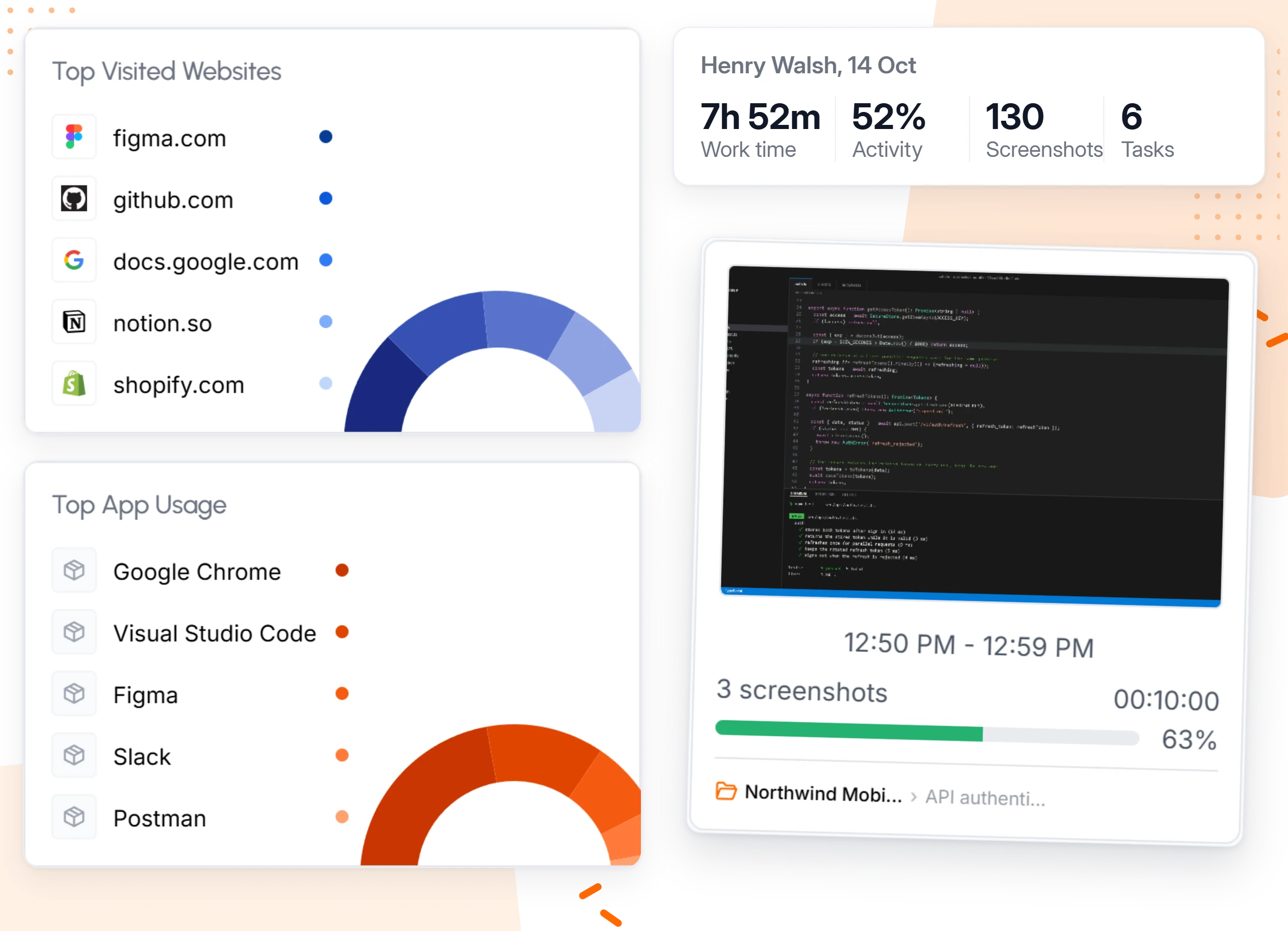
One capture shows a single moment. As a time tracker with screenshots and activity monitoring, TimoDesk fills in the rest of the day around it: total work time, average activity, and the apps and websites the member relied on most.
- Activity levels measure how much the keyboard and mouse are used, not which keys
- The most used apps and websites for that member and day
- Detailed app and website usage by project and task
- A daily capture count, so gaps are easy to spot
Privacy
Privacy: what screenshot monitoring captures and what it doesn't
Trust depends on clear limits. These apply in every TimoDesk desktop app, with nothing to configure.
Captured
During tracked time only
- A still image of each monitor, at your interval
- A count of keyboard and mouse use
- Which apps and websites were open
- The task and time behind every image
Not captured
Anything off the clock
- The screen after the timer stops
- Typed text or the keys behind it
- Video of the screen
- Images from idle periods
- Members whose screenshots are switched off
Access
Visibility by role
- Organizers and Business Managers: the whole organization
- Team managers: the teams they lead
- Members: their own captures
- Clients: only with your permission
- Storage: TimoDesk, or your own S3 bucket or FTP server
Platforms
Time tracker with screenshots for Windows, Mac and Linux
Install the desktop app on each computer you want tracked. A member's screenshot settings apply on whichever system they use.
Windows
Windows 10 and 11
A signed installer. Once the timer starts, every connected monitor is captured. Time tracker for Windows
Mac
Apple silicon and Intel
macOS asks for Screen Recording permission once. After that, captures run on schedule. Time tracker for Mac
Linux
Major distributions
Captures work in X11 (Xorg) desktop sessions. Under Wayland, the app skips screenshots. Time tracker for Linux
Pricing
Pricing for a time tracker with screenshots
There is a single plan, so screenshots are never a paid extra.
01
$1 per user per month
You pay the same for each member who tracks time that month.
02
Nothing held back
Screenshots, activity, app and website usage, timesheets, reports and the client portal share one plan.
03
15-day free trial
Try it with your team before you pay. No card is needed to start.
04
No annual contract
Pay month to month, with no seat minimum.
FAQ
Questions about time tracking with screenshots
Straight answers to what people search for before they choose a screenshot time tracker.
Is it legal to take screenshots of employees' screens?
In many places it is allowed on work computers during work time, but the rules differ by country and state. Some places require notice, consent or a clear purpose. Tell employees in writing what is captured and why, and get consent where the law asks for it. This is general information, not legal advice, so check the rules where your team works.
Can employees see their own screenshots?
Yes. Every member can open their own screenshots in the TimoDesk dashboard. Team managers can open the teams they manage, and organizers and Business Managers can open everyone's.
How often should screenshots be taken?
It depends on the work. Every 10 minutes suits most teams. Pick 3 or 5 minutes when a client wants a dense record, and 30 or 60 minutes for experienced staff doing long, focused work. TimoDesk offers 3, 5, 10, 15, 20, 30 and 60 minutes.
Does it record video or keystrokes?
No. TimoDesk saves still images, never video. It counts how often the keyboard and mouse are used to work out an activity level, but it never logs which keys were pressed or what someone typed.
Are the screenshots taken at random times?
No. Captures follow the interval you choose, and they only happen while the member is tracking time. There is no random mode, so the schedule is easy to explain to the team.
Does it capture anything when the timer is off?
No. Capture starts when a member presses play and stops when they stop the timer. Breaks, lunch and time after work are never captured.
What happens if someone works on two or three monitors?
The app saves a separate image of each monitor at the same moment, so a reviewer sees the whole workspace and not just the main screen.
Can screenshots be blurred or deleted?
There is no blur option, and screenshots cannot be deleted from the dashboard. They are also not removed on a schedule. For anyone who handles private data, switch their screenshots off and keep tracking their time and activity.
Does screenshot tracking work without internet?
Yes. While the computer is offline, captures wait on the device. They upload on their own once the connection is back.
How much does a time tracker with screenshots cost?
TimoDesk costs $1 per user per month, and screenshots come with every other feature on the same plan. You can start with a 15-day free trial, with no card needed.
What is the best time tracker with screenshots for a small team?
The one that fits your work and your budget, so test it on your own team first. For a small team, check the price per person, whether screenshots cost extra and whether there is a seat minimum. TimoDesk has one $1 plan with every feature, no seat minimum and no annual contract, and you are billed after the month only for members who tracked time. Screenshots are taken every 3 to 60 minutes and filed under each task, on Windows, macOS and Linux.
Start tracking time this week
Create your organization and invite your team today. Tracked time shows on the dashboard the same day, and the first full-day reports are ready the next day. $1 per user per month, with every feature included.
- $1 per user / month
- 15-day free trial, no card
- Stop anytime. No contract.
